Windows Drag And Drop Tips That Will Change How You Work
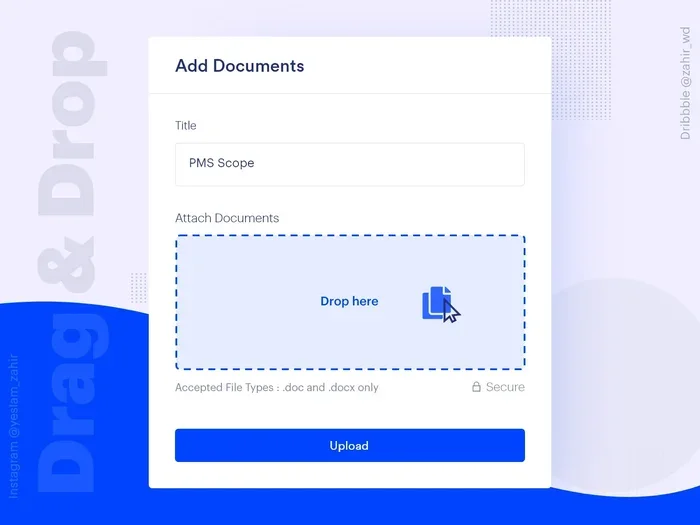
Windows drag and drop is one of the simplest yet most powerful features for moving files, folders, and content across your computer. In this guide, you will learn expert drag and drop tips that save time and boost your daily productivity. Whether you use Windows 10 or Windows 11, these tricks will change how you work forever.
Key Takeaways
- Drag and drop basics work across files, folders, and apps: Mastering the fundamentals makes everyday tasks faster and easier.
- Keyboard shortcuts enhance drag and drop efficiency: Using Ctrl, Shift, and Alt with drag and drop unlocks powerful options like copying and creating shortcuts.
- Drag and drop between windows saves significant time: Moving content between two open windows is seamless once you know the right technique.
- Common drag and drop issues are easy to fix: Problems like drag and drop not working often have simple solutions.
- Advanced drag and drop tricks elevate your workflow: Features like grouping, snapping, and multi-select make file management a breeze.
- Performance matters for smooth drag and drop: A well-optimized PC handles drag and drop tasks without lag or freezing.
📑 Table of Contents
- Windows Drag And Drop Tips That Will Change How You Work
- Understanding Drag And Drop Basics
- Essential Drag And Drop Keyboard Shortcuts
- Drag And Drop Between Windows and Apps
- Fixing Common Drag And Drop Problems
- Advanced Drag And Drop Tricks for Power Users
- Optimizing Your PC for Smooth Drag And Drop
- Conclusion
Windows Drag And Drop Tips That Will Change How You Work
Drag and drop is one of the most intuitive features in Windows. You click something, hold it, move it, and release it. Sounds simple, right? But most people only use a tiny fraction of what drag and drop can do. The truth is, learning a few drag and drop tips can seriously speed up your daily routine.
Whether you are a student organizing research files or a professional managing hundreds of documents, drag and drop in Windows helps you get things done faster. In this article, I will share practical tricks, hidden shortcuts, and fixes for common problems. By the end, you will wonder how you ever worked without these methods.
The beauty of drag and drop on desktop is that it works everywhere. File Explorer, the desktop, between open apps, and even across monitors. Once you build these habits, you will notice a real difference in how fast you complete tasks. Let us dive in and explore the tips that matter most.
Understanding Drag And Drop Basics
Before we jump into advanced tricks, let us nail down the fundamentals. Understanding the basics of drag and drop functionality ensures you get the most out of every tip below.
At its core, drag and drop involves three simple steps:
- Click and hold the item you want to move.
- Drag it to the desired location on your screen.
- Release the mouse button or trackpad to drop the item.
That is it. But here is where it gets interesting. Windows interprets different drag and drop actions in specific ways. For example, dragging a file to a folder usually moves it. But holding the Ctrl key while dragging creates a copy instead. This single trick alone can save you minutes every day.
Another important detail is understanding the difference between moving and copying. When you drag a file to a different drive, Windows moves it by default. When you drag it within the same drive, it also moves it. But if you hold Ctrl during the drag, Windows creates a duplicate. This behavior applies to drag and drop files and folders alike.
Why Drag And Drop Matters for Productivity
You might wonder why this matters so much. Think about how often you move files around. Organizing photos, sorting documents, copying project folders, or rearranging desktop icons. Every one of these tasks involves drag and drop in explorer. By mastering the basics, you build a foundation for faster, smoother work.
Many users stick to right-clicking, copying, and pasting. And that works. But drag and drop eliminates extra steps. You do not need to navigate menus or remember keyboard combos for basic operations. It is direct, visual, and satisfying. Once you start using these tips regularly, you will wonder why you ever relied on older methods.
Essential Drag And Drop Keyboard Shortcuts
Here is where things really level up. Combining drag and drop with keyboard shortcuts opens up a whole new world of efficiency. These drag and drop shortcuts work across Windows 10 and Windows 11.
| Shortcut | Action |
|---|---|
| Drag only | Moves the file or folder |
| Ctrl + Drag | Creates a copy of the file |
| Shift + Drag | Moves the file (forces move even across drives) |
| Ctrl + Shift + Drag | Creates a shortcut to the file |
| Alt + Drag | Opens the file’s context menu during drag |
Let me walk you through each one. The Ctrl + Drag trick is probably the most useful. Imagine you have a folder of vacation photos. You want to keep the originals in one place and also have a copy in another folder. Just hold Ctrl and drag. Done. A perfect copy appears in the new location.
The Shift + Drag shortcut is handy when you are moving files between different drives. Normally, dragging between drives creates a copy. But holding Shift forces Windows to move the file instead. This is a great way to avoid accidentally duplicating important documents.
For those who like keyboard-driven workflows, Ctrl + Shift + Drag creates a shortcut. This works beautifully on the desktop or inside File Explorer. You get quick access to files without cluttering your workspace with duplicates.
How These Shortcuts Work in Real Life
Let me give you a practical example. Say you are working on a project with multiple folders. You need to move a spreadsheet from your Downloads folder to your Project folder, create a backup copy in a separate drive, and make a shortcut on your desktop. Without shortcuts, this would take several steps. With drag and drop shortcuts, you can do all three in under a minute.
Start by dragging the file normally to move it. Then hold Ctrl and drag to the backup drive. Finally, hold Ctrl + Shift and drag to the desktop. Three tasks, one smooth workflow. Once you practice this a few times, it becomes second nature.
Drag And Drop Between Windows and Apps
One of the most underrated features of drag and drop between windows is its versatility. You are not limited to moving files between folders. You can drag content between different applications, browser tabs, and even across multiple monitors.
For example, you can drag an image from your desktop directly into a Word document. Or drag a link from your browser into an email draft. You can even drag text from one application and drop it into another. This cross-app functionality makes drag and drop on laptop an incredibly powerful tool.
If you use dual monitors, drag and drop becomes even more valuable. You can drag a file from your main screen to your secondary monitor and drop it into an open app. This is perfect for multitasking setups where you want to keep your reference materials visible while working.
Dragging Files Into Email and Messaging Apps
A quick tip that many people overlook: you can drag files directly into email or messaging windows. In Outlook, simply drag a file from File Explorer into a new email message. The file attaches automatically. No need to click the attach button and browse for the file.
The same works in Skype, Teams, and most messaging apps. Just drag the file into the chat window. This is a huge time saver when you send files to colleagues frequently. If you are curious about what other features Skype supports, check out the Skype system requirements and features page for more details.
Using Drag And Drop With Browser Downloads
You can also use drag and drop inside your web browser. Drag a downloaded file from your browser’s download bar directly to a folder on your desktop. Or drag a bookmark from your bookmarks bar to the desktop to create a shortcut. These small efficiencies add up over weeks and months of daily use.
Fixing Common Drag And Drop Problems
Sometimes drag and drop not working can be incredibly frustrating. You click, hold, drag, and nothing happens. Or the file jumps back to its original location. These issues are more common than you might think, and most have simple fixes.
The first thing to check is whether your mouse or trackpad is working correctly. A worn-out mouse sensor or a dirty trackpad can cause erratic behavior. Try using a different mouse if possible. If the problem goes away, you know the issue is with your input device.
Another common cause is Windows Explorer freezing or lagging. When File Explorer is not responding properly, drag and drop operations fail. You can try restarting Explorer by opening Task Manager, finding Windows Explorer, and clicking Restart. This refreshes the file management system and often resolves the issue immediately.
When Drag And Drop Stops Working After Updates
Windows updates sometimes cause unexpected issues. After a major update, you might notice that drag and drop behaves strangely. Files refuse to drop into certain folders, or the drag cursor disappears mid-operation. This is a known issue that Microsoft has addressed in subsequent patches.
Make sure your system is fully up to date. Go to Settings, then Windows Update, and check for the latest patches. Often, a simple update fixes these problems. If the issue persists, restarting your computer can also help reset the file management system.
If you are dealing with a slow or freezing computer that affects your drag and drop experience, check out this guide on how to fix computer running slow and freezing for proven solutions.
Drag And Drop Issues With Specific File Types
Some file types cause more drag and drop problems than others. Large video files, for instance, may fail to drag if the system is low on memory. Similarly, files with special characters in their names sometimes cause errors during drag operations. Renaming the file to remove special characters usually fixes the issue.
If you are working with a laptop that has limited RAM, drag and drop performance can suffer. Upgrading your memory or using a system with better specs can make a noticeable difference. You can explore options like laptop with i7 processor and 8gb ram for systems that handle file operations smoothly.
Advanced Drag And Drop Tricks for Power Users
Once you are comfortable with the basics and shortcuts, it is time to explore advanced techniques. These drag and drop tips separate casual users from power users who work efficiently.
Tip 1: Drag and drop for quick sorting. In File Explorer, you can drag files into sorted folders. For example, drag all your PDF documents into a specific folder for quick organization. This works especially well when you have a messy desktop or Downloads folder.
Tip 2: Use drag and drop to create folder shortcuts. Drag a folder to your taskbar and hold it there. When you release, it opens a new instance of File Explorer pointing directly to that folder. This is a great way to access frequently used directories quickly.
Tip 3: Drag and drop multiple files at once. Hold Ctrl and click multiple files to select them. Then drag the entire selection to a new location. This is much faster than moving files one by one. You can also use Ctrl + A to select all files in a folder and drag them together.
Tip 4: Drag and drop with the middle mouse button. If your mouse has a scroll wheel that can be pressed, clicking it while dragging creates a copy of the file. This is a lesser-known trick that works in Windows 10 and Windows 11.
Tip 5: Snap and drag for window management. Drag a window to the edge of your screen to snap it into place. Drag it to the corner to fill half the screen. This works alongside drag and drop to create an efficient multitasking environment.
Building a Drag And Drop Workflow
The real magic happens when you combine these tips into a personal workflow. Think about your daily tasks. What files do you move most often? What apps do you use together? Building a drag and drop workflow around your specific needs makes everything feel faster and more natural.
For instance, if you frequently work with spreadsheets, create a dedicated folder structure and use drag and drop to move files between project folders. Set up shortcuts on your desktop using Ctrl + Shift + Drag. Keep your most-used apps on the taskbar for easy drag and drop access.
Over time, these habits compound. You will find yourself completing tasks in half the time. And the best part is that these techniques work regardless of your hardware setup. Whether you are on a lightweight laptop or a powerful desktop, drag and drop in Windows adapts to your workflow.
Optimizing Your PC for Smooth Drag And Drop
Even the best drag and drop techniques suffer on a slow computer. If your system takes forever to respond when you drag files, it is time to optimize. A well-tuned PC makes every drag and drop action feel instant and responsive.
Start by freeing up disk space. A nearly full hard drive slows down file operations significantly. Aim to keep at least 15-20% of your storage free. If you are using a traditional hard drive, consider upgrading to an SSD. The speed difference is dramatic and benefits every aspect of file management, including drag and drop performance.
Next, make sure your system has enough RAM. Windows 10 and Windows 11 both benefit from at least 8GB of RAM for smooth multitasking. If you are running low on memory, closing unnecessary background programs helps. You can also explore options like a Windows 10 laptop with 8gb ram for reliable performance.
Finally, keep your drivers and Windows system updated. Graphics drivers, in particular, affect how smoothly drag and drop animations render. A simple driver update can sometimes fix stuttering or lag during file operations.
Quick Tips for Maintaining Drag And Drop Speed
- Restart your computer regularly to clear temporary files.
- Disable unnecessary startup programs to free up system resources.
- Use an SSD instead of a traditional hard drive for faster file operations.
- Keep your Windows system updated for the latest performance improvements.
- Avoid dragging extremely large files over network connections when possible.
These small changes make a big difference. When your system runs smoothly, drag and drop feels effortless. You can focus on your work instead of waiting for files to move.
Conclusion
Windows drag and drop is far more powerful than most people realize. From basic file movement to advanced shortcuts and cross-app workflows, these tips transform a simple feature into a productivity powerhouse. The keyboard shortcuts alone can save you hours every week.
Remember that fixing common problems keeps your workflow uninterrupted. And optimizing your PC ensures that every drag and drop action feels fast and responsive. Start with one or two tips from this guide today. Practice them until they become habits. Then add more as you go.
The beauty of drag and drop in Windows is that it works everywhere. Your desktop, File Explorer, between apps, across monitors. Once you master these techniques, you will never go back to slower methods. Your future self will thank you for taking the time to learn these skills now.
Frequently Asked Questions
Why is drag and drop not working in Windows?
Drag and drop may stop working due to a frozen File Explorer, outdated drivers, or low system resources. Try restarting Windows Explorer through Task Manager or updating your graphics drivers. These steps usually resolve the issue quickly.
How do I copy a file using drag and drop instead of moving it?
Hold the Ctrl key on your keyboard while dragging the file to the new location. This forces Windows to create a copy instead of moving the original file. You will see a small icon indicating that a copy is being created.
Can I use drag and drop between two different monitors?
Yes, absolutely. Drag and drop works seamlessly across multiple monitors in Windows 10 and Windows 11. Simply drag the file or window from one screen to the other and release it in the desired location.
What should I do if drag and drop is very slow?
Slow drag and drop is often caused by low RAM, a full hard drive, or an outdated system. Free up disk space, close unnecessary programs, and make sure Windows is fully updated. Upgrading to an SSD can also dramatically improve file transfer speeds.
Can I drag and drop multiple files at the same time?
Yes, you can. Hold the Ctrl key and click on each file you want to select. Then drag the entire selection to the new location. Alternatively, press Ctrl + A to select all files in a folder and drag them together.
Does drag and drop work the same way in Windows 10 and Windows 11?
Most drag and drop features work identically in both Windows 10 and Windows 11. However, Windows 11 has a slightly redesigned File Explorer with improved visual feedback during drag operations. The keyboard shortcuts and core functionality remain the same across both versions.