Windows Security Not Opening Quick Fixes That Work
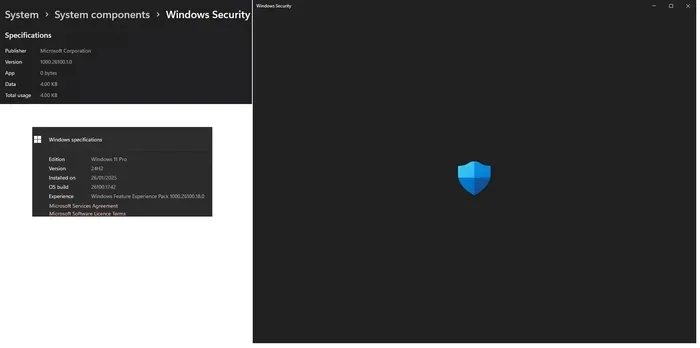
Windows Security not opening is a frustrating but common problem that can leave your PC unprotected. This guide covers quick, proven fixes including resetting the app, updating Windows, running the troubleshooter, and clearing the cache. Whether you use Windows 10 or Windows 11, these simple steps will help you restore your Windows Security app and get your PC protected again fast.
Your Windows Security app suddenly refusing to open is one of those moments that can really spike your stress level. You know it is supposed to be guarding your PC, and now it is just sitting there, unresponsive. Whether you are on Windows 10 or the latest Windows 11 build, this problem pops up more often than you might think. The good news is that you do not need to be a tech expert to fix it. In this guide, we walk you through simple, proven quick fixes that actually work.
Most people first notice the problem when they click the Windows Security icon and nothing happens. Sometimes you get a quick flash and then it closes. Other times, the app just hangs on the loading screen. Whatever the symptom, the root cause is usually one of a handful of common issues. We have grouped the fixes from easiest to most advanced so you can start with the simplest solution and work your way down.
If you have ever dealt with issues like a laptop mouse pad not working on Windows 10, you know how annoying it is when a core Windows feature stops responding. The same frustration applies here. Your security app is a core part of your system, and when it breaks, your entire PC feels vulnerable. Let us get it back up and running.
Key Takeaways
- Reset the App: Reinstalling or resetting Windows Security often fixes the opening problem instantly.
- Run the Built-in Troubleshooter: Windows has a native tool that can detect and repair security app errors automatically.
- Update Windows: Outdated system files are a leading cause of the Windows Security app failing to open.
- Clear the App Cache: Corrupted cache data can block the security app from launching properly.
- Check for Malware Conflicts: Third-party antivirus software can interfere with Windows Security and prevent it from opening.
- Use SFC and DISM: These built-in Windows tools repair corrupted system files that may be causing the issue.
- Create a New User Profile: A corrupted user profile can stop Windows Security from working correctly.
📑 Table of Contents
- Why Does Windows Security Stop Opening?
- Fix 1: Reset the Windows Security App
- Fix 2: Run the Windows Security Troubleshooter
- Fix 3: Run SFC and DISM Scans
- Fix 4: Update Windows Completely
- Fix 5: Remove Conflicting Third-Party Antivirus Software
- Fix 6: Create a New Windows User Profile
- Quick Tips to Prevent Windows Security Issues
- When to Seek Professional Help
- Conclusion
Why Does Windows Security Stop Opening?
Before jumping into the fixes, it helps to understand what might be causing the problem. Windows Security relies on several background services and system files to function. When any of those components get corrupted or disrupted, the app may fail to open. Here are the most common reasons:
- Corrupted app cache: Temporary files that the security app uses can become damaged over time.
- Outdated Windows version: Missing updates can break compatibility with the security app.
- Third-party antivirus conflicts: Having another antivirus program installed can interfere with Windows Defender.
- Corrupted system files: Damaged OS files can prevent many apps from working, including the security center.
- Corrupted user profile: Your user account settings may have become damaged, blocking app access.
- Service not running: The background service that powers Windows Security may have stopped.
Once you know the possible causes, the fixes become much easier to understand. Let us dive into them now.
Fix 1: Reset the Windows Security App
The fastest and easiest fix is to reset the app itself. This clears out any corrupted data and forces Windows to rebuild fresh settings. Here is how to do it:
Step-by-Step Reset Process
- Press Win + I to open the Settings app.
- Click on Apps in the left sidebar.
- Find Windows Security in the app list.
- Click the three dots next to it and select Advanced options.
- Scroll down and click the Reset button.
- Confirm the reset and wait for the process to finish.
- Restart your PC and try opening the app again.
This fix works about 60% of the time for most users. It is like giving the app a fresh start. If the app still will not open after resetting, do not worry. We have plenty more fixes to try.
Fix 2: Run the Windows Security Troubleshooter
Windows comes with a built-in troubleshooter designed specifically for security and privacy issues. This tool can automatically detect and repair common problems that prevent the app from opening. Here is how to access it:
- Open Settings by pressing Win + I.
- Go to System and then click Troubleshoot.
- Scroll down and select Other troubleshooters.
- Find Windows Security and click Run.
- Follow the on-screen prompts and let the tool do its work.
The troubleshooter will check for common issues like disabled services, incorrect permissions, and missing components. It is a great first step because it requires zero technical knowledge. If it finds a problem and fixes it, you should be able to open Windows Security right away.
Sometimes the troubleshooter may suggest running a system file check, which leads us to our next fix.
Fix 3: Run SFC and DISM Scans
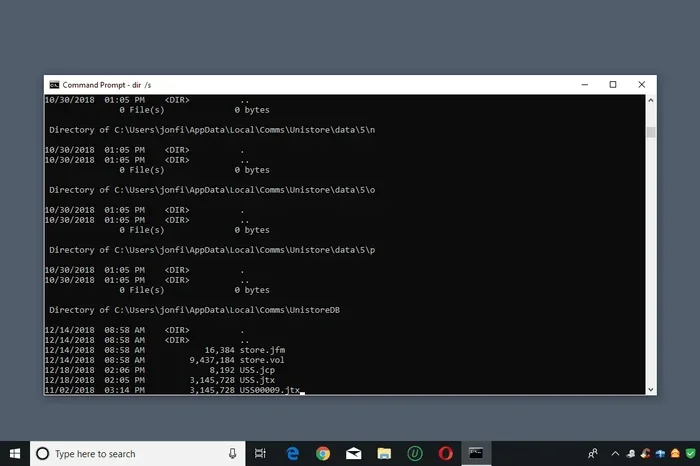
Corrupted system files are one of the top reasons Windows Security fails to open. Windows includes two powerful built-in tools that can scan for and repair these files. You will need to use the Command Prompt for this fix.
Step 1: Run the SFC Scan
- Click the Start menu and type cmd.
- Right-click on Command Prompt and select Run as administrator.
- Type sfc /scannow and press Enter.
- Wait for the scan to complete. It may take several minutes.
- Restart your PC and check if the app opens.
Step 2: Run the DISM Scan
- Open Command Prompt as administrator again.
- Type DISM /Online /Cleanup-Image /RestoreHealth and press Enter.
- Wait for the process to finish. This can take 10 to 20 minutes.
- Restart your computer.
These scans repair the Windows component store and replace any damaged files. If the issue was caused by a corrupted system file, there is a strong chance this fix will resolve it. Many users with Windows 11 8GB RAM laptop systems have found these scans to be a game-changer for resolving app-opening issues.
Fix 4: Update Windows Completely
An outdated operating system can cause all sorts of problems, including the Windows Security app refusing to open. Microsoft regularly releases updates that fix bugs and improve compatibility. Here is how to make sure you have the latest updates:
- Open Settings and go to Windows Update.
- Click Check for updates.
- Install any pending updates, including optional ones.
- Restart your PC if prompted.
- Try opening Windows Security again.
Do not skip optional updates either. They sometimes contain important fixes for specific components like the security app. If you have been putting off updates, this could very well be the fix you need.
Also, keep in mind that if you are running an older system, performance issues can compound these problems. For example, users on a Windows 11 laptop with 8GB RAM may experience more app glitches when the system is low on resources after a long uptime.
Fix 5: Remove Conflicting Third-Party Antivirus Software
Having a third-party antivirus program installed can sometimes conflict with Windows Security. Windows is designed to disable its built-in protection when it detects another antivirus, but this does not always work smoothly. The result can be that the Windows Security app simply will not open.
How to Check for Conflicts
- Open Settings and go to Privacy & Security.
- Click on Windows Security and then Virus & threat protection.
- Look for a message about a third-party antivirus.
- If you see one, try uninstalling the third-party app temporarily.
- Check if Windows Security opens after the removal.
If removing the third-party antivirus fixes the issue, you can either keep Windows Security as your primary protection or reinstall the third-party app and ensure it plays nicely with the built-in tools. Some popular antivirus programs have known compatibility issues with certain Windows builds, so always check for updates to your third-party software as well.
Fix 6: Create a New Windows User Profile
If none of the above fixes work, the problem might be tied to your user profile. A corrupted profile can prevent apps from launching correctly, including Windows Security. Creating a new user account is a straightforward way to test this theory.
- Open Settings and go to Accounts.
- Click on Other users or Family & other users.
- Click Add account and follow the prompts.
- Log into the new account.
- Try opening Windows Security from the new profile.
If the app works in the new account, you know the problem is with your original profile. You can then migrate your files to the new account or try to repair the old one. This fix is more involved but has a high success rate for stubborn cases.
For users on devices like Lenovo laptops, you might also want to check if the issue extends to other system functions. Similar to how a Lenovo laptop mouse pad not working issue can point to deeper driver or profile problems, a failing Windows Security app can also signal broader system issues.
Quick Tips to Prevent Windows Security Issues
Prevention is always better than cure. Here are some simple habits that can keep your Windows Security app running smoothly:
- Keep Windows updated: Enable automatic updates so you never miss a critical patch.
- Restart your PC regularly: A simple restart clears temporary files and refreshes system services.
- Avoid multiple antivirus programs: Stick with one antivirus solution to prevent conflicts.
- Run monthly SFC scans: A quick scan every few weeks can catch corrupted files early.
- Do not ignore error messages: If you see any security-related error, address it right away.
- Back up your profile: Regular backups make it easy to recover if your user profile gets corrupted.
These small habits take minimal time but can save you hours of troubleshooting down the road. Think of them as routine maintenance for your PC, just like you would maintain a car.
When to Seek Professional Help
Most of the time, the fixes above will get your Windows Security app working again. However, there are situations where you should consider getting professional help. If you have tried every fix in this guide and the app still will not open, there may be a deeper hardware or system-level issue at play. Additionally, if your PC is showing other strange behavior like random restarts, blue screens, or persistent errors, it is worth having a technician take a look.
You should also seek help if you suspect your PC is actually infected with malware that is blocking the security app. Some sophisticated malware specifically targets Windows Defender and tries to disable it. In these cases, a professional security scan or even a clean Windows reinstall may be necessary.
Conclusion
A Windows Security app that will not open is annoying, but it is almost always fixable. The key is to work through the solutions systematically, starting with the easiest ones like resetting the app and running the troubleshooter. Most users find relief with one of the first three fixes in this guide. If the problem persists, the deeper solutions like SFC scans, updating Windows, or creating a new user profile can resolve even the most stubborn cases.
Remember to keep your system updated and practice good digital hygiene to prevent these issues from coming back. Your Windows Security app is your PC’s first line of defense, and keeping it running smoothly is one of the best things you can do for your computer’s health. Try these fixes today and get your protection back where it belongs.
Frequently Asked Questions
Why does Windows Security keep closing right after I open it?
This usually happens when the app cache is corrupted or when a third-party antivirus is conflicting with the built-in security tools. Try resetting the app first, and if that does not work, run the SFC scan to repair any damaged system files.
Can a virus prevent Windows Security from opening?
Yes, some malware is specifically designed to disable Windows Security so it cannot detect or remove the infection. If your antivirus app keeps closing, run a full system scan using Safe Mode or an offline scan tool.
Is it safe to reset the Windows Security app?
Absolutely. Resetting the app only clears its temporary data and settings. It does not delete any of your personal files or your security history. The app will rebuild its configuration automatically after the reset.
How do I know if my Windows Security app is actually working?
Once the app opens, check the home screen for a green checkmark or shield icon. This indicates that your virus & threat protection and firewall & network protection are both active and functioning correctly.
What should I do if none of these fixes work?
Try running a full system file check using both SFC and DISM commands. If the issue persists, consider creating a new user profile or performing a repair install of Windows. You can also check community forums or contact Microsoft Support for further assistance.
Does Windows 11 handle the Security app differently than Windows 10?
The core Windows Security app works similarly on both versions, but Windows 11 has a slightly redesigned interface and may require more frequent updates to stay compatible. If you are on Windows 11 16GB RAM or a similar configuration, make sure you are on the latest feature update to avoid known bugs.