Fix 100 Disk Usage On Windows 10 With These Simple Tips

100 disk usage on Windows 10 is a frustrating problem that makes your computer slow and unresponsive. This guide walks you through the real causes and simple fixes that actually work. You will learn how to check disk usage, disable resource-heavy services, and prevent the problem from coming back.
Have you ever noticed your Windows 10 laptop suddenly becoming super slow? Maybe your cursor starts lagging, programs take forever to open, or the whole system feels frozen. One of the most common reasons for this is 100 disk usage on Windows 10. It is a problem that frustrates millions of users, but the good news is that it is usually easy to fix.
When your disk usage hits 100 percent, your system struggles to keep up. The hard drive becomes overwhelmed, and every task you try to do gets backed up. This guide will show you exactly what causes this issue and how to fix it step by step. Whether you are dealing with constant slowdowns or occasional spikes, you will find practical solutions here.
We will cover everything from checking your task manager to tweaking Windows services and even upgrading your hardware. By the end, you will know how to stop high disk usage in its tracks and keep your PC running smoothly. Let us dive in and get your system back to normal.
Key Takeaways
- High disk usage often stems from Windows services like SuperFetch and Windows Search.
- Checking Task Manager is the first step to identifying what is causing 100 disk usage.
- Simple fixes like disabling services and running disk cleanup can resolve the issue quickly.
- Keeping your system updated and free of malware helps prevent future disk spikes.
- Hardware upgrades like adding more RAM reduce reliance on your hard drive.
- An SSD upgrade can dramatically improve disk performance on older Windows 10 machines.
- Regular maintenance keeps your system healthy and avoids the 100 percent disk usage problem.
📑 Table of Contents
What Causes 100 Disk Usage On Windows 10
Understanding the root cause is the first step to fixing any problem. When your disk usage hits 100 percent, something is demanding too much from your hard drive. Here are the most common reasons this happens.
Windows Services Running In The Background
Windows 10 runs many services in the background without you even knowing. Two of the biggest culprits are SuperFetch and Windows Search indexing. SuperFetch preloads apps you use often into memory, which sounds helpful but can overload your disk. Windows Search constantly indexes files so you can find them faster, but this process can eat up your disk resources.
Another service called Windows Update sometimes downloads large updates in the background. If you have ever noticed your PC slowing down for no obvious reason, a hidden update might be the cause. These background processes are designed to help you, but they can sometimes do more harm than good.
Malware And Viruses
Malware is another common reason for 100 disk usage. Some viruses run hidden processes that consume your system resources without your knowledge. They might be mining data, sending information, or simply running useless background tasks that eat up your disk.
If you have not run a virus scan recently, this should be one of the first things you do. A full system scan can reveal hidden threats that are dragging your performance down. Keeping your antivirus software up to date is one of the best ways to prevent this problem.
Low Storage Space
Your hard drive needs free space to operate properly. When your drive is nearly full, Windows struggles to move files, create temporary data, and manage system tasks. This can easily push your disk usage to 100 percent.
A general rule is to keep at least 15 to 20 percent of your drive free. If you are running low on space, consider moving files to an external drive or cloud storage. Even simple steps like emptying your recycle bin can make a big difference.
Outdated Drivers
Old or corrupted drivers can cause all kinds of problems, including high disk usage. Your storage drivers manage how your system reads and writes to the hard drive. When these drivers are outdated, they may not work efficiently, causing unnecessary strain on your disk.
Updating your drivers is usually simple. You can use Windows Update or visit the manufacturer’s website to download the latest versions. This small step can often resolve mysterious disk usage spikes.
How To Check Disk Usage Using Task Manager
Before you start applying fixes, you need to know what is actually causing the problem. Task Manager is the best tool for this. It shows you exactly which processes are using your disk and by how much.
To open Task Manager, press Ctrl + Shift + Esc on your keyboard. Then click on the “Disk” column to sort processes by disk usage. You will see a list of all the programs and services that are putting stress on your hard drive. Look for anything using an unusually high percentage.
If you see a process you do not recognize using a lot of disk, do not panic right away. Some Windows processes use more disk than expected at times. But if a third-party app or unknown process is hogging your disk, that is likely your problem. You can right-click on it and select “End Task” to stop it temporarily.
Also, pay attention to the “System” or “ntoskrnl.exe” process. This is a core Windows process, and if it is showing high disk usage, it usually points to a deeper issue like a driver problem or a Windows service gone wrong. Checking Task Manager regularly helps you catch disk usage problems early before they slow everything down.
One thing to keep in mind: if you are working on a windows 10 laptop with 8gb ram, your system relies more on virtual memory when RAM fills up. This means your disk takes on extra work, which can push usage higher. If this sounds familiar, you might want to check out our guide on Windows 10 Laptop With 8Gb Ram for tips on managing memory better.
Simple Fixes For 100 Disk Usage
Now that you know what causes high disk usage, let us get into the fixes. These are simple steps you can try right now, and most of them do not require any technical skills.
Disable SuperFetch
SuperFetch is a Windows service that preloads your most-used apps into memory. While this sounds like a good idea, it can cause serious disk usage spikes on older systems or HDDs. Disabling it often fixes the problem immediately.
To disable SuperFetch, press the Windows key and type “services.” Open the Services app and scroll down to “SysMain” (formerly SuperFetch). Right-click on it and select “Properties.” Change the startup type to “Disabled” and click “Stop.” Then click “Apply” and “OK.” Restart your computer and check if your disk usage has improved.
Turn Off Windows Search Indexing
Windows Search indexing helps you find files faster, but it constantly reads and writes to your disk. If you do not search for files often or have a small number of documents, turning this off can free up significant disk resources.
To disable it, press the Windows key and type “services.” Find “Windows Search” in the list, right-click, and go to “Properties.” Change the startup type to “Disabled” and click “Stop.” Then apply the changes and restart your PC. You can always turn it back on if you need it later.
Run Disk Cleanup
Over time, Windows accumulates tons of temporary files, old updates, and system junk that takes up space and slows things down. Running Disk Cleanup removes all of this unnecessary data.
To use it, press the Windows key and type “Disk Cleanup.” Select your main drive (usually C:) and let the tool scan. It will show you how much space you can free up. Check the boxes for temporary files, system files, and anything else you do not need, then click “OK” to clean up. This is one of the easiest ways to reduce disk usage windows 10 problems.
Check For Malware
Running a full virus scan should be part of your regular PC maintenance. Malware can run hidden processes that consume your disk and other resources without you noticing.
Use Windows Defender or a trusted third-party antivirus to run a complete system scan. If any threats are found, remove them immediately and restart your computer. After that, check your disk usage again. You will often see a big improvement once the malware is gone.
Disable Tips And Tricks Notifications
This one surprises many people. Windows 10 has a feature that shows you tips and suggestions to improve your experience. These notifications run in the background and can contribute to high disk usage. Turning them off is quick and easy.
Go to Settings, then System, and click on “Notifications & Actions.” Scroll down and uncheck “Get tips and suggestions when using Windows.” This stops Windows from running background processes just to show you suggestions. It is a small change that can make a noticeable difference.
Check Your Virtual Memory Settings
Virtual memory is a feature that uses part of your hard drive as extra RAM when your physical memory is full. If your virtual memory settings are not configured properly, your disk usage can spike to 100 percent.
To check your settings, right-click on “This PC” and select “Properties.” Go to “Advanced system settings” and click the “Settings” button under Performance. Then go to the “Advanced” tab and click “Change” under Virtual Memory. Make sure “Automatically manage paging file size” is checked. If not, set it to a custom size that is at least 1.5 times your installed RAM.
Preventing High Disk Usage In The Future
Fixing the problem is great, but preventing it from coming back is even better. Here are some habits and settings that will help you avoid 100 disk usage in the future.
Keep Your System Updated
Windows updates often include fixes for known performance issues, including disk usage problems. Make sure your system is set to install updates automatically. Go to Settings, then Update & Security, and click “Check for updates” regularly.
Regularly Clean Up Your System
Make Disk Cleanup a weekly habit. Delete temporary files, empty your recycle bin, and remove programs you no longer use. A clean system runs faster and puts less strain on your hard drive.
Monitor Your System Regularly
Get into the habit of opening Task Manager once a week and checking your disk usage. If you notice any process using unusually high disk, you can address it before it becomes a bigger problem. Early detection is the key to keeping your PC fast.
Consider Hardware Upgrades
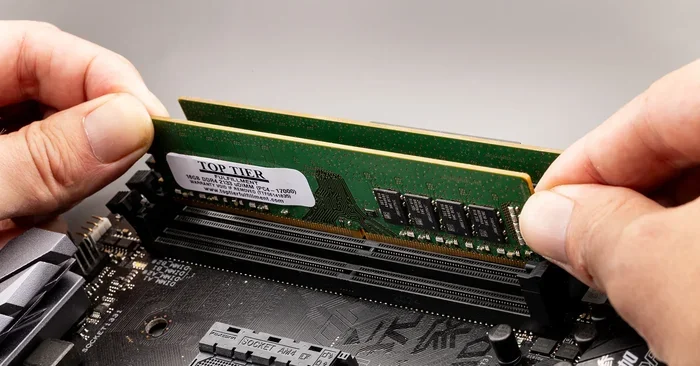
If your computer still uses an old HDD, upgrading to an SSD can transform its performance. SSDs are much faster and handle disk operations with ease. Even adding more RAM can reduce the load on your disk because your system relies less on virtual memory.
If you have a windows 10 laptop with 8gb ram and still experience disk usage issues, upgrading to 16GB of RAM might help. Check out our guide on How To Upgrade Ram On Laptop for a step-by-step walkthrough. More RAM means less reliance on your hard drive for memory management, which directly reduces disk usage.
Also, if you use a wireless mouse or other peripherals and notice lag during high disk usage periods, it could be related to your system being overwhelmed. Learn more about managing peripherals in our article on How To Connect Wireless Mouse To Laptop Windows 10.
When To Seek Professional Help
Most of the time, the fixes above will resolve your disk usage windows 10 issues. But there are situations where professional help is the right call. If you have tried all the steps and your disk usage is still at 100 percent, there might be a deeper hardware or software problem.
Signs that you need professional help include: your PC crashes frequently, you hear unusual clicking sounds from your hard drive, or your system runs slowly even after all the fixes. These could indicate a failing hard drive or a serious system corruption that needs expert attention.
Do not ignore these warning signs. A failing hard drive can lead to data loss if not addressed quickly. Back up your important files and consult a professional technician if the problem persists.
Final Thoughts
100 disk usage on Windows 10 is a common but fixable problem. By understanding what causes it and applying the right solutions, you can bring your system back to life. Start with the simple fixes like disabling SuperFetch, running Disk Cleanup, and checking for malware. These steps alone resolve the issue for most users.
Prevention is just as important as the fix itself. Keep your system updated, clean up regularly, and monitor your disk usage. If your PC is older and still using an HDD, consider upgrading to an SSD for a huge performance boost. And remember, adding more RAM can take a lot of pressure off your hard drive.
Your computer should work for you, not the other way around. With the tips in this guide, you have everything you need to stop high disk usage and keep your Windows 10 PC running smoothly. Try these fixes today and feel the difference.
Frequently Asked Questions
Why is my disk usage at 100 percent on Windows 10?
100 percent disk usage usually happens when a Windows service, background process, or malware is overloading your hard drive. Common causes include SuperFetch, Windows Search indexing, and low storage space. The fixes in this guide address all of these issues step by step.
How do I check what is using my disk on Windows 10?
Open Task Manager by pressing Ctrl + Shift + Esc and click the “Disk” column to sort processes. You will see exactly which apps and services are using the most disk resources. This helps you identify and stop the culprit quickly.
Will disabling SuperFetch hurt my PC?
No, disabling SuperFetch is safe. It may make your frequently used apps load slightly slower the first time you open them, but overall system performance usually improves. Most users with disk usage problems notice an immediate improvement after turning it off.
Can a full hard drive cause 100 disk usage?
Yes, a nearly full hard drive can cause extremely high disk usage. Windows needs free space to manage temporary files and system operations. Keeping at least 15 to 20 percent of your drive free helps prevent this problem.
Is upgrading to an SSD worth it for fixing disk usage?
Absolutely. If you are still using an old HDD, upgrading to an SSD is one of the best things you can do for your PC. SSDs are dramatically faster and handle disk operations with ease, which virtually eliminates the 100 disk usage problem.
How often should I run Disk Cleanup?
Running Disk Cleanup once a week is a great habit. It removes temporary files, old updates, and system junk that can build up over time. Combined with regular malware scans and system updates, this keeps your disk usage healthy and your PC running smoothly.
=== CONCLUSION ===
Fixing 100 disk usage on Windows 10 does not have to be complicated. With the right knowledge and a few simple steps, you can restore your PC to peak performance. The key is to identify the cause, apply the fixes that work for your situation, and build habits that prevent the problem from returning. Start today and enjoy a faster, smoother computing experience.