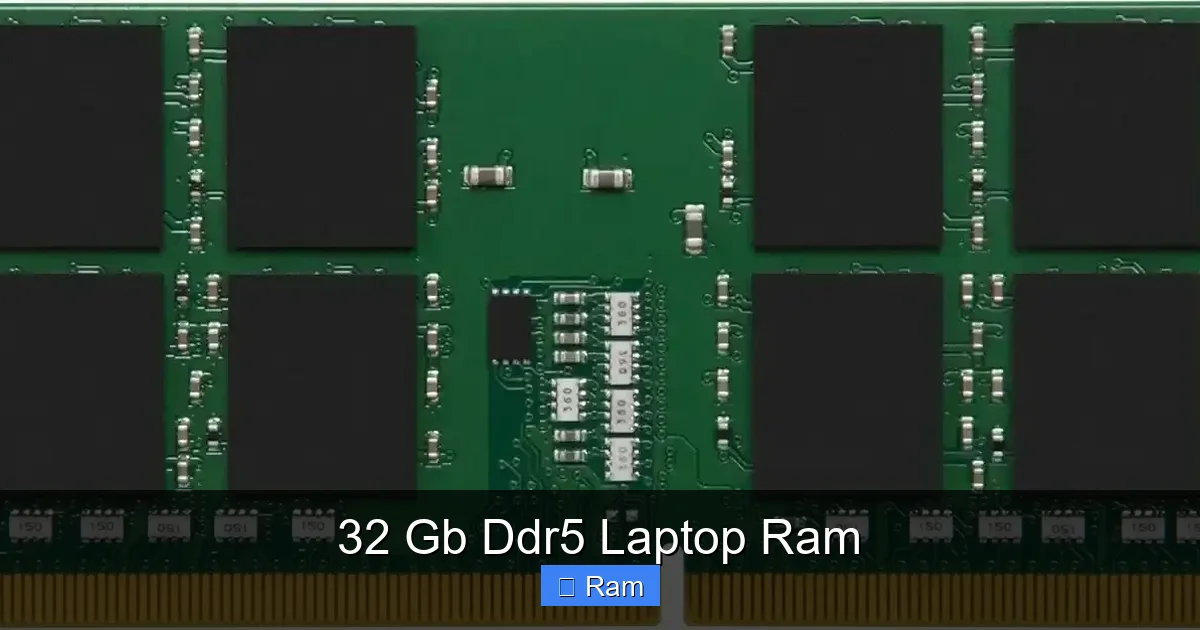
32 Gb Ddr5 Laptop Ram
32 GB DDR5 laptop RAM is a powerful upgrade for professionals and enthusiasts, offering a significant leap in speed and efficiency over older DDR4. It enables seamless multitasking with dozens of browser tabs, heavy creative applications, and virtual machines. However, it’s crucial to verify your laptop’s compatibility, as not all systems support DDR5 or have available slots. For most power users, 32GB represents the perfect sweet spot between performance and cost, future-proofing your machine for the next 3-5 years of demanding software.
Let’s be honest: when we talk about laptop specs, we often get dazzled by the latest processor or the flashiest graphics card. We read the benchmarks, watch the reviews, and dream about that rendering speed boost or that extra frame per second. But there’s one component quietly working in the background, the unsung hero of system responsiveness, that often gets overlooked until it becomes a bottleneck: system memory, or RAM. And right now, the conversation is shifting decisively towards 32 GB DDR5 laptop RAM. It’s no longer just a spec for monster desktop workstations or ultra-enthusiast gaming rigs; it’s becoming a realistic and highly beneficial target for a new class of high-performance laptops. But what does it actually do? Is it worth the upgrade cost? And most importantly, can your laptop even handle it? This guide will walk you through everything you need to know about making the leap to 32GB of DDR5 memory in your portable powerhouse.
Key Takeaways
- DDR5 is a generational leap: It offers nearly double the bandwidth and improved power efficiency compared to DDR4, directly translating to faster data access for your CPU and GPU.
- 32GB is the new “sweet spot”: For content creators, developers, engineers, and serious multitaskers, 32GB eliminates bottlenecks that 16GB faces with modern operating systems and professional applications.
- Compatibility is king: You must confirm your laptop’s chipset supports DDR5 and that it has an available SO-DIMM slot. Upgrading is impossible if your laptop uses soldered RAM only.
- It’s about workload, not just specs: The benefit is most noticeable in RAM-intensive tasks like 4K/8K video editing, 3D rendering, large dataset analysis, and running multiple virtual machines.
- Dual-channel matters: For optimal performance, install two identical 16GB sticks (totaling 32GB) rather than a single 32GB stick, if your laptop has two slots, to run in dual-channel mode.
- Future-proofing investment: As software and operating systems become more demanding, 32GB of fast DDR5 ensures your laptop remains capable and relevant for a longer period.
- Not for everyone: For general web browsing, office productivity, and casual gaming, 16GB of DDR4 or DDR5 remains more than sufficient. The 32GB DDR5 upgrade is targeted at specific high-performance use cases.
📑 Table of Contents
- The Evolution: Why DDR5 Changes the Game
- Who Actually Needs 32GB of DDR5? (It’s Not Just for “Extreme” Users)
- The Crucial Compatibility Checklist: Before You Buy Anything
- Installation: A Simple Process, Done Carefully
- Performance in the Real World: What to Actually Expect
- Is It Worth the Cost? The Value Proposition
- Making Your Decision: A Final Verdict
The Evolution: Why DDR5 Changes the Game
To understand why 32 GB DDR5 laptop RAM is such a compelling upgrade, we first need to appreciate what DDR5 brings to the table compared to its predecessor, DDR4. It’s not just a minor clock speed bump; it’s a fundamental architectural shift designed for the data-hungry workloads of today and tomorrow.
Double the Bandwidth, Same Voltage
The most immediate and noticeable improvement in DDR5 is its staggering increase in bandwidth. While a high-performance DDR4 module might peak around 3200-4266 MT/s (MegaTransfers per second), DDR5 starts at 4800 MT/s and commonly ranges from 5200 MT/s to a blistering 6400 MT/s and beyond in high-performance kits. This means the data pipeline between your RAM and the CPU/GPU is much wider. For applications that constantly shovel large amounts of data—think uncompressing a massive video project, loading intricate game worlds, or working with a colossal spreadsheet—this bandwidth is a direct ticket to reduced loading times and smoother operation. Crucially, DDR5 achieves this while operating at a standard voltage of 1.1V, the same as DDR4, making it more power-efficient per bit of data transferred.
On-Die ECC and Improved Power Management
DDR5 introduces “on-die ECC” (Error Correction Code). This isn’t the same as the server-grade registered ECC, but it allows the memory chip itself to correct certain single-bit errors before they reach the CPU. This leads to greater overall system stability and data integrity, a subtle but valuable benefit for long, critical rendering or computation tasks. Furthermore, DDR5 uses a more sophisticated power management architecture. Instead of the motherboard controlling power for all modules, each DDR5 module has its own on-board power management IC (PMIC). This allows for finer-grained voltage control, better stability at higher speeds, and improved power delivery, which is especially important in the thermally constrained environment of a laptop.
The 32GB Question: Capacity vs. Speed
Here’s where we connect the technology to the user need. You could buy a 16GB DDR5-6000 kit and have incredibly fast memory, but for many power users, that capacity would fill up in an instant. Modern operating systems like Windows 11 and macOS are more memory-resident than ever. Open 50 Chrome tabs, a few VS Code windows, Slack, Discord, and Spotify, and you can easily see 12-15GB of RAM used before even launching a demanding application. 32 GB DDR5 laptop RAM provides the essential headroom. It ensures that your system cache remains effective, that you’re not swapping sluggish data to the SSD, and that your large project files can sit entirely in fast RAM. The combination of high capacity *and* high bandwidth is what unlocks the true potential of modern multi-core CPUs.
Who Actually Needs 32GB of DDR5? (It’s Not Just for “Extreme” Users)
The old rule of thumb was “gaming needs 16GB, everything else needs 8GB.” That rule is obsolete. The line for who benefits from 32GB has moved dramatically. It’s not about being an “extreme” user; it’s about being a *productive* user with a specific workflow.
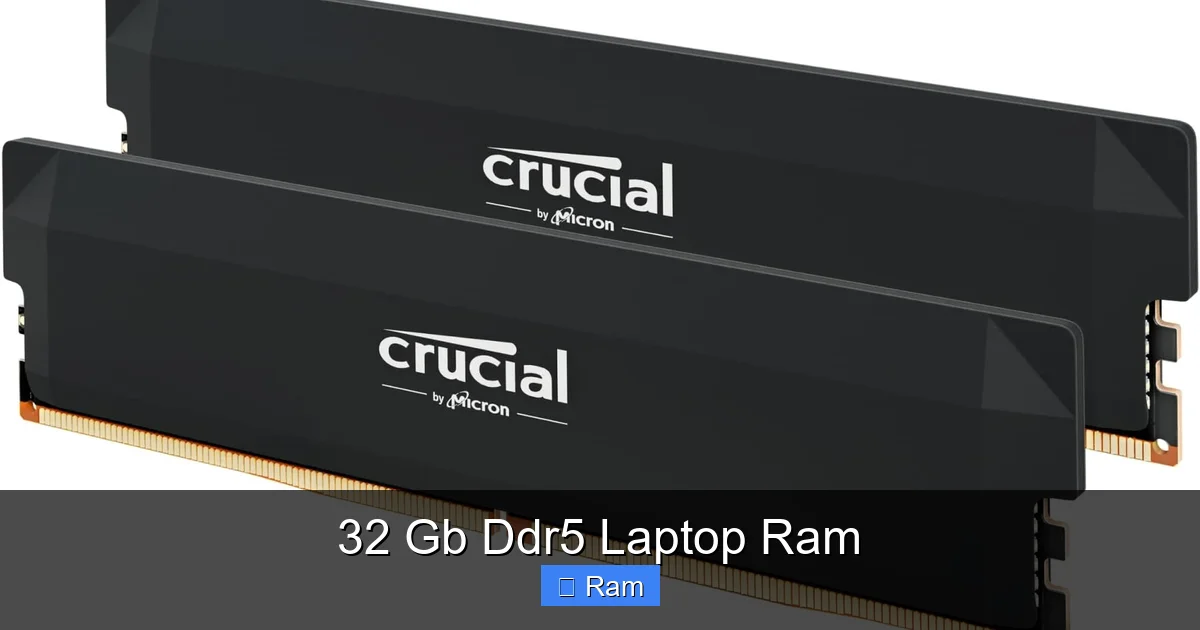
Visual guide about 32 Gb Ddr5 Laptop Ram
Image source: m.media-amazon.com
The Creative Professional: Video Editors, 3D Artists, Photographers
This is the primary demographic. If you work with 4K, 6K, or 8K video footage, especially in compressed formats like H.264/265 or RAW, your timeline playback and rendering are heavily dependent on having enough RAM to cache frames. 16GB will cause frequent stuttering and force your laptop to constantly read from the SSD. 32GB allows entire sequences to reside in memory. The same applies to 3D artists using Blender, Maya, or Cinema 4D. Complex scenes with high-poly models, detailed textures, and multiple light sources can easily consume 20GB+ of RAM. Photographers editing huge panoramas or hundreds of high-resolution RAWs in Lightroom or Photoshop will see a massive difference in UI responsiveness when 32GB is available.
The Developer & Data Scientist: VMs, Containers, and Datasets
For software developers, 32GB is becoming a baseline. Running a local development environment with a database (PostgreSQL, Redis), a backend server (Node.js, Django), a frontend build process, and a dozen browser tabs for documentation can easily hit 12-16GB. But the real killer is virtualization. Running a virtual machine (VM) for testing, a Docker container with a full Linux environment, or a WSL2 instance for Linux development demands a significant chunk of RAM. Allocating 4-8GB to a VM while keeping your host OS responsive is a breeze with 32GB. Data scientists and analysts working with large CSV/Parquet files in Python (Pandas) or R will find their in-memory operations limited by RAM capacity. More RAM means larger datasets can be processed without spilling to disk.
The Engineer & Scientist: Simulation & CAD
Engineering software like AutoCAD, SolidWorks, ANSYS, and MATLAB are notorious memory hogs. Complex CAD assemblies with thousands of parts, finite element analysis (FEA) simulations, or computational fluid dynamics (CFD) models can rapidly consume available memory. 32GB provides the necessary workspace to manipulate these models smoothly and run simulations without the system grinding to a halt.
The “Power User” & Future-Proof Enthusiast
This is the user who isn’t in a “pro” category but pushes their laptop hard. Think: a student with 100+ browser tabs for research, a writer with a dozen large documents and research PDFs open, a trader with multiple charting platforms and data feeds, or an enthusiast who loves to emulate old consoles or run multiple game launchers simultaneously. For them, 32GB is about eliminating the “low memory” warning entirely and guaranteeing a buttery-smooth experience regardless of how many apps they throw at the system. It’s the ultimate “set it and forget it” capacity for the next 4-5 years.
The Crucial Compatibility Checklist: Before You Buy Anything
Here’s the most important section. You cannot assume your laptop can be upgraded to 32 GB DDR5 laptop RAM. Unlike the relatively standardized world of desktop RAM, laptop memory upgrades have stricter constraints. Buying the wrong kit is a costly mistake.
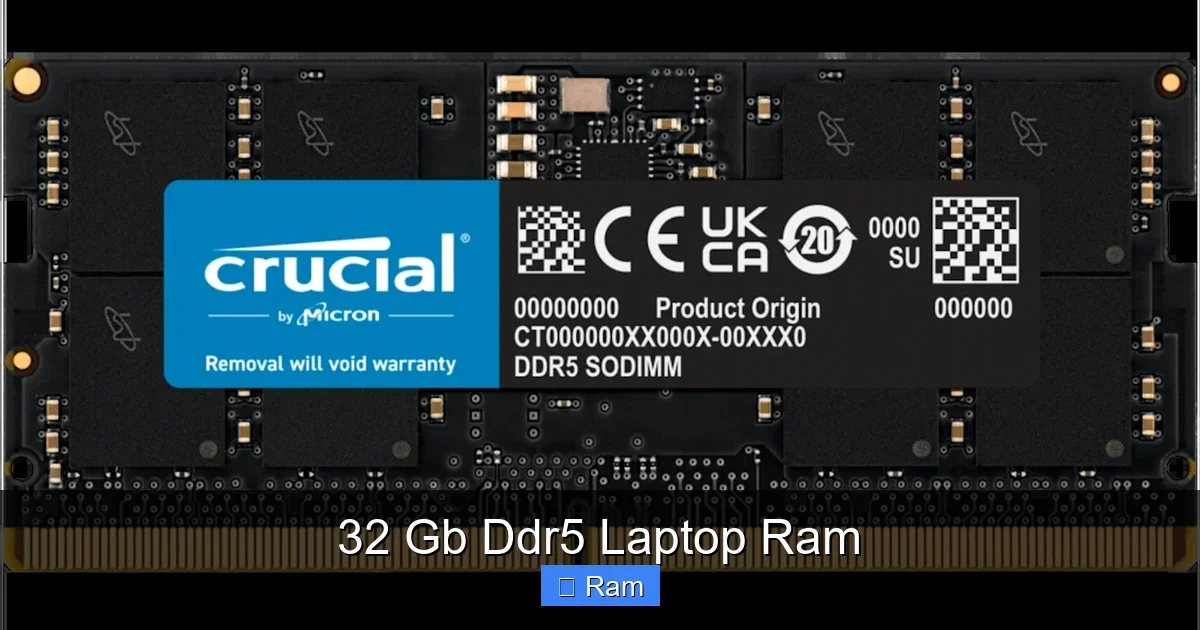
Visual guide about 32 Gb Ddr5 Laptop Ram
Image source: res.cloudinary.com
Step 1: Does Your Laptop Even Have DDR5?
This is the first gate. Laptops with 12th Gen Intel Core (Alder Lake) or newer, and AMD Ryzen 6000 series (Rembrandt) or newer, *can* use DDR5. However, many laptop models, especially those focused on thin-and-light designs or lower price points, still use DDR4 to save cost or due to platform limitations. You must check your laptop’s exact model specifications on the manufacturer’s website (e.g., Dell, HP, Lenovo, ASUS). Look for the official tech specs sheet. It will list the “Memory” section. It must say “DDR5” or “DDR5 SODIMM.” If it says “DDR4” or “LPDDR5” (note the ‘P’ for ‘low-power’), you are in a different category. LPDDR5 is soldered to the motherboard and is not user-upgradable. Your target is non-ECC, non-low-power, standard DDR5 SODIMM.
Step 2: How Many Slots Do You Have?
Most performance laptops have two accessible SO-DIMM slots. Some ultrabooks have the memory soldered directly to the motherboard (0 slots). A few have one slot and one soldered chip. You need to find out. The manufacturer’s service manual or hardware maintenance guide (HMM) is the best source. You can also often find teardown videos on YouTube for your specific model. If your laptop has two slots, achieving 32GB is typically done with two 16GB sticks (2x16GB). If it has one slot and one soldered chip, you must find out the size and speed of the soldered RAM and buy a matching stick to pair with it. Mixing mismatched RAM can force the system to run in less efficient single-channel mode or cause instability.
Step 3: What Speeds and Timings Are Supported?
DDR5 has a base JEDEC speed of 4800 MT/s. Most laptops will support at least this. However, the laptop’s chipset and BIOS may not support higher XMP/EXPO profiles (like 5200, 5600, 6000 MT/s). You should buy RAM that matches the speed of any existing RAM (if you’re adding to a soldered chip) or at least the advertised supported speed of your laptop model. Buying a 6400 MT/s kit for a laptop that only supports 4800 MT/s will simply run at 4800 MT/s. There’s no harm, but you may overpay. For best results, try to match the frequency and, if possible, the primary timings (CL) of your existing module if you have one.
Step 4: Physical and BIOS Limitations
Check the maximum supported RAM per slot and total. Some older DDR5 laptops may cap at 16GB per slot, meaning 32GB total is the max with 2x16GB. Almost all modern ones support 32GB per slot (64GB total). Also, ensure your laptop’s BIOS is updated to the latest version. Manufacturers often release BIOS updates that expand memory compatibility lists. Updating the BIOS *before* installing new RAM is a smart precaution.
Installation: A Simple Process, Done Carefully
If you’ve cleared the compatibility hurdles, the physical installation is one of the easiest upgrades you can do. But “easy” doesn’t mean “careless.”
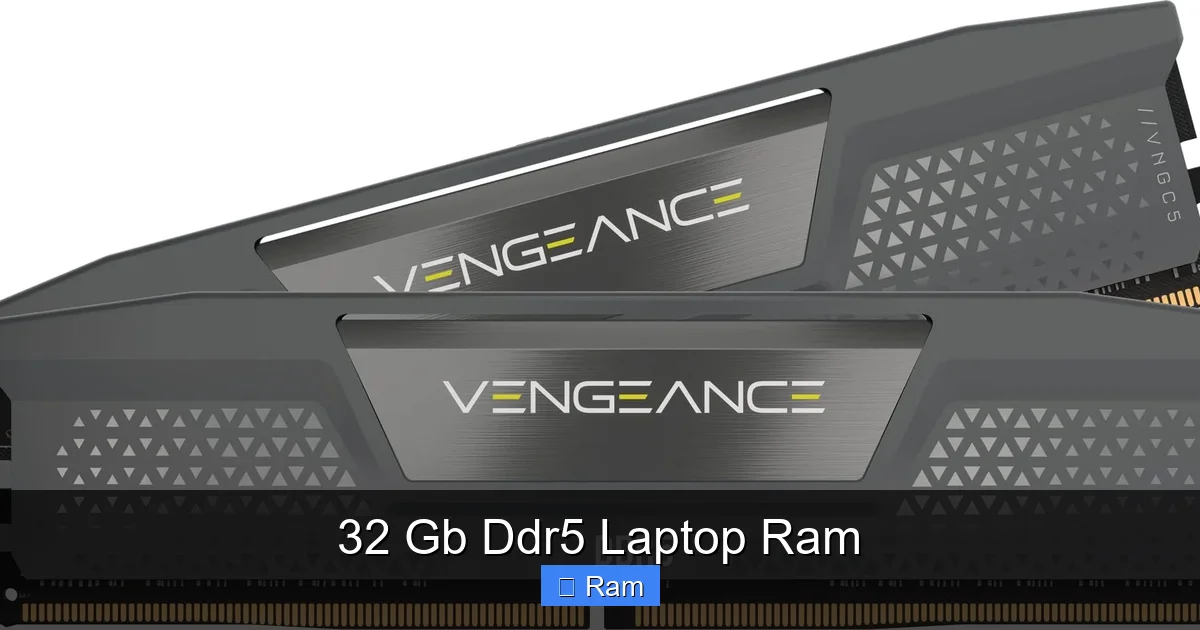
Visual guide about 32 Gb Ddr5 Laptop Ram
Image source: m.media-amazon.com
Tools and Preparation
You’ll need: a small Phillips-head screwdriver, a plastic spudger or pry tool (optional but helpful), and your new 32 GB DDR5 laptop RAM kit. Most importantly, you need a static-free workspace. Ground yourself by touching a metal object like a desk leg or use an anti-static wrist strap. Work on a non-carpeted surface. Have your laptop’s service manual open on another device or printed out.
The Step-by-Step: Power Down, Open, Swap, Close
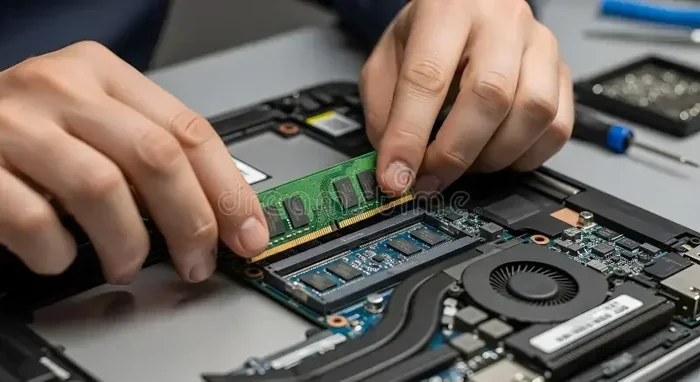
1. Power Down Completely: Shut down the laptop. Do not just sleep or hibernate. Unplug the charger and, if possible, remove the main battery (on older or serviceable-battery models). Hold the power button for 10 seconds to discharge residual power.
2. Access the Compartment: Turn the laptop over. Remove all screws from the bottom panel. They are often different lengths; keep them organized. Gently pry the panel off starting at a seam. It may have clips; work slowly around the edges.
3. Locate and Remove Old RAM: You’ll see one or two small rectangular modules held down by small metal clips on either side. Gently pry the clips outward (they will pop up). The RAM module will tilt up at a ~45-degree angle. Pull it straight out, holding it by the edges. Do not touch the gold contacts.
4. Install New RAM: Take your new module. Align the notch on the golden edge with the key in the slot. It only fits one way. Insert it firmly but gently at the same ~45-degree angle until it’s seated. Then, press it down flat until the side clips snap into place automatically with a soft click. You should feel it lock.
5. Reassemble and Test: Reattach the bottom panel and screws. Reconnect the battery (if removed) and plug in the charger. Power on. Immediately enter the BIOS/UEFI (usually by pressing F2, Del, or F12 during boot) to confirm the system recognizes the full 32GB capacity and the correct speed. Then boot into your OS and check in Task Manager (Windows) or System Information (macOS) that it shows 32GB.
Performance in the Real World: What to Actually Expect
Benchmarks and specs are great, but how does this translate to daily use? The difference between 16GB and 32 GB DDR5 laptop RAM is not about “faster” in the traditional sense of loading a single game level. It’s about “smoother” and “more capable.” It’s the difference between a system that feels constrained and one that feels effortlessly responsive under load.
The “No More Swapping” Phenomenon
When your RAM fills up, your operating system starts using your SSD as “virtual memory” or a swap file. This is orders of magnitude slower than RAM. The classic symptom is your laptop’s SSD activity light blinking furiously and the system stuttering or freezing for seconds at a time, even when you’re just alt-tabbing. With 32GB, this scenario becomes a rarity for all but the most extreme multi-app scenarios. Your entire working set—OS, browser, productivity suite, and your main creative app—stays in fast RAM. The result is consistent, lag-free performance.
Application-Specific Gains
• Video Editing (Premiere Pro, DaVinci Resolve): Smoother timeline scrubbing, faster rendering of previews, and the ability to work with higher-resolution proxy files or multiple 4K streams simultaneously.
• 3D Rendering (Blender Cycles, V-Ray): While final render time is mostly GPU-bound, the viewport performance and scene manipulation are vastly improved. You can have multiple high-poly scenes open in different windows.
• Software Development: Instantaneous search across large codebases, smooth operation of IDEs like IntelliJ IDEA or Visual Studio with many plugins, and the ability to run multiple Docker containers or VMs without host slowdown.
• Gaming: This is nuanced. For most modern games at 1080p/1440p, 16GB is still the sweet spot. However, some newer titles (e.g., *Cyberpunk 2077* with Ray Tracing, *Microsoft Flight Simulator*) and simulation/strategy games (*Civilization VI*, *Total War* series) with large mods can use 18-22GB. With 32GB, you eliminate any risk of in-game stutters caused by RAM saturation, and you can easily have a game running in the background while streaming, recording, or with a hundred browser tabs open.
Is It Worth the Cost? The Value Proposition
Let’s talk numbers. A quality 32GB (2x16GB) DDR5 laptop RAM kit typically costs between $120 and $200, depending on speed (4800 vs. 6000+), timings, and brand. Is that a good investment? It depends entirely on your answer to one question: Is your current RAM capacity causing you tangible, productivity-killing slowdowns?
The Cost of Lost Time
For a professional, time is money. If you’re a video editor waiting 30 seconds for a timeline to scrub after an effect is applied, or a developer waiting for a Docker container to spin up, that lost time accumulates. The $150 upgrade that reclaims 15 minutes of productive time every day pays for itself in a month. For a student or researcher, a stuttering, unresponsive system is a constant source of frustration that breaks concentration. A smooth, responsive machine is a tool that gets out of your way.
Comparing to Other Upgrades
How does this stack up against other potential laptop upgrades? A new CPU or GPU in a laptop is almost always impossible (soldered). The only common user-upgradable components are RAM and storage (SSD). An NVMe SSD upgrade is also excellent for overall system feel, but it primarily improves load times for applications and files not already in RAM. RAM upgrades improve the *active working* experience. If your laptop already has a fast SSD but feels sluggish with multiple apps open, RAM is the culprit. For many, doing both—adding a faster SSD *and* moving to 32GB DDR5—is the ultimate one-two punch for revitalizing an older but still capable laptop.
The Long-Term View
Think about your laptop’s lifecycle. If you plan to keep it for 3-4 years, investing in 32GB of DDR5 now is a strong hedge against future software bloat. Operating systems, web browsers, and applications consistently become more memory-hungry. What runs perfectly on 16GB today might feel tight in 2026. By installing 32GB now, you extend the useful, high-performance life of your laptop, potentially delaying the need for a completely new system by a year or more. That’s significant value.
Making Your Decision: A Final Verdict
So, should you buy 32 GB DDR5 laptop RAM? Here’s the distilled verdict. YES, if: Your laptop supports DDR5 upgrades (check first!), your work involves any of the professional workloads listed above, you frequently see your RAM usage over 80% in Task Manager, and you plan to keep your laptop for several years. The combination of high capacity and high bandwidth is transformative for these users. PROBABLY NOT, if: You use your laptop primarily for web browsing, office documents, video calls, and casual gaming. 16GB of DDR4 or DDR5 is more than enough, and the money is better saved or spent on a larger/faster SSD. MAYBE, if: You’re a “power user” who loves having everything open at once. For you, 32GB is about peace of mind and a flawless experience. It’s the upgrade that removes mental overhead—you never have to think about closing apps to free up memory again.
The landscape of mobile computing is changing. The lines between desktop and laptop performance are blurring. 32 GB DDR5 laptop RAM sits at the heart of that change. It’s no longer an exotic, enthusiast-only component. For the right user, it’s a straightforward, impactful upgrade that removes a fundamental bottleneck and unlocks the true, sustained performance of a modern multi-core laptop processor. Do your homework on compatibility, make the purchase if it checks your boxes, and enjoy a noticeably smoother, more capable computing experience.
Frequently Asked Questions
Do I really need 32GB of RAM for gaming?
For the vast majority of modern games at common resolutions, 16GB is still the recommended and sufficient amount. However, 32GB becomes beneficial if you stream and record gameplay simultaneously, run multiple game launchers and chat apps in the background, or play extremely demanding simulation/strategy games with large mods. It ensures no background tasks ever interfere with your game’s performance.
Can I mix a new 16GB DDR5 stick with my existing 8GB DDR5 stick for 24GB total?
Technically, you can, but it’s not recommended for optimal performance. Mixing different sizes (dual-rank vs. single-rank) and possibly different speeds/timings will force the system to run in asymmetric or “flex” mode. This can slightly reduce bandwidth and may cause instability. For peak performance and reliability, use a matched kit (e.g., 2x16GB) if your laptop has two slots.
Will my old laptop with an Intel 11th Gen CPU support DDR5 RAM?
Almost certainly not. Intel’s 11th Gen “Tiger Lake” mobile processors primarily use DDR4 memory. DDR5 support began with the 12th Gen “Alder Lake” mobile series. You must check your specific laptop model’s specifications; the CPU generation is a strong hint but not a guarantee, as laptop manufacturers choose the memory type for each model.
Is there a big difference between DDR5-4800 and DDR5-6000 for everyday tasks?
For general productivity (web browsing, office apps), the real-world difference is minimal. The capacity (32GB vs. 16GB) will be far more noticeable. The bandwidth advantage of 6000 MT/s over 4800 MT/s shows its value in specific, sustained workloads like large file transfers, scientific computing, and high-frame-rate gaming where the CPU is feeding the GPU. For most users, a good quality 4800 or 5200 MT/s kit offers the best value.
My laptop has one soldered RAM stick and one slot. Can I upgrade to 32GB?
Yes, but you must first determine the exact size, speed, and model of the soldered RAM. You then need to buy a matching SO-DIMM stick (same DDR generation, same speed, ideally same brand and timings) that equals the total capacity you want minus the soldered size. For example, if you have 16GB soldered, you would buy a 16GB DDR5 stick to reach 32GB total. This requires careful research, often by checking teardown videos or system scans with tools like CPU-Z.
Should I wait for DDR6 or is DDR5 a safe investment?
3>DDR6 is still years away from mainstream laptop adoption (likely 2025/2026 at the earliest). DDR5 is the current and dominant standard for new high-performance laptops and will remain so for the lifespan of your current laptop. Buying 32 GB DDR5 laptop RAM now is a safe, future-proof investment for at least the next 4-5 years. The performance and capacity benefits are immediately available and will not be made obsolete by a new standard anytime soon.