How to Know Which Ram Is Compatible with My Laptop
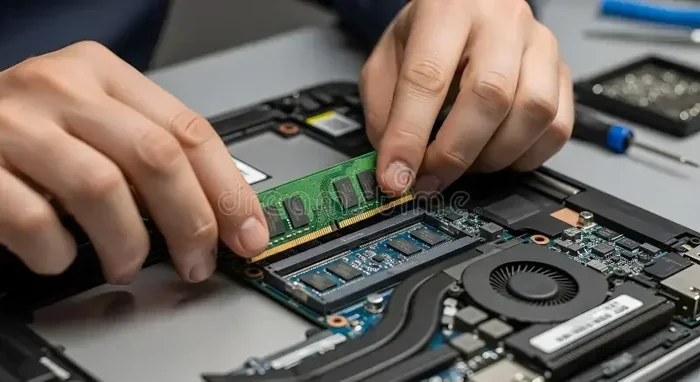
Finding the right ram for your laptop starts with knowing your laptop model, checking its max ram capacity, and understanding the ram type it supports. This guide walks you through every step to make sure you buy the right memory module the first time.
Key Takeaways
- Check Your Laptop Model First: Your exact model number determines everything about compatible ram, including type, speed, and maximum capacity.
- Match the Ram Generation: DDR3, DDR4, and DDR5 are not interchangeable. Always confirm which generation your laptop supports before buying.
- Use SODIMM for Laptops: Laptop ram uses the SODIMM form factor. Desktop DIMM ram will not fit in a laptop.
- Know Your Slot Count and Max Capacity: Check how many slots you have and the maximum capacity per stick to plan your upgrade correctly.
- Match Speed for Best Performance: Buying ram that matches your laptop’s native speed ensures optimal performance and stability.
- Avoid Common Mistakes: Double-check the form factor, speed, and slot availability before purchasing to avoid returns and frustration.
📑 Table of Contents
- Why Ram Compatibility Matters for Your Laptop
- How to Check Your Laptop’s Current Ram Specs
- Understanding Ram Types and Form Factors
- How to Find the Maximum Ram Your Laptop Supports
- Step-by-Step: How to Know Which Ram Is Compatible with My Laptop
- Common Mistakes to Avoid When Buying Laptop Ram
- When to Seek Professional Help
- Conclusion
Why Ram Compatibility Matters for Your Laptop
Not all ram works with every laptop. If you have ever tried to upgrade your memory and ended up with a stick that does not fit or is not recognized, you know how frustrating that can be. Knowing which ram is compatible with your laptop saves you time, money, and a whole lot of hassle.
Your laptop’s motherboard only supports certain types of memory. The ram type, speed, form factor, and maximum capacity all depend on your specific model. Buying the wrong ram means you either get a stick that will not work at all or one that runs at slower speeds than it should.
In this guide, we walk you through every step to make sure you pick the right memory for your machine. Whether you are a student, a professional, or a casual user, this guide covers everything you need to know about laptop memory compatibility.
The process might seem technical at first, but it is really quite simple once you understand the basics. We break it down into clear, easy-to-follow steps that anyone can follow. By the end of this article, you will feel confident about choosing the right ram for your laptop.
What Happens When You Buy the Wrong Ram
Putting incompatible ram in your laptop can cause several problems. Your system might not boot at all. You could see error messages during startup. In some cases, the laptop recognizes the ram but runs it at a lower speed, which defeats the purpose of the upgrade. Sometimes the ram simply does not get detected, leaving your system with the same old memory it had before.
Worst case scenario, incompatible ram can cause system instability. You might experience frequent crashes, blue screens, or random freezes. These issues are not only annoying but can also lead to data loss if they happen during important work. That is exactly why taking a few minutes to check compatibility before you buy makes all the difference.
It is a small effort that prevents big headaches. Think of it as doing your homework before making a purchase. A little research upfront saves you from costly returns and frustrating troubleshooting later on.
How to Check Your Laptop’s Current Ram Specs
Before you can find compatible ram, you need to know what your laptop currently has and what it supports. There are a few simple ways to get this information without any technical skills. You do not need to be a computer expert to check your current memory setup.
Using Built-In Windows Tools
Windows has several built-in tools that show your current ram details. Open the Task Manager by pressing Ctrl + Shift + Esc and click on the Performance tab. Then select Memory. You will see the ram type, speed, how many slots are being used, and how many slots are available. This gives you a quick snapshot of your current memory configuration.
Another great option is to use the System Information tool. Press Windows Key + R, type msinfo32, and press Enter. Look for the Installed Physical Memory (RAM) section. This gives you a clear picture of your current setup, including the total amount of ram installed. If you want a deeper look into every detail, How To Check The Ram On My Laptop walks you through every method in detail.
Using the Command Prompt
If you prefer a more technical approach, the Command Prompt can give you detailed ram information. Open the Start menu, type cmd, and right-click Command Prompt to run it as administrator. Type wmic memorychip get manufacturer, partnumber, speed, capacity and press Enter. This command shows you the manufacturer, part number, speed, and capacity of each ram stick installed in your laptop.
This method is especially useful if you want to know the exact part number of your current ram. You can then search for that part number online to find compatible replacements or upgrades. It is a great way to get precise details without downloading any additional software.
Checking Your Laptop Model Number
Your laptop model number is one of the most important pieces of information you need. You can usually find it on a sticker on the bottom of the laptop or in your system settings. Once you have the model number, you can look up the exact specs from the manufacturer’s website.
Write down the full model number, including any letters or suffixes. For example, Dell Inspiron 15 5515 is different from Dell Inspiron 15 5520. Even small differences in model numbers can mean different ram support. Always use the exact model number when searching for specs.
Understanding Ram Types and Form Factors
Laptops use a specific type of memory module that is different from desktop computers. Understanding these basics helps you make the right choice and avoid costly mistakes. There are three key areas to focus on: the ram generation, the form factor, and the speed.
DDR3 vs DDR4 vs DDR5
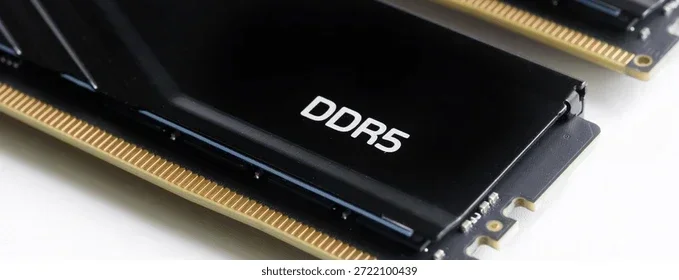
Ram comes in different generations, and they are not interchangeable. DDR3, DDR4, and DDR5 are the three main types you will encounter. Each generation has a different notch placement, voltage requirement, and speed capability. You cannot mix DDR4 and DDR5 in the same laptop. They are physically and electrically different.
Most modern laptops from the last five years use DDR4 ram. Newer high-end models are starting to use DDR5. Older laptops, especially those from before 2015, might still use DDR3. Always check which type your laptop supports before buying. Using the wrong generation means the ram will not work at all.
Here is a quick comparison of the three generations:
- DDR3: Older generation, lower speed, still found in budget and older laptops.
- DDR4: The current standard for most laptops. Good balance of speed and affordability.
- DDR5: The newest generation. Faster speeds and better efficiency. Found in premium and latest models.
What Is SODIMM
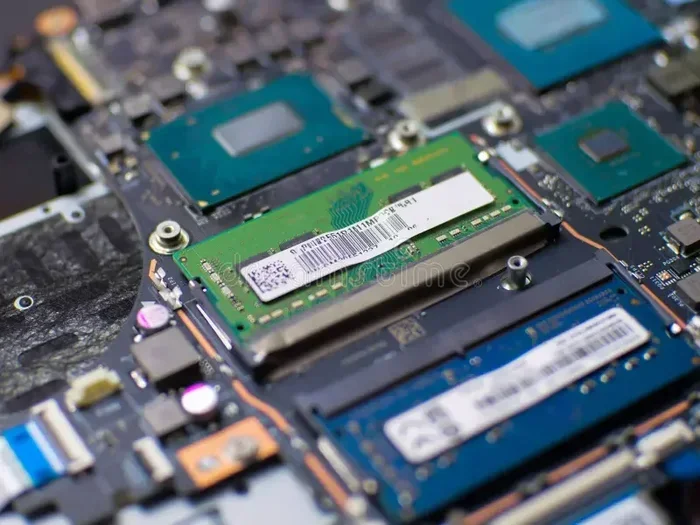
Laptops use SODIMM (Small Outline Dual In-line Memory Module) ram. These are much smaller than desktop ram sticks. They are specifically designed to fit in the compact space inside a laptop. Never buy desktop ram for a laptop. The physical size is completely different, and it will not fit inside the memory slot.
SODIMM ram comes in different lengths and pin configurations depending on the generation. DDR4 SODIMM has 262 pins, while DDR5 SODIMM also has 262 pins but with a different voltage and internal architecture. The form factor matters just as much as the type. Always confirm that the ram you are buying is labeled as SODIMM.
Some ultra-thin laptops use even smaller ram modules called micro SODIMM or LPDDR memory. These are soldered to the motherboard and cannot be replaced. Check your laptop specifications to confirm whether your ram is replaceable or soldered.
How to Find the Maximum Ram Your Laptop Supports
Every laptop has a maximum ram capacity it can handle. This limit is set by the motherboard and the laptop’s design. Even if you buy a larger ram stick, the laptop will not recognize it if it exceeds the maximum supported capacity. Understanding this limit is crucial before you make any purchase.
Checking Your Laptop Manufacturer’s Website
The best way to find the maximum ram is to visit your laptop manufacturer’s support page. Enter your exact model number and look for the specifications or memory section. You will usually find the maximum supported ram, the number of ram slots, and the recommended ram type. This information is always available on the official product page.
For example, if you own an HP laptop, you can follow How To Upgrade Ram On Hp Laptop for brand-specific guidance on finding your max capacity and supported modules. Each brand has its own quirks, and brand-specific guides help you navigate them.
Using Third-Party Memory Tools
You can also check the maximum supported ram using free third-party tools. Crucial’s System Scanner and Kingston’s Memory Search are two excellent options. These tools automatically detect your laptop model and show you exactly which ram modules are compatible. They are free, easy to use, and very reliable.
Another option is to search for your laptop model on the manufacturer’s website and check the technical specifications PDF. Most major brands like Dell, Lenovo, and HP publish detailed specs for every model they sell. Look specifically for the memory section in the spec sheet.
Understanding Dual-Channel vs Single-Channel
Most laptops with two ram slots support dual-channel memory. This means using two matching sticks of ram together can improve performance over using a single stick. Dual-channel ram allows your laptop to access memory faster and more efficiently. If your laptop has two empty slots, buying a matching pair is usually the best approach.
However, if you already have one stick installed, you can add a second matching stick. Just make sure the new stick matches the existing one in type, speed, and capacity. Mixing different brands or speeds can work, but matching sticks give you the best performance and stability.
Step-by-Step: How to Know Which Ram Is Compatible with My Laptop
Now that you understand the basics, let us walk through the exact process step by step. Following these steps ensures you buy the right ram the first time. Each step builds on the previous one, so do them in order.
Step 1: Identify Your Laptop Model
Start by finding your exact laptop model. Check the sticker on the bottom of the laptop, open the Settings app and go to System > About, or look in your BIOS. Write down the full model name. This is the foundation of everything that follows. Without the correct model number, you risk buying ram that does not fit or is not supported.
Take your time with this step. It only takes a minute but saves you from costly mistakes. Some laptops have multiple model numbers for the same device. Make sure you use the exact one listed on the bottom sticker or the original packaging.
Step 2: Check Your Ram Slots
Find out how many ram slots your laptop has and how many are currently occupied. Some laptops have one slot, while others have two or even four. If all slots are filled, you will need to replace existing sticks rather than add new ones. You can check this using the Task Manager on Windows or by consulting your laptop’s user manual.
Knowing your slot count helps you decide whether to buy one stick or a matching pair for dual-channel performance. If you have one free slot, adding a matching stick is usually the easiest upgrade path. If all slots are full, you need to replace the existing sticks with higher-capacity ones.
Step 3: Match the Ram Type and Speed
Once you know your ram type (DDR3, DDR4, or DDR5), match the speed and frequency. Ram speed is measured in megahertz (MHz). If your laptop supports DDR4-3200, buying DDR4-3200 ram is ideal. You can use faster ram, but the laptop will downclock it to the supported speed. This means you would be paying extra for speed you cannot actually use.
For the best results, buy ram that matches your laptop’s native speed. Mixing different speeds can work, but both sticks will run at the slower speed. Consistency is key for stable performance. If you are upgrading from a single stick to a dual-channel setup, buy a matching pair with the same speed and capacity.
Step 4: Verify the Max Capacity
Finally, check the maximum capacity per stick and in total. Some laptops support up to 16 GB per stick, while others max out at 8 GB per stick. If your laptop has two slots and supports 16 GB per stick, you can upgrade to 32 GB total. Always verify both the per-stick limit and the total system limit.
If you are unsure about your upgrade options, check out Can I Upgrade My Laptop Ram From 4Gb To 16Gb for more detailed guidance on common upgrade paths and capacity limits. Understanding these limits helps you choose the right size without overspending.
Common Mistakes to Avoid When Buying Laptop Ram
Even with the best intentions, people make mistakes when buying laptop ram. Being aware of these common errors helps you avoid them and make a confident purchase. Here are the most frequent mistakes and how to prevent them.
Buying the Wrong Form Factor
The most common mistake is buying desktop ram for a laptop. Desktop ram is called DIMM and is much larger than laptop SODIMM. It physically will not fit inside your laptop. Always double-check that the product listing says SODIMM before you purchase. This single check prevents the most common and most embarrassing buying mistake.
Ignoring Speed and Frequency
Another mistake is ignoring ram speed. While the laptop will work with slower ram, you lose potential performance. Conversely, faster ram will be downclocked to match your laptop’s supported speed. Always try to match the speed for the best results. Check your laptop’s supported speed in the specifications and buy accordingly.
Not Checking the Number of Slots
Some people buy a new ram stick without checking if they have a free slot. If your laptop has two slots and both are already filled, you need to remove one of the existing sticks and replace it with a larger one. Planning ahead saves you from buying extra ram you cannot use. Check your slot availability before you place an order.
Forgetting About the Operating System Limit
Here is one people often overlook. A 32-bit operating system can only recognize about 4 GB of ram, regardless of how much you install. If your laptop runs a 32-bit version of Windows, adding more than 4 GB of ram will not help. Check your operating system type before planning a large upgrade. Most modern laptops run 64-bit Windows, which can support much more memory.
When to Seek Professional Help
Not all laptops allow ram upgrades. Some manufacturers solder the ram directly to the motherboard, which means it cannot be replaced or expanded. This is common in thin and light laptops like the MacBook Air and certain Ultrabook models. Before attempting any upgrade, confirm that your laptop’s ram is user-replaceable.
Soldered Ram and Non-Upgradeable Laptops
If your laptop has soldered ram, you cannot upgrade it. In this case, you are stuck with whatever memory came installed. Before buying a laptop, always check whether the ram is upgradeable if that matters to you. You can find this information in the product specifications or by contacting the manufacturer’s support team directly.
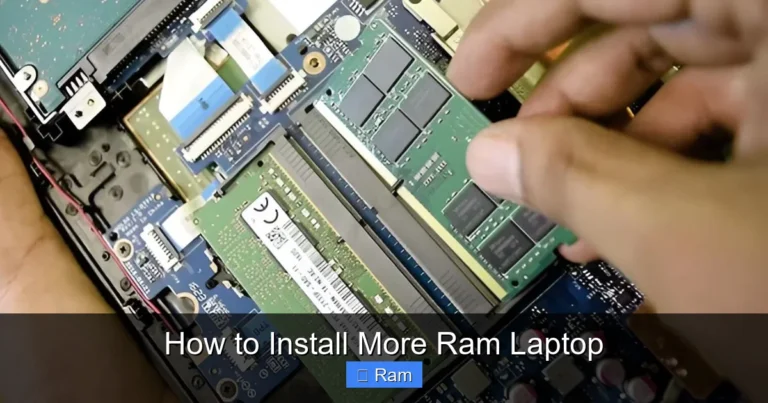
For laptops that do support upgrades, installing ram is usually straightforward. You open a small panel on the bottom, push the clips outward, and the stick pops up. Then you slide the new stick in at an angle and press it down until it clicks. If you are not comfortable doing this yourself, a local computer repair shop can help for a small fee. Many electronics stores also offer installation services when you purchase ram from them.
Conclusion
Knowing how to know which ram is compatible with my laptop is not as hard as it seems. The key is to check your laptop model, confirm the supported ram type and speed, and verify the maximum capacity. Take it one step at a time, and you will find the perfect memory upgrade for your machine.
Whether you are looking to boost performance for work, gaming, or everyday tasks, the right ram makes a noticeable difference. Use the steps in this guide, double-check every detail, and you will be up and running with a faster laptop in no time.
Remember, a little research goes a long way. Before you click that buy button, make sure the ram matches your laptop’s specifications. Your future self will thank you when the upgrade goes smoothly and your laptop runs faster than ever. Start with the model number, confirm the ram type and slots, and you will be on your way to a better-performing laptop.
Frequently Asked Questions
Can I mix different brands of ram in my laptop?
Yes, you can mix different brands of ram as long as they are the same type (DDR3, DDR4, or DDR5), form factor (SODIMM), and speed. However, using matching sticks from the same brand and model gives you the best performance and stability. Mixing brands can sometimes cause compatibility issues, so it is best to buy a matching pair when possible.
Do I need to install ram in pairs?
You do not need to install ram in pairs, but doing so enables dual-channel mode, which can improve performance. If your laptop has two empty slots, installing a matching pair is recommended. If you only have one free slot, a single stick will still work fine. Just make sure the single stick matches the type and speed of any existing ram.
What happens if I install too much ram in my laptop?
If you install more ram than your laptop supports, the system will not recognize the excess memory. The laptop will only use up to its maximum supported capacity. The extra ram will simply go unused. This is why it is important to check your laptop’s maximum ram capacity before making a purchase.
Can I upgrade my laptop ram myself?
Yes, upgrading laptop ram is usually a simple process that most people can do at home. You just need a small screwdriver, a clean workspace, and anti-static precautions. Open the bottom panel, remove the existing ram if needed, and slide the new stick in at an angle until it clicks. If you are unsure, consult your laptop’s user manual or watch a video tutorial for your specific model.
Is it better to have one large ram stick or two smaller ones?
Two smaller sticks in dual-channel mode generally perform better than one large stick. Dual-channel allows your laptop to access memory faster and more efficiently. However, if you only have one free slot, a single larger stick is still a great upgrade. The performance difference is noticeable in demanding tasks like video editing and gaming.
How do I know if my laptop ram is soldered?
You can check if your laptop ram is soldered by looking up your model number on the manufacturer’s website and checking the specifications. Soldered ram is listed as non-upgradeable or non-replaceable. You can also check online forums or user reviews for your specific model. If the ram is soldered, you cannot add or replace memory modules.