5 Methods Open Registry Editor Windows 10 Explained
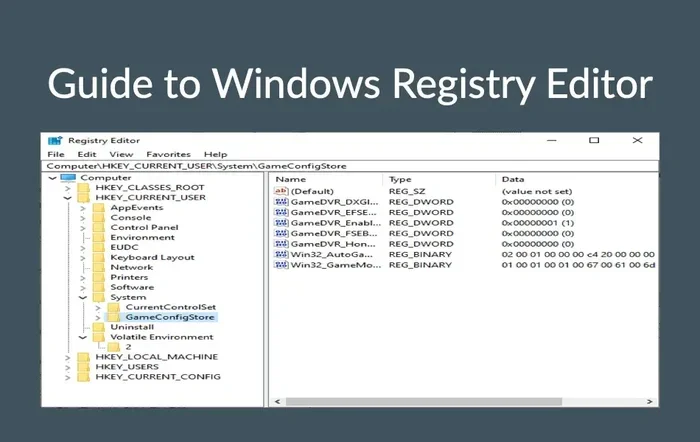
Opening the Registry Editor in Windows 10 is easier than you think. Whether you use the Run dialog, Search bar, Command Prompt, Task Manager, or a desktop shortcut, this guide walks you through all five methods with clear, simple steps. You will also learn essential safety tips to protect your system while editing the registry editor windows 10.
Have you ever needed to dig into the heart of your Windows 10 system? The registry editor windows 10 is the tool that lets you do exactly that. It is a powerful built-in utility that stores all the low-level settings for your operating system. From hardware configurations to software preferences, the registry holds it all.
But here is the thing many people do not realize. There is more than one way to open this tool. In fact, there are at least five different methods you can use right now. Some are faster than others, and some work better depending on your situation. This guide will walk you through each one step by step.
Whether you are a beginner or someone who has tinkered with system settings before, knowing how to access the Windows registry editor is a valuable skill. It can help you troubleshoot issues, customize your system, and understand how Windows really works under the hood. Let us dive in.
Key Takeaways
- Five Easy Methods: You can open the Registry Editor using the Run dialog, Search bar, Command Prompt, Task Manager, or a custom desktop shortcut.
- Quick Access Matters: Knowing multiple ways to open the registry saves time and helps when one method is not working.
- Safety First: Always back up the registry before making any changes to avoid system problems.
- Run Dialog Is Fastest: The Win + R shortcut is the quickest way to launch the Registry Editor on any Windows 10 machine.
- Works on All Versions: These methods apply to Windows 10 and many other Windows versions too.
📑 Table of Contents
- What Is the Registry Editor and Why Do You Need It?
- Method 1: Use the Run Dialog Box
- Method 2: Use the Windows Search Bar
- Method 3: Use Command Prompt
- Method 4: Use Task Manager
- Method 5: Create a Desktop Shortcut
- Safety Tips for Editing the Registry
- Common Mistakes to Avoid
- Expert Insights on Registry Editing
- Frequently Asked Questions
- Conclusion
What Is the Registry Editor and Why Do You Need It?
The Windows registry is a hierarchical database that stores configuration settings and options on Microsoft Windows operating systems. Think of it as the brain of your computer. Every setting, every preference, and every hardware detail lives somewhere in this vast structure of keys and values.
The Registry Editor, known as regedit, is the application you use to view and modify this database. It gives you access to areas of Windows that the regular Settings app simply cannot reach. For example, if you want to disable a specific feature, tweak system performance, or fix a stubborn bug, the registry is often where you need to go.
Now, why would someone need to open the registry editor windows 10 specifically? Windows 10 uses a refined version of the registry that organizes settings more efficiently than older versions. Many troubleshooting guides and optimization tutorials reference registry edits. Without knowing how to open the editor, you are stuck following instructions blindly. With the knowledge in this article, you will be able to follow along with confidence.
Method 1: Use the Run Dialog Box
The Run dialog box is the fastest and most popular way to open the Registry Editor. It is a small window that lets you type commands and launch tools instantly. Most Windows users who work with system settings rely on this method daily.
Step-by-Step Instructions
- Press the Windows key + R on your keyboard. The Run dialog box will appear on your screen.
- Type regedit into the text field. Make sure you spell it exactly as shown.
- Press Enter or click the OK button.
- If a User Account Control prompt appears, click Yes to grant administrator access.
- The Registry Editor window will now open, ready for you to navigate.
This method works on virtually every version of Windows, including Windows 10, Windows 8, and Windows 7. It is also the method most technical guides recommend because it is fast and reliable. If you are using a Windows 10 laptop with 8GB RAM, this method will work instantly with no lag.
Why This Method Stands Out
The Run dialog is the go-to method for a reason. It requires no mouse movement to the Start menu, no typing in a search bar, and no navigating through menus. You literally press two keys, type three letters, and hit Enter. For power users who access the registry frequently, this is the most efficient approach.
One thing to keep in mind. If the Run dialog has been disabled on your system (which can happen due to group policies), you will need to use an alternative method. We will cover those alternatives below.
Method 2: Use the Windows Search Bar
If you prefer using your mouse over keyboard shortcuts, the Search bar is your best friend. Windows 10 has a built-in search feature that lets you find almost anything on your system, including the Registry Editor.
Step-by-Step Instructions
- Click on the Search bar located on your taskbar, usually at the bottom of your screen.
- Type regedit or Registry Editor into the search field.
- Look for the Registry Editor app in the search results.
- Click on it to open the application.
- Click Yes if the User Account Control prompt appears.
This method is very beginner-friendly because it uses the same search system you already use every day. If you have a Windows 10 8GB RAM laptop or any other Windows 10 machine, the search bar will find the Registry Editor in seconds.
Tips for Using Search Effectively
Sometimes the search results can show multiple items. Look for the one that simply says Registry Editor with the standard black icon. You can also right-click the result and select Run as administrator if you need elevated permissions. This ensures you have full access to all registry keys and values.
Method 3: Use Command Prompt
Command Prompt is a powerful text-based tool in Windows that lets you execute commands directly. It might look intimidating at first, but opening the Registry Editor through it is actually very simple. This method is especially useful when the Run dialog or Search bar is not responding.
Step-by-Step Instructions
- Press the Windows key and type cmd in the search bar.
- Right-click on Command Prompt and select Run as administrator.
- Type regedit and press Enter.
- The Registry Editor will launch immediately.
Command Prompt gives you direct access to the system shell. It is a great fallback when other methods fail. If you are working on a system with 8GB RAM Windows laptop specifications, Command Prompt runs smoothly and responds quickly to commands like regedit.
When to Use Command Prompt
Use this method when the Run dialog is locked or when you are working in a restricted environment. IT professionals often prefer Command Prompt because it can be scripted and automated. You can also use it to open the registry editor remotely on another machine if needed.
Another advantage is that Command Prompt can be opened from a USB drive or recovery environment, which is helpful when your normal Windows interface is not working properly.
Method 4: Use Task Manager
Task Manager is not just for closing frozen programs. It can also be used to open the Registry Editor. This is a lesser-known trick that many Windows users do not know about. It comes in very handy when your system is acting up and other methods are not working.
Step-by-Step Instructions
- Press Ctrl + Shift + Esc to open Task Manager. Alternatively, right-click the taskbar and select Task Manager.
- If Task Manager opens in simplified mode, click More details at the bottom left.
- Go to the File menu at the top left.
- Click Run new task.
- Type regedit in the dialog box that appears.
- Click OK or press Enter.
This method is particularly useful when the Start menu is not responding or when the Search bar is glitching. It bypasses the normal Windows interface and launches programs directly. If you are troubleshooting issues on your laptop with Windows 10 and 8GB RAM, Task Manager can be your best friend.
Why Task Manager Works as a Registry Launcher
Task Manager has a built-in feature to run any executable or command. Since the Registry Editor is a standard Windows executable, it can be launched through this feature. It is essentially the same as using the Run dialog, but accessed through a different pathway. This gives you a backup option when your primary methods are not available.
Method 5: Create a Desktop Shortcut
If you access the Registry Editor frequently, creating a desktop shortcut is the smartest move. It saves you time and effort every single time you need to open it. You can also place the shortcut in your Quick Launch bar or Start menu for even faster access.
Step-by-Step Instructions
- Right-click on an empty space on your desktop.
- Select New and then click Shortcut.
- In the location field, type regedit and click Next.
- Name the shortcut something like Registry Editor and click Finish.
- Right-click the new shortcut and select Properties.
- Click Advanced and check the box for Run as administrator.
- Click OK to save your changes.
Now you have a dedicated shortcut that opens the Registry Editor with administrator privileges every time. This is especially helpful for users who have a laptop with 8GB RAM and Windows 10 and want quick access to system settings without going through multiple menus.
Customizing Your Shortcut
You can also change the icon of your shortcut to make it stand out. Right-click the shortcut, select Properties, click Change Icon, and choose a distinctive symbol. This makes it easy to identify among other desktop icons. Some users create multiple shortcuts for different registry tools, such as the Group Policy Editor or the Local Security Policy tool.
Placing this shortcut in a dedicated folder on your desktop or in your Start menu keeps your workspace organized while still providing quick access. Think of it as a personal toolkit for system administration.
Safety Tips for Editing the Registry
The Registry Editor is an incredibly powerful tool, but with great power comes great responsibility. A single wrong edit can cause serious problems for your system. Before you make any changes, follow these essential safety guidelines.
Always Back Up the Registry First
Before editing any registry key, create a backup. In the Registry Editor, click on Computer at the top left, then select Export. Save the file to a safe location on your Windows 10 laptop. If something goes wrong, you can import this backup to restore the registry to its previous state.
Make One Change at a Time
Never make multiple changes simultaneously. If you edit several keys at once and something breaks, you will not know which change caused the problem. Make one edit, test it, and then move on to the next. This methodical approach saves hours of troubleshooting.
Research Before You Edit
Do not blindly follow instructions from random websites. Always verify registry edits from trusted sources. Microsoft’s official documentation and reputable tech forums are your best resources. If a tutorial tells you to delete or modify a key you do not understand, do not do it until you fully understand the purpose of that key.
Create a System Restore Point
In addition to backing up the registry, create a full system restore point before making changes. This provides an even broader safety net. If the registry edit causes system instability, you can roll back your entire system to the restore point and undo all changes at once.
Common Mistakes to Avoid
Even experienced users sometimes make mistakes when working with the Registry Editor. Here are the most common errors and how to avoid them.
- Editing the wrong key: The registry has thousands of keys. Double-check the path before making any changes. A single letter or number off can lead you to the wrong setting.
- Ignoring backup warnings: Some users skip the backup step because it seems unnecessary. Do not make this mistake. A backup can save your entire operating system from corruption.
- Closing the editor improperly: Always close the Registry Editor properly by clicking the X button. Force-closing the application can leave pending changes in an unstable state.
- Sharing registry files carelessly: If you export a registry file to share with someone, make sure you understand what it contains. Malicious registry files can compromise your system security.
- Making changes while the system is under heavy load: If you are running intensive tasks like gaming or video editing on your 8GB RAM Windows laptop, wait until the system is idle before editing the registry. This ensures changes are applied cleanly.
Expert Insights on Registry Editing
Professional system administrators and IT experts have some valuable advice when it comes to working with the registry. Here are a few insights that can help you work more effectively.
Use the registry search function. The Registry Editor has a built-in search tool (Ctrl + F) that lets you find specific keys and values quickly. Instead of manually browsing through hundreds of folders, use search to locate exactly what you need. This is especially useful when following step-by-step tutorials that reference specific registry paths.
Familiarize yourself with the structure. The registry is organized into five main hives: HKEY_CLASSES_ROOT, HKEY_CURRENT_USER, HKEY_LOCAL_MACHINE, HKEY_USERS, and HKEY_CURRENT_CONFIG. Understanding what each hive contains will help you navigate more efficiently and make more informed edits.
Keep notes. When you make registry changes, write down what you changed and why. A simple text file with the date, key path, old value, and new value can save you enormous headaches later. This is standard practice in professional IT environments and a habit you should adopt too.
Stay updated. Microsoft occasionally changes registry structures between Windows versions. What works in Windows 10 might not work the same way in Windows 11. Always check the compatibility of any registry edit with your specific version of Windows before applying it.
Frequently Asked Questions
Can I open the Registry Editor without administrator privileges?
Yes, you can open the Registry Editor without administrator privileges, but you will have very limited access. Many registry keys require elevated permissions to view or modify. Running the editor as an administrator gives you full access to all keys and values across the system, which is essential for most troubleshooting and customization tasks.
Is it safe to edit the Windows 10 registry?
Editing the registry is safe as long as you follow proper precautions. Always back up the registry before making changes, make one edit at a time, and only modify keys you fully understand. The registry is the backbone of your Windows system, so careless edits can cause instability, but careful and informed editing is a standard practice for system administrators and advanced users.
What happens if I delete a wrong registry key?
If you accidentally delete a wrong registry key, it can cause applications to malfunction or even prevent Windows from starting properly. This is why backing up the registry is so important. You can restore the deleted key by importing your backup file. If you do not have a backup, running a system restore or using the built-in System File Checker tool may help repair the damage.
Can I use these methods on Windows 11?
Yes, all five methods described in this guide work on Windows 11 as well. The Registry Editor in Windows 11 is essentially the same application as in Windows 10. The interface has been slightly updated with a more modern look, but the functionality and the methods to open it remain identical. You can also explore Windows 11 8GB RAM laptop guides for more system-specific tips.
Why is the Registry Editor not showing up in search results?
If the Registry Editor does not appear in search results, it may be due to a group policy restriction or a corrupted system file. Try using the Run dialog or Command Prompt as an alternative. You can also run the System File Checker tool (sfc /scannow) in Command Prompt to repair any missing or corrupted system files that might be affecting the search functionality.
How do I navigate to a specific registry path quickly?
Once the Registry Editor is open, you can use the address bar at the top of the window to jump directly to a specific path. Simply type the full path (such as HKEY_LOCAL_MACHINE\SOFTWARE\Microsoft\Windows\CurrentVersion) and press Enter. You can also use Ctrl + F to search for specific keys or values within the registry tree.
Conclusion
Knowing how to open the registry editor windows 10 is an essential skill for anyone who wants to take control of their computer. Whether you use the Run dialog, Search bar, Command Prompt, Task Manager, or a desktop shortcut, each method gives you a reliable path to the same powerful tool.
Remember to always back up your registry before making any changes, and take your time when editing keys and values. The Registry Editor is a double-edged sword that can both fix problems and create them if used carelessly. With the right knowledge and a cautious approach, you can use it to optimize your system, troubleshoot stubborn issues, and understand your Windows 10 environment at a deeper level.
Start with the method that feels most comfortable to you, and practice using it regularly. Over time, you will become more confident and efficient. The five methods covered in this guide give you flexibility and options no matter what situation you find yourself in. Happy editing, and may your registry always stay clean and well-organized.