Mouse Stuttering At 8000Hz 7 Proven Fixes For Windows 11
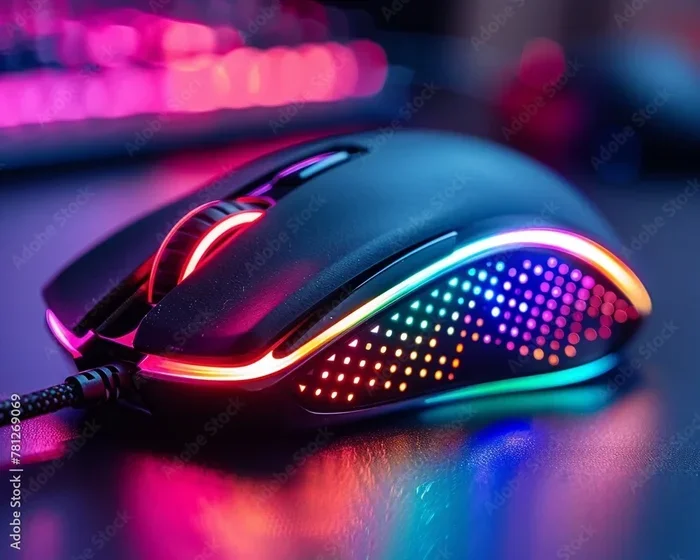
Mouse stuttering at 8000Hz on Windows 11 is a frustrating but fixable problem. This guide walks you through 7 proven solutions that address driver conflicts, USB power settings, polling rate mismatches, and more. Whether you use a wireless or wired mouse, these steps will help you restore smooth cursor movement and eliminate input lag for good.
There is nothing more annoying than your mouse stuttering at 8000Hz on Windows 11. You move the cursor, and it jumps, skips, or freezes for a split second. It happens especially when you have pushed your mouse to its maximum polling rate. Whether you are gaming, editing, or just browsing, this stutter breaks your flow.
The good news is that this problem has clear causes and proven fixes. In this guide, we walk through seven solutions that real users and tech experts swear by. You do not need to be a tech wizard to follow along. Most fixes take just a few minutes. Let us get your cursor gliding smoothly again.
Before we dive in, it helps to understand what is happening. When your mouse reports at 8000Hz, it sends position data to your computer 8000 times per second. That is extremely fast. But Windows 11, your USB controller, or your mouse software may not handle that speed well. The result? Mouse stuttering, cursor jitter, or input lag that feels like your mouse is dragging through sand.
Key Takeaways
- Lowering the polling rate from 8000Hz to a stable setting often resolves stuttering instantly.
- Updating mouse drivers through Device Manager or the manufacturer’s website fixes many Windows 11 conflicts.
- Disabling USB selective suspend prevents Windows from powering down your mouse’s USB connection.
- Turning off mouse acceleration in Windows settings removes cursor unpredictability at high refresh rates.
- Checking Bluetooth interference is essential if you use a wireless mouse that stutters at 8000Hz.
- Testing different USB ports and cables rules out hardware-related input lag.
- Adjusting Windows 11 pointer settings alongside your mouse software creates the smoothest experience.
📑 Table of Contents
- Why Does Mouse Stuttering Happen At 8000Hz On Windows 11?
- Fix 1: Lower The Polling Rate
- Fix 2: Update Mouse Drivers On Windows 11
- Fix 3: Disable USB Selective Suspend
- Fix 4: Disable Mouse Acceleration In Windows 11
- Fix 5: Troubleshoot Bluetooth Connectivity
- Fix 6: Adjust Windows 11 Mouse Settings
- Fix 7: Check For Hardware Issues
- Final Thoughts
Why Does Mouse Stuttering Happen At 8000Hz On Windows 11?
Understanding the root cause makes the fixes much easier to apply. Several factors can trigger mouse stuttering at high polling rates. Here are the most common ones.
Polling Rate Overload
Not every computer system can handle 8000Hz reporting. Your CPU, USB controller, and even your mouse pad surface all play a role. When the data flood exceeds what Windows 11 can process, packets get dropped. That is when you see the cursor stutter or skip.
Driver Conflicts
Outdated or corrupted mouse drivers are a leading cause of cursor jumping and stuttering. Windows 11 sometimes auto-updates drivers in ways that break compatibility with high-performance mice. This is especially true for Logitech, Razer, and SteelSeries devices.
USB Power Management
Windows 11 loves to save power. It may temporarily suspend USB devices to conserve energy. When it does this to your mouse, you get brief moments of unresponsiveness. This is one of the sneaky causes of mouse input lag that many people overlook.
Bluetooth Interference
If you use a Bluetooth wireless mouse, interference from other devices can cause stuttering. Wi-Fi routers, USB 3.0 ports, and even microwaves can disrupt the Bluetooth signal. This problem gets worse at higher polling rates because the connection has less room to breathe.
Fix 1: Lower The Polling Rate
The simplest and fastest fix is to reduce your polling rate. If your mouse is set to 8000Hz, try dropping it to 1000Hz or 4000Hz. Most mice let you change this through their dedicated software.
For Logitech users, open Logitech G Hub or Logitech Options. For Razer, use Razer Synapse. SteelSeries users should open SteelSeries GG. Look for the polling rate setting and lower it. Then test your mouse movement.
Why this works: Lowering the polling rate reduces the data load on your system. Windows 11 can process the input more reliably, which eliminates stuttering. Many users report that 1000Hz or 4000Hz feels just as smooth as 8000Hz but without the hiccups.
If you want to keep the high rate, make sure your system meets the requirements. A modern CPU with a fast USB controller handles 8000Hz much better than older hardware. Check if your motherboard supports the latest USB standards.
Fix 2: Update Mouse Drivers On Windows 11
Outdated drivers are a top reason for mouse stuttering at 8000Hz. Windows 11 does a decent job of keeping drivers updated, but it does not always get it right. Sometimes it installs a generic driver that does not support your mouse’s full feature set.
Here is how to update your mouse driver manually:
- Right-click the Start button and select Device Manager.
- Expand the “Mice and other pointing devices” section.
- Right-click your mouse and select “Update driver.”
- Choose “Search automatically for drivers.”
- Restart your computer after the update completes.
For the best results, visit your mouse manufacturer’s website. Download the latest driver directly from Logitech, Razer, SteelSeries, or whoever makes your mouse. Install it and restart your PC.
You can also try uninstalling the current driver and letting Windows reinstall it from scratch. In Device Manager, right-click the mouse, select “Uninstall device,” and then restart your computer. Windows will download a fresh driver automatically.
If you also experience issues where your mouse speed is not changing in laptop Windows 11, driver updates often fix that too. The same corrupted drivers that cause stuttering can lock your sensitivity settings.
Fix 3: Disable USB Selective Suspend
Windows 11 has a power-saving feature called USB selective suspend. It turns off USB devices when it thinks they are idle. This saves battery on laptops, but it can cause your mouse to stutter when it wakes back up.
Here is how to turn it off:
- Open the Start menu and type “Power options.”
- Click “Change plan settings” next to your active plan.
- Select “Change advanced power settings.”
- Expand “USB settings” and then “USB selective suspend setting.”
- Set it to “Disabled” for both On Battery and Plugged In.
- Click OK and restart your computer.
This fix is especially helpful for laptop users. If you have been searching for solutions to mouse for laptop not working issues, USB selective suspend is a common hidden culprit. It affects both wired and wireless mice that connect through a USB dongle.
Another great option is to check your wireless mouse for laptop connection. Make sure the USB receiver is plugged directly into the computer, not through a hub. Hubs can introduce power management conflicts that make stuttering worse.
Fix 4: Disable Mouse Acceleration In Windows 11
Mouse acceleration changes how fast your cursor moves based on how fast you sweep the mouse. It sounds helpful, but it actually makes precision movements unpredictable. At 8000Hz, acceleration can amplify stuttering and make the cursor feel jerky.
Here is how to turn it off:
- Open Settings and go to Bluetooth & Devices.
- Click on Mouse in the left sidebar.
- Scroll down to “Additional mouse options.”
- In the Pointer Options tab, uncheck “Enhance pointer precision.”
- Click Apply and then OK.
Some gamers and professionals prefer to keep acceleration on, but if you are fighting stuttering at 8000Hz, turning it off helps a lot. You get consistent cursor movement regardless of how fast you move the mouse.
You can also fine-tune your pointer speed in the same settings menu. Set it to the default 6/11 position for the most neutral behavior. Then adjust from there based on your personal preference.
If you use a logitech wireless mouse for laptop, the Logitech software may have its own acceleration settings. Make sure to check both Windows settings and the Logitech G Hub app for a complete fix.
Fix 5: Troubleshoot Bluetooth Connectivity
If your mouse connects via Bluetooth, interference and connection stability are real concerns. Bluetooth operates on the 2.4GHz frequency, which is shared with Wi-Fi and many other devices. When multiple devices compete for bandwidth, your mouse stutters.
Here are steps to improve your Bluetooth mouse performance:
- Move closer to your computer. Bluetooth range is typically 30 feet, but walls and obstacles reduce it.
- Remove other Bluetooth devices temporarily and see if stuttering stops.
- Switch your Wi-Fi band from 2.4GHz to 5GHz if your router supports it.
- Update your Bluetooth drivers through Device Manager.
- Try using the USB receiver instead of Bluetooth if your mouse supports it.
For users who rely on a bluetooth wireless mouse for laptop, the USB receiver is almost always more stable than a pure Bluetooth connection. The receiver uses a dedicated channel that does not compete with Wi-Fi.
Also, make sure your mouse firmware is up to date. Manufacturers regularly release updates that fix connection issues. Check the manufacturer’s app for firmware updates and install them.
Fix 6: Adjust Windows 11 Mouse Settings
Windows 11 has several mouse settings that can contribute to or reduce stuttering. Tweaking these settings alongside your mouse software creates the best experience. Here is what to check.
Pointer Speed And Sensitivity
Go to Settings > Bluetooth & Devices > Mouse. Adjust the cursor speed to a comfortable level. Avoid extreme settings on either end, as they can cause tracking issues at high polling rates.
Change Your USB Ports
Not all USB ports are created equal. Plug your mouse into a USB 3.0 or USB-C port directly on the computer. Avoid front-panel ports on desktop cases, as they often have weaker connections. If you are using a small wireless mouse for laptop, the USB receiver matters just as much as the mouse itself.
Disable Enhanced Pointer Precision Globally
We covered this in Fix 4, but it deserves emphasis. Enhanced pointer precision is a Windows feature designed for trackpads, not high-speed mice. Disabling it removes a layer of processing that can interfere with smooth 8000Hz tracking.
Check Your Mouse Pad Surface
This one surprises people. A glossy or reflective mouse pad can confuse optical sensors at very high polling rates. Switch to a cloth or textured mouse pad and see if the stuttering improves. Your mouse for a laptop computer needs a consistent surface to track accurately at 8000Hz.
Fix 7: Check For Hardware Issues
If none of the software fixes work, the problem may be hardware-related. Here is what to check.
First, try a different USB cable if your mouse uses one. Damaged or low-quality cables cause data transmission errors that manifest as stuttering. This is especially common with gaming mice that have thicker cables.
Second, test your mouse on another computer. If it stutters there too, the mouse itself may be defective. Contact the manufacturer for a replacement or repair.
Third, check your USB controller. Open Device Manager and expand “Universal Serial Bus controllers.” Look for any yellow warning icons. If you see one, right-click and update the driver. A failing USB controller can cause intermittent mouse input lag across all connected devices.
Finally, consider your laptop’s age and specifications. Older laptops with windows 11 8gb ram laptop configurations or windows 11 16gb ram laptop setups may struggle with high polling rates simply because the USB controller is older. Upgrading hardware is not always an option, but knowing the limitation helps you set realistic expectations.
For users who want the smoothest experience, a mini mouse for laptop wireless with a lower polling rate (1000Hz-4000Hz) often performs better than pushing a high-end mouse to 8000Hz on an older system. Sometimes less really is more.
Final Thoughts
Mouse stuttering at 8000Hz on Windows 11 is annoying, but it is almost always fixable. Start with the simplest solutions like lowering the polling rate and updating drivers. Then work through the USB settings, Bluetooth troubleshooting, and Windows configuration tweaks. By the time you reach the hardware checks, you will have already solved the problem most of the time.
Remember that every system is different. What fixes stuttering for one person might not work for another. But the combination of these seven fixes covers virtually every possible cause. Be patient, try them one at a time, and you will get your cursor moving smoothly again.
Do not let a stuttering mouse ruin your productivity or gaming sessions. Apply these fixes today and enjoy the responsive, lag-free cursor experience your wireless mouse for laptop was built to deliver.
Frequently Asked Questions
Why does my mouse stutter specifically at 8000Hz?
At 8000Hz, your mouse sends 8000 data packets per second to Windows 11. Your system may not be able to process all of them, causing dropped packets that appear as stuttering. Lowering the rate to 4000Hz or 1000Hz usually resolves this immediately.
Can a USB hub cause mouse stuttering at high polling rates?
Yes, USB hubs can introduce power and bandwidth limitations. Always plug your mouse directly into the computer’s USB ports for the most stable connection, especially at 8000Hz.
Is mouse stuttering at 8000Hz bad for the mouse?
No, stuttering does not damage your mouse. It is a data processing issue on the computer side. Your mouse is simply sending more data than Windows 11 can handle smoothly.
Do I need to update my mouse firmware to fix stuttering?
Firmware updates often include fixes for connection stability and polling rate handling. Check your mouse manufacturer’s app regularly and install any available updates.
Will disabling mouse acceleration affect my gaming performance?
Most gamers actually prefer disabled acceleration because it provides consistent, predictable cursor movement. At 8000Hz, disabling acceleration also reduces the processing load that contributes to stuttering.
How do I know if my USB port is causing the stutter?
Try plugging your mouse into a different USB port, preferably a USB 3.0 port directly on the motherboard. If the stuttering stops, the original port was the problem. Avoid USB hubs and front-panel ports for best results.