How to Disable Laptop Mouse
Struggling with a jumpy laptop touchpad while using an external mouse? Disabling your laptop’s built-in mouse (touchpad) is a simple fix. This guide covers every method: quick keyboard shortcuts, system settings for Windows/macOS/Linux, BIOS options, and hardware tricks. We also provide troubleshooting steps if you accidentally disable it or need to re-enable it. Follow these clear, safe instructions to take control of your cursor.
Have you ever been in the middle of typing an important email or a intense gaming session, only to have your cursor jump wildly across the screen because your palm brushed against the laptop’s touchpad? It’s one of the most universal frustrations of modern laptop computing. The solution is often beautifully simple: disable the laptop mouse, more accurately called the touchpad or trackpad, when you’re using an external mouse or don’t need it. But how exactly do you do that? The process isn’t always obvious, and it varies wildly depending on your laptop’s manufacturer, your operating system, and even its age. This comprehensive guide will walk you through every single method, from the one-second keyboard shortcut to deep system settings, ensuring you can take complete control of your cursor. We’ll cover Windows 10 & 11, macOS, popular Linux distributions, BIOS/UEFI settings, and what to do if things go wrong. By the end, you’ll never have to suffer through an erratic touchpad again.
Key Takeaways
- Multiple Methods Exist: You can disable your laptop touchpad via keyboard shortcuts, operating system settings, BIOS/UEFI, or sometimes a physical button.
- OS-Specific Paths: The exact settings menu differs between Windows (Settings > Bluetooth & devices > Touchpad), macOS (System Settings > Accessibility > Pointer Control), and Linux (varies by distribution, often in Mouse & Touchpad settings).
- Safety First: Never delete touchpad drivers. Disabling is a temporary software/hardware setting; uninstalling drivers can cause permanent issues until re-installed.
- Hardware Shortcut is Fastest: Many laptops have a function key (Fn) combined with a dedicated touchpad key (often F1-F12) for instant toggle. Look for a touchpad icon.
- Troubleshooting is Key: If your touchpad stops working, check if it’s accidentally disabled, try an external mouse to navigate, or boot into Safe Mode to reverse the setting.
- Disable vs. Uninstall: Disabling turns the touchpad off but keeps the driver. Uninstalling removes the driver software, which is riskier and unnecessary for simply disabling the device.
- Purpose Matters: Common reasons include preventing accidental cursor movement while typing, using an external mouse for gaming/design, or fixing a faulty touchpad.
📑 Table of Contents
- Why Would You Want to Disable Your Laptop Touchpad?
- Method 1: The Quick Keyboard Shortcut (The Fastest Way)
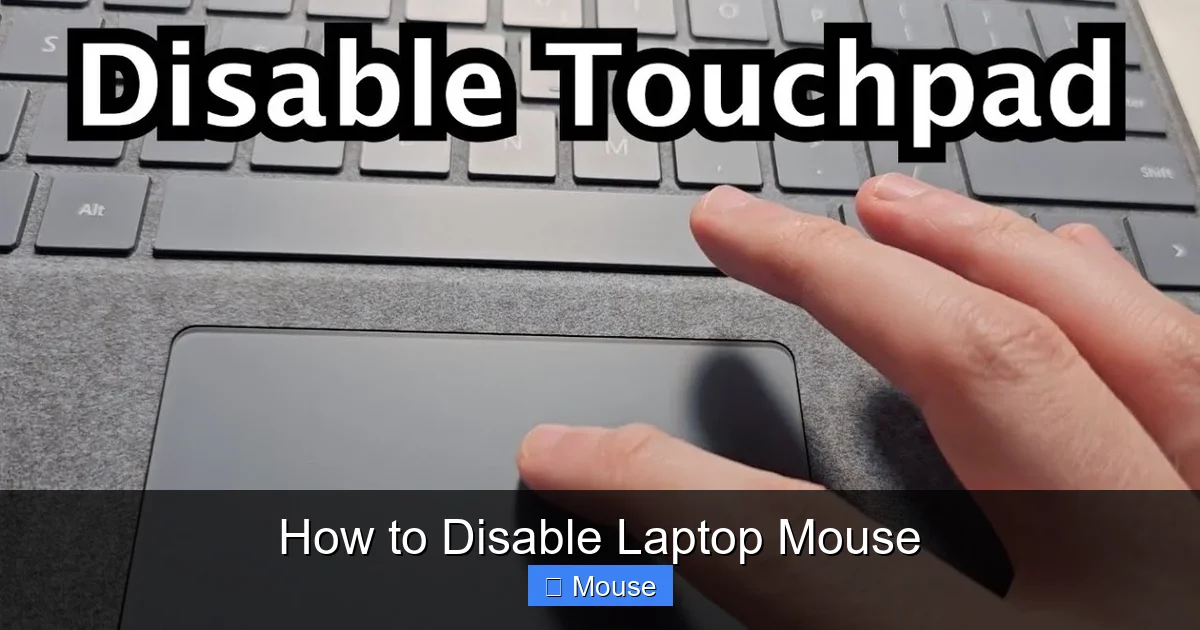
- Method 2: Disabling via Windows Settings (Windows 10 & 11)
- Method 3: Using Manufacturer-Specific Software (Dell, HP, Lenovo, etc.)
- Method 4: Disabling via macOS System Settings
- Method 5: The Linux Approach (Ubuntu, Fedora, etc.)
- Method 6: BIOS/UEFI and Hardware Solutions
- Troubleshooting: What to Do If You’ve Accidentally Disabled It or It Won’t Disable
- Conclusion: Taking Control of Your Computing Experience
Why Would You Want to Disable Your Laptop Touchpad?
Before we dive into the “how,” let’s clarify the “why.” Understanding the common scenarios makes it easier to identify the best method for your situation. Disabling your touchpad isn’t about breaking your laptop; it’s about customizing your workflow for comfort and precision.
The Accidental Palm Brush
This is the number one culprit. Laptop touchpads are sensitive. When you rest your palms on the wrist rest while typing, even a slight touch can register as a click or, worse, cause the cursor to skitter across the screen, making you lose your place or, in a worst-case scenario, accidentally close a document. For writers, programmers, and anyone who types for long periods, disabling the touchpad during active typing is a game-changer for productivity and sanity.
The External Mouse User
Many people prefer the precision, speed, and ergonomics of an external USB or wireless mouse. This includes gamers who need pixel-perfect accuracy, graphic designers who rely on the extra buttons and scroll wheels, and anyone with repetitive strain injury (RSI) concerns who finds a traditional mouse more comfortable. When an external mouse is connected, the built-in touchpad often becomes redundant and can even get in the way. Disabling it removes the competition.
Troubleshooting a Faulty Touchpad
Sometimes, the touchpad itself develops a hardware fault—sticky spots, unresponsive areas, or phantom inputs. Before you rush to a repair shop, a software disable can confirm if the issue is hardware-related. If the cursor problems vanish when the touchpad is off, you’ve isolated the problem. It also serves as a temporary workaround if you need to use the laptop urgently but the touchpad is malfunctioning.
Presentation Mode & Kiosk Use
When using your laptop for a presentation connected to a projector, you don’t want accidental touches on the touchpad to advance slides or trigger unwanted actions. Disabling it ensures only your presenter remote or keyboard controls the show. Similarly, in public kiosk setups or dedicated terminals, the touchpad might be disabled to prevent user tampering.
Method 1: The Quick Keyboard Shortcut (The Fastest Way)
This is your go-to, instant solution. Most laptops from major manufacturers (Dell, HP, Lenovo, ASUS, Acer) have a dedicated function key shortcut to toggle the touchpad on and off. It’s designed for exactly this scenario.
Visual guide about How to Disable Laptop Mouse
Image source: i.insider.com
How to Find and Use the Shortcut
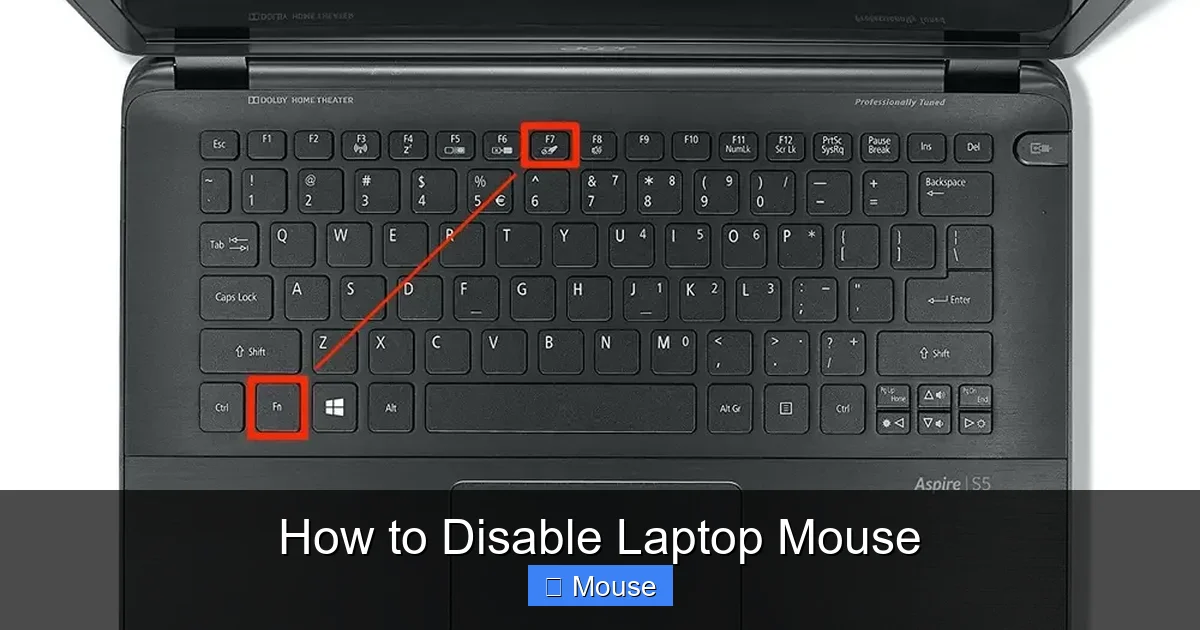
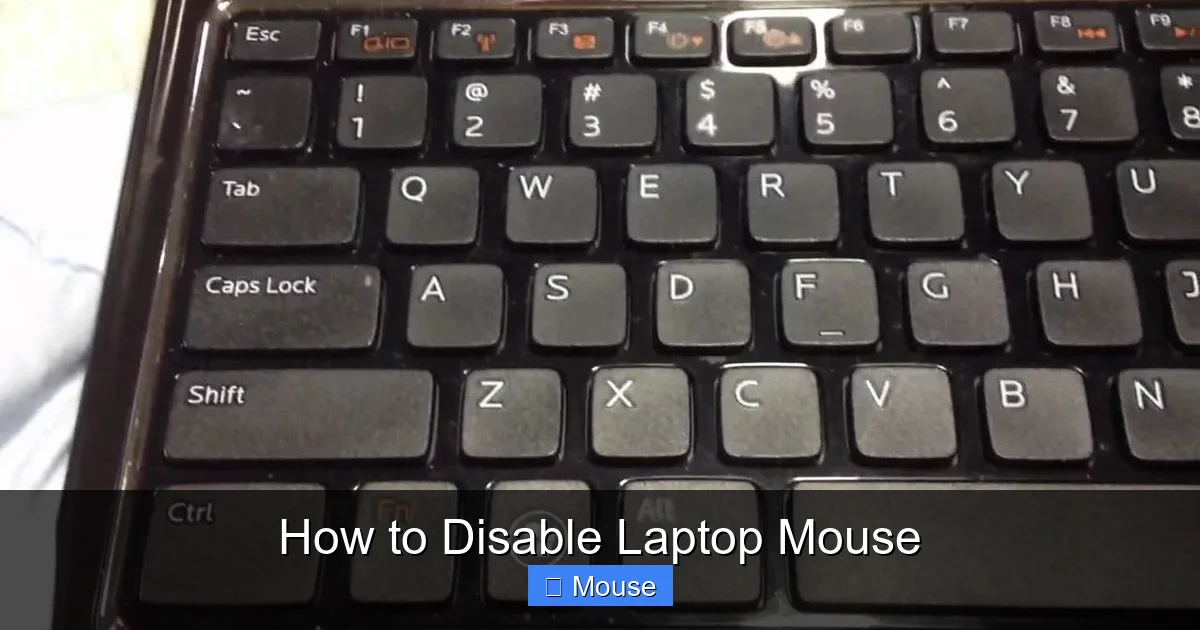
Look at the top row of your keyboard, the Function Keys (F1-F12). Scan these keys for an icon that looks like a touchpad with a finger on it, or sometimes a touchpad with a line through it (indicating “off”). It’s often on F7, F8, or F9, but can vary. On some models, it might share a key with F3 or F5.
To activate it, you typically need to hold down the Fn (Function) key (usually located at the bottom left of the keyboard) and then press the touchpad icon key. For example, Fn + F7. Pressing this combination once should disable the touchpad. An on-screen message (OSD) usually appears confirming the change, like “Touchpad disabled” or shows the icon with a red slash. Press the same combination again to re-enable it.
Important Note: On some newer laptops, especially gaming or productivity models from brands like ASUS (ROG), MSI, or Dell (XPS/Precision), the touchpad shortcut might be a dedicated key without the need for Fn. It might be a key with just the touchpad icon that you press directly. Consult your laptop’s manual if you can’t find it.
What If My Laptop Doesn’t Have This Shortcut?
Not all laptops include this hardware toggle, particularly some older models or specific budget lines. If you’ve searched the F-keys in vain, don’t worry. The software methods in the next sections will work regardless of your hardware’s shortcut capabilities.
Method 2: Disabling via Windows Settings (Windows 10 & 11)
Windows provides a built-in, user-friendly interface to manage your touchpad. The path has evolved slightly between versions, but the principle is the same.
Visual guide about How to Disable Laptop Mouse
Image source: i.ytimg.com
For Windows 11
1. Click the Start Menu and select Settings (the gear icon), or press Win + I.
2. In the Settings window, navigate to Bluetooth & devices on the left-hand pane.
3. Click on Touchpad.
4. You will see a master toggle switch labeled “Touchpad”. Simply click it to Off. This instantly disables the touchpad. The setting is immediate and persists through reboots until you toggle it back on.
For Windows 10
1. Open Settings (Win + I).
2. Go to Devices.
3. Select Touchpad from the left sidebar.
4. At the top, you’ll find a toggle for “Leave touchpad on when a mouse is connected”. If you want the touchpad to automatically disable whenever you plug in a USB or Bluetooth mouse, leave this ON. To manually disable it right now, you need to toggle the main “Touchpad” switch to Off. (Note: Some Windows 10 versions may only show the automatic option; the manual off switch might be hidden or require a specific driver from your manufacturer—see Method 3).
The “Additional Settings” Gateway
Sometimes, the simple Windows toggle is missing or greyed out. This is because the laptop manufacturer’s custom driver and control panel software takes precedence. In both Windows 10 and 11, within the Touchpad settings page, look for a link or button that says “Additional settings” or “Touchpad settings” (it might be under “Related settings”). Clicking this will open the classic Mouse Properties window or your manufacturer’s proprietary control panel (like Synaptics, ELAN, or Precision Touchpad settings). Here, you will almost certainly find a tab (often the last one, labeled “Device Settings”, “ELAN”, or “Touchpad”) with a button to Disable the device. This is a more powerful, driver-level disable.
Method 3: Using Manufacturer-Specific Software (Dell, HP, Lenovo, etc.)
Laptop brands install their own utility software to manage hardware features. This is often the most reliable place to find touchpad controls, especially if the Windows settings are limited.
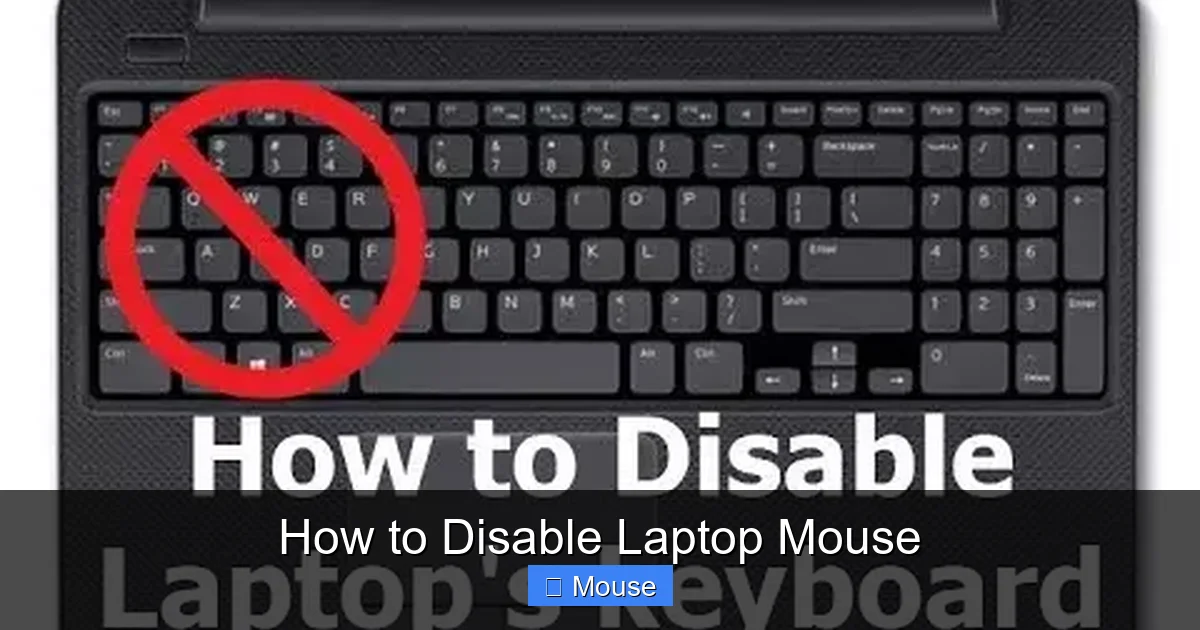
Visual guide about How to Disable Laptop Mouse
Image source: i.ytimg.com
- Dell: Look for Dell Touchpad or Dell Mouse in the Control Panel or Settings. You can also search for “Dell” in the Start Menu to find their support app, which may have touchpad options.
- HP: HP laptops use HP Control Zone or the HP Support Assistant app. The touchpad settings are often integrated there. You might also find “Synaptics” or “ELAN” in the Mouse settings.
- Lenovo: Lenovo Vantage or the older Lenovo Settings app is the place to go. There is a dedicated “Touchpad” section where you can disable it or set it to “Disable when external mouse is connected.”
- ASUS: Check for ASUS Smart Gesture or ASUS Touchpad in the system tray or Control Panel. The Fn+F9 shortcut is very common on ASUS.
- Acer: Look for ELAN Smart-Pad or Acer Touchpad in the Control Panel’s mouse section.
Pro Tip: If you can’t find this software, go to your laptop manufacturer’s support website, enter your exact model number, and download the latest “Input” or “Mouse/Touchpad” driver and utility package for your OS. Installing it will restore these options.
Method 4: Disabling via macOS System Settings
Apple’s macOS handles its Magic Mouse and Trackpad differently, but the principle is the same. Disabling the built-in trackpad on a MacBook is straightforward.
Steps for macOS Ventura, Sonoma, and Later
1. Click the Apple menu () in the top-left corner and select System Settings (or System Preferences on older macOS).
2. In the sidebar, scroll down and select Accessibility.
3. In the right pane, under the “Motor” section, click Pointer Control (or on older macOS, it might be directly under Accessibility as “Mouse & Trackpad”).
4. Here, you will see an option for “Enable Trackpad” or “Ignore built-in trackpad when mouse or wireless trackpad is present”. To disable it manually, uncheck “Enable Trackpad”. To have it automatically turn off when you use a mouse, check the “Ignore built-in trackpad…” option.
For Older macOS (Monterey, Big Sur, etc.)
The path is very similar: System Preferences > Accessibility > Mouse & Trackpad**. Check the box for “Ignore built-in trackpad when mouse or wireless trackpad is present” for automatic disabling. There isn’t a simple manual “off” switch in older versions; the automatic method is the primary way.
Method 5: The Linux Approach (Ubuntu, Fedora, etc.)
Linux offers great flexibility, but the method depends on your desktop environment (GNOME, KDE Plasma, XFCE) and the specific touchpad driver (libinput is most common now, synaptics is older).
Using GNOME Settings (Ubuntu, Fedora Workstation, Pop!_OS)
1. Open Settings (usually a gear icon).
2. Go to Mouse & Touchpad or Touchpad.
3. You should see a toggle for “Touchpad”. Switching it to Off will disable it. There is often also an option for “Disable while typing” which is useful but different from a full disable.
Using the Terminal (Universal Method)
For any distro, you can use the terminal to list and disable input devices. This is powerful and works even if the GUI settings are missing.
- Open a terminal (Ctrl+Alt+T).
- First, list input devices to find your touchpad’s name/ID:
xinput list. Look for an entry like “SynPS/2 Synaptics TouchPad” or “ELAN Touchpad” or “PS/2 Generic Mouse”. - Note the id number (e.g., id=12).
- To disable it, run:
xinput disable [id](e.g.,xinput disable 12). - To re-enable it later, run:
xinput enable [id].
Note: This disable is temporary and resets on reboot. To make it permanent, you’d need to create an Xorg configuration file, which is more advanced.
Method 6: BIOS/UEFI and Hardware Solutions
Sometimes, you need to disable the touchpad at the hardware level, before the operating system even loads. This is the most permanent software method and is useful for kiosk setups or if the touchpad is completely unresponsive in the OS.
Accessing BIOS/UEFI
1. Restart your laptop.
2. Immediately start pressing the key to enter BIOS/UEFI. This is usually F2, F10, F12, or Del. The correct key is often shown on the splash screen (“Press F2 to enter Setup”).
3. Navigate using the arrow keys. The BIOS interface is text-based and not mouse-driven (ironically).
4. Look for a tab or section called “Configuration”, “Advanced”, or “Input Device Settings”.
5. Find an option like “Internal Pointing Device”, “Touchpad”, or “Trackpad”. Change its value to “Disabled”.
6. Save changes and exit (usually F10). The laptop will reboot with the touchpad disabled at the hardware level.
Physical Disconnect (For Advanced Users Only)
This is an extreme, last-resort method. If you are comfortable opening your laptop, you can physically disconnect the touchpad ribbon cable from the motherboard. This voids warranties and risks permanent damage if done incorrectly. Only consider this if the touchpad is physically broken and you have no other option. Search for your specific laptop model’s teardown guide on sites like iFixit.
Troubleshooting: What to Do If You’ve Accidentally Disabled It or It Won’t Disable
Now, let’s address the common problems. You followed a step, but nothing happened, or worse, you disabled it and now can’t get it back because you don’t have an external mouse.
Scenario 1: I Disabled My Touchpad and Now I Have No Cursor! How Do I Re-Enable It?
First, don’t panic. You have options even without a working touchpad.
- Use Keyboard Navigation: Windows and macOS have full keyboard navigation. Press Tab to move between buttons/links, Arrow Keys to navigate lists, Enter to select, and Alt + F4 to close windows. You can often retrace your steps to the toggle setting using only the keyboard.
- The Keyboard Shortcut Reversal: The same Fn + [F-key] combination you used to disable it will almost certainly re-enable it. Try pressing it again.
- Boot into Safe Mode: Restart and boot into Safe Mode (usually by pressing F8 during startup on Windows, or holding Shift on macOS). Safe Mode loads minimal drivers and often reverts display/touchpad settings to defaults, potentially re-enabling the touchpad.
- Use an External Mouse (Temporarily): If you have a USB mouse lying around, plug it in. Even a basic wired mouse will give you a cursor to navigate back to the settings and toggle the touchpad back on.
Scenario 2: The Touchpad Option is Greyed Out or Missing in Settings
This usually means the touchpad driver is not properly installed, is corrupted, or a manufacturer utility is overriding Windows/macOS settings.
- Update/Reinstall Drivers: Go to your laptop manufacturer’s support site, download the latest touchpad driver for your model and OS, and install it. Reboot.
- Check Device Manager (Windows): Press Win + X and select Device Manager. Expand “Mice and other pointing devices”. Right-click your touchpad (might be listed as “PS/2 Compatible Mouse” or the specific brand name) and see if it’s disabled (a down arrow icon). If so, click Enable device. You can also try Uninstall device here, but check the box that says “Attempt to remove the driver software for this device” ONLY if you plan to reinstall it immediately from the manufacturer’s website. Otherwise, just reboot and let Windows reinstall a generic driver.
- Uninstall Manufacturer Utilities: If you installed Dell Touchpad, HP Control Zone, etc., try uninstalling them from Apps & features in Windows Settings. Then reboot and check if the standard Windows touchpad toggle reappears.
Scenario 3: The Keyboard Shortcut Doesn’t Work
This can happen if the shortcut is disabled in the manufacturer’s software, or if the function keys are set to “Multimedia key” mode by default.
- Look in your manufacturer’s control panel (as in Method 3) for an option like “Fn Key Behavior” or “Function Key Lock”. It might be set to “Multimedia” which requires pressing Fn to get the F-key function. Try toggling this setting, or simply try pressing the touchpad key without holding Fn.
- Check your BIOS/UEFI settings (Method 6) for an option related to function key behavior.
Conclusion: Taking Control of Your Computing Experience
Your laptop’s touchpad is a fantastic tool for portability, but it’s not always the right tool for the job. Whether you’re a writer battling phantom cursor jumps, a gamer demanding precision, or someone with a malfunctioning trackpad, knowing how to disable your laptop mouse is an essential piece of tech self-sufficiency. Start with the quick Fn + F-key shortcut—it’s the fastest solution. If that fails, dive into your operating system’s settings (Windows Settings, macOS Accessibility, or Linux Mouse & Touchpad). For persistent issues, the manufacturer’s own software or a BIOS toggle will have you covered. Remember, the goal is disable, not destroy. Always use the provided toggle settings or uninstall options, and never manually delete driver files unless you know exactly what you’re doing. By mastering these methods, you transform a frustrating quirk of laptop design into a customizable feature, ensuring your workflow is smooth, intentional, and entirely under your control. Now, go forth and type without those annoying jumps!
Frequently Asked Questions
Can I disable my laptop touchpad without an external mouse?
Yes, you can. Use the keyboard shortcut (Fn + touchpad key) if available. Alternatively, use keyboard navigation (Tab, Arrow keys, Enter) to go back into your system settings and re-enable it. Booting into Safe Mode can also reset the setting and restore the touchpad.
Is it bad to permanently disable my laptop touchpad?
No, it’s not bad for the hardware. Disabling it via software simply tells the operating system to ignore its input. The touchpad will remain physically intact. The only risk is accidentally disabling it without a way to re-enable it, so always ensure you have an external mouse or a known keyboard shortcut to toggle it back on.
Why is there no option to disable my touchpad in Windows Settings?
This usually happens because your laptop manufacturer’s custom driver/utility (like Synaptics, ELAN, or a brand-specific app) is managing the touchpad and has hidden the standard Windows toggle. You need to open the manufacturer’s control panel (often found in the Control Panel or via a system tray icon) to find the disable option.
How do I make my touchpad disable automatically when I plug in a USB mouse?
In Windows 10/11, go to Settings > Bluetooth & devices > Touchpad and turn on the switch for “Touchpad” but also enable “Leave touchpad on when a mouse is connected” to OFF, or find the automatic disable option. On macOS, go to System Settings > Accessibility > Pointer Control and check “Ignore built-in trackpad when mouse or wireless trackpad is present”.
I disabled my touchpad in BIOS and now I can’t get it back. What do I do?
You must re-enter the BIOS/UEFI settings (restart and press F2/Del/F10 during boot). Navigate to the same setting you changed (usually under Configuration or Advanced), change “Internal Pointing Device” or “Touchpad” back to Enabled, save and exit. The touchpad will work again on the next boot.
What’s the difference between disabling and uninstalling my touchpad driver?
Disabling turns the device off but keeps the driver software installed and ready. You can re-enable it instantly. Uninstalling removes the driver software entirely. Without the driver, Windows will try to install a generic one, which may lack features or work poorly. Uninstalling is riskier and unnecessary for simply turning the touchpad off. Always choose disable over uninstall.