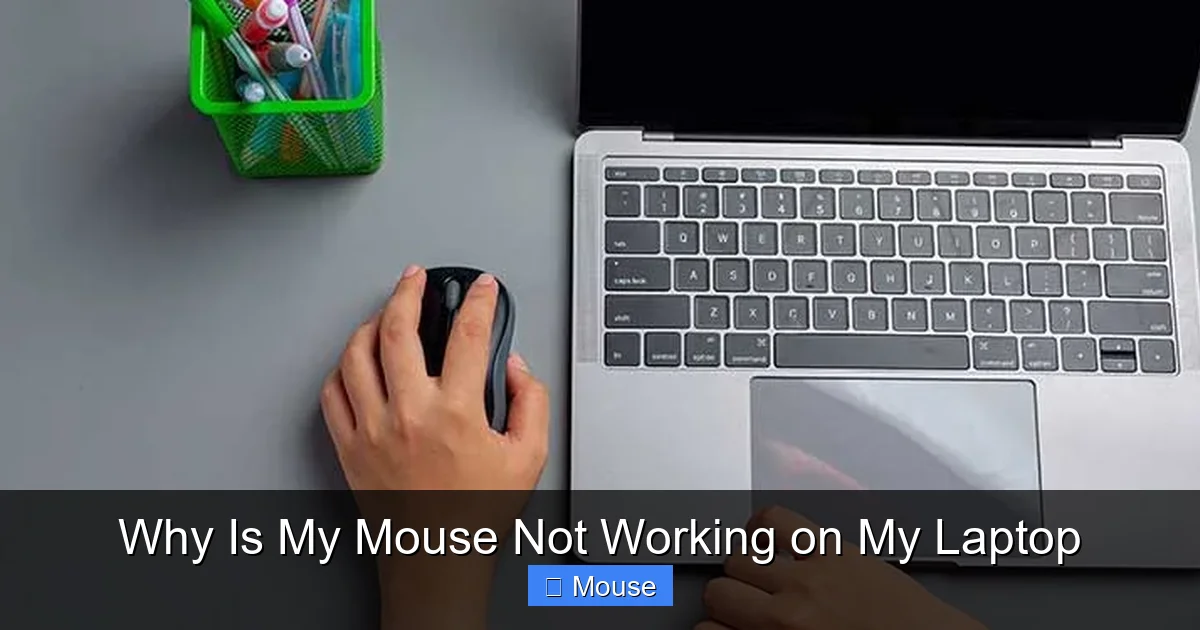
Why Is My Mouse Not Working on My Laptop

A non-responsive mouse on your laptop is usually caused by simple, fixable issues rather than catastrophic failure. The problem often stems from physical connection problems, outdated or corrupt drivers, operating system glitches, power settings, or internal hardware faults. Start with basic troubleshooting like checking the USB port, restarting your laptop, and replacing batteries before moving to software fixes like updating drivers or checking Device Manager. Understanding whether the issue affects your external mouse, internal trackpad, or both is the critical first step to finding the right solution.
There you are, in the middle of an important project, a crucial email, or an intense gaming session, and it happens. Your cursor freezes. You jab the mouse button. Nothing. You wiggle the mouse frantically. Still nothing. That sinking feeling of frustration is all too familiar. Your laptop’s mouse—whether it’s the external one you rely on or the built-in touchpad—has stopped working. Before you panic and imagine expensive repair bills, take a deep breath. The vast majority of the time, a mouse not working on a laptop is caused by a straightforward, solvable issue. This guide will walk you through every possible cause, from the incredibly simple to the more complex, giving you a clear path to get your pointer moving again.
We’ll break this down logically. First, we’ll conquer the external mouse—both wired and wireless. Then, we’ll tackle the internal touchpad, which has its own set of quirks. By the end, you’ll be equipped with the knowledge of a seasoned IT support technician, able to diagnose and fix the problem yourself. Remember, patience and a methodical approach are your best tools. Let’s get started.
Key Takeaways
- Always start with the simplest physical checks: Ensure a wired mouse is firmly plugged in, a wireless mouse has power and a stable connection, and the USB port is clean and functional.
- A simple restart can resolve temporary software glitches: Many mouse issues are caused by fleeting operating system conflicts that a reboot clears.
- Outdated or corrupt drivers are a prime suspect: Use Device Manager to check for yellow exclamation marks and update, roll back, or reinstall your mouse and touchpad drivers.
- Power and battery settings can disable your pointing devices: Check your laptop’s power management settings and BIOS/UEFI to ensure USB or touchpad functionality isn’t being turned off to save power.
- Operating system updates or conflicts can break functionality: A recent Windows or macOS update might introduce a bug; booting into Safe Mode can help diagnose if third-party software is the culprit.
- Internal hardware failure is possible but less common: If all else fails, the issue could be a faulty internal ribbon cable for the touchpad or a damaged USB controller, requiring professional repair.
- Isolate the problem: Test your mouse on another computer and try a different mouse on your laptop. This quickly tells you if the fault lies with the mouse itself or the laptop.
📑 Table of Contents
- Section 1: The External Mouse Diagnosis (Wired & Wireless)
- Section 2: The Internal Touchpad (Trackpad) Troubleshooter
- Section 3: Operating System & Software Culprits
- Section 4: Power Management & BIOS/UEFI Settings
- Section 5: When All Else Fails: Internal Hardware & Professional Help
- Conclusion: A Methodical Approach Wins
Section 1: The External Mouse Diagnosis (Wired & Wireless)
Let’s begin with the most common point of failure: your external mouse. Whether it’s a classic ball mouse from yesteryear or a sleek modern wireless model, the troubleshooting path shares many similarities.
1.1 The “Is It Plugged In?” and Power Check
Yes, we’re starting here. It’s the tech support classic for a reason—it works. For a wired mouse, unplug it from the USB port and firmly plug it back in. Try a different USB port on your laptop, preferably one directly on the computer rather than a hub. Dust and debris can clog ports, so give the port a gentle blast of compressed air. For a wireless mouse, the first suspect is always power. Replace the batteries with fresh ones. If it’s a rechargeable model, ensure it’s fully charged. Next, check the connection. For a USB dongle (the little wireless receiver), unplug it and plug it into a different USB port. If your mouse uses Bluetooth, go to your laptop’s Bluetooth settings, “forget” the device, and re-pair it from scratch. Interference from other devices or a low battery in the mouse can cause a shaky or lost connection.
1.2 The USB Port & Hub Problem
Sometimes, the issue isn’t the mouse but the port it’s plugged into. Test your mouse in every available USB port on your laptop. If it only works in one specific port, that port may be damaged. If it doesn’t work in any port, try plugging the mouse into a completely different computer. If it works there, your laptop’s USB controller might have a problem. This is more common after a physical jolt or spill. Also, if you’re using a USB hub, connect the mouse directly to the laptop. Hubs can fail or not provide enough power for certain devices.
1.3 Driver Deep Dive: The Heart of Mouse Communication
Your operating system needs a translator—a driver—to understand what your mouse is telling it. If this driver is missing, corrupt, or outdated, communication breaks down. This is a leading cause of a mouse not working on a laptop.
- Using Device Manager (Windows): Right-click the Start button and select “Device Manager.” Expand “Mice and other pointing devices.” If you see a yellow exclamation mark or a generic “Unknown device,” right-click it and select “Update driver.” Choose “Search automatically for drivers.” If that doesn’t work, you can also “Uninstall device” and then restart your laptop; Windows will reinstall the driver automatically. For more advanced users, you can download the latest driver directly from your mouse manufacturer’s website.
- For macOS: Mouse drivers are typically built-in. Deleting the mouse’s preference files can help. Navigate to ~/Library/Preferences/ and look for files containing the mouse or manufacturer’s name, move them to the desktop, and restart.
- Third-Party Software Conflicts: If you recently installed new software (especially mouse customization software from the manufacturer), it might be conflicting. Try booting into Safe Mode (Windows) or Safe Boot (macOS). If the mouse works there, a third-party app is likely the problem. Uninstall recent software to isolate the culprit.
Section 2: The Internal Touchpad (Trackpad) Troubleshooter
When the built-in touchpad stops responding, the causes can be software-related or involve the physical connection inside the laptop’s chassis. The fix often involves a specific key combination or a settings tweak.

Visual guide about Why Is My Mouse Not Working on My Laptop
Image source: anhome.tech
2.1 The Accidental Disable Key Combo
This is the #1 reason for a suddenly dead touchpad. Most laptops have a function key (F1-F12) with a touchpad icon, often in a different color. You’ve likely hit this key combo by accident. Look for a key with a touchpad symbol—it’s often F6, F7, or F8. Press Fn + [That Key] to toggle the touchpad back on. Some laptops have a small LED next to the touchpad that lights up when it’s disabled. On some models, double-tapping in the top-left corner of the touchpad can also enable/disable it. Check your laptop’s manual for the exact shortcut.
2.2 Touchpad Settings in the Operating System
Your OS has its own settings that can disable the touchpad, sometimes automatically when an external mouse is detected.
- Windows: Go to Settings > Bluetooth & devices > Touchpad. Ensure the touchpad toggle is set to “On.” Also, check “Leave touchpad on when a mouse is connected” if you want it to stay active. You can also find touchpad settings in the classic Control Panel under “Mouse” or in your laptop manufacturer’s dedicated support app (e.g., Lenovo Vantage, Dell SupportAssist, HP Support Assistant).
- macOS: Go to System Settings > Trackpad. Ensure all gesture and pointing options are checked and enabled. Also, check Accessibility > Pointer Control to ensure no alternate control method is activated.
2.3 Driver Issues for the Touchpad
Like an external mouse, the touchpad has its own driver, often provided by the laptop manufacturer (Synaptics, ELAN, or Precision Touchpad drivers). In Windows Device Manager, under “Mice and other pointing devices” or sometimes under “Keyboards” or a manufacturer-specific category, look for your touchpad. Update or reinstall its driver from the manufacturer’s website for the most reliable results. Using the generic Windows driver might limit functionality.
Section 3: Operating System & Software Culprits
Sometimes, the problem isn’t the hardware at all but the software environment it’s running in. A corrupted system file or a conflicting update can render input devices useless.
Visual guide about Why Is My Mouse Not Working on My Laptop
Image source: technewstoday.com
3.1 The Power of a System Restart and Update
We mentioned a restart earlier, but it bears repeating. A full shutdown (not just sleep/hibernate) clears the system’s RAM and resets temporary states. If a restart doesn’t work, check for operating system updates. Go to Windows Update or macOS Software Update. A pending update might be waiting to install a critical fix for a known driver or system bug affecting input devices. Install all updates and reboot.
3.2 Booting into Safe Mode for Diagnosis
Safe Mode loads Windows or macOS with a minimal set of drivers and startup programs. If your mouse works perfectly in Safe Mode, you’ve identified a software conflict. The culprit is likely a recently installed program, a startup application, or a corrupted system service. You’ll need to perform a clean boot (Windows) or check login items (macOS) to find and remove the offending software.
3.3 Corrupted System Files
For Windows users, the System File Checker tool can repair corrupted system files that might be interfering with hardware. Open Command Prompt as an Administrator and run the command: sfc /scannow. Let it complete and see if it finds and fixes any issues. For macOS, booting into Recovery Mode and running Disk Utility’s “First Aid” on your startup disk can help.
Section 4: Power Management & BIOS/UEFI Settings
Laptops are designed to save power, and sometimes these power-saving features get overzealous, turning off devices you need.

Visual guide about Why Is My Mouse Not Working on My Laptop
Image source: img.youtube.com
4.1 USB Selective Suspend Setting (Windows)
This Windows power setting allows the OS to put USB ports into a low-power state, which can sometimes cause them to not wake up properly. Go to Control Panel > Power Options > Edit plan settings > Change advanced power settings. Expand “USB settings” and “USB selective suspend setting.” Set it to Disabled. Click Apply and OK, then restart.
3.2 BIOS/UEFI Touchpad & USB Settings
The lowest level of your laptop’s software, the BIOS or UEFI, has settings that can disable internal components. Restart your laptop and press the key to enter BIOS/UEFI (often F2, Del, F10, or Esc—the screen usually shows a prompt). Look for settings related to “Internal Pointing Device,” “Touchpad,” or “USB Legacy Support.” Ensure the touchpad is Enabled. For USB, ensure ports are enabled. Be cautious in BIOS; changing the wrong setting can prevent booting. If you’re unsure, just look and exit without changing anything.
Section 5: When All Else Fails: Internal Hardware & Professional Help
If you’ve methodically worked through every software and simple hardware step and your mouse (external or internal) still doesn’t work on any operating system or live USB environment, the fault likely lies within the laptop’s physical hardware.
5.1 The Loose or Damaged Internal Ribbon Cable
For a non-working touchpad, a very common physical failure is a loose, damaged, or disconnected ribbon cable that connects the touchpad to the motherboard. This can happen from a minor impact, general wear, or during a previous repair. This is not a simple user-replaceable part for most modern ultrabooks and requires disassembly. If you’re comfortable, you can search for your laptop’s specific service manual online to see the disassembly process. However, for most users, this is the point to call in a professional.
5.2 Failed USB Controller or Motherboard Issue
If no USB device (mouse, keyboard, flash drive) works in any port, the laptop’s USB controller chip on the motherboard may have failed. This is a more serious and costly repair. Similarly, if both the touchpad and an external mouse fail simultaneously (and you’ve ruled out OS issues), it points to a deeper system-level failure.
5.3 Physical Damage and Spills
Did the laptop recently take a tumble or experience a liquid spill? Even if it seemed to recover, internal components can be damaged. Corrosion from liquids can eat away at the delicate connections for the touchpad or USB ports. This requires a professional cleaning and diagnosis.
Conclusion: A Methodical Approach Wins
A mouse not working on a laptop is a frustrating but almost always diagnosable problem. The key is to follow a logical progression from the simplest, most likely causes to the more complex ones. Start with power and connections, move to software and drivers, then consider system settings, and finally, contemplate hardware failure. By isolating the issue—testing an external mouse, checking Device Manager, trying Safe Mode—you can pinpoint the source. For the vast majority of users, the solution will be found in the first three sections of this guide, requiring no more than a few minutes and some basic clicks. Remember, your laptop is a complex tool, but its problems are often simple. With this guide in hand, you’re no longer a victim of a frozen cursor; you’re a detective with a clear roadmap to a solution. Now, go get that pointer moving again!
Frequently Asked Questions
Why does my mouse stop working randomly on my laptop?
Random disconnects are often caused by power management settings (like USB Selective Suspend), a failing wireless connection due to interference or low batteries, or a driver that crashes under certain system loads. Check your power settings and ensure your wireless mouse’s receiver is in a port close to the mouse without obstructions.
Can a virus or malware cause my mouse to stop working?
Yes, though it’s uncommon. Malicious software can interfere with system processes and drivers, including those for input devices. If you suspect malware, run a full scan with a reputable antivirus program. Booting into Safe Mode can also help; if the mouse works there, a third-party program is likely interfering.
My laptop’s touchpad stopped working after a Windows update. What do I do?
This is a frequent issue. A recent update may have installed a buggy or incompatible driver. First, try rolling back the driver: go to Device Manager, find your touchpad, right-click, select Properties, go to the Driver tab, and click “Roll Back Driver.” If that’s unavailable, download the latest stable driver from your laptop manufacturer’s website and install it manually.
My external mouse works on other computers but not on my laptop. Is my laptop broken?
Not necessarily. Since the mouse works elsewhere, the mouse itself is fine. The problem is with your laptop’s software or USB subsystem. Focus on updating/reinstalling USB and chipset drivers in Device Manager, checking for OS updates, and trying different USB ports. If no USB device works, it could indicate a failing USB controller, which is a hardware issue.
My touchpad is very laggy and unresponsive, but not completely dead. How can I fix this?
Lag can be caused by too many background processes taxing your CPU, an outdated driver, or incorrect sensitivity settings. Check your touchpad settings in the OS and manufacturer’s control panel to adjust pointer speed and disable unnecessary gestures. Also, check Task Manager for any application using excessive CPU resources and close it.
Is it safe to update mouse drivers from a third-party website?
For safety and reliability, it’s always best to get drivers directly from your laptop manufacturer’s support page (for touchpads) or the peripheral device manufacturer’s page (for external mice). Third-party driver update utilities can sometimes bundle malware or install incorrect drivers, causing more problems. Stick to official sources.