How Do I Add a Mouse to My Laptop
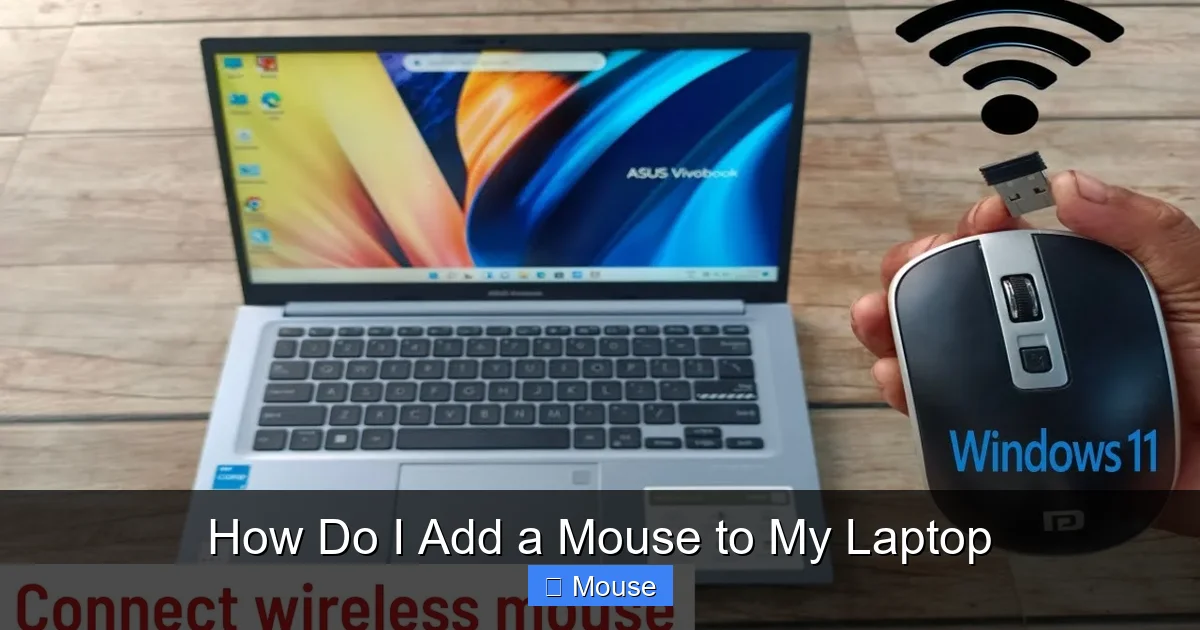
Adding a mouse to your laptop is a simple process that can significantly improve your productivity and comfort. Whether you are using a USB wired mouse, a wireless dongle, or a Bluetooth connection, this guide covers every step to get you clicking in minutes.
Let’s be honest: laptop trackpads are okay for a quick email or scrolling through a news feed. But the moment you need to do any real work, edit a photo, or play a game, that little square of plastic just doesn’t cut it. You want more precision, a real click, and a comfortable grip. That is why knowing how do i add a mouse to my laptop is one of the first things every laptop user should learn.
The great news is that adding a mouse is one of the easiest hardware upgrades you can make. You don’t need to be a tech genius or have a degree in computer science. In most cases, it is as simple as plugging something in and moving your hand. Whether you have a brand-new MacBook, a sturdy Dell, or a budget Chromebook, the process is nearly the same across the board.
In this guide, we are going to walk through every single method available. We will cover the old-school wired mice, the convenient wireless dongle versions, and the sleek Bluetooth options. By the time you finish reading, you will know exactly which mouse is right for you and how to get it working perfectly in seconds.
Key Takeaways
- Plug-and-Play: Most wired and wireless USB mice work instantly without needing manual software installation.
- Bluetooth Ease: Bluetooth mice remove the need for dongles but require a quick pairing process in system settings.
- USB-C Adapters: Modern thin laptops may need a USB-C to USB-A adapter to fit traditional mouse plugs.
- Battery Check: Always ensure wireless mice have fresh batteries or a full charge before attempting to connect.
- Driver Updates: If a mouse isn’t working, updating your drivers via Device Manager usually fixes the issue.
- Ergonomic Benefits: Using an external mouse reduces wrist strain compared to using a built-in trackpad.
📑 Table of Contents
Connecting a Wired USB Mouse
Wired mice are the “old reliable” of the computer world. They are great because they never run out of battery, and there is zero lag between your movement and the cursor on the screen. If you are wondering how do i add a mouse to my laptop using a cable, you are in luck because this is the fastest method.
The Simple Plug-and-Play Process
Most wired mice use a USB-A connector (the rectangular plug). To get started, simply locate an open USB port on the side of your laptop. Gently push the connector in until it clicks or sits firmly. Your laptop’s operating system (Windows, macOS, or ChromeOS) will recognize the device immediately. You will likely see a small notification saying “Setting up a device,” and within a few seconds, your cursor will start moving.
What to Do If You Have No USB-A Ports
Many modern laptops, especially thin ultrabooks and MacBooks, have moved away from the traditional rectangular USB-A ports in favor of the smaller, oval USB-C ports. If your mouse has a rectangular plug but your laptop only has oval holes, don’t panic. You just need a USB-C to USB-A adapter.
Simply plug the adapter into your laptop and then plug your mouse into the adapter. It works exactly the same way. This allows you to keep using your favorite mouse even as laptop designs change.
Tips for Wired Mouse Users
- Cable Management: Use a small cable clip or a piece of Velcro to keep the wire from getting tangled in your desk gear.
- Port Care: Avoid pulling the cable from a sharp angle, as this can damage the internal wiring or the laptop port.
- Surface Matters: While optical mice work on most things, a mousepad will make your movements much smoother.
How to Add a Wireless Mouse with a USB Dongle
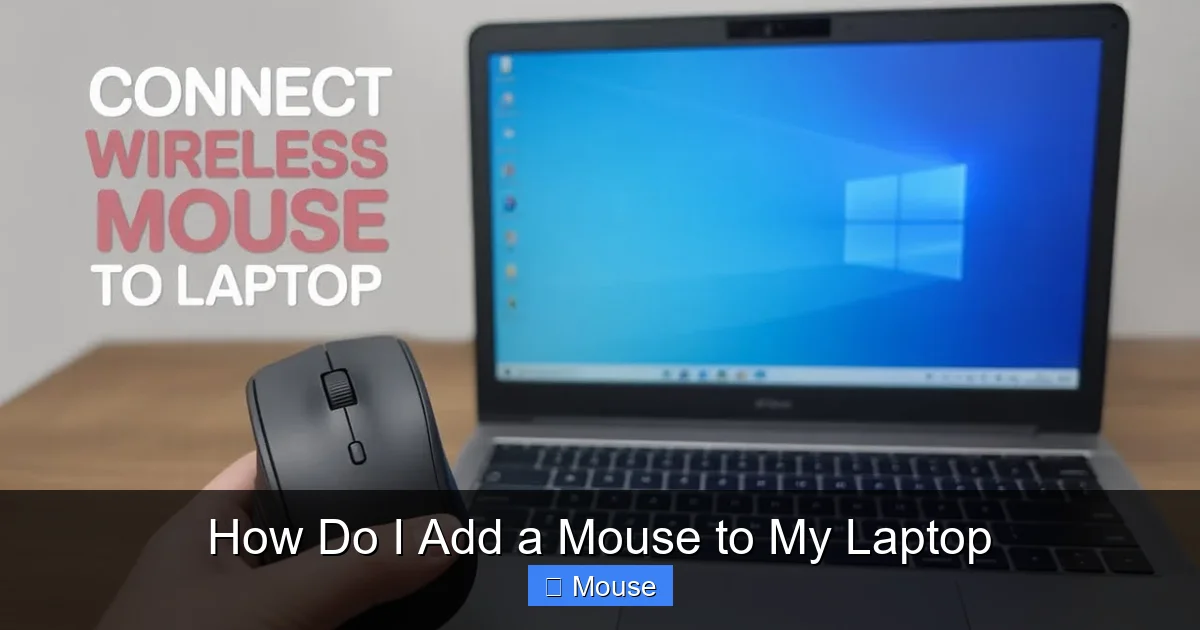
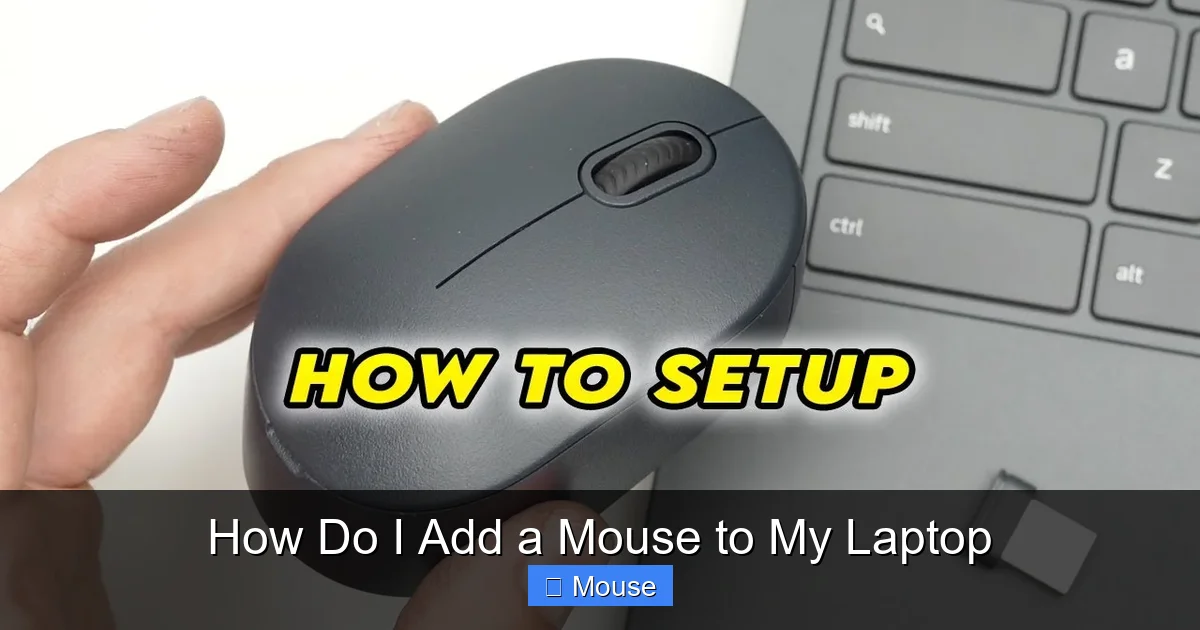
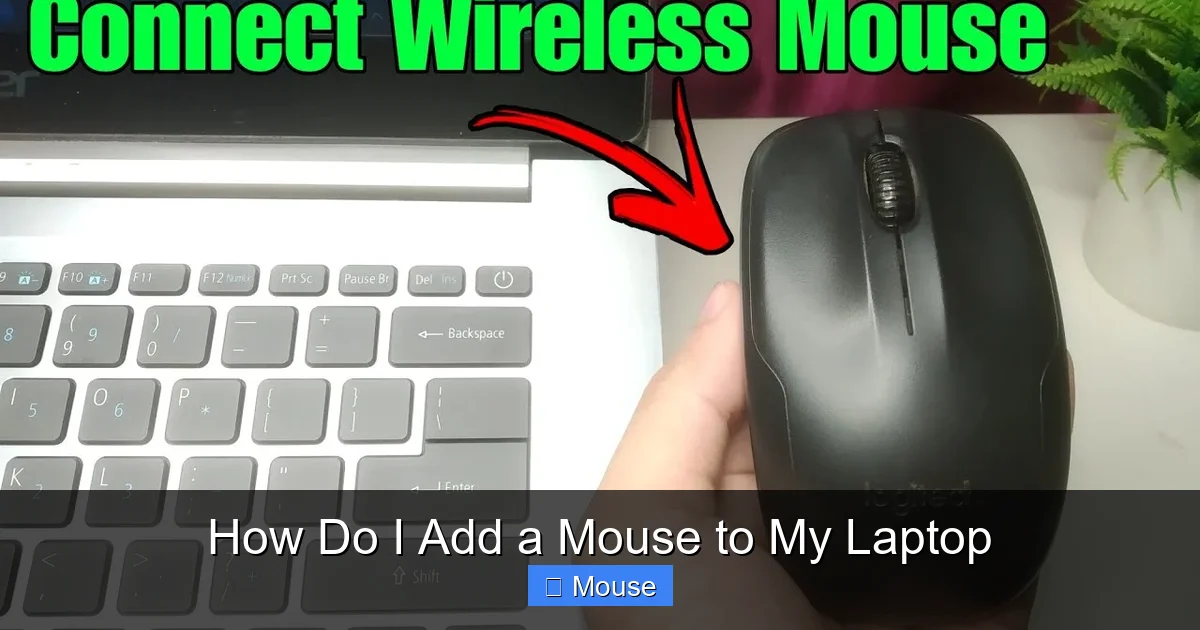
Wireless mice with a USB receiver (often called a “dongle”) provide the freedom of movement without the hassle of pairing menus. These are incredibly popular because they combine the ease of a wired mouse with the convenience of wireless technology.
Visual guide about How Do I Add a Mouse to My Laptop
Image source: i.ytimg.com
Step-by-Step Installation
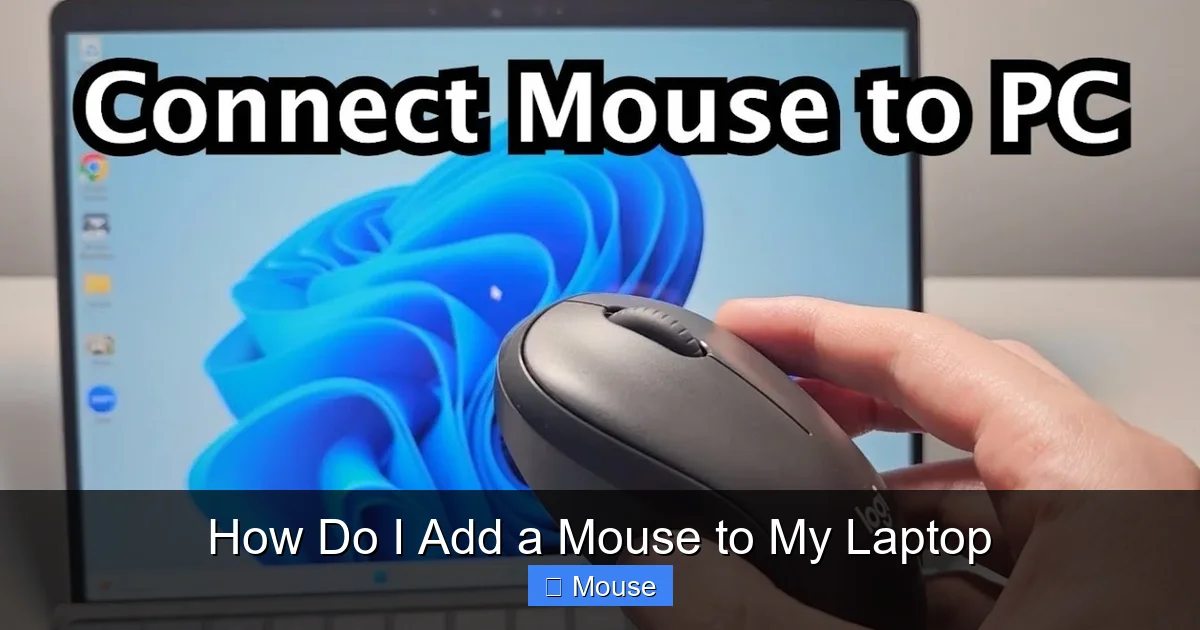
If you are trying to connect a wireless mouse to a laptop using a dongle, follow these simple steps:
- Insert Batteries: Open the battery compartment on the bottom of the mouse and insert the required batteries (usually AA or AAA).
- Turn it On: Flip the small power switch on the bottom to the “On” position.
- Plug in the Dongle: Find the tiny USB receiver (usually stored inside the battery compartment or tucked into the bottom of the mouse) and plug it into a USB port on your laptop.
- Wait for Recognition: Your laptop will automatically install the driver. Once the light on the mouse glows or the screen refreshes, you are ready to go.
Troubleshooting the Dongle Connection
Sometimes, you might plug in the dongle and nothing happens. Before you assume the mouse is broken, try these quick fixes. First, check the batteries again. A loose battery is the number one cause of connection failure. Second, try a different USB port. Occasionally, one port might be sleepy or malfunctioning.
If it still isn’t working, check if there is a “Connect” or “Reset” button on the bottom of the mouse. Pressing this for a few seconds can re-sync the mouse with the receiver. This is a common fix for mice that have been sitting in a drawer for a few months.
Connecting a Bluetooth Mouse (No Dongle Required)
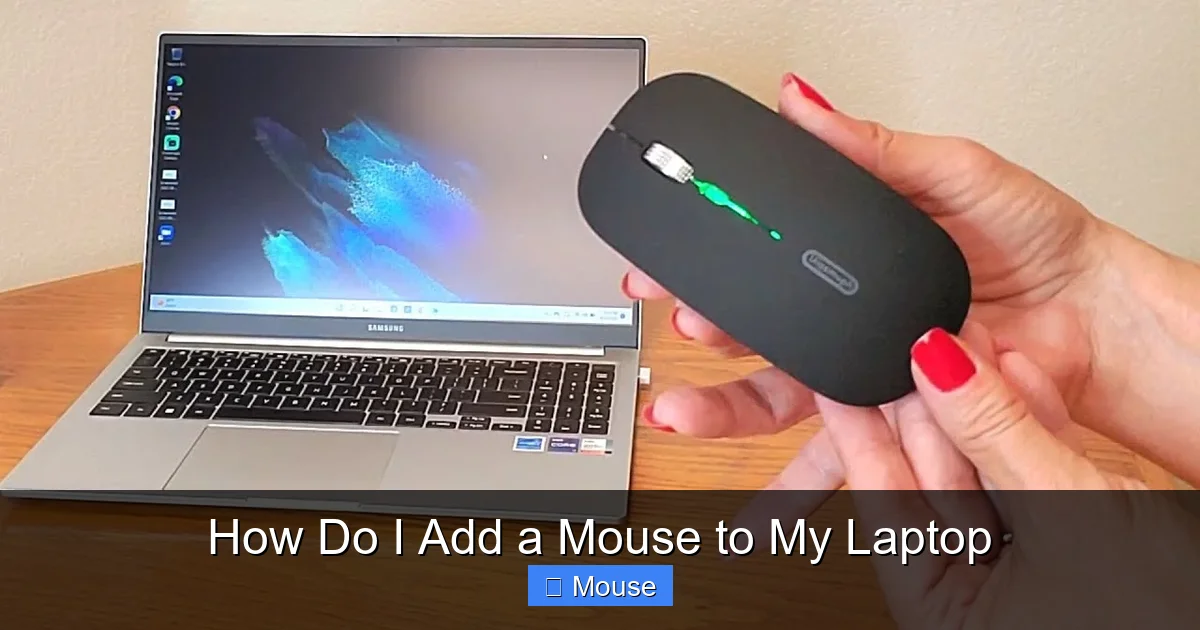
Bluetooth mice are the gold standard for portability. They don’t take up a USB port, which is a huge plus if you have a laptop with limited ports. However, since there is no physical plug, you have to “introduce” the mouse to the laptop through the software settings.
Visual guide about How Do I Add a Mouse to My Laptop
Image source: i.ytimg.com
Pairing on Windows 10 and 11
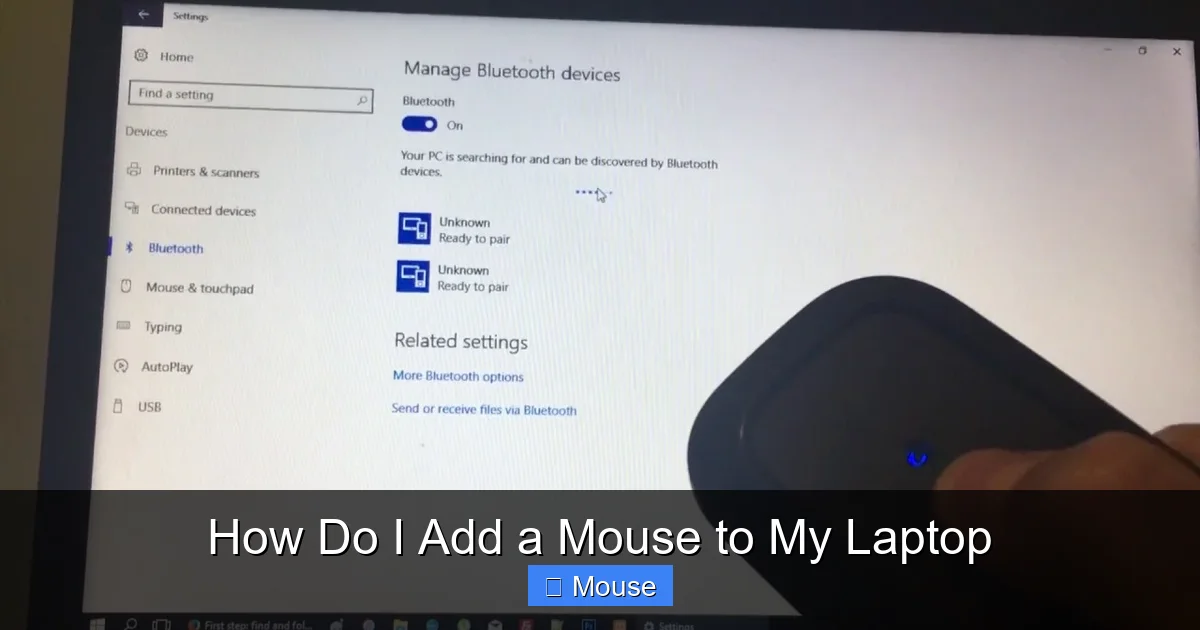
To add a Bluetooth mouse to a Windows laptop, start by putting your mouse into pairing mode. This is usually done by holding down a button on the bottom until a light starts flashing. Then, follow these steps:
- Click the Start menu and go to Settings.
- Select Bluetooth & devices.
- Make sure the Bluetooth toggle is turned On.
- Click Add device and select Bluetooth.
- Wait for your mouse’s name to appear in the list, click it, and select Connect.
Pairing on macOS
For Mac users, the process is just as easy. Put your mouse in pairing mode, then go to the Apple Menu > System Settings (or System Preferences) > Bluetooth. Find your mouse in the list of nearby devices and click Connect. Your Mac will now remember this mouse every time you turn it on.
The Pros and Cons of Bluetooth
The biggest advantage is the lack of clutter. No wires, no dongles, nothing. The downside is that Bluetooth can occasionally experience “wake-up lag,” where the mouse takes a second to respond after being idle. It also consumes a bit more battery from your laptop, though the impact is usually negligible.
Customizing Your Mouse Settings
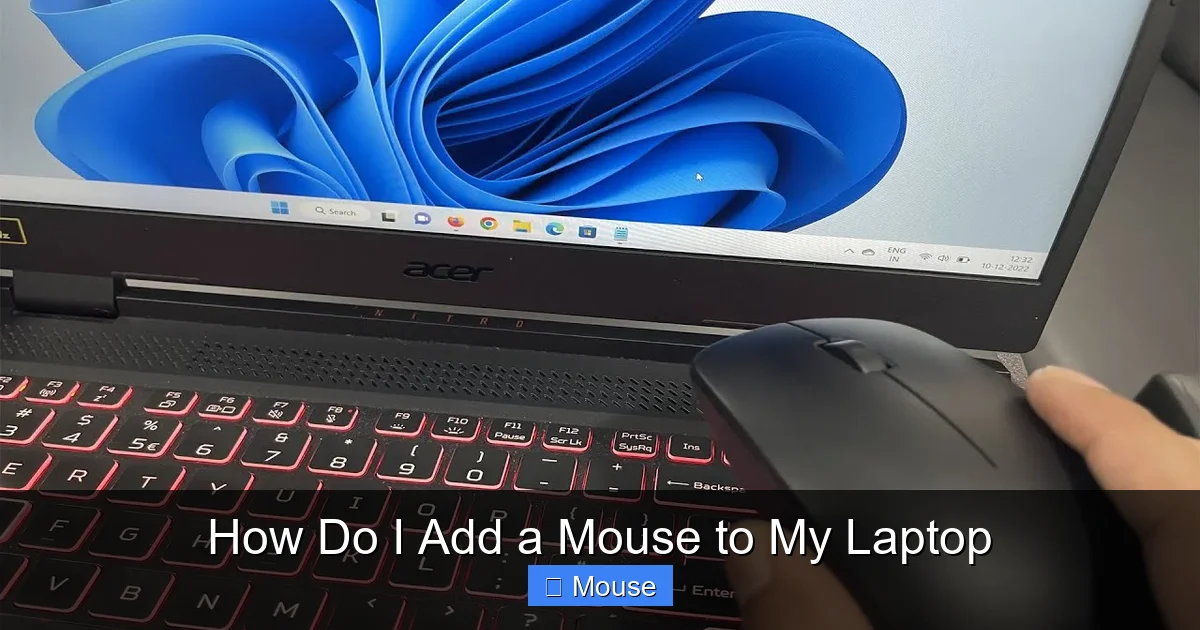
Once you have figured out how do i add a mouse to my laptop, you might find that the cursor moves too fast or too slow. You don’t have to settle for the default settings. Both Windows and Mac allow you to tweak the experience to fit your hand.
Visual guide about How Do I Add a Mouse to My Laptop
Image source: i.ytimg.com
Adjusting Pointer Speed
If the cursor feels like it is sliding across the screen too quickly, you can lower the DPI (Dots Per Inch). In Windows, go to Settings > Bluetooth & devices > Mouse. Here, you can adjust the “Mouse pointer speed” slider. Moving it to the left makes the cursor slower and more precise, while moving it to the right makes it faster.
Changing the Primary Button
Are you left-handed? You can easily swap the primary click from the left button to the right button. In the same mouse settings menu, look for “Primary mouse button” and switch it to “Right.” This makes your laptop much more comfortable to use if you prefer your left hand for clicking.
Scrolling Preferences
You can also decide how many lines the mouse scrolls when you turn the wheel. Some people prefer a slow, controlled scroll, while others want to fly through a long webpage. You can adjust the “Roll the mouse wheel to scroll” setting to your liking.
What to Do When Your Mouse Stops Working
It is frustrating when you are in the middle of a project and your mouse suddenly freezes. Before you throw it across the room, try these troubleshooting steps to get your mouse back on your laptop.
Visual guide about How Do I Add a Mouse to My Laptop
Image source: i.ytimg.com
The “Quick Fix” Checklist
- Check the Power: Is the switch on? Are the batteries dead?
- The Surface Test: Are you using the mouse on a glass table? Most optical mice cannot “see” glass. Try placing a piece of paper or a mousepad under it.
- The Reboot: The classic “turn it off and on again” works for a reason. Restarting your laptop can reset the USB drivers and fix the connection.
- USB Port Swap: If using a dongle, move it to a different port to rule out a hardware failure on the laptop side.
Updating Mouse Drivers
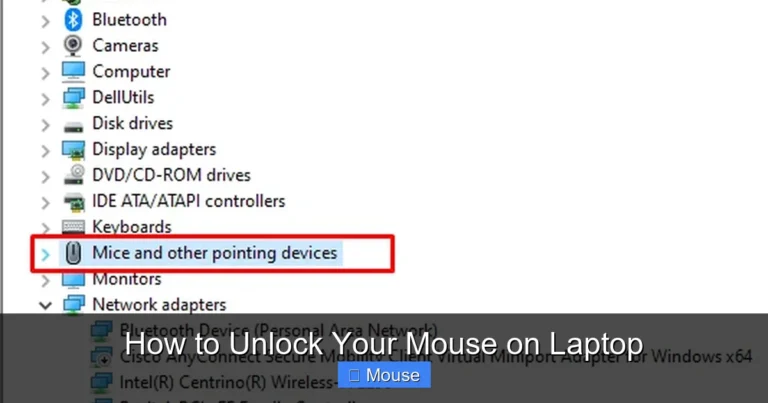
If the hardware is fine but the software is glitching, you may need to update the driver. In Windows, right-click the Start button and select Device Manager. Find “Mice and other pointing devices,” right-click your mouse, and select Update driver. This tells Windows to look for the latest software to make the mouse run smoothly.
Dealing with “Frozen” Cursors
If your mouse isn’t moving but the laptop is still on, you might have accidentally disabled your pointing device. Some laptops have a function key (like Fn + F5 or F9) that disables the mouse/trackpad. Check your keyboard for an icon that looks like a small touchpad with a line through it.
Choosing the Right Mouse for Your Needs
Since you now know how do i add a mouse to my laptop, you might be wondering if you should upgrade to a different type of mouse. Depending on what you do every day, some mice are better than others.
Visual guide about How Do I Add a Mouse to My Laptop
Image source: i.ytimg.com
For Office Work and Productivity
If you spend eight hours a day in spreadsheets or emails, look for an ergonomic mouse. These are shaped to fit the natural curve of your hand, which prevents wrist pain (Carpal Tunnel Syndrome). Many productivity mice also feature extra side buttons that you can program to perform tasks like “Undo” or “Enter.”
For Gaming
Gamers need speed and precision. Look for a mouse with a high DPI switch. This allows you to change the sensitivity on the fly. Gaming mice also usually have a higher “polling rate,” meaning the mouse reports its position to the laptop more frequently, resulting in smoother movement during fast-paced action.
For Travel and Portability
If you work from cafes or airports, a slim Bluetooth mouse is the way to go. These are lightweight and often flat, fitting easily into a laptop sleeve. Since they don’t require a dongle, you don’t have to worry about losing a tiny piece of plastic in your bag.
Comparing Mouse Types at a Glance
To help you decide which method of adding a mouse is best for you, let’s look at the trade-offs.
Visual guide about How Do I Add a Mouse to My Laptop
Image source: i.ytimg.com
Wired Mice: Best for reliability and gaming. No batteries needed. The only downside is the cable, which can get in the way during travel.
Wireless (USB Dongle): The best of both worlds. Easy setup and no wires. However, you have to manage batteries and remember to keep the dongle plugged in.
Bluetooth Mice: The cleanest setup. No dongles and high portability. The only catch is the initial pairing process and slightly higher battery drain on the laptop.
If you find that your laptop is feeling sluggish while using your new mouse, it might not be the mouse’s fault. Sometimes, a lack of system memory can cause lag. In those cases, you might want to learn how to add a mouse to laptop and then consider upgrading your hardware to ensure everything runs smoothly.
Conclusion
Adding a mouse to your laptop is one of the simplest ways to make your computing experience better. Whether you choose the reliability of a wired connection, the convenience of a USB dongle, or the sleekness of Bluetooth, the process is straightforward and fast. By following the steps outlined in this guide, you can move away from the limitations of the trackpad and enjoy better precision and comfort.
Visual guide about How Do I Add a Mouse to My Laptop
Image source: i.ytimg.com
Remember, if you run into trouble, always start with the basics: check the power, check the connection, and restart the system. With a few quick tweaks to your settings, your new mouse will feel like a natural extension of your hand. Now that you know how do i add a mouse to my laptop, it’s time to plug in and start clicking!
Frequently Asked Questions
Do I need to install software to add a mouse to my laptop?
Most mice are “plug-and-play,” meaning they work instantly without any software. However, some high-end gaming or productivity mice come with optional software to customize buttons and RGB lighting.
Can I use a wireless mouse and a trackpad at the same time?
Yes, both will work simultaneously. You can switch between them whenever you like, and the laptop will simply respond to whichever one you are moving at that moment.
Why is my Bluetooth mouse not showing up in the pairing list?
Ensure the mouse is in “pairing mode” (usually indicated by a flashing light). Also, make sure your laptop’s Bluetooth is turned on and that the mouse is within range of the computer.
Will any mouse work with any laptop?
Almost all mice use standard USB or Bluetooth protocols, so they are compatible across brands. The only issue is the port type; if your laptop only has USB-C ports, you will need a small adapter for a standard USB-A mouse.
How do I stop my trackpad from working when I plug in a mouse?
In Windows, go to Mouse Settings and look for the option “Leave touchpad on when a mouse is connected.” Uncheck this box if you want the trackpad to disable automatically when your mouse is plugged in.
What should I do if my mouse cursor is lagging?
Lag is often caused by low batteries in wireless mice or interference from other electronic devices. Try replacing the batteries or moving the USB receiver closer to the mouse using a USB extension cable.