Having a mouse not working HP laptop can be frustrating, but most issues are easy to fix. This guide walks you through software tweaks, driver updates, and hardware checks so you can restore full functionality without a technician.
Key Takeaways
- Check the basics first: Ensure the touchpad isn’t disabled and the external mouse is properly connected.
- Update or roll back drivers: Corrupt or outdated drivers are a top cause of mouse not working HP laptop problems.
- Adjust Windows settings: Pointer speed, touchpad sensitivity, and accessibility options can affect mouse behavior.
- Run hardware diagnostics: HP’s built‑in tools can quickly tell you if the touchpad or USB port is faulty.
- Consider BIOS and firmware: Out‑of‑date BIOS can interfere with input devices on HP laptops.
- Backup before major changes: Create a system restore point before reinstalling drivers or updating BIOS.
- When all else fails, seek professional help: Some hardware failures require a service center.
📑 Table of Contents
Introduction
If you’ve ever stared at a frozen cursor on an HP laptop, you know how quickly a simple task can turn into a headache. Whether you rely on the built‑in touchpad or an external USB mouse, a non‑responsive pointer can halt work, gaming, or even basic navigation.
Good news: the problem is rarely a permanent hardware defect. In most cases, a few clicks, a driver update, or a quick setting tweak will bring your mouse back to life. This article breaks down every possible cause of a mouse not working HP laptop and gives you clear, friendly instructions to solve it.
1. Basic Checks Before Diving Deeper
1.1 Verify the Mouse Is Not Disabled
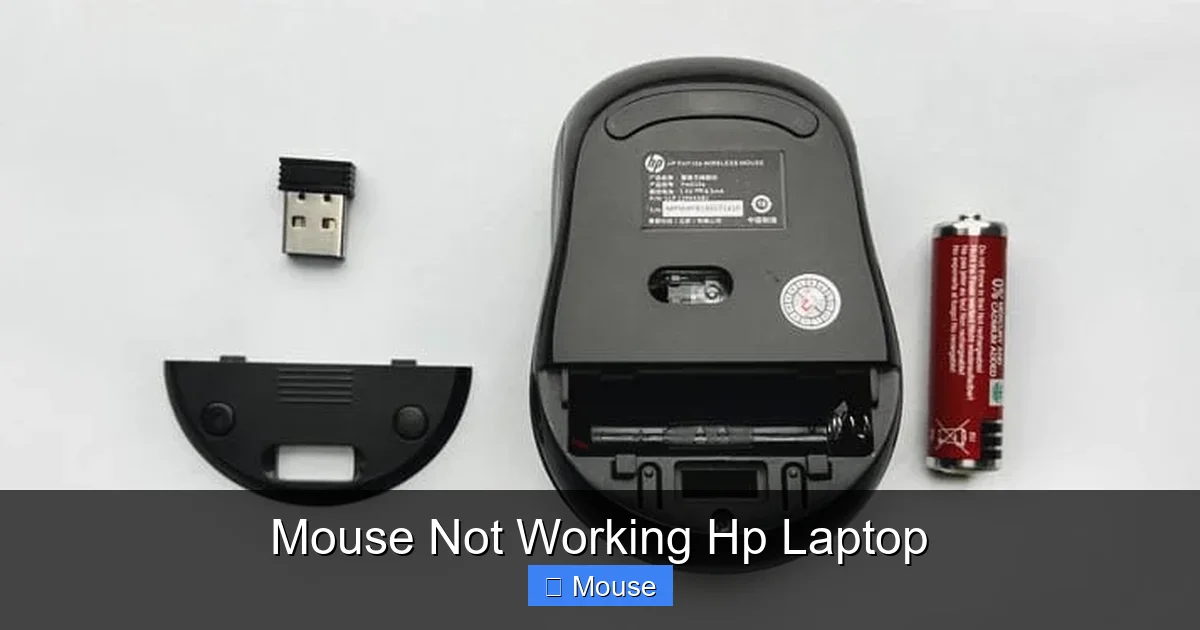
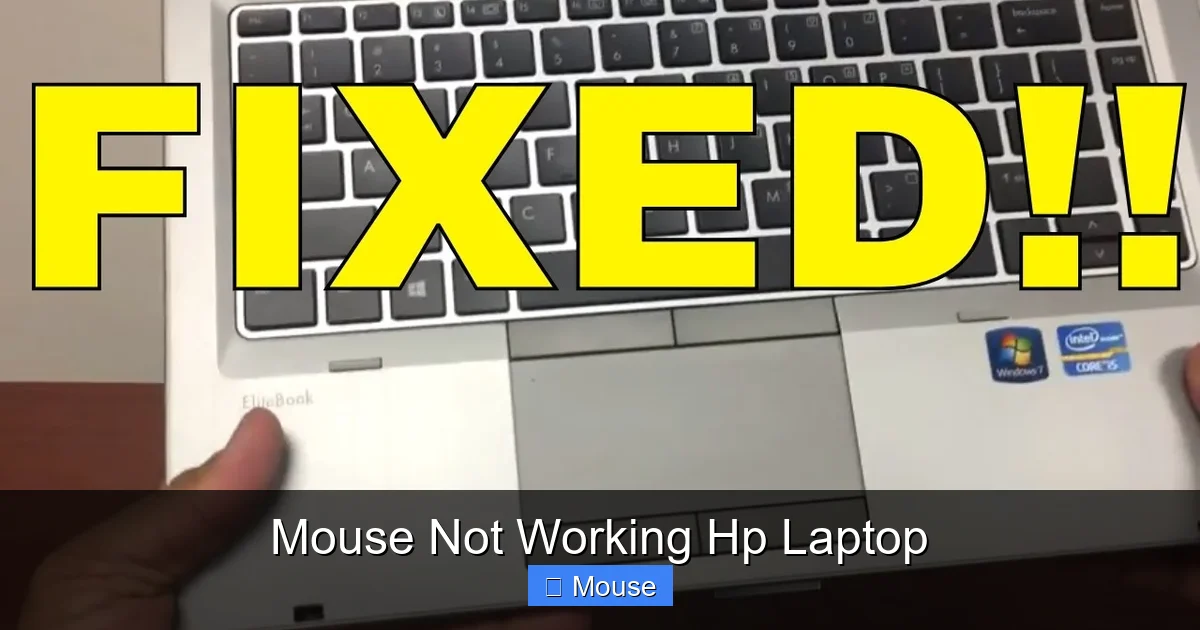
HP laptops often include a function key shortcut that toggles the touchpad on and off. Look for a key with an icon that looks like a touchpad (usually F6 or F9) and press Fn + that key. If the touchpad was disabled, the cursor should reappear instantly.
Visual guide about Mouse Not Working Hp Laptop
Image source: technewstoday.com
1.2 Test the External Mouse on Another Device
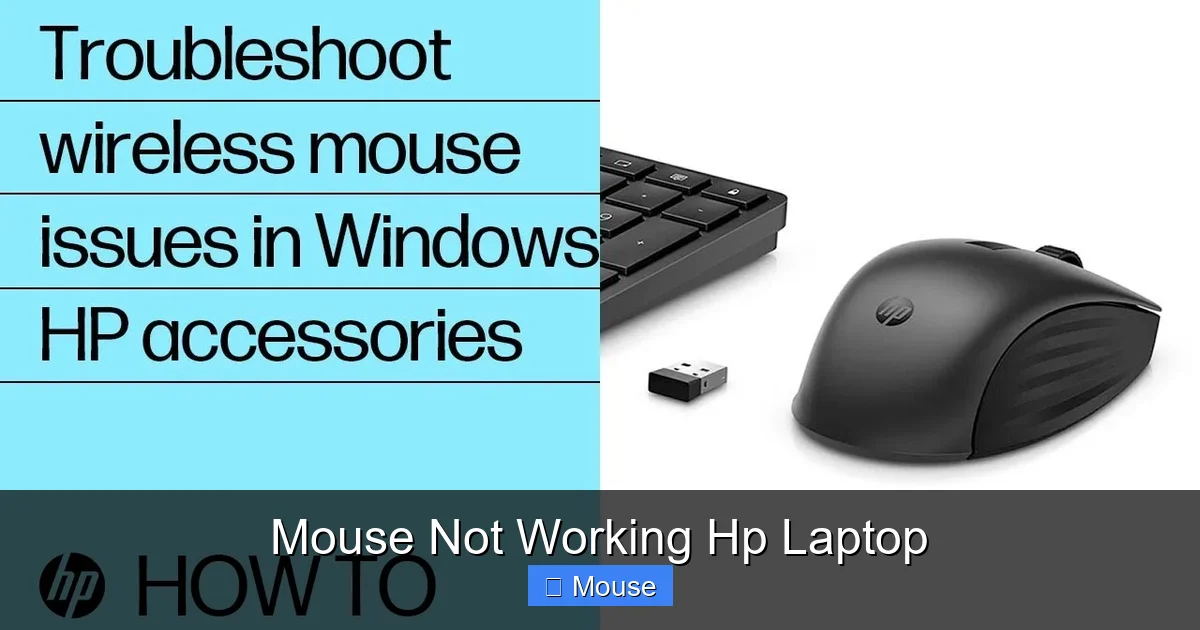
Plug your USB or Bluetooth mouse into a different computer. If it works there, the issue is likely with the laptop’s settings or drivers, not the mouse itself.
1.3 Check Physical Connections
For wired mice, ensure the USB plug is fully inserted. Try a different USB port—preferably one directly on the laptop rather than a hub. For Bluetooth mice, confirm the device is paired in Settings > Bluetooth & devices.
2. Software Solutions: Drivers and Windows Settings
2.1 Update or Reinstall the Touchpad Driver
The most common cause of a mouse not working HP laptop is a corrupted driver. Follow these steps:
Visual guide about Mouse Not Working Hp Laptop
Image source: i.ytimg.com
- Open Device Manager (right‑click the Start button and select it).
- Expand Mice and other pointing devices.
- Right‑click your touchpad (often listed as “Synaptics” or “ELAN”) and choose Update driver. Select “Search automatically for updated driver software.”
- If Windows finds nothing, go to the HP Support website, enter your model number, and download the latest touchpad driver.
- After installing, restart the laptop.
If the new driver causes more problems, you can roll back to the previous version by selecting Properties > Driver > Roll Back Driver in Device Manager.
2.2 Adjust Windows Pointer Settings
Sometimes the pointer is hidden because of an accessibility setting. Go to Settings > Accessibility > Mouse pointer and make sure “Show visual feedback when I press the mouse button” is turned on. Also, check Settings > Devices > Touchpad and ensure the touchpad is enabled and the sensitivity is set appropriately.
2.3 Disable Conflicting Software
Third‑party utilities like mouse enhancers or gaming software can interfere with the default driver. Temporarily disable or uninstall any recent mouse‑related programs and see if the cursor returns.
3. Running HP’s Built‑In Diagnostics
3.1 Accessing HP PC Hardware Diagnostics
HP laptops come with a diagnostic tool that can test the touchpad hardware. Restart the laptop and press Esc repeatedly until the startup menu appears. Choose F2 – System Diagnostics, then select Component Tests > Touchpad. Follow the on‑screen instructions; the test will tell you if the hardware is functioning.
Visual guide about Mouse Not Working Hp Laptop
Image source: i.ytimg.com
3.2 Interpreting Diagnostic Results
If the test reports a failure, the touchpad may need replacement. If it passes, the issue is almost certainly software‑related, and you can continue with the steps below.
4. BIOS and Firmware Updates
4.1 Why BIOS Matters for Input Devices
The BIOS (Basic Input/Output System) controls low‑level communication between hardware and the operating system. An outdated BIOS can prevent the touchpad from initializing correctly, resulting in a mouse not working HP laptop scenario.
Visual guide about Mouse Not Working Hp Laptop
Image source: technewstoday.com
4.2 Updating the BIOS Safely
- Visit HP’s official support site and locate the BIOS update for your exact laptop model.
- Download the executable file and follow HP’s instructions—usually a single click that restarts the computer and flashes the new BIOS.
- Do not power off the laptop during the update; a loss of power can brick the system.
After the BIOS update, check the touchpad and external mouse again.
5. Advanced Troubleshooting Techniques
5.1 Using System Restore
If the mouse stopped working after a Windows update or driver install, revert to a previous restore point:
Visual guide about Mouse Not Working Hp Laptop
Image source: technewstoday.com
- Search “Create a restore point” in the Start menu.
- Click System Restore and choose a point dated before the issue began.
- Follow the prompts; the laptop will restart with the earlier configuration.
5.2 Creating a New User Profile
Corrupted user profiles can affect mouse settings. Create a fresh local account (Settings > Accounts > Family & other users > Add someone else to this PC) and log in. If the mouse works under the new profile, migrate your files and delete the problematic account.
5.3 Checking for Conflicting Services
Open services.msc and locate “Human Interface Device Service.” Ensure it is set to Automatic and running. Restart the service if necessary.
6. When to Seek Professional Help
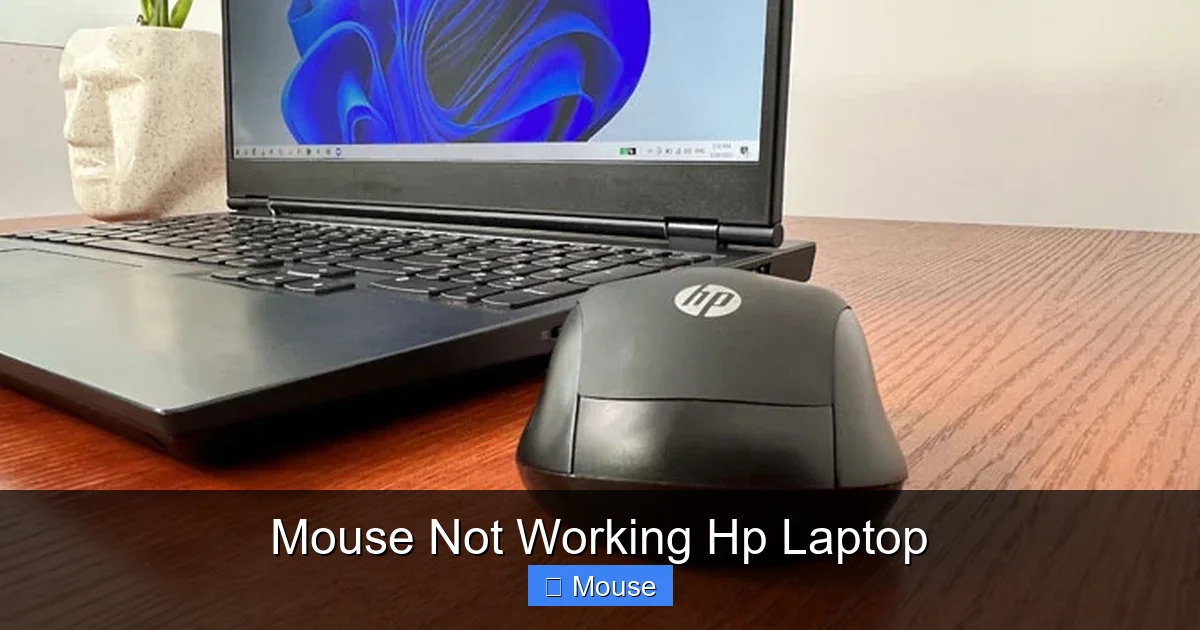
If you’ve exhausted software fixes, run diagnostics, and updated the BIOS, yet the mouse still refuses to work, the touchpad hardware may be faulty. HP’s warranty often covers such repairs. Contact HP Support or visit an authorized service center. In the meantime, an external USB mouse can serve as a reliable workaround.
Visual guide about Mouse Not Working Hp Laptop
Image source: images.minitool.com
Conclusion
A mouse not working HP laptop is usually a solvable problem. Start with the simplest checks—ensure the touchpad isn’t disabled, test other ports, and verify the external mouse works elsewhere. Then move on to driver updates, Windows settings, and HP’s diagnostic tools. If software solutions fail, a BIOS update or system restore can often revive the pointer. And remember, you’re never truly stuck; an inexpensive USB mouse will keep you productive while you arrange a repair.

Visual guide about Mouse Not Working Hp Laptop
Image source: hplaptopservicecentres.com
For more HP‑specific guidance, see our related articles on mouse on HP laptop not working, HP laptop mouse not working, and how to unlock mouse on HP laptop.
Frequently Asked Questions
Why is my touchpad not responding on an HP laptop?
Common reasons include a disabled touchpad, outdated or corrupted drivers, or a BIOS issue. Running HP’s diagnostic tool can quickly identify hardware failures.
Can a Windows update cause the mouse to stop working?
Yes. Occasionally, a Windows update replaces or conflicts with existing mouse drivers, leading to a mouse not working HP laptop situation. Rolling back the driver or using System Restore often resolves it.
How do I enable a disabled touchpad on an HP laptop?
Press Fn + the function key that shows a touchpad icon (usually F6 or F9). You can also go to Settings > Devices > Touchpad and toggle the touchpad on.
Is it safe to update the BIOS to fix mouse issues?
Updating the BIOS can resolve low‑level hardware communication problems, but it must be done carefully. Follow HP’s instructions precisely and never interrupt the process.
My external USB mouse works on other PCs but not on my HP laptop. What should I try?
Try a different USB port, disable any Bluetooth devices that might cause interference, and check Device Manager for driver errors. Reinstalling the USB drivers often helps.
When should I consider replacing the touchpad?
If HP’s hardware diagnostics report a failure, or if the touchpad is physically damaged (cracked, water‑exposed), replacement is the best option. Contact HP support for warranty service.