How Do You Right Click on a Laptop Without Mouse
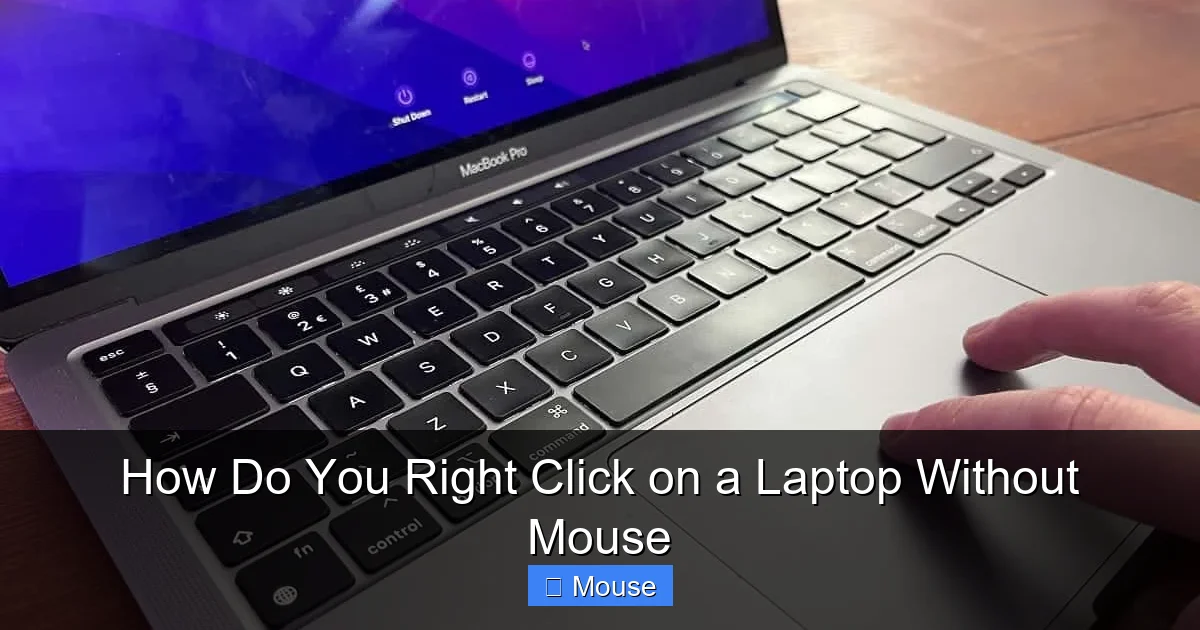
Right‑clicking on a laptop without a mouse is simple once you know the shortcuts. Use the two‑finger tap on a touchpad, press the lower‑right corner of the touchpad, or combine Shift + F10 on the keyboard to access context menus instantly. These methods let you work efficiently on any laptop, even when a mouse isn’t handy.
How Do You Right Click on a Laptop Without Mouse
Ever found yourself stuck in the middle of a document, a web page, or a game, and suddenly needed that handy right‑click menu? It’s a tiny action that can make a huge difference, especially when you’re using a laptop without an external mouse. Trust me, I’ve been there—mid‑research, a coffee spill, and the only thing left was the built‑in keyboard and touchpad. The good news? You don’t need a mouse at all to access right‑click functions. In this guide we’ll walk through every method you can use, from keyboard shortcuts to touchpad tricks, and even a few accessibility tools that turn your laptop into a right‑click powerhouse.
Whether you’re on a Windows notebook, a MacBook, or a Chromebook, the steps are simple and reliable. By the end of this post, you’ll be able to right click on a laptop without mouse in any situation—no extra hardware required. Let’s dive in and make those right‑click menus work for you again!
Key Takeaways
- Understanding how do you right click on a laptop without mouse: Provides essential knowledge for making informed decisions
- Practical applications: Can be applied in various real-world scenarios
- Key benefits: Offers significant advantages when properly implemented
- Important considerations: Requires attention to specific details and best practices
- Future implications: Continues to evolve and impact related fields
📑 Table of Contents
1. Keyboard Shortcuts: The Fastest Way to Right Click
Using the Context Menu Key (Windows)
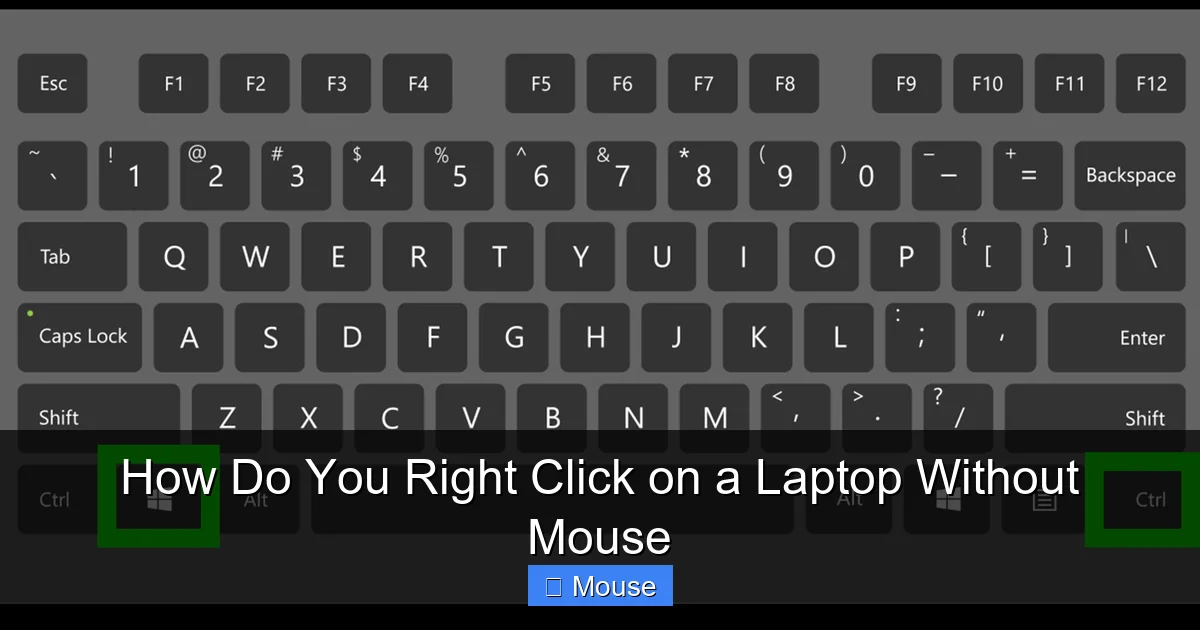
Most Windows laptops come with a dedicated Context Menu key (sometimes called the “Application key”). It looks like a tiny menu with a cursor and is usually located to the right of the space bar, between the Alt and Ctrl keys.
- Place the cursor where you want the right‑click menu to appear.
- Press the Context Menu key once.
- The right‑click menu pops up, just as if you had used a mouse.
If your laptop doesn’t have this key, don’t worry—there are other shortcuts.
Shift + F10 (Windows)
When the Context Menu key is missing, the universal Shift + F10 combo does the trick.
- Click or tap to place the text cursor or selection where you need the menu.
- Hold Shift and press F10.
- The same context menu appears.
This works in most applications, from Microsoft Office to web browsers.
Control + Click (Mac)
Mac users have a classic method: Control + Click.
- Hover over the item you want to right‑click.
- Hold the Control key and click the trackpad or press the built‑in button.
- The context menu shows up, just like a right click on Windows.
It’s handy for those who prefer keyboard shortcuts over gestures.
Command + Option + Click (Mac – Accessibility)
If you need a more explicit right‑click, hold Command + Option while clicking the trackpad. This combination mimics a right‑click in many macOS apps and can be a lifesaver when using external keyboards.
2. Touchpad Techniques: Turning Your Pad Into a Right‑Click Button
Two‑Finger Tap (Windows & macOS)
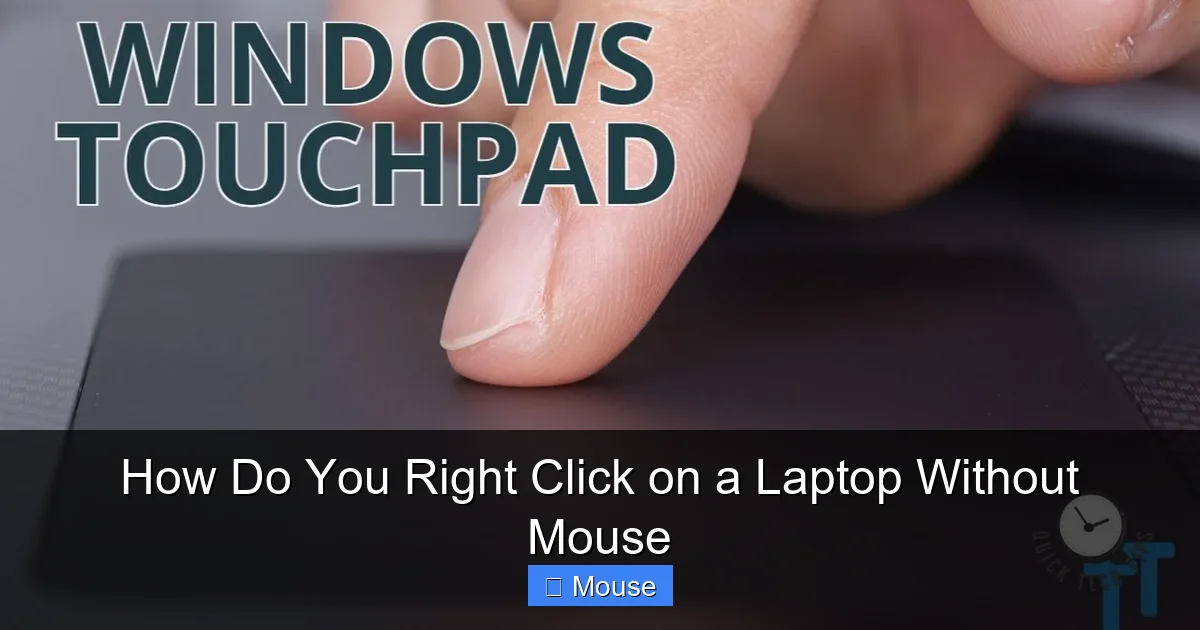
Most modern touchpads support a two‑finger tap to open the context menu.
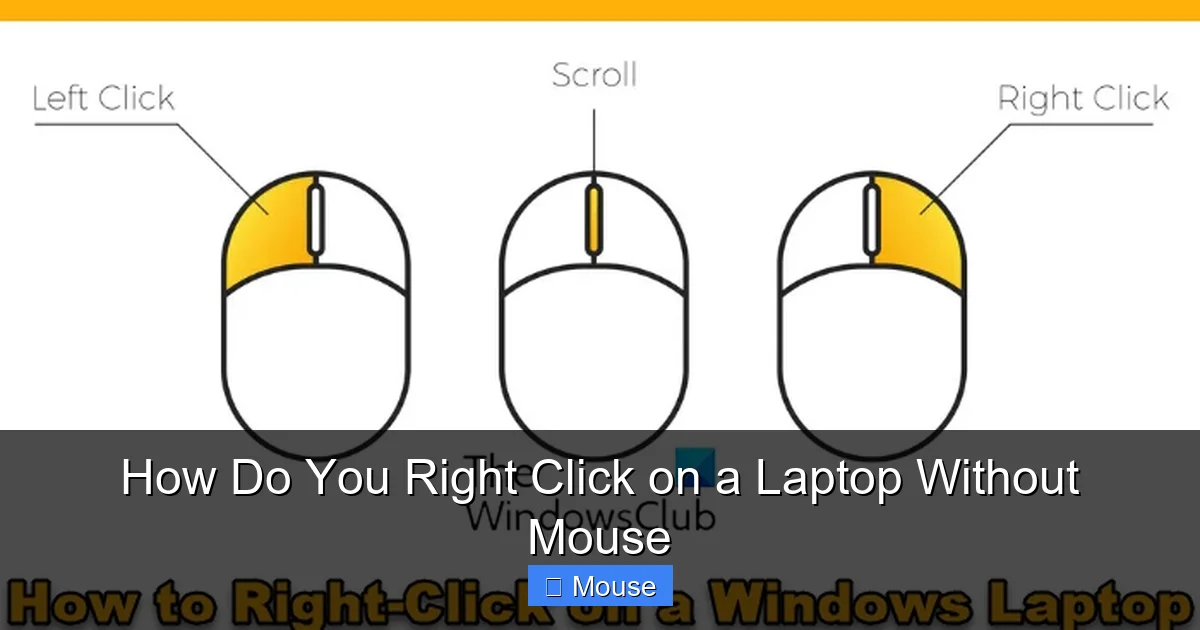
Visual guide about How Do You Right Click on a Laptop Without Mouse
Image source: thewindowsclub.com
- Place two fingers lightly on the pad.
- Tap gently—no need to click down.
- The right‑click menu appears.
This gesture is enabled by default on many laptops, but you can double‑check the settings if it isn’t working.
Bottom‑Right Corner Click (Windows)
Windows touchpads often let you designate a corner for right‑click.
- Go to Settings > Devices > Touchpad.
- Find “Press the lower right corner of the touchpad to right‑click.”
- Enable the option.
- Now, simply press the lower‑right corner to right click.
Two‑Finger Click (Mac)
On a MacBook, a two‑finger click works the same way.
- Place two fingers on the trackpad.
- Press down until you feel a click.
- The context menu appears.
Customizing Touchpad Sensitivity
If the gestures feel too sensitive or not responsive enough, adjust the sensitivity:
- Windows: Settings > Devices > Touchpad > Sensitivity.
- macOS: System Preferences > Trackpad > Point & Click.
Fine‑tuning helps you avoid accidental clicks while still getting that right‑click menu when you need it.
3. Using On‑Screen Tools and Accessibility Features
On‑Screen Keyboard (Windows)
The built‑in On‑Screen Keyboard (OSK) includes a right‑click button.
Visual guide about How Do You Right Click on a Laptop Without Mouse
Image source: onecomputerguy.com
- Open the OSK: Start > Settings > Ease of Access > Keyboard and turn on “On‑Screen Keyboard”.
- Click the “Menu” key (looks like a small rectangle with a cursor).
- Place your cursor where you need the menu and click the OSK button.
Mouse Keys (Windows)
Turn your numeric keypad into a mouse with Mouse Keys:
- Enable it via Settings > Ease of Access > Mouse.
- Press Num Lock to activate.
- Use the 5 key to click, and */- to simulate right‑click.
This is perfect for users who prefer a fully keyboard‑driven approach.
Voice Control (macOS & Windows)
Both macOS and Windows have voice assistants that can simulate a right click.
- Windows: Say “Hey Cortana, right click” after selecting the item.
- macOS: Use “Hey Siri, right click” while the cursor is over the target.
These options are great for hands‑free situations.
4. Third‑Party Software Solutions
AutoHotkey Scripts (Windows)
If you love customizing shortcuts, AutoHotkey lets you create a script that maps any key to a right click.
Visual guide about How Do You Right Click on a Laptop Without Mouse
Image source: silicophilic.com
^!r::MouseClick, right
Save the script, run it, and pressing Ctrl + Alt + R will perform a right click anywhere.
BetterTouchTool (macOS)
For Mac users, BetterTouchTool adds gestures and keyboard shortcuts.
- Open the app and create a new shortcut.
- Assign a gesture (e.g., three‑finger tap) to “Right Click”.
- Save and enjoy the new method.
Touchpad Blocker (Windows)
If accidental taps are a problem, Touchpad Blocker can temporarily disable the touchpad while you type, but still let you enable a right‑click gesture when needed.
5. Practical Scenarios: When Right Click Matters
Editing Documents
While writing a report, you might need to quickly insert a comment or format text. Using Shift + F10 lets you access the context menu without moving your hands from the keyboard, keeping your workflow smooth.
Visual guide about How Do You Right Click on a Laptop Without Mouse
Image source: i.ytimg.com
Web Browsing
Right‑clicking a link to open it in a new tab is a common habit. On a laptop without a mouse, a two‑finger tap on the touchpad or the Context Menu key does the job instantly.
File Management
Creating shortcuts, renaming files, or accessing properties are all done via right‑click. With the touchpad corner click enabled, you can manage files just as quickly as on a desktop.
Gaming
Some games use right‑click for aiming or special actions. If you’re playing a game like Roblox on a laptop without mouse, configuring a custom AutoHotkey script can map a convenient key to the right‑click function, giving you an edge without an external mouse.
Accessibility Needs
For users with limited hand mobility, using the On‑Screen Keyboard or Voice Control provides a comfortable way to access right‑click menus without physical strain.
6. Quick Reference Table
| Method | Operating System | Key / Gesture | Best For |
|---|---|---|---|
| Context Menu Key | Windows | Application key | Desktop‑style shortcut |
| Shift + F10 | Windows | Shift + F10 | All laptops |
| Control + Click | macOS | Ctrl + Trackpad click | Mac users |
| Two‑Finger Tap | Windows/macOS | Tap with two fingers | Touchpad lovers |
| Bottom‑Right Corner Click | Windows | Press lower‑right corner | Those who prefer a dedicated area |
| On‑Screen Keyboard | Windows | OSK “Menu” button | Accessibility |
| Mouse Keys | Windows | Num Lock + 5 / */‑ | Keyboard‑only control |
Conclusion
So, how do you right click on a laptop without mouse? The answer is simple: use the built‑in keyboard shortcuts, master your touchpad gestures, or tap into accessibility tools and third‑party apps. Each method has its own sweet spot, whether you’re typing a report, browsing the web, or gaming on the go. By trying a few of these techniques, you’ll find the one that feels most natural and keep your workflow uninterrupted—no external mouse required.
Visual guide about How Do You Right Click on a Laptop Without Mouse
Image source: i.ytimg.com
Visual guide about How Do You Right Click on a Laptop Without Mouse
Image source: wikihow.com
Next time you’re stuck without a mouse, remember there’s always a way to open that context menu. And if you ever need to expand your setup, check out our guide on how to connect a wireless mouse to a laptop for a seamless upgrade.
Frequently Asked Questions
What is how do you right click on a laptop without mouse?
how do you right click on a laptop without mouse is an important topic with many practical applications and benefits.
How can how do you right click on a laptop without mouse help me?
Understanding how do you right click on a laptop without mouse can improve your knowledge and provide practical solutions.