How Do You Get the Mouse Back on a Laptop
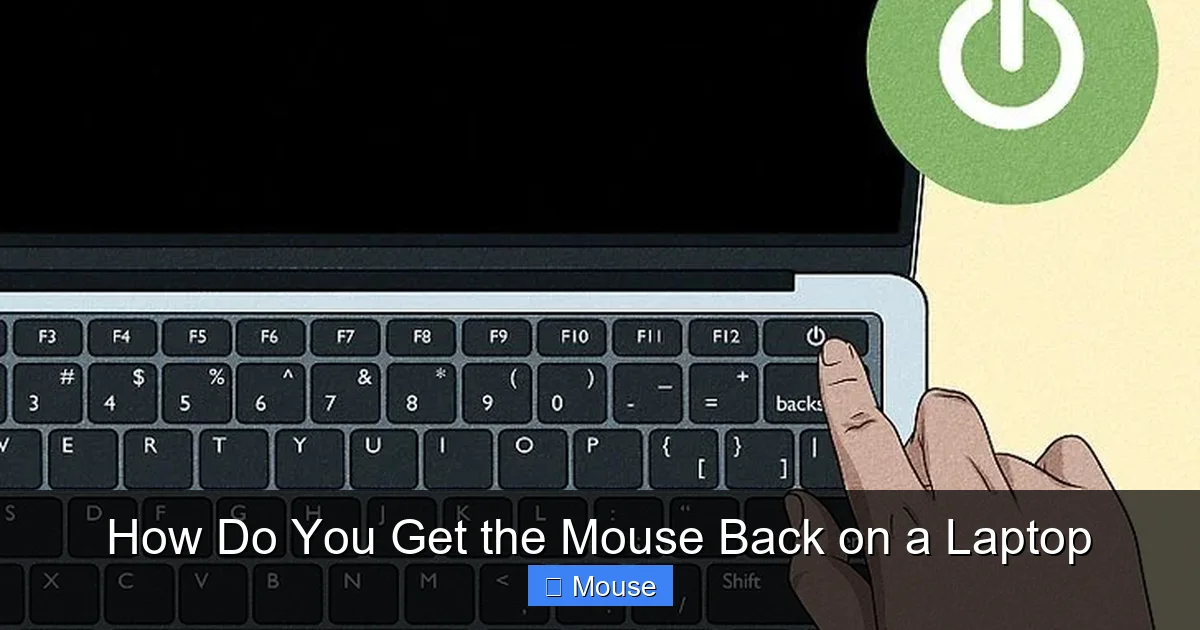
Lost your laptop’s mouse cursor? It’s usually a simple setting, driver, or hardware tweak away. This guide walks you through the most common fixes so you can get the mouse back on your laptop fast.
Key Takeaways
- Check the touchpad toggle: Many laptops have a function‑key shortcut that can disable the built‑in mouse.
- Update or reinstall drivers: Corrupt or outdated drivers are a top cause of a missing cursor.
- Adjust BIOS/UEFI settings: Some systems let you enable or disable the internal pointing device at the firmware level.
- Use the Windows “Mouse Settings” panel: Simple tweaks like “Show mouse pointer” can solve the problem.
- External mouse as a diagnostic tool: Plugging in a USB or Bluetooth mouse helps determine if the issue is hardware or software.
- Resetting the touchpad driver: Disabling and re‑enabling the device in Device Manager often restores functionality.
- When all else fails, consider a system restore: Rolling back to a point before the issue started can be a lifesaver.
📑 Table of Contents
- Introduction: When the Cursor Vanishes
- 1. Quick Checks Before You Dive Deeper
- 2. Restoring the Mouse Through Software Settings
- 3. BIOS/UEFI Settings – The Firmware Layer
- 4. When Software Fixes Fail – Hardware Diagnosis
- 5. Advanced Solutions and When to Seek Professional Help
- 6. Preventive Tips to Keep Your Mouse Working
- Conclusion
Introduction: When the Cursor Vanishes
Imagine you’re typing an email, and suddenly the mouse cursor disappears. You can’t click, you can’t select text, and every shortcut feels clumsy. It’s a frustrating moment that many laptop owners have faced. The good news? In most cases the solution is quick, inexpensive, and you can do it yourself.
In this article we’ll explore why the mouse (or touchpad) might stop working, walk through the most common fixes, and give you tips to prevent the issue from happening again. Whether you’re using a Windows notebook, a Chromebook, or a Linux‑based machine, the steps are similar enough to follow. Let’s get that pointer back where it belongs!
1. Quick Checks Before You Dive Deeper
Is the Touchpad Disabled?
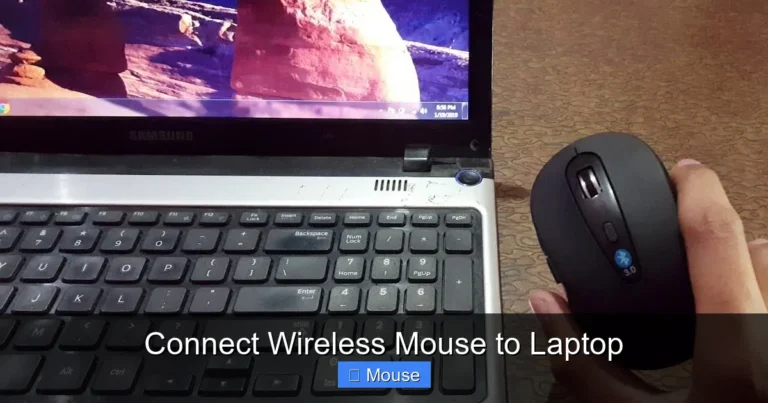
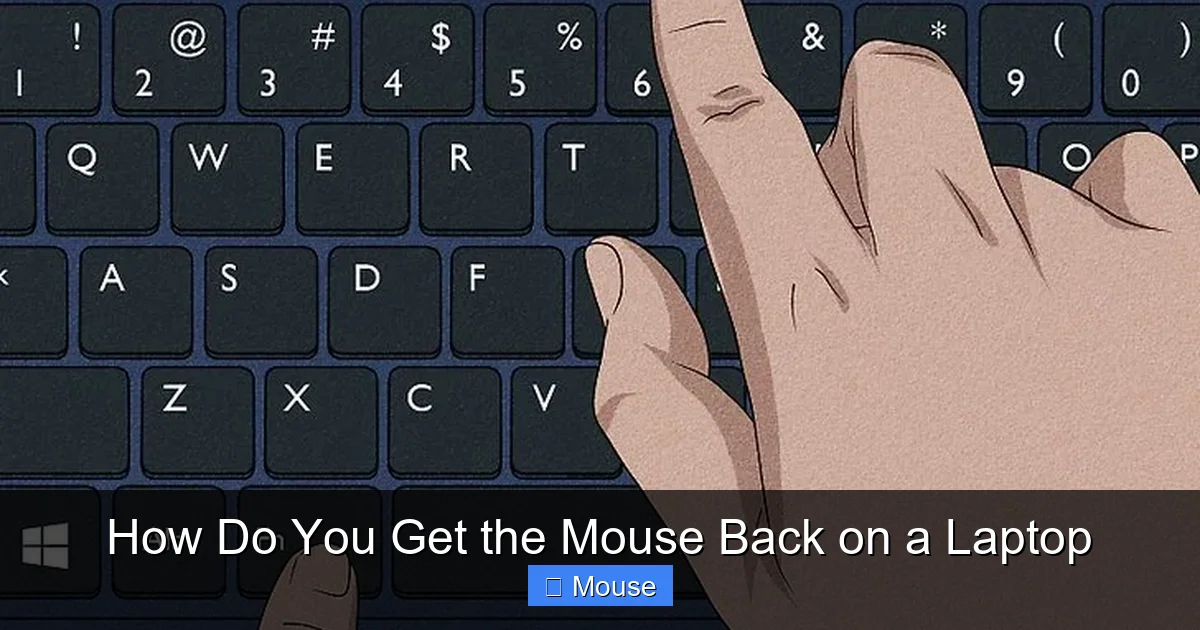
Many laptops feature a function‑key shortcut that turns the touchpad on and off. Look for an icon that looks like a mouse or a trackpad on one of the F‑keys (often F6, F7, F8, or F9) and press Fn + that key. If the cursor reappears, you’ve solved the problem in seconds.
Visual guide about How Do You Get the Mouse Back on a Laptop
Image source: wikihow.com
External Mouse Connected?
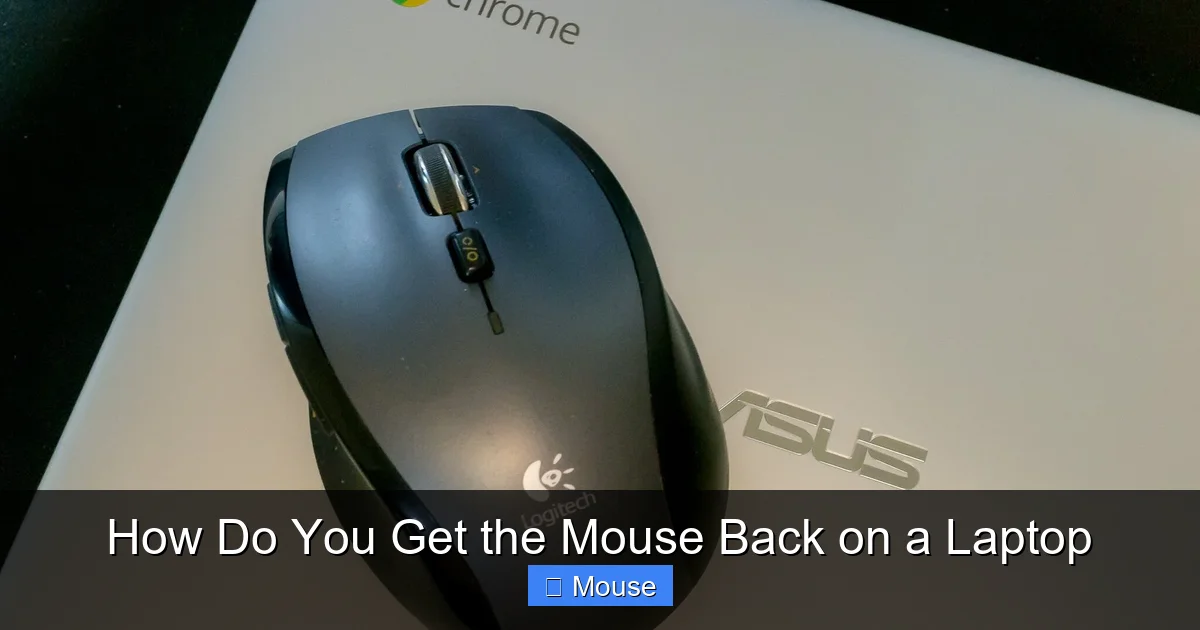
Plug in a USB mouse or pair a Bluetooth mouse. If the external device works, the built‑in touchpad is likely disabled or its driver is corrupted. This simple test helps you decide where to focus your troubleshooting.
Check the “Hide Pointer” Setting
Windows can automatically hide the cursor while you type. Open Settings > Devices > Mouse and click “Additional mouse options.” Under the “Pointer Options” tab, make sure “Hide pointer while typing” is unchecked.
2. Restoring the Mouse Through Software Settings
Turn On the Touchpad in Windows Settings
1. Press Windows + I to open Settings.
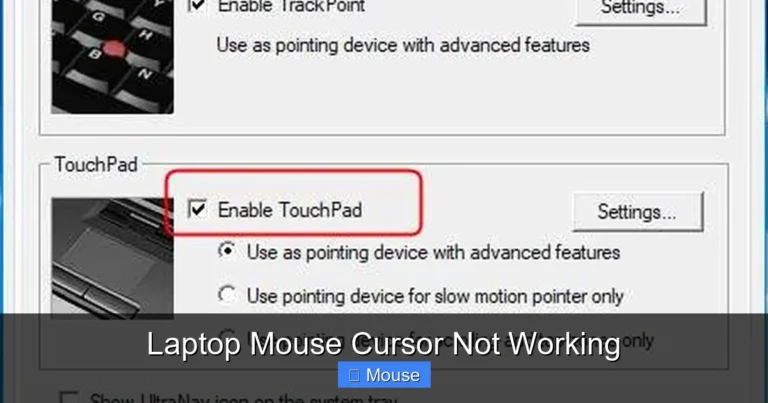
2. Go to Devices > Touchpad.
3. Ensure the toggle at the top is set to On.
Visual guide about How Do You Get the Mouse Back on a Laptop
Image source: wikihow.com
Enable the Touchpad via Device Manager
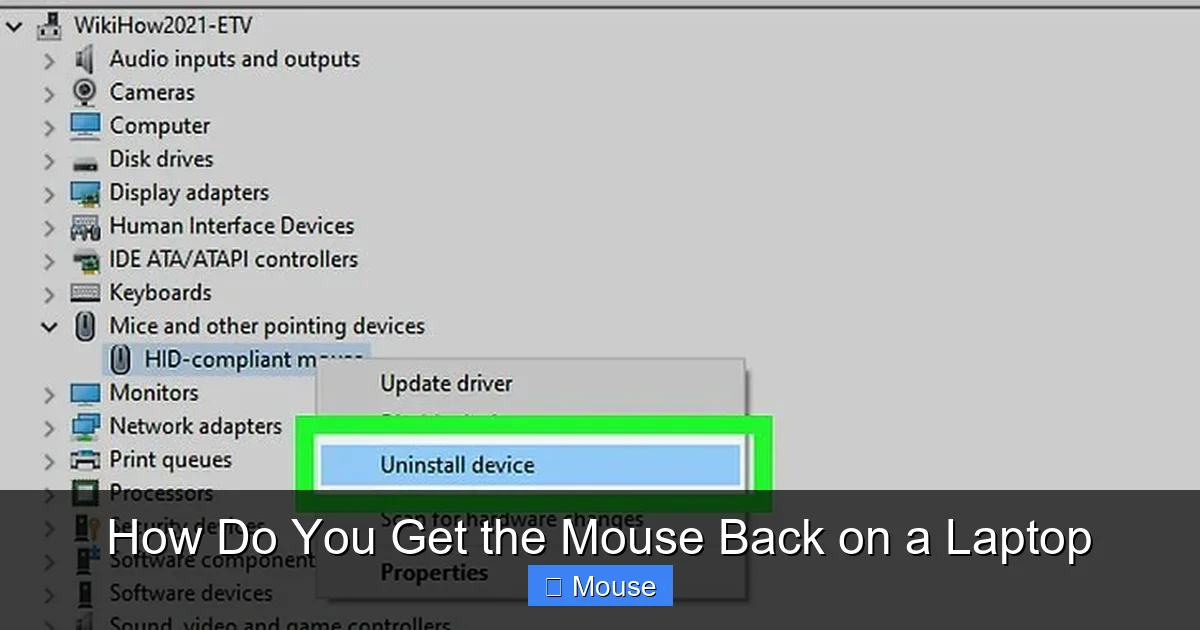
1. Right‑click the Start button and select Device Manager.
2. Expand the “Mice and other pointing devices” section.
3. If you see a “Touchpad” entry that is greyed out, right‑click it and choose Enable device.
Update or Roll Back the Driver
Drivers can become corrupted after a Windows update. In Device Manager, right‑click the touchpad driver and select Update driver. Choose “Search automatically for updated driver software.” If the problem started after a recent update, try Roll back driver instead.
Use Windows Troubleshooter
Windows includes a built‑in troubleshooter for hardware. Go to Settings > Update & Security > Troubleshoot > Additional troubleshooters and run the “Hardware and Devices” troubleshooter. Follow the prompts; it often reinstalls missing components automatically.
3. BIOS/UEFI Settings – The Firmware Layer
Why Check the BIOS?
Some manufacturers allow you to disable the internal pointing device from the BIOS/UEFI. If the touchpad is turned off at this level, no amount of software tweaking will bring it back.

Visual guide about How Do You Get the Mouse Back on a Laptop
Image source: computermesh.com
Accessing BIOS/UEFI
1. Shut down the laptop completely.
2. Power it on and immediately press the key indicated on the splash screen (commonly F2, Del, Esc, or F10).
3. Navigate to the Advanced or Peripheral section.
4. Look for an option named “Internal Pointing Device,” “Touchpad,” or similar and set it to Enabled.
5. Save and exit.
Reset BIOS to Default
If you’re unsure what changed, you can reset the BIOS to its default settings. This option is usually called “Load Setup Defaults” or “Restore Defaults.” After resetting, the touchpad often reappears.
4. When Software Fixes Fail – Hardware Diagnosis
Test with an External Mouse
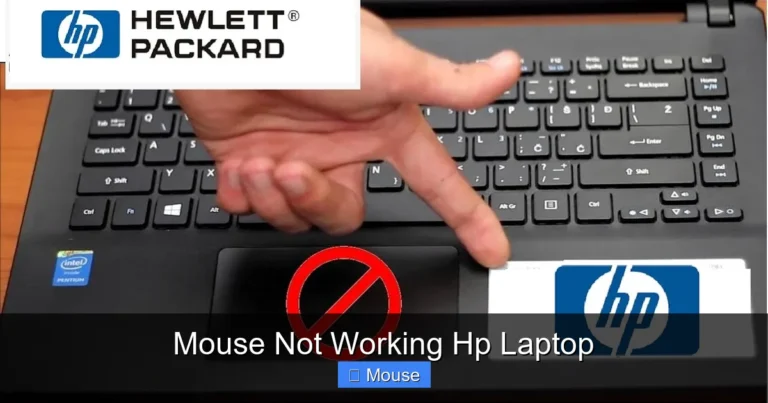
If an external mouse works perfectly, the problem is likely confined to the built‑in touchpad hardware or its connection. In that case, you may need to open the laptop (or take it to a professional) to check the ribbon cable.

Visual guide about How Do You Get the Mouse Back on a Laptop
Image source: i.ytimg.com
Inspect the Touchpad Ribbon Cable
On many laptops the touchpad connects via a thin ribbon cable. Over time, the connector can loosen. If you’re comfortable opening your laptop, locate the cable (refer to the service manual) and reseat it carefully.
Check for Physical Damage
Spills, dust, and physical impact can damage the touchpad sensor. Clean the surface with a soft, lint‑free cloth and a small amount of isopropyl alcohol. If the sensor is cracked or the pad feels sticky, replacement may be necessary.
5. Advanced Solutions and When to Seek Professional Help
System Restore or Reset
If the cursor vanished after installing new software or a Windows update, a System Restore to a point before the change can fix the issue. Go to Control Panel > Recovery > Open System Restore and follow the wizard.
Visual guide about How Do You Get the Mouse Back on a Laptop
Image source: robots.net
Reinstall the Operating System
As a last resort, reinstalling Windows (or your OS) guarantees a clean driver set. Back up your data first! This step is rarely needed, but it resolves deeply rooted software conflicts.
When to Contact Support
If none of the above steps bring the cursor back, the touchpad may be defective. Contact the laptop manufacturer’s support line or visit an authorized service center. Provide them with details of the troubleshooting you’ve already performed.
6. Preventive Tips to Keep Your Mouse Working
Regular Driver Updates
Set Windows Update to automatically install driver updates, or visit the laptop manufacturer’s website monthly for the latest touchpad drivers.

Visual guide about How Do You Get the Mouse Back on a Laptop
Image source: i.ytimg.com
Avoid Accidental Disablements
Be aware of the function‑key shortcut that disables the touchpad. Accidentally hitting it while gaming or typing can leave you puzzled later.
Keep the Touchpad Clean
Dust and oils can interfere with the sensor. Clean the pad weekly with a microfiber cloth and a tiny dab of alcohol.
Backup Your System
Regular system backups let you roll back to a known‑good state if a driver update or software install causes trouble.
Conclusion
Getting the mouse back on a laptop is usually a matter of checking a few settings, updating drivers, or toggling a hardware switch. By following the steps outlined above—from quick function‑key checks to BIOS verification—you’ll be able to restore cursor control without a trip to the repair shop. Keep your drivers current, treat the touchpad gently, and you’ll enjoy a smooth, responsive pointing experience for years to come.
Visual guide about How Do You Get the Mouse Back on a Laptop
Image source: i.ytimg.com
Need more detailed guidance on a specific model? Check out our related guides such as How To Get The Mouse Back On A Laptop and How To Unlock The Mouse On Laptop for model‑specific tips.
Frequently Asked Questions
Why is my laptop cursor invisible?
The cursor may be hidden due to a disabled touchpad, corrupted driver, or a setting that hides the pointer while typing. Checking the touchpad toggle and updating drivers usually resolves it.
How can I re‑enable the touchpad on a Windows laptop?
Press the function‑key shortcut (often Fn + F7), or go to Settings → Devices → Touchpad and turn the toggle on. If that fails, enable the device in Device Manager.
What should I do if an external mouse works but the built‑in one doesn’t?
This indicates a software or hardware issue with the internal touchpad. Try updating or reinstalling the driver, and if the problem persists, reseat the ribbon cable or seek professional repair.
Can BIOS settings disable my laptop’s mouse?
Yes. Some BIOS/UEFI menus have an “Internal Pointing Device” option. Ensure it is set to Enabled, or reset BIOS to defaults to restore functionality.
Will a system restore bring back a missing mouse?
If the cursor disappeared after a recent update or software install, rolling back to a restore point created before the change can often fix the issue.
Is it safe to clean the touchpad with alcohol?
Yes, using a small amount of isopropyl alcohol on a microfiber cloth is safe and helps remove oils and debris that can affect sensor performance.