How Do You Fix a Mouse on a Laptop
Start by checking the laptop’s touchpad settings and updating the driver; many mouse issues stem from outdated or misconfigured drivers. If that doesn’t resolve it, try a simple reboot or a safe‑mode test to rule out software conflicts, and if needed, reset the laptop’s BIOS or use a USB mouse as a temporary workaround.
Key Takeaways
- Check the touchpad settings: Enable or disable touchpad to test for conflicts.
- Update drivers: Install latest touchpad drivers from manufacturer’s site.
- Adjust sensitivity: Fine-tune speed and scrolling options in control panel.
- Inspect hardware: Inspect for dust or debris that may block touchpad sensors.
- Use external mouse: Connect a USB mouse to confirm software issues.
- Reset BIOS touchpad option: Toggle touchpad setting in BIOS if persistent problems.
- Run diagnostics: Use built‑in laptop diagnostics to identify hardware faults.
📑 Table of Contents
- How Do You Fix a Mouse on a Laptop?
- 1. Check the Basics: Power, Settings, and Connections
- 2. Diagnose Touchpad Issues: Sluggish, Jittery, or Unresponsive?
- 3. Troubleshoot External Mice: USB, Bluetooth, and Wireless
- 4. Advanced Fixes: Software, BIOS, and System Integrity
- 5. When All Else Fails: External Mouse as a Permanent Solution
- 6. Quick Reference: Troubleshooting Checklist
- Conclusion: Keep Your Cursor in Control
How Do You Fix a Mouse on a Laptop?
Ever sat at your desk, eyes glued to the screen, and suddenly the cursor goes haywire? You’re not alone. Laptop mice—whether the built‑in touchpad, an external USB, or a Bluetooth model—can develop glitches that make your workflow feel like a roller coaster. I’ve been there: scrolling slowly, double‑clicking accidentally, or the pointer just disappearing altogether. The good news is that most mouse issues can be solved with a few simple steps, and you don’t need a tech wizard to do it.
In this guide, I’ll walk you through everything from the most common touchpad hiccups to troubleshooting external mice. Think of it as a friendly toolbox you can keep handy for the next time your cursor decides to act up.
1. Check the Basics: Power, Settings, and Connections
1.1 Is the Touchpad Enabled?
Many laptops allow you to toggle the touchpad on or off with a function key (often Fn + F7 or a key with a touchpad icon). If you’re using a Windows laptop, open Settings → Devices → Touchpad and make sure the switch is set to “On.” For macOS, go to System Settings → Trackpad and verify it’s active.
Visual guide about How Do You Fix a Mouse on a Laptop
Image source: i.ytimg.com
1.2 Verify the Mouse Connection
- USB Mouse: Try plugging it into a different USB port. If it’s a USB‑C device, ensure the cable is intact.
- Bluetooth Mouse: Open Bluetooth settings and confirm the device is paired and connected. If it’s not, re‑pair it.
1.3 Update or Reinstall Drivers
Outdated drivers are a common culprit. In Windows, go to Device Manager → Mice and other pointing devices, right‑click your device, and choose Update driver. On macOS, drivers are usually bundled with system updates; check for the latest macOS update.
1.4 Restart the Laptop
Believe it or not, a quick reboot often clears temporary glitches that affect the mouse. If you haven’t restarted in a while, do it now.
2. Diagnose Touchpad Issues: Sluggish, Jittery, or Unresponsive?
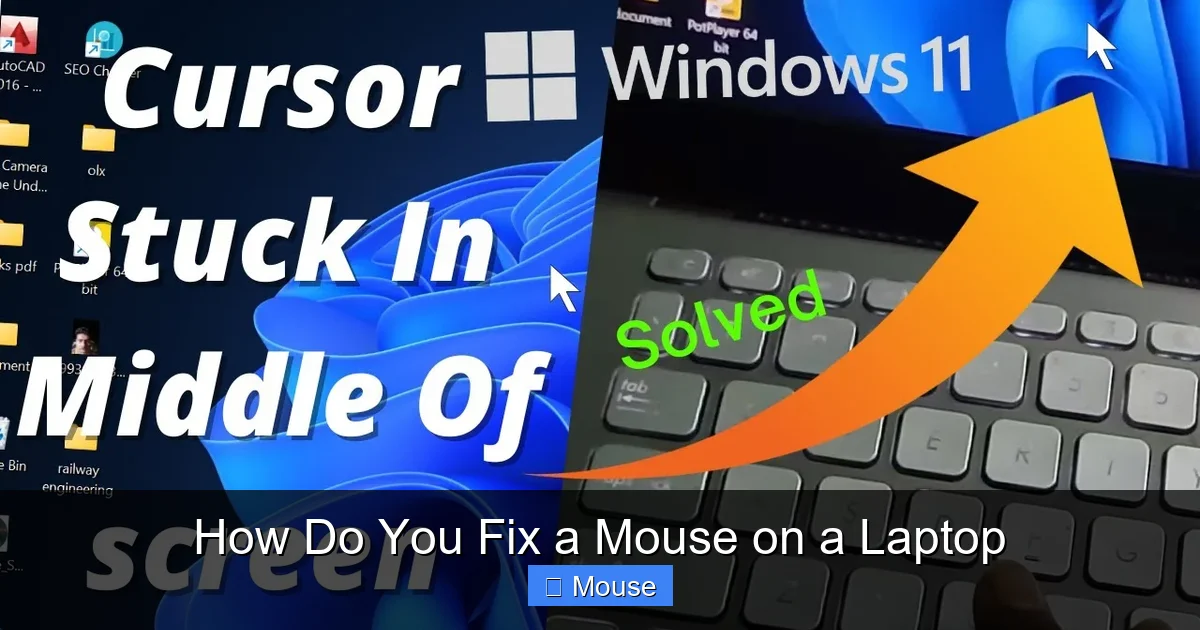
2.1 Clean the Touchpad Surface
Dust, oil, or fingerprints can interfere with the touchpad’s sensor. Use a soft, dry microfiber cloth to wipe the surface gently.
Visual guide about How Do You Fix a Mouse on a Laptop
Image source: i.ytimg.com
2.2 Adjust Sensitivity Settings
In Windows, under Settings → Devices → Touchpad, you can tweak sensitivity. In macOS, go to System Settings → Trackpad and modify the tracking speed slider. Find a setting that feels natural.
2.3 Disable Touchpad While Using an External Mouse
Some laptops allow you to disable the touchpad automatically when an external mouse is connected. Enable this option to avoid accidental touches.
2.4 Check for Hardware Damage
If the touchpad is physically scratched or cracked, it may need replacement. Contact the manufacturer’s support for repair options.
3. Troubleshoot External Mice: USB, Bluetooth, and Wireless
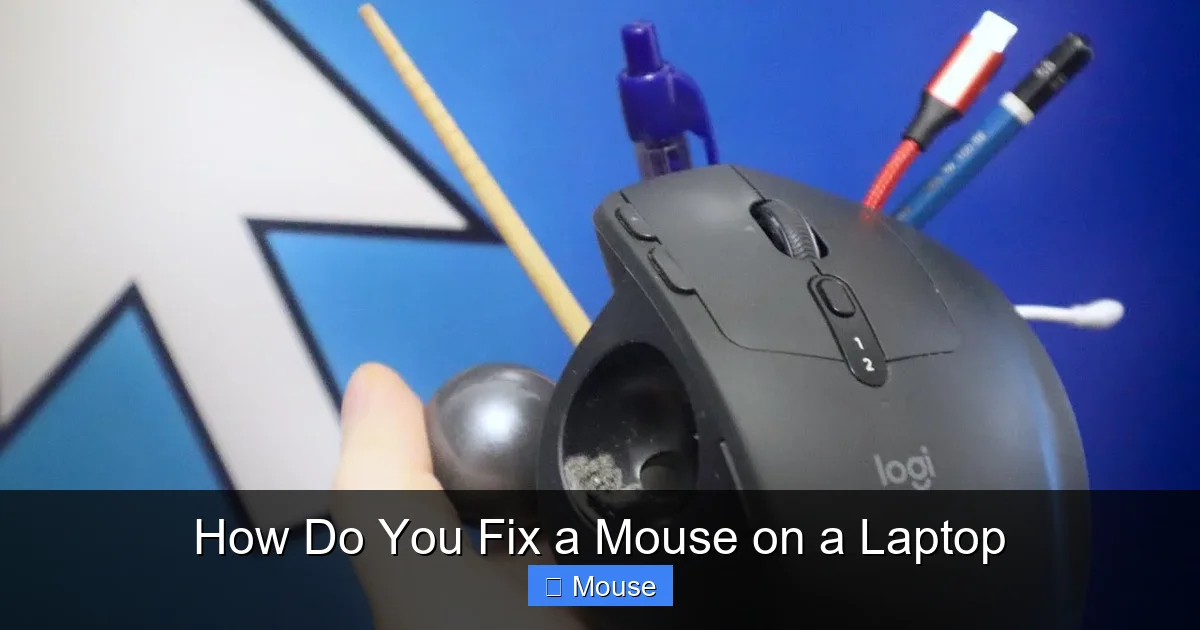
3.1 Test on Another Computer
Plug the mouse into a different laptop or desktop. If it works, the issue lies with your original laptop’s settings or drivers.
Visual guide about How Do You Fix a Mouse on a Laptop
Image source: i.ytimg.com
3.2 Replace the Batteries (Bluetooth/Wireless)
Weak batteries can cause intermittent connectivity. Swap them for fresh ones or use a rechargeable pack.
3.3 Reset the Mouse
Many wireless mice have a reset button or a pairing mode. Refer to the manufacturer’s instructions to reset the mouse and re‑pair it.
3.4 Use a Different USB Port
Sometimes the port itself is the problem. Try a port on the other side of the laptop or a different USB hub.
4. Advanced Fixes: Software, BIOS, and System Integrity
4.1 Run Windows Troubleshooter
Open Settings → Update & Security → Troubleshoot, find the mouse troubleshooter, and let it auto‑detect and fix issues.
4.2 Check for Malware or System Corruption
Run a full antivirus scan. On Windows, use System File Checker (sfc /scannow) from Command Prompt to repair corrupted system files.
4.3 Update BIOS/Firmware
Outdated BIOS can cause peripheral conflicts. Visit your laptop manufacturer’s support page, download the latest BIOS, and follow the update instructions carefully.
4.4 Reset to Factory Settings
As a last resort, backing up your data and performing a factory reset can eliminate software conflicts that affect the mouse.
5. When All Else Fails: External Mouse as a Permanent Solution
5.1 Choosing the Right External Mouse
- USB Optical Mouse: Reliable and inexpensive.
- Bluetooth Wireless Mouse: Clean look, no cables.
- Ergonomic Models: Reduce wrist strain for long sessions.
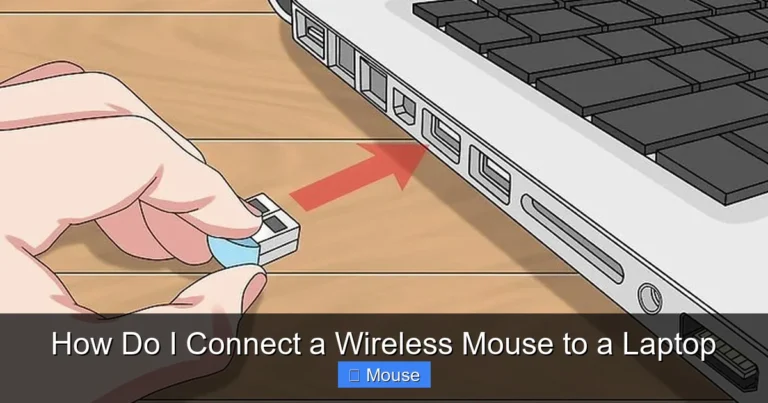
5.2 Setting Up How Do You Connect a Wireless Mouse to a Laptop
Follow the manufacturer’s pairing instructions. Usually, you press a button on the mouse, enable Bluetooth on your laptop, and select the device from the list.
5.3 Using the Mouse Pad as a Temporary Fix
If you’re in a pinch, a small mouse pad on a desk or a clean notebook page can serve as a makeshift surface for an external mouse.
6. Quick Reference: Troubleshooting Checklist
| Step | What to Do | Expected Outcome |
|---|---|---|
| 1 | Restart laptop | Clears temporary glitches |
| 2 | Check touchpad enabled | Pointer appears |
| 3 | Update drivers | Improved compatibility |
| 4 | Test mouse on another PC | Isolates hardware issue |
| 5 | Run system scanner | Fixes malware/system corruption |
| 6 | Try external mouse | Alternative input method |
Conclusion: Keep Your Cursor in Control
Fixing a mouse on a laptop is often just a matter of checking a few settings, updating drivers, or swapping the device. Most problems are straightforward to resolve without touching the internals of your machine. If you still can’t get the cursor to behave, consider reaching out to your laptop manufacturer’s support or visiting a local repair shop. Remember, a steady cursor is the foundation of smooth work—so spend a few minutes troubleshooting now, and you’ll save yourself hours of frustration later.
Frequently Asked Questions
What is how do you fix a mouse on a laptop?
how do you fix a mouse on a laptop is an important topic with many practical applications and benefits.
How can how do you fix a mouse on a laptop help me?
Understanding how do you fix a mouse on a laptop can improve your knowledge and provide practical solutions.