How to Connect My Wireless Mouse to Laptop
Connecting a wireless mouse to your laptop is quick and hassle‑free—just power on the mouse, enable Bluetooth or plug in the USB receiver, and follow the on‑screen pairing prompts. This guide walks you through each step for Windows, macOS, and Linux, plus troubleshooting tips for common connection issues, so you can start clicking with confidence in minutes.
Key Takeaways
- Check Compatibility: Verify the mouse supports Bluetooth or has a USB receiver for your laptop.
- Enable Bluetooth: Turn on Bluetooth in your laptop’s settings before pairing a Bluetooth mouse.
- Insert Batteries: Ensure fresh batteries are installed or fully charge the mouse before connecting.
- Plug the Receiver: Insert the USB dongle into an available USB port for a wireless receiver.
- Pair Quickly: Use the mouse’s pairing button and select it from the laptop’s device list.
- Test Functionality: Move the cursor to confirm the connection is stable and responsive.
- Update Drivers: Install any recommended driver updates for optimal performance and compatibility.
📑 Table of Contents
- How to Connect My Wireless Mouse to Laptop
- 1. Know Your Mouse: USB Receiver vs. Bluetooth
- 2. Connecting a USB Receiver Mouse
- 3. Pairing a Bluetooth Mouse
- 4. Troubleshooting Common Issues
- 5. Optimizing Your Mouse Settings
- 6. When All Else Fails: Resetting the Mouse
- Conclusion: Your Mouse, Your Control
How to Connect My Wireless Mouse to Laptop
Picture this: you’ve just unboxed a sleek new wireless mouse, your fingers itch to click, but the laptop screen stays stubbornly blank. I’ve been there—frustrated, blinking at the tiny green LED that refuses to light up. The good news? Connecting a wireless mouse is usually a quick, painless task once you know the steps.
In this guide, I’ll walk you through every possible scenario—USB receivers, Bluetooth, Windows, macOS, and even a few troubleshooting tricks. By the end, you’ll feel confident enough to pair any mouse with any laptop, no matter the brand or operating system.
1. Know Your Mouse: USB Receiver vs. Bluetooth
Wireless mice come in two main flavors:
- USB Receiver (RF) – A tiny dongle that plugs into a USB port. The mouse and receiver communicate on a 2.4 GHz frequency.
- Bluetooth – No dongle needed; the mouse uses your laptop’s built‑in Bluetooth module.
Which one you have will dictate the steps you follow. If you’re unsure, look for a small USB plug on the mouse or a Bluetooth logo on its back.
Checking Your Mouse’s Power Source
Most wireless mice use AA batteries, a rechargeable lithium‑ion pack, or both. Make sure the batteries are fresh or the charger is plugged in. A dead battery will make it look like the mouse is invisible.
Tip: If your mouse has a power button, give it a quick click. The LED should blink or stay solid.
2. Connecting a USB Receiver Mouse
USB receivers are the easiest route, especially on older laptops without Bluetooth.
Step 1: Plug the Receiver in
Insert the tiny USB plug into an available port. If your laptop only has USB‑C, use a USB‑C to USB‑A adapter.
Step 2: Power On the Mouse
Press the power switch. Look for a green LED or a steady light on the mouse body.
Step 3: Wait for Automatic Driver Installation
Windows and macOS usually detect the device instantly. A notification will appear, confirming the mouse is ready.
Step 4: Test the Cursor
Move the mouse. If the cursor moves, you’re good to go! If not, try a different USB port or restart the laptop.
For more detailed steps, check out How To Connect My Wireless Mouse To My Laptop.
3. Pairing a Bluetooth Mouse
Bluetooth offers the cleanest look—no dongle, no messy ports.
Step 1: Enable Bluetooth on Your Laptop
Windows: Go to Settings > Devices > Bluetooth & other devices and toggle Bluetooth on.
macOS: Click the Bluetooth icon in the menu bar and choose Turn Bluetooth On.
Step 2: Put the Mouse in Pairing Mode
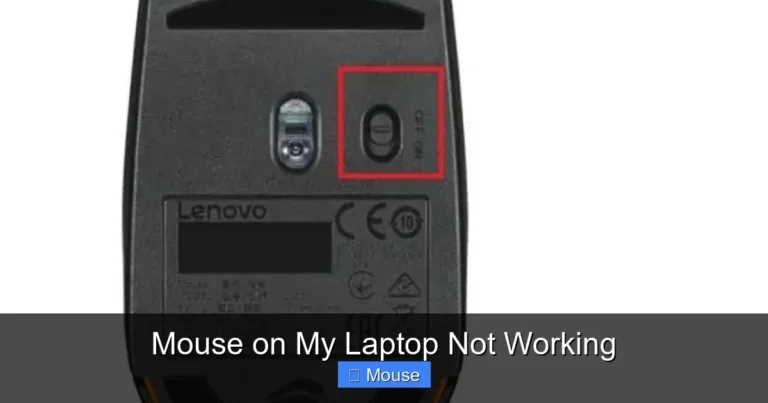
Press the power or pairing button (often a small toggle on the bottom). The LED usually blinks rapidly while pairing.
Step 3: Add the Device on Your Laptop
Windows: Click Add Bluetooth or other device → Bluetooth → select your mouse from the list.
macOS: The mouse should appear in the Bluetooth menu. Click Connect.
Step 4: Confirm Connection
Once paired, the LED may change color or stop blinking. Move the mouse to see the cursor respond.
Need a step‑by‑step visual guide? See How To Pair Wireless Mouse With Laptop.
4. Troubleshooting Common Issues
Even with the right steps, sometimes things don’t work. Here are quick fixes for the most frequent hiccups.
Mouse Not Responding at All
- Check battery level.
- Ensure the USB receiver is firmly seated.
- Try a different USB port or a USB‑C adapter.
- Restart your laptop.
Intermittent Connection or Lag
- Move the mouse closer to the receiver.
- Remove other wireless devices that might interfere.
- Update your laptop’s Bluetooth drivers (Windows Update or manufacturer site).
LED Stays Off or Blinks Randomly
This usually means the mouse is out of range or the batteries are dead. Replace batteries or move the mouse nearer.
Driver Errors or Device Not Recognized
On Windows, open Device Manager → Human Interface Devices → right‑click the mouse → Update driver. On macOS, reinstall the OS or reset the Bluetooth module.
5. Optimizing Your Mouse Settings
Once the mouse is connected, tweak it to fit your workflow.
Adjust Pointer Speed
Windows: Settings > Devices > Mouse > Additional mouse options → Pointer Options → slide the speed bar.
macOS: System Settings > Mouse → adjust tracking speed.
Enable/Disable Buttons
Some mice have extra buttons. Use manufacturer software (Logitech Options, Razer Synapse) to remap them.
Customize DPI Settings
If your mouse supports DPI adjustments, set a lower DPI for desk work and higher for gaming.
6. When All Else Fails: Resetting the Mouse
A factory reset can solve stubborn pairing problems.
USB Receiver Reset
Unplug the receiver, wait 10 seconds, then plug it back in. Power cycle the mouse.
Bluetooth Reset
On the mouse, hold the pairing button for 10 seconds until the LED flashes. Then re‑pair.
After a reset, you may need to reinstall drivers.
Conclusion: Your Mouse, Your Control
Connecting a wireless mouse to a laptop is a straightforward task once you know the steps and what type of mouse you have. Whether you’re using a USB receiver or Bluetooth, the process is essentially the same: power on, plug in (or pair), and let the operating system do its magic. If you hit a snag, the troubleshooting section above should help you pinpoint the issue quickly.
Now that you’ve mastered the basics, feel free to explore advanced settings—custom button macros, gaming profiles, or ergonomic adjustments—to make your laptop experience truly your own. Happy clicking!
Frequently Asked Questions
What is how to connect my wireless mouse to laptop?
how to connect my wireless mouse to laptop is an important topic with many practical applications and benefits.
How can how to connect my wireless mouse to laptop help me?
Understanding how to connect my wireless mouse to laptop can improve your knowledge and provide practical solutions.