How to Enable Mouse Pad on Laptop
Having trouble with a disabled touchpad? Follow this friendly guide to enable mouse pad on laptop using Windows settings, Mac preferences, or BIOS tweaks. Simple steps, no extra tools needed—your trackpad will be back in action fast.
Key Takeaways
- Check hardware keys: Many laptops use a function‑key shortcut to toggle the touchpad.
- Windows Settings: The Settings app lets you turn the mouse pad on or off with a few clicks.
- Device Manager: Re‑enabling the touchpad driver can fix hidden disables.
- Mac Preferences: macOS has its own trackpad panel for enabling the pad.
- BIOS/UEFI: If software fails, the BIOS often contains a touchpad enable option.
- Driver updates: Up‑to‑date drivers prevent accidental disables.
- Quick fixes: Simple tricks like unplugging an external mouse can automatically reactivate the pad.
📑 Table of Contents
Introduction
Imagine you’re in the middle of an important document, and the cursor suddenly disappears. You reach for the external mouse, only to find it missing too. Panic sets in—until you remember that most laptops have a built‑in mouse pad that can be turned on or off at will. Whether you disabled it accidentally or a recent update hid it, enabling the mouse pad on laptop is easier than you think.
In this article we’ll walk you through every method you might need: the quick function‑key toggle, the Windows Settings panel, Device Manager, macOS System Preferences, and even the BIOS/UEFI. We’ll also share practical tips, common pitfalls, and how to keep your touchpad happy for the long haul. By the end, you’ll be able to bring your trackpad back to life without searching the web again.
1. Using the Function Key Shortcut
Why the shortcut matters
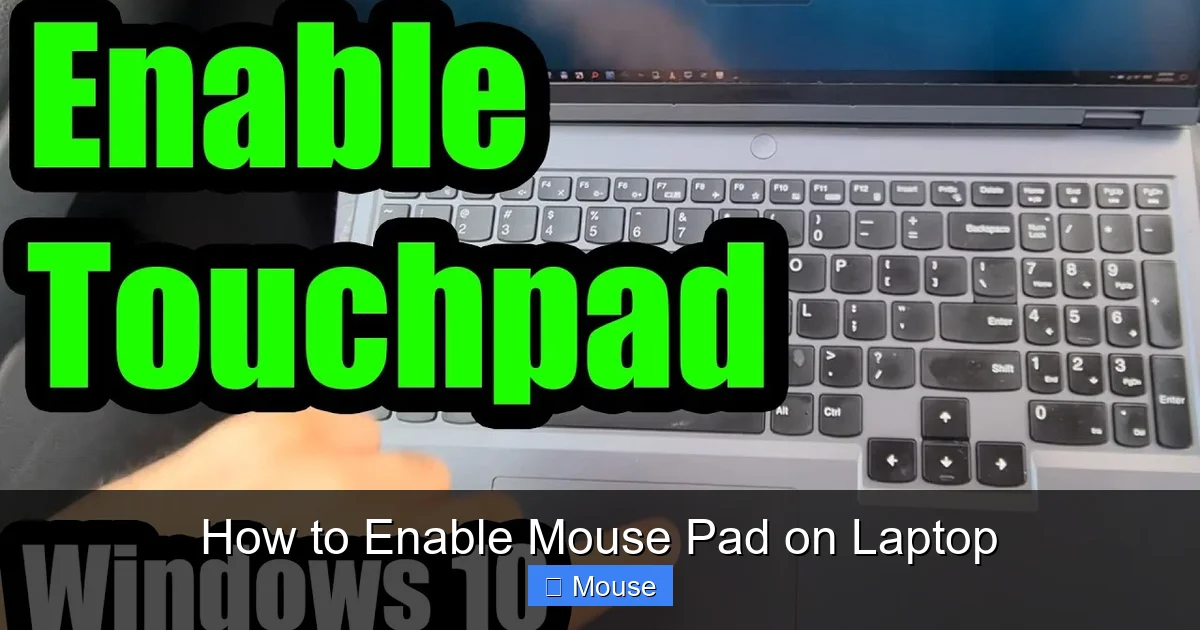
Most manufacturers assign a dedicated shortcut—usually Fn + F7, Fn + F9, or a key with a little pad icon—to toggle the touchpad. This is the fastest way to enable mouse pad on laptop when you’re in a hurry.
Visual guide about How to Enable Mouse Pad on Laptop
Image source: i.ytimg.com
How to find and use it
- Locate the key that shows a touchpad or a rectangle with a line through it.
- Hold the Fn key and press the identified function key.
- A small on‑screen notification usually confirms the change.
When it doesn’t work
If pressing the shortcut does nothing, the function key might be disabled in the BIOS, or the driver may be corrupted. In that case, move on to the Windows Settings method below.
2. Enabling the Touchpad in Windows Settings
Step‑by‑step guide for Windows 10 and 11
- Click the Start button and select the Settings gear.
- Navigate to Devices (or Bluetooth & devices in Windows 11).
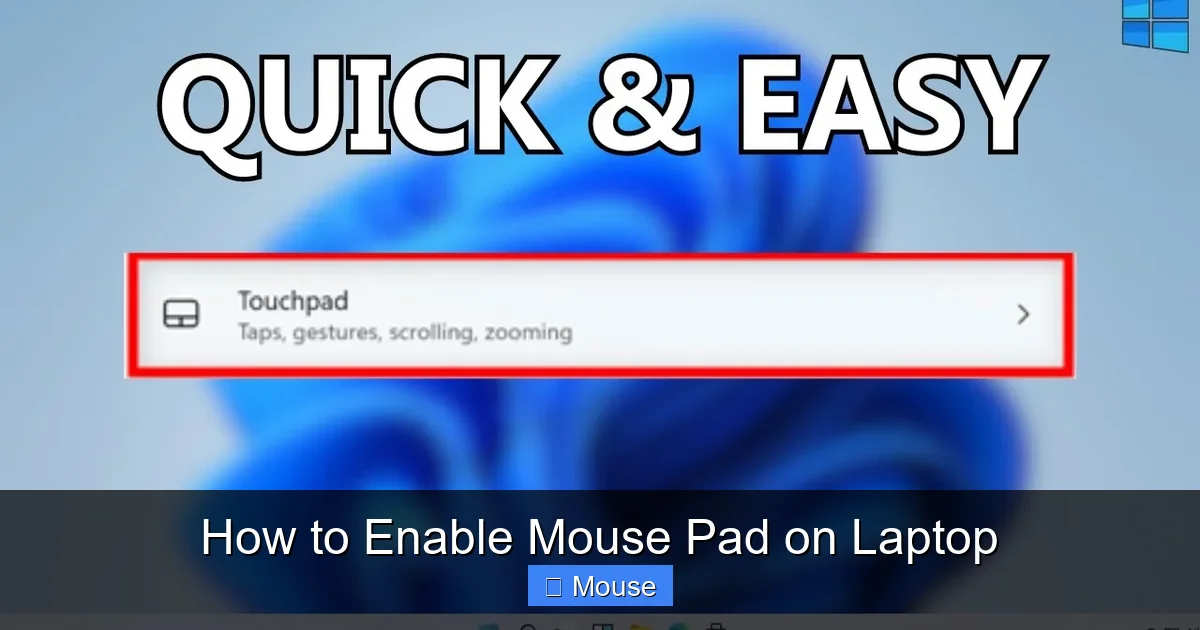
- Choose Touchpad from the left‑hand menu.
- Toggle the switch to On. If you see “Your touchpad is disabled,” click Change device settings and enable it there.
Customizing sensitivity and gestures
While you’re in the Touchpad menu, adjust the sensitivity slider and enable or disable gestures like two‑finger scrolling. These settings help you tailor the experience to your comfort.
Visual guide about How to Enable Mouse Pad on Laptop
Image source: robots.net
Common issue: “Touchpad not found”
If the Touchpad option is missing, the driver may be disabled. Head to Device Manager (see next section) to reactivate it.
3. Using Device Manager to Re‑Enable the Driver
Why Device Manager matters
Sometimes Windows thinks the touchpad is “disabled” rather than “turned off.” The Device Manager lets you see the hardware status directly.

Visual guide about How to Enable Mouse Pad on Laptop
Image source: i.ytimg.com
Steps to enable the driver
- Press Windows + X and select Device Manager.
- Expand the Mice and other pointing devices category.
- Look for an entry like Synaptics Touchpad, ELAN Touchpad, or HID-compliant mouse.
- If you see a down‑arrow icon, right‑click and choose Enable device.
- Restart your laptop to apply changes.
Updating the driver
Right‑click the touchpad entry, select Update driver, and choose “Search automatically for updated driver software.” An up‑to‑date driver often resolves hidden disables.
4. Enabling the Touchpad on macOS
Mac System Preferences
Apple users have a slightly different path, but the idea is the same: go to Apple menu > System Settings (or System Preferences on older macOS), then click Trackpad. Ensure the “Trackpad” box is checked and that “Tap to click” is enabled if you like that feature.
Visual guide about How to Enable Mouse Pad on Laptop
Image source: i.ytimg.com
Using the Touch ID button
On newer MacBooks, the Touch ID sensor doubles as a power‑button for the trackpad. A quick press can wake a sleeping pad.
When the pad is still unresponsive
If the trackpad remains disabled, reset the NVRAM: shut down, then turn on while holding Option + Command + P + R** for about 20 seconds. This often restores default hardware settings.
5. Checking BIOS/UEFI Settings
Why the BIOS might block the pad
Some laptops include a BIOS option to disable the internal mouse for security or performance reasons. If the OS methods fail, the BIOS is the last place to look.
Visual guide about How to Enable Mouse Pad on Laptop
Image source: robots.net
Accessing BIOS/UEFI
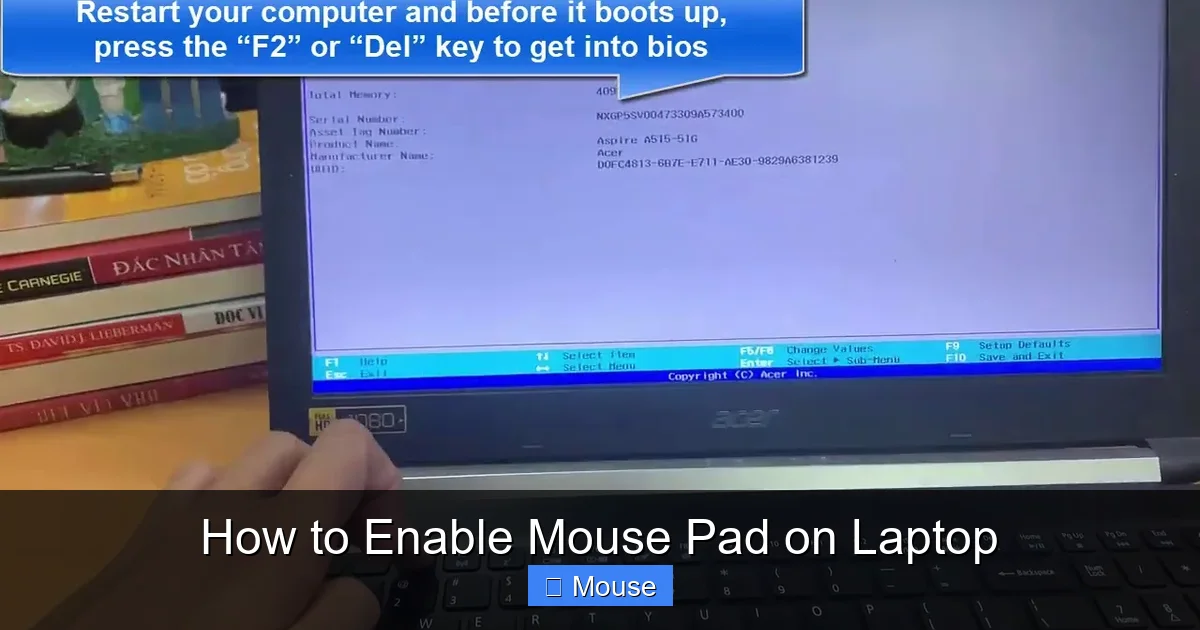
- Restart the laptop.
- Press the manufacturer‑specific key (often F2, Delete, Esc, or F10) as soon as the brand logo appears.
- Navigate to the Advanced or Integrated Peripherals tab.
- Find an entry named Internal Pointing Device, Touchpad, or similar, and set it to Enabled.
- Save changes and exit (usually F10).
Tips for BIOS navigation
Use the arrow keys, and remember that some newer UEFI interfaces support mouse input—so you can click if the touchpad is already active.
6. Practical Tips and Troubleshooting
Quick fixes you can try first
- Disconnect external mouse: Plugging in a USB mouse sometimes disables the touchpad automatically; unplug it to re‑enable.
- Restart the laptop: A simple reboot clears temporary glitches.
- Run Windows Troubleshooter: Settings > Update & Security > Troubleshoot > Additional troubleshooters > “Keyboard” or “Hardware and Devices.”
When to reinstall the driver
If the touchpad still won’t turn on, uninstall the driver from Device Manager (right‑click > Uninstall device) and then restart. Windows will reinstall a generic driver, which often restores functionality.
Visual guide about How to Enable Mouse Pad on Laptop
Image source: i.ytimg.com
Preventing future disables
Turn off any “disable when external mouse is connected” option in the touchpad settings. Keep your driver updated, and avoid accidental presses of the function‑key shortcut.
7. Frequently Overlooked Settings
Touchpad delay after typing
Windows includes a “Touchpad delay” option that can make the pad feel unresponsive after you type. Set it to “No delay” if you prefer immediate response.
Battery‑saving modes
Some power plans reduce touchpad sensitivity to save energy. Check your power plan’s advanced settings under “USB selective suspend” and disable it if needed.
Third‑party software conflicts
Software like gaming overlays or custom mouse utilities can override the OS settings. Temporarily disable them to see if the pad reappears.
Conclusion
Enabling mouse pad on laptop doesn’t have to be a mystery. Whether you prefer the quick function‑key, the detailed Windows Settings panel, the Device Manager, macOS System Preferences, or a BIOS tweak, you now have a complete toolbox. Keep your drivers fresh, be aware of shortcut keys, and check BIOS settings if all else fails. With these steps, your touchpad will be ready for work, study, or a quick game of Roblox without missing a beat.
Frequently Asked Questions
How do I know if my touchpad is disabled or just not working?
If the cursor disappears only when you move your fingers, the pad is likely disabled. Check the Settings or Device Manager to confirm its status.
Can an external mouse permanently disable the laptop’s touchpad?
Most laptops automatically disable the touchpad when an external mouse is connected, but this can be turned off in the touchpad settings.
Why does my touchpad work after a restart but not later?
A driver conflict or a power‑saving setting may be re‑disabling the pad after boot. Updating the driver and adjusting power options usually fixes it.
Is there a way to re‑enable the touchpad from the keyboard only?
Yes—use the function‑key shortcut (often Fn + F7) or open Settings with Windows + I, navigate with arrow keys, and enable the pad.
Will resetting Windows fix a disabled touchpad?
Resetting is a last resort. Most issues are solved by enabling the device in Settings, Device Manager, or BIOS without a full reset.
Can a BIOS update cause the touchpad to be disabled?
Sometimes a BIOS update resets hardware defaults, including the internal pointing device. After an update, check the BIOS to ensure the touchpad is set to Enabled.