Mouse on My Laptop Not Working
Having trouble with the mouse on your laptop not working? This guide walks you through simple software fixes, hardware checks, and practical tips to restore full functionality. Follow the step‑by‑step advice and get back to smooth scrolling in minutes.
Key Takeaways
- Check the basics first: Power, connections, and touchpad settings are the most common culprits.
- Update or roll back drivers: A recent driver change can break the mouse; reinstalling often solves the issue.
- Hardware tests matter: Using an external mouse or BIOS test helps pinpoint if the problem is physical.
- Operating system settings: Windows, macOS, and Linux each have unique mouse‑related options to review.
- Safety mode and clean boot: Isolating third‑party software can reveal hidden conflicts.
- When to seek professional help: Persistent problems may require firmware updates or hardware repair.
- Prevent future issues: Regular driver updates and careful driver installations keep the mouse running smoothly.
📑 Table of Contents
Introduction: Why Your Mouse Might Be Stuck
Imagine you’re in the middle of an important email, and the cursor freezes. The dreaded message “mouse on my laptop not working” pops up, and you’re left staring at a blank screen. It’s frustrating, but it’s also a problem you can solve without calling tech support.
In most cases, the issue isn’t a hardware failure—it’s a small setting, a driver hiccup, or a simple connection problem. This article will walk you through every possible cause, from the obvious to the obscure, and give you clear, friendly instructions to get your mouse moving again.
1. Start With the Simple Checks
Power and Connection
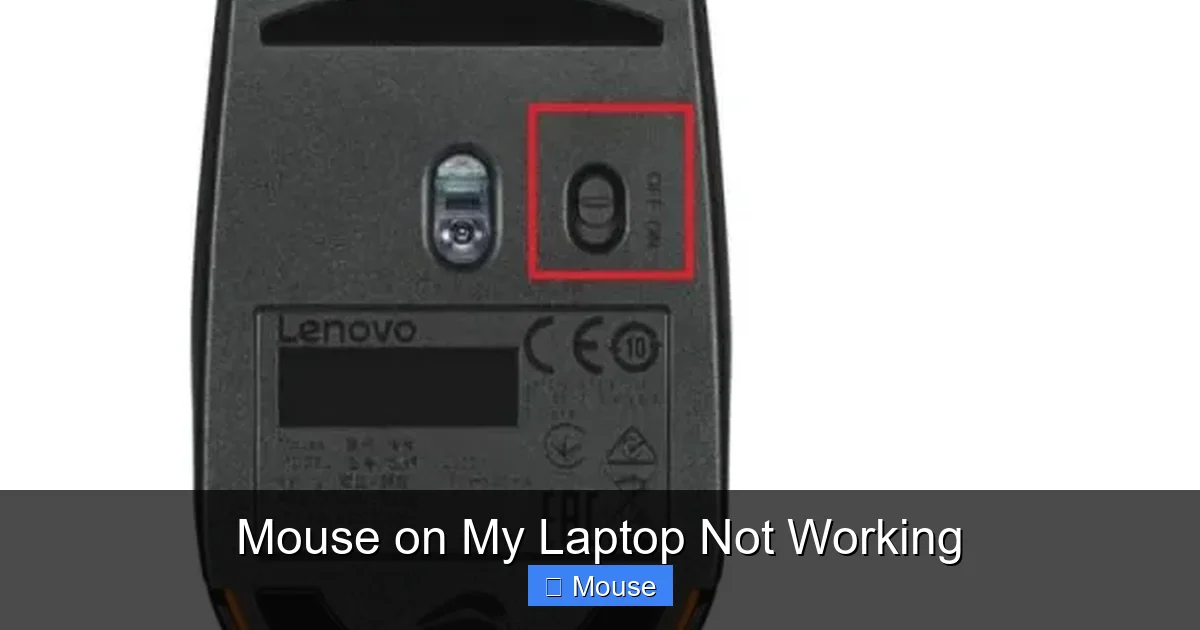
Even a wireless mouse can lose power. Make sure the batteries are fresh or that the charging cable is securely attached. If you’re using a USB mouse, try a different USB port. Some laptops have both USB‑2.0 and USB‑3.0 ports; swapping between them can resolve power‑delivery quirks.
Touchpad Enable/Disable Switch
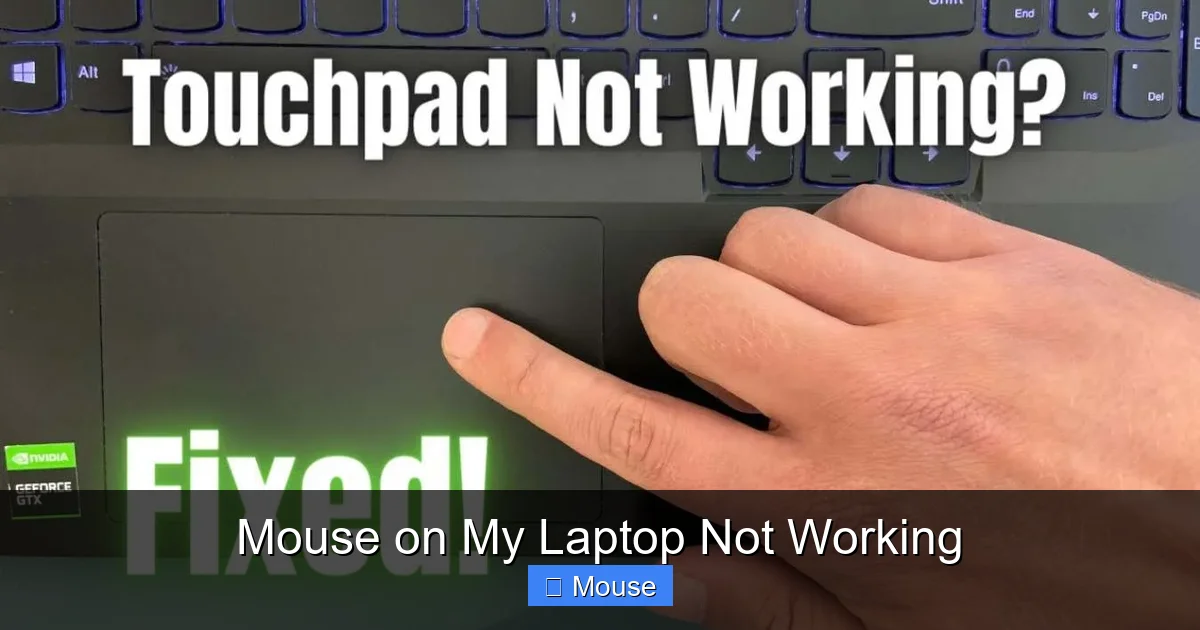
Many laptops include a function key (often Fn + F7 or a dedicated touchpad icon) that turns the built‑in mouse on or off. Accidentally hitting this key will make the cursor disappear while the external mouse still works. Press the key again or check the touchpad settings in the control panel.
Check for Physical Obstructions
Dust, crumbs, or a sticky surface can interfere with a touchpad’s sensor. Clean the pad gently with a soft, lint‑free cloth. For a mechanical mouse, make sure the optical sensor isn’t covered and that the mouse surface is suitable.
2. Dive Into Software Settings
Windows Mouse Settings
Open Settings > Devices > Mouse. Verify that the pointer speed isn’t set to the far left (which can make the cursor appear stuck). Also, click “Additional mouse options” and ensure the device isn’t disabled under the “Hardware” tab.
macOS Trackpad Preferences
Go to System Preferences > Trackpad. Check that “Tap to click” and “Tracking speed” are enabled. If you’re using an external mouse, open System Preferences > Mouse and confirm the device is recognized.
Linux Pointer Configurations
On most distros, the xinput command lists input devices. Run xinput list to see if the mouse appears. If it’s listed but not responding, try xinput disable <id> followed by xinput enable <id>. Also, check the /etc/X11/xorg.conf.d/ files for any mis‑configured options.
3. Driver Troubleshooting
Update Drivers Automatically
Windows Update often includes the latest mouse drivers. Go to Settings > Update & Security > Windows Update and click “Check for updates.” macOS handles driver updates through system updates, so make sure you’re on the latest version.
Visual guide about Mouse on My Laptop Not Working
Image source: izood.net
Roll Back a Recent Driver
If the mouse stopped working after a driver update, roll it back. In Device Manager, right‑click the mouse entry, choose “Properties,” then the “Driver” tab, and click “Roll Back Driver.”
Manual Driver Installation
Visit the laptop manufacturer’s support site (e.g., Dell, HP, Lenovo) and download the specific mouse driver for your model. Install it manually and restart the computer.
4. Test the Hardware Independently
Use an External Mouse
Plug in a USB or Bluetooth mouse. If it works, the built‑in touchpad is likely at fault. If the external mouse also fails, the issue may be deeper in the OS or BIOS.
Check in BIOS/UEFI
Restart the laptop and enter BIOS/UEFI (usually by pressing F2, Del, or Esc). Most BIOS screens let you test the touchpad. If the cursor moves there, the hardware is fine and the problem is software‑related.
Run a Live Linux USB
Boot from a live Linux USB stick. If the mouse works in the live environment, your Windows/macOS installation is the culprit. This is a quick way to isolate the problem without reinstalling the OS.
5. Advanced Software Fixes
Safe Mode / Clean Boot
Booting into Safe Mode disables third‑party drivers and startup programs. If the mouse works in Safe Mode, gradually enable services to find the conflicting software.
Registry Tweaks (Windows)
Open regedit and navigate to HKEY_CURRENT_USER\Software\Microsoft\Windows\CurrentVersion\PrecisionTouchPad. Ensure the “Enabled” value is set to 1. Be careful—editing the registry can cause other issues if done incorrectly.
Reset Touchpad Settings
Some manufacturers provide a utility (e.g., Synaptics, ELAN). Open the utility and click “Restore Defaults.” This can clear hidden configuration errors.
6. When All Else Fails – Professional Help
Firmware Updates
Rarely, a firmware bug will affect the touchpad controller. Check the laptop’s support page for any BIOS or firmware updates that mention “mouse” or “trackpad.”
Hardware Replacement
If the touchpad still doesn’t respond after all software fixes, the internal hardware may be damaged. Replacing the touchpad ribbon cable or the entire pad might be necessary. This is best handled by a certified technician.
Backup and Reinstall OS
As a last resort, back up your data and perform a clean OS installation. This eliminates any hidden software conflict that could be causing the mouse to fail.
Conclusion: Get Your Cursor Moving Again
Seeing the message “mouse on my laptop not working” can feel like a roadblock, but most of the time the fix is just a few clicks away. Start with power and connection checks, move on to driver updates, and test the hardware independently. If you’ve tried everything and still see a frozen cursor, it may be time for a firmware update or professional repair.
Remember, keeping drivers current and avoiding risky third‑party software are the best ways to prevent future mouse woes. With the steps above, you’ll be back to scrolling, clicking, and dragging in no time.
Related Reads
- Why Is The Mouse Not Working On My Laptop
- Mouse On HP Laptop Not Working
- How To Get My Mouse Back On My Laptop
Frequently Asked Questions
Why does my laptop’s touchpad suddenly stop working?
Most often it’s a driver issue, an accidental disable via the Fn key, or a power‑saving setting that turned the touchpad off.
Can a virus make the mouse stop working?
Malware can interfere with input devices, but it’s rare. Running a quick scan can rule this out.
Is it safe to reinstall mouse drivers manually?
Yes. Download the driver from the manufacturer’s site, uninstall the current driver in Device Manager, then install the new one.
What should I do if an external mouse works but the built‑in touchpad doesn’t?
Focus on touchpad settings, driver updates, and BIOS options. Sometimes disabling “Touchpad” in the BIOS and re‑enabling it fixes the issue.
Will a Windows update fix my mouse problems?
Often, yes. Updates can bring newer drivers and patches that resolve compatibility issues.
How can I tell if the mouse hardware is defective?
Test the mouse on another computer. If it fails there too, the hardware is likely the problem and needs replacement.