How to Unlock a Mouse on a Hp Laptop
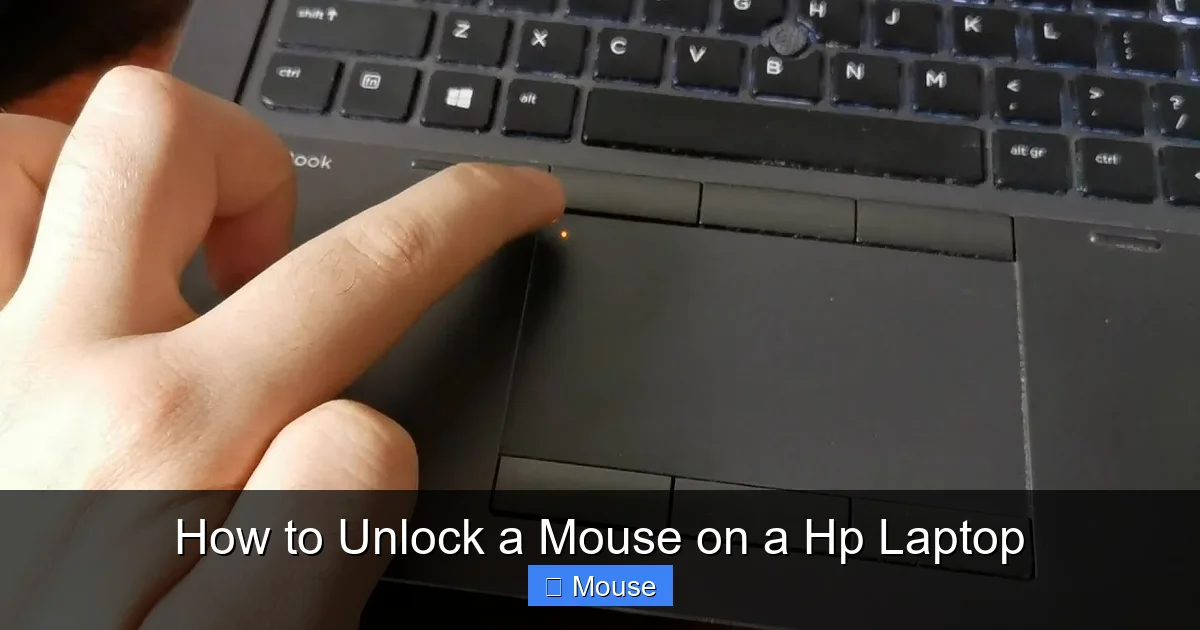
Having a frozen or disabled cursor on your HP laptop can be frustrating, but fixing it is often simple. This guide walks you through quick checks, keyboard shortcuts, driver fixes, and BIOS tweaks to unlock a mouse on a HP laptop. Follow the easy steps and get back to smooth navigation in minutes.
Key Takeaways
- Check the function key: Most HP laptops use
Fn + F6(orF7) to toggle the touchpad. - Update or reinstall drivers: Corrupt drivers are a common cause; use Device Manager or HP Support Assistant.
- Enable the touchpad in BIOS: If Windows settings won’t help, the BIOS may have the device disabled.
- Use the Windows Settings panel: The “Touchpad” toggle in Settings can instantly re‑enable the mouse.
- Run built‑in troubleshooters: Windows diagnostics often locate and fix hidden issues.
- Know when to reset: A full power‑cycle or system restore can resolve stubborn lock‑outs.
- Internal resources help: Related articles on unlocking touch mice and getting the cursor back provide extra tips.
📑 Table of Contents
- Introduction
- 1. Quick Keyboard Shortcut – The First Line of Defense
- 2. Verify Windows Touchpad Settings
- 3. Update or Reinstall the Touchpad Driver
- 4. Check BIOS/UEFI Settings
- 5. Run Windows Troubleshooter
- 6. Power Cycle and Reset
- 7. System Restore or Reset (Last Resort)
- 8. When All Else Fails – External Mouse Options
- Conclusion
Introduction
Imagine you’re typing an important email, and suddenly the cursor disappears. On a HP laptop, this usually means the touchpad—or an external mouse—has been locked. It’s a common hiccup that can happen after a Windows update, a driver glitch, or an accidental key press. The good news? You don’t need to call tech support or buy a new laptop. With a few simple steps you can unlock a mouse on a HP laptop and get back to work.
In this article we’ll cover everything from the quickest keyboard shortcuts to deeper BIOS settings. We’ll also share practical examples, handy tips, and a few troubleshooting tricks that even a non‑tech‑savvy friend could follow. By the end, you’ll know exactly how to diagnose why the mouse is locked and how to fix it—fast, safe, and without extra cost.
1. Quick Keyboard Shortcut – The First Line of Defense
HP laptops often include a built‑in shortcut that enables or disables the touchpad. This is the fastest way to unlock a mouse on a HP laptop.
Visual guide about How to Unlock a Mouse on a Hp Laptop
Image source: images.gizbot.com
How to use the shortcut
- Locate the Fn key (usually at the bottom left of the keyboard).
- While holding Fn, press the function key that shows a touchpad icon. On most models it’s F6 or F7.
- Release both keys. You should see a notification that the touchpad is now enabled.
If the cursor reappears, you’ve just unlocked the mouse! If not, move on to the next section.
2. Verify Windows Touchpad Settings
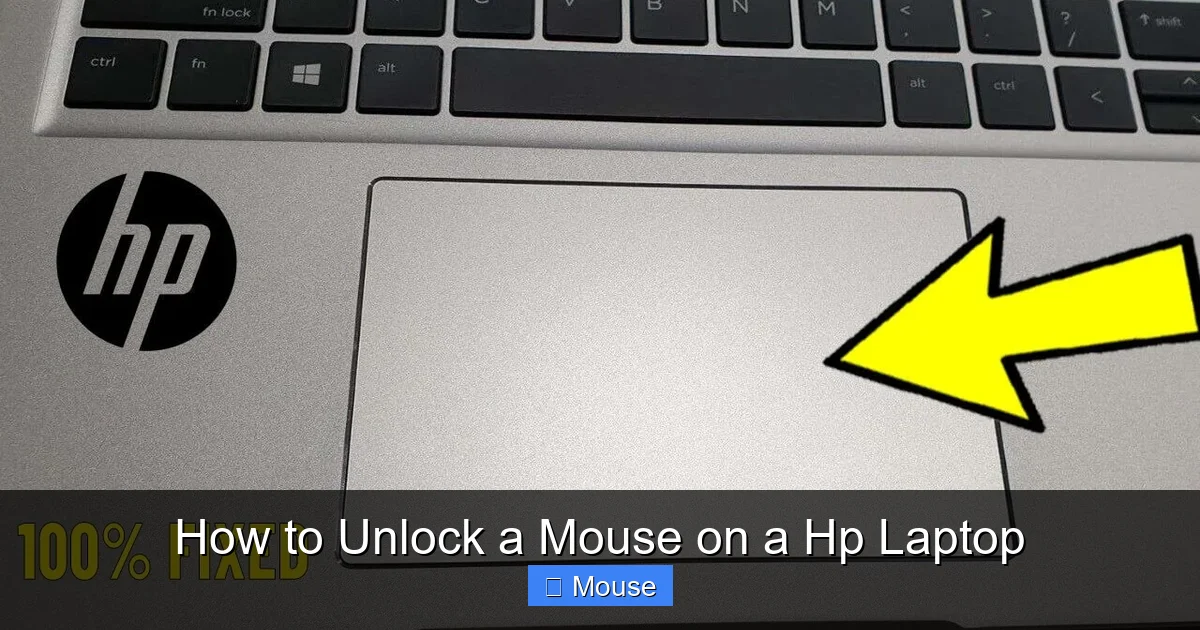
Windows 10 and 11 provide a dedicated settings page for the touchpad. Sometimes the device is simply turned off there.
Visual guide about How to Unlock a Mouse on a Hp Laptop
Image source: i.ytimg.com
Step‑by‑step guide
- Press Windows + I to open Settings.
- Navigate to Devices > Touchpad.
- Make sure the toggle at the top reads On. If it says Off, click to enable it.
- Below the toggle, adjust the sensitivity slider if the cursor feels sluggish.
After enabling, test the touchpad. If it still doesn’t work, the issue may be driver‑related.
3. Update or Reinstall the Touchpad Driver
Out‑of‑date or corrupted drivers are a frequent cause of a locked mouse on HP laptops. Updating or reinstalling the driver often restores full functionality.

Visual guide about How to Unlock a Mouse on a Hp Laptop
Image source: custom-images.strikinglycdn.com
Using Device Manager
- Right‑click the Start button and select Device Manager.
- Expand the Mice and other pointing devices section.
- Right‑click your touchpad (often listed as Synaptics or ELAN) and choose Update driver.
- Select Search automatically for updated driver software. Follow any prompts.
Reinstalling the driver
- If the update finds nothing, right‑click the touchpad again and choose Uninstall device. Confirm and restart the laptop.
- Windows will automatically reinstall a generic driver on reboot. For the best performance, download the latest driver from the HP Support website and install it manually.
Tip: The How To Unlock Touch Mouse On HP Laptop article walks you through downloading the exact driver for various HP models.
4. Check BIOS/UEFI Settings
Sometimes the touchpad is disabled at the firmware level. This can happen after a BIOS update or if the setting was changed accidentally.

Visual guide about How to Unlock a Mouse on a Hp Laptop
Image source: robots.net
Accessing BIOS
- Shut down the laptop completely.
- Power it on and immediately press Esc repeatedly until the Startup Menu appears.
- Press F10** to open the BIOS Setup.
- Navigate to the Advanced or Built‑In Device Options tab (the exact name varies by model).
- Find the Internal Pointing Device or Touchpad entry and set it to Enabled.
- Save changes (usually F10) and exit.
After the laptop restarts, the touchpad should be active. If not, continue with the software‑based solutions.
5. Run Windows Troubleshooter
Windows includes a built‑in troubleshooter that can automatically detect and fix common mouse problems.

Visual guide about How to Unlock a Mouse on a Hp Laptop
Image source: i.ytimg.com
How to launch it
- Open Settings (Windows + I).
- Go to Update & Security > Troubleshoot.
- Click Additional troubleshooters, then select Hardware and Devices.
- Run the troubleshooter and follow any recommended fixes.
Even if the tool says it didn’t find any problems, running it can reset hidden settings that may be blocking the cursor.
6. Power Cycle and Reset
When software fixes fail, a full power cycle can clear residual power that sometimes locks the touchpad.
Visual guide about How to Unlock a Mouse on a Hp Laptop
Image source: hplaptopservicecentres.com
Power‑cycle steps
- Shut down the laptop.
- Unplug the AC adapter and remove any external batteries (if removable).
- Press and hold the power button for **15 seconds** to discharge remaining charge.
- Reconnect power and start the laptop.
If the cursor returns, the issue was likely a temporary hardware latch. If not, you may need to consider a system restore.
7. System Restore or Reset (Last Resort)
When a recent Windows update or software install caused the lock, reverting to a previous restore point can bring back the mouse.
Using System Restore
- Search for Create a restore point in the Start menu.
- In the System Properties window, click System Restore.
- Choose a restore point dated before the problem began and follow the prompts.
After the restore completes, test the touchpad. If it works, the issue was software‑related. If you prefer a clean slate, you can perform a Windows reset (Settings > Update & Security > Recovery > Reset this PC), but back up your data first.
8. When All Else Fails – External Mouse Options
While you’re working on unlocking the built‑in mouse, an external USB or Bluetooth mouse can keep you productive.
Connecting a USB mouse
- Plug the mouse into any available USB port.
- Windows should auto‑install the drivers and the cursor will appear instantly.
Connecting a Bluetooth mouse
- Turn on the mouse and enable pairing mode.
- Open Settings > Devices > Bluetooth & other devices.
- Click Add Bluetooth or other device and select your mouse.
- Follow the on‑screen instructions to pair.
Having an external mouse is a good temporary solution while you troubleshoot the built‑in device. For more details on pairing, see How To Connect A Wireless Mouse To My Laptop.
Conclusion
Unlocking a mouse on a HP laptop is rarely a nightmare. Most issues stem from a simple toggle, a disabled setting, or an outdated driver. By following the steps above—starting with the Fn shortcut, checking Windows settings, updating drivers, and, if needed, diving into BIOS—you can restore cursor control in minutes. Keep this guide handy, and remember that a quick power‑cycle or an external mouse can buy you time while you work through the fixes.
Now you’re equipped to tackle a frozen cursor confidently. If you encounter any unusual behavior, revisit the steps, and don’t hesitate to explore related articles like How To Get The Mouse Back On A Laptop for additional troubleshooting ideas. Happy computing!
Frequently Asked Questions
Why is my HP laptop touchpad not responding?
Common causes include the Fn key shortcut being turned off, outdated drivers, or the touchpad being disabled in BIOS. Checking the toggle and updating drivers usually solves the problem.
Can a Windows update disable the mouse?
Yes. Some updates reset hardware settings or replace drivers, which can temporarily lock the touchpad. Running a driver reinstall or system restore often restores functionality.
How do I know if the problem is hardware or software?
If the cursor works with an external USB or Bluetooth mouse, the hardware is likely fine and the issue is software‑related. If no mouse works, the internal touchpad may be faulty.
Is there a way to permanently prevent the touchpad from being disabled?
You can disable the shortcut that toggles the touchpad in the HP BIOS, or set the touchpad to “Always On” in Windows Settings under Touchpad > Additional Settings.
What should I do if the BIOS option for the touchpad is missing?
Update the BIOS to the latest version from HP’s support site. If the option still isn’t there, the device may be physically damaged and require service.
Will resetting Windows erase my files?
A “Reset this PC” with the “Keep my files” option preserves personal data while reinstalling Windows. However, it’s always wise to back up important files before any major reset.