My Mouse Not Working on Laptop

Dealing with a mouse that suddenly stops working on your laptop can be incredibly frustrating, especially when you’re in the middle of important work. Whether you’re using a wireless mouse, a wired USB mouse, or the built-in touchpad, there are several common causes and simple solutions to get you back on track. This guide walks you through every troubleshooting step you need to diagnose and fix the issue quickly, no matter what brand of laptop you own.
You sit down at your laptop, ready to get some work done, and nothing happens when you move your mouse. The cursor is frozen, the pointer won’t budge, or maybe the mouse isn’t even being detected. If you’ve ever found yourself Googling “my mouse not working on laptop,” you’re definitely not alone. This is one of the most common tech problems people face, and the good news is that it’s usually fixable without a trip to the repair shop.
In this guide, we’re going to cover every possible reason your mouse might not be working on your laptop. We’ll talk about wired mice, wireless mice, Bluetooth mice, and even the built-in touchpad. By the time you finish reading, you’ll know exactly how to troubleshoot and fix the problem step by step.
Key Takeaways
- Start with the basics: Check batteries, USB connections, and physical damage before diving into software fixes — most mouse issues have simple hardware causes.
- Driver problems are common: Outdated, corrupted, or missing drivers are one of the leading reasons a mouse stops working on a laptop, and updating or reinstalling them often solves the issue.
- Touchpad settings matter: Many laptop users accidentally disable their touchpad through keyboard shortcuts or system settings without realizing it.
- USB port issues are overlooked: A faulty USB port can mimic a broken mouse — always test your mouse on a different port or another computer.
- Wireless interference happens: Bluetooth and RF wireless mice can suffer from interference, low battery, or pairing issues that cause intermittent or total failure.
- Windows settings can block your mouse: Power management settings, fast startup, and accessibility features can silently disable your mouse without obvious warning signs.
- When all else fails, seek help: If none of the standard fixes work, the issue may be a hardware failure requiring professional repair or a replacement mouse.
📑 Table of Contents
- Understanding the Different Types of Laptop Mice
- Quick Physical Checks You Should Do First
- My Mouse Not Working on Laptop: Common Software Fixes
- Wireless and Bluetooth Mouse-Specific Troubleshooting
- When My Mouse Stopped Working on Laptop After an Update
- Brand-Specific Tips for Mouse Problems
- When to Consider Hardware Replacement
- Preventing Future Mouse Problems
- Conclusion
Understanding the Different Types of Laptop Mice
Before we jump into troubleshooting, it helps to understand that there are several types of pointing devices you might be using with your laptop. Each one has its own set of potential issues, and knowing which type you’re dealing with will help you narrow down the solution faster.
Wired USB Mice
Wired USB mice are the simplest type. They plug directly into a USB port on your laptop and draw power from the connection. Because there are no batteries or wireless signals involved, they tend to be the most reliable. However, they can still stop working due to a damaged cable, a faulty USB port, or driver issues within your operating system.
Wireless RF Mice
Wireless mice that use a USB receiver (often called a “dongle”) are extremely popular. They communicate with your laptop via radio frequency, usually on the 2.4 GHz band. These mice need batteries or a charged internal battery to work. Common problems include dead batteries, a lost or loose USB receiver, signal interference from other devices, or the mouse simply losing its connection to the receiver.
Bluetooth Mice
Bluetooth mice connect directly to your laptop’s built-in Bluetooth radio, so they don’t need a separate USB receiver. They’re great for keeping your ports free, but they can be trickier to troubleshoot. Bluetooth pairing issues, outdated Bluetooth drivers, and power-saving features that disable Bluetooth can all cause connectivity problems.
Built-in Touchpads
Every laptop comes with a built-in touchpad, and for many people, it’s their primary pointing device. Touchpads can stop working due to accidental disabling (often through a keyboard shortcut), driver problems, or physical damage. If you rely on your touchpad and it suddenly stops responding, it can feel just as disruptive as an external mouse failure.
Quick Physical Checks You Should Do First
Before you start changing settings or downloading anything, it’s worth doing a few quick physical checks. You’d be surprised how often the problem is something simple that’s easy to overlook.

Visual guide about My Mouse Not Working on Laptop
Image source: cdn.shopify.com
Check the Batteries or Power Source
If you’re using a wireless or Bluetooth mouse, the first thing to check is the battery. Low or dead batteries are the number one reason a wireless mouse stops working. Try replacing the batteries with fresh ones, or if your mouse is rechargeable, plug it in and let it charge for at least 15 minutes before testing again.
Inspect the USB Connection
For wired mice, make sure the USB cable is firmly plugged into the port. If you’re using a wireless mouse with a USB dongle, check that the receiver is fully inserted. Try unplugging it and plugging it back in. Sometimes a loose connection is all that’s causing the problem.
Try a Different USB Port
Not all USB ports on your laptop are created equal. Some may be damaged or not providing enough power. If your mouse isn’t working in one port, try plugging it into a different one. If it works in a different port, you’ve found the issue — that specific USB port may need repair or should simply be avoided going forward.
Test the Mouse on Another Computer
This is a great way to figure out whether the problem is with your mouse or with your laptop. Plug your mouse into a different computer and see if it works. If it does, the issue is with your laptop’s settings, drivers, or ports. If it doesn’t work on another computer either, the mouse itself is likely broken and needs to be replaced.
Look for Physical Damage
Take a close look at your mouse and its cable (if it has one). Check for frayed wires, cracked plastic, bent USB connectors, or any signs of liquid damage. Even small amounts of damage can cause intermittent or total failure.
My Mouse Not Working on Laptop: Common Software Fixes
If the physical checks didn’t solve the problem, the issue is likely software-related. Let’s walk through the most effective software fixes for when your mouse stops working on your laptop.
Visual guide about My Mouse Not Working on Laptop
Image source: d1j63owfs0b5j3.cloudfront.net
Update or Reinstall Mouse Drivers
Drivers are the software that lets your operating system communicate with your mouse. If the driver is outdated, corrupted, or missing, your mouse won’t work properly — or at all. Here’s how to fix this on Windows:
- Right-click the Start button and select Device Manager.
- Expand the Mice and other pointing devices section.
- Right-click your mouse device and select Update driver.
- Choose Search automatically for drivers.
- If Windows doesn’t find a new driver, try right-clicking the device again and selecting Uninstall device, then restart your laptop. Windows will automatically reinstall the driver on reboot.
For Mac users, you can try resetting the System Management Controller (SMC) or the NVRAM/PRAM, which can resolve hardware recognition issues. On Apple Silicon Macs, simply shutting down and restarting the computer often resets these controllers automatically.
Check Touchpad Settings (For Built-in Touchpad Issues)
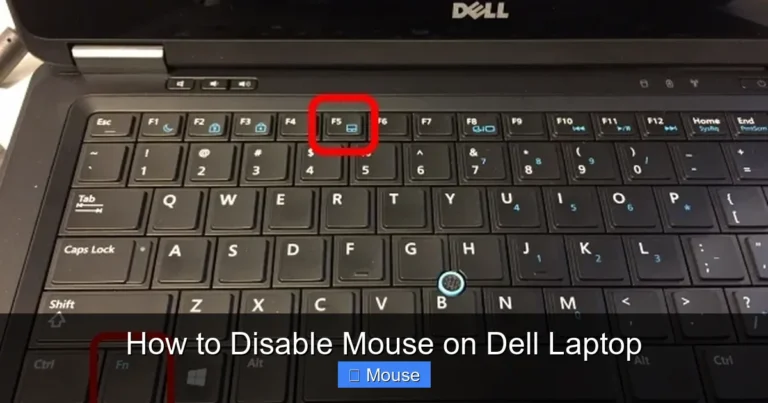
If your laptop’s built-in touchpad has stopped working, it may have been accidentally disabled. Many laptops have a function key (often F5, F7, or F9 with a touchpad icon) that toggles the touchpad on and off. You might have pressed it without realizing.
On Windows, you can also check your touchpad settings by going to Settings > Bluetooth & devices > Touchpad. Make sure the touchpad toggle is turned on. Some laptops also have a setting that automatically disables the touchpad when an external mouse is connected — you may want to turn this off.
For more detailed help on touchpad-specific problems, check out our guide on mouse pad not working on laptop.
Disable USB Selective Suspend
Windows has a power-saving feature called USB Selective Suspend that can sometimes turn off USB devices to save battery. This can cause your mouse to stop working, especially on laptops. Here’s how to disable it:
- Go to Control Panel > Hardware and Sound > Power Options.
- Click Change plan settings next to your current power plan.
- Click Change advanced power settings.
- Expand USB settings > USB selective suspend setting.
- Set both On battery and Plugged in to Disabled.
- Click Apply and then OK.
Turn Off Fast Startup
Fast Startup is a Windows feature that helps your laptop boot up faster, but it can sometimes cause hardware issues, including mouse problems. To turn it off:
- Go to Control Panel > Hardware and Sound > Power Options.
- Click Choose what the power buttons do.
- Click Change settings that are currently unavailable.
- Uncheck Turn on fast startup.
- Click Save changes and restart your laptop.
Run the Hardware Troubleshooter
Windows has built-in troubleshooters that can automatically detect and fix certain hardware issues. To run the hardware troubleshooter:
- Go to Settings > System > Troubleshoot > Other troubleshooters.
- Find Keyboard and Hardware and Devices, and run both troubleshooters.
- Follow any on-screen instructions and apply recommended fixes.
Wireless and Bluetooth Mouse-Specific Troubleshooting
Wireless and Bluetooth mice come with their own unique set of challenges. If you’ve already tried the general fixes above and your wireless mouse still isn’t working on your laptop, these targeted steps should help.

Visual guide about My Mouse Not Working on Laptop
Image source: publicdomainpictures.net
Re-Pair Your Bluetooth Mouse
If your Bluetooth mouse has stopped connecting, try removing it from your laptop’s Bluetooth device list and pairing it again:
- Go to Settings > Bluetooth & devices.
- Find your mouse in the list and click the three dots next to it.
- Select Remove device.
- Put your mouse into pairing mode (check your mouse’s manual for instructions).
- Click Add device and select Bluetooth.
- Choose your mouse from the list and complete the pairing process.
Check for Wireless Interference
Both RF and Bluetooth wireless mice can experience interference from other electronic devices. Common culprits include Wi-Fi routers, cordless phones, microwave ovens, and other wireless peripherals. Try moving these devices away from your mouse and its receiver, or switching your Wi-Fi router to the 5 GHz band to reduce 2.4 GHz congestion.
Replace or Re-Seat the USB Receiver
If you’re using a wireless mouse with a USB dongle, the receiver might have become loose or damaged. Try unplugging it and plugging it back in firmly. If you have a spare USB extension cable, you can use it to move the receiver closer to your mouse, which often improves signal strength and reliability.
Update Bluetooth Drivers
Outdated Bluetooth drivers can cause pairing failures and connection drops. Go to your laptop manufacturer’s website and download the latest Bluetooth drivers for your specific model. You can also update them through Device Manager by expanding the Bluetooth section and right-clicking your Bluetooth adapter.
When My Mouse Stopped Working on Laptop After an Update
One of the most frustrating scenarios is when your mouse stops working right after a Windows update or a driver update. This happens more often than you’d think, and it’s usually because the update installed an incompatible driver or changed a critical setting.

Visual guide about My Mouse Not Working on Laptop
Image source: worksheets.clipart-library.com
Roll Back the Driver
If your mouse stopped working after a driver update, rolling back to the previous version can fix the issue:
- Open Device Manager.
- Expand Mice and other pointing devices.
- Right-click your mouse and select Properties.
- Go to the Driver tab.
- Click Roll Back Driver (if the option is available).
- Restart your laptop.
Use System Restore
If rolling back the driver doesn’t work, you can use System Restore to revert your entire system to a point before the update was installed:
- Type Create a restore point in the Windows search bar and open it.
- Click System Restore.
- Choose a restore point from before the update.
- Follow the on-screen instructions to complete the restore.
This will undo recent system changes without affecting your personal files, though you may need to reinstall any programs or drivers that were installed after the restore point.
Uninstall Problematic Windows Updates
If you can identify a specific Windows update that caused the problem, you can uninstall it:
- Go to Settings > Windows Update > Update history.
- Click Uninstall updates.
- Find the problematic update, select it, and click Uninstall.
- Restart your laptop.
If you’re dealing with a mouse that quit working after a system change, you might also find our article on mouse quit working on laptop helpful for additional troubleshooting steps.
Brand-Specific Tips for Mouse Problems
Different laptop brands sometimes have their own quirks when it comes to mouse and touchpad issues. Here are some brand-specific tips that might help.

Visual guide about My Mouse Not Working on Laptop
Image source: static.vecteezy.com
HP Laptops
HP laptops often come with Synaptics or ELAN touchpad drivers that can cause issues after updates. If you’re experiencing problems on an HP laptop, visit HP’s support website and download the latest touchpad driver for your specific model. Some HP laptops also have a double-tap zone in the upper-left corner of the touchpad that toggles it on and off — make sure you’re not accidentally hitting this.
Dell Laptops
Dell laptops sometimes have issues with the touchpad being disabled in the BIOS. If your touchpad isn’t working at all, try entering the BIOS (press F2 during startup) and checking that the touchpad is enabled under the Advanced or System Configuration tab.
Lenovo Laptops
Lenovo laptops frequently use the Fn + F6 or Fn + F8 shortcut to disable the touchpad. If your touchpad suddenly stops working, try pressing this combination to see if that re-enables it. Lenovo also has its own touchpad settings utility called Lenovo Vantage, which you can use to check touchpad configuration.
Acer and ASUS Laptops
Acer and ASUS laptops sometimes have aggressive power management settings that can disable USB devices. Check your power settings as described earlier, and also look for any manufacturer-specific power management software that might be interfering with your mouse.
When to Consider Hardware Replacement
Sometimes, despite your best troubleshooting efforts, the problem is simply a hardware failure. Here are some signs that it might be time to replace your mouse or seek professional repair.

Visual guide about My Mouse Not Working on Laptop
Image source: anoncn.com
The Mouse Doesn’t Work on Any Computer
If you’ve tested your mouse on multiple computers and it doesn’t work on any of them, the mouse itself is likely defective. This is especially true if the mouse shows no signs of life at no LED lights, no response, and no detection by the operating system.
The USB Port Is Damaged
If none of your USB devices work in a particular port, the port itself may be physically damaged. This can happen from repeated plugging and unplugging, from dropping the laptop, or from electrical surges. A USB hub can work as a temporary fix, but the port may eventually need professional repair.
The Touchpad Has Physical Damage
If your touchpad has visible cracks, deep scratches, or areas that feel different when you press them, the hardware may be damaged. In this case, using an external mouse is a good workaround, but you may want to have the touchpad replaced by a professional.
Your Laptop Is Under Warranty
If your laptop is still under manufacturer’s warranty, don’t attempt to open it up or repair hardware yourself. Contact the manufacturer’s support line and arrange for a repair or replacement. Attempting your own repairs could void the warranty.
Preventing Future Mouse Problems
Once you’ve gotten your mouse working again, there are a few things you can do to prevent the problem from happening again in the future.

Visual guide about My Mouse Not Working on Laptop
Image source: image.itmedia.co.jp
Keep Drivers Updated
Make it a habit to check for driver updates regularly. You can enable automatic updates in Windows Update settings, or use your laptop manufacturer’s update utility to keep everything current.
Use a Surge Protector
Power surges can damage USB ports and connected peripherals. Using a surge protector or a UPS (uninterruptible power supply) can help protect your laptop and its accessories.
Keep Your Mouse Clean
Dust, hair, and debris can accumulate inside your mouse and on its sensor, causing erratic behavior. Clean your mouse regularly with compressed air and a soft cloth. For touchpads, wipe the surface gently with a slightly damp microfiber cloth.
Carry a Backup Mouse
If you rely heavily on your mouse for work or school, it’s a good idea to have a spare mouse in your bag. A basic wired USB mouse is inexpensive and can be a lifesaver when your primary mouse fails at the worst possible time.
For more detailed solutions on getting your mouse working again, check out our comprehensive guide on how to get my mouse back on my laptop.
Conclusion
Finding yourself dealing with a mouse that’s not working on your laptop is never fun, but as you can see, there are plenty of things you can try before panicking. Start with the simple physical checks — batteries, connections, and different ports. Then move on to software fixes like driver updates, power settings, and system troubleshooters. If you’re using a wireless or Bluetooth mouse, re-pairing and checking for interference can make a big difference.

Visual guide about My Mouse Not Working on Laptop
Image source: images.squarespace-cdn.com
Remember, the key is to be methodical. Don’t skip the basics and jump straight to complicated solutions. Most of the time, the fix is something simple. And if you’ve tried everything and the problem persists, it might be time to consider that the mouse or the laptop’s hardware needs professional attention.
We hope this guide has helped you get your mouse back in action. Bookmark this page for future reference, because trust us — this probably won’t be the last time you encounter this problem. And if you found it helpful, share it with a friend who might be dealing with the same frustration right now.
Frequently Asked Questions
Why did my mouse suddenly stop working on my laptop?
A mouse can suddenly stop working due to several reasons including dead batteries (for wireless mice), a loose USB connection, outdated or corrupted drivers, accidental disabling of the touchpad, or a recent Windows update. Start by checking the physical connections and batteries before moving on to software troubleshooting.
How do I fix my laptop touchpad that isn’t working?
First, check if you accidentally disabled it using the function key shortcut (often Fn + F5, F7, or F9). Then go to Settings > Bluetooth & devices > Touchpad and make sure it’s turned on. If that doesn’t work, update your touchpad driver through Device Manager or your laptop manufacturer’s support website.
Can a Windows update cause my mouse to stop working?
Yes, Windows updates can sometimes install incompatible drivers or change system settings that affect your mouse. If your mouse stopped working after an update, try rolling back the driver in Device Manager or using System Restore to revert your system to a point before the update.
Why is my wireless mouse not connecting to my laptop?
Common reasons include dead or low batteries, a loose USB receiver, wireless interference from other devices, or the mouse losing its pairing. Try replacing the batteries, re-seating the USB receiver, moving away from potential sources of interference, and re-pairing the mouse with your laptop.
How do I know if my USB port is broken?
If a USB device doesn’t work in a specific port but works fine in other ports on the same laptop, that port may be damaged. Try plugging different USB devices into the port to confirm. If none of them work, the port likely needs professional repair.
What should I do if none of the troubleshooting steps work?
If you’ve tried all the standard troubleshooting steps and your mouse still isn’t working, the issue is likely a hardware failure. Try using a different mouse on your laptop. If a different mouse works, your original mouse needs to be replaced. If no mouse works, your laptop’s USB controller or motherboard may need professional repair.