How to Unlock the Mouse on Hp Laptop
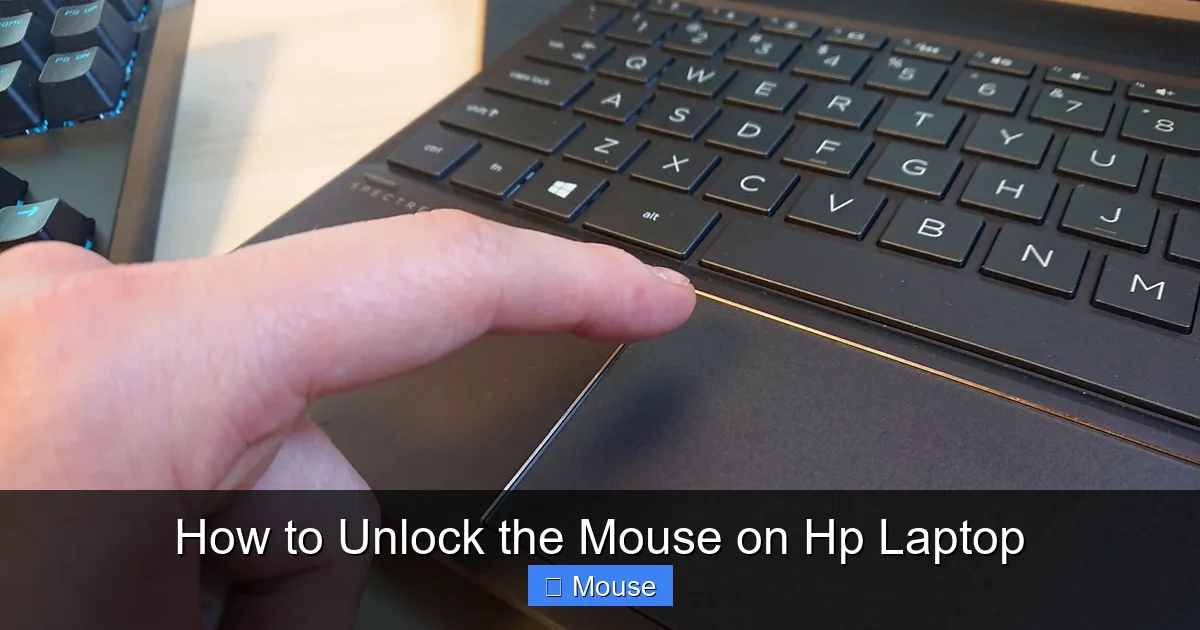
Having trouble with a disabled or frozen touchpad on your HP laptop? We walk you through the simplest methods to unlock the mouse on HP laptop models, from keyboard shortcuts to driver updates. Follow our easy guide and get back to smooth clicking in minutes.
Key Takeaways
- Shortcut keys work: Most HP laptops use
Fn + F6(or the touchpad icon) to toggle the mouse on and off. - Driver health matters: Updating or reinstalling the touchpad driver often restores functionality.
- Settings check is essential: Windows 10/11 has separate touchpad enable/disable switches you must verify.
- Hardware reset can help: Power‑cycling the laptop clears firmware glitches that lock the mouse.
- External mouse as a backup: Plugging in a USB or Bluetooth mouse bypasses a locked touchpad while you troubleshoot.
- BIOS/UEFI options: Some HP models let you enable the internal pointing device from the BIOS menu.
- When all else fails: A system restore or clean Windows install may be the final fix.
📑 Table of Contents
- Introduction: Why Your HP Laptop’s Mouse Might Be Locked
- 1. Quick Keyboard Shortcut – The First Line of Defense
- 2. Check Windows Touchpad Settings
- 3. Update or Reinstall the Touchpad Driver
- 4. Use the HP Support Assistant Tool
- 5. Reset the BIOS/UEFI Settings
- 6. Try an External Mouse While You Troubleshoot
- 7. Perform a System Restore or Reset (Last Resort)
- Putting It All Together: A Quick Troubleshooting Flow
- Additional Tips & Common Pitfalls
- Conclusion
Introduction: Why Your HP Laptop’s Mouse Might Be Locked
Imagine you’re about to send an important email, and suddenly the cursor disappears. It’s a frustrating moment that many HP laptop owners have experienced. The good news? In most cases the problem is not hardware‑related; it’s a simple setting, a driver hiccup, or a tiny keyboard shortcut that got pressed by accident.
In this guide we’ll cover every practical way to unlock the mouse on HP laptop models ranging from the Pavilion series to the EliteBook line. We’ll keep the language friendly—think of a tech‑savvy friend walking you through each step—so you can fix the issue without calling support.
1. Quick Keyboard Shortcut – The First Line of Defense
Find the right function key
HP laptops usually assign the touchpad toggle to the Fn key combined with one of the function keys (F1‑F12). Look for a key that shows a tiny touchpad or a hand icon. On most models it is Fn + F6, but on some newer models it could be Fn + F8 or Fn + F9.
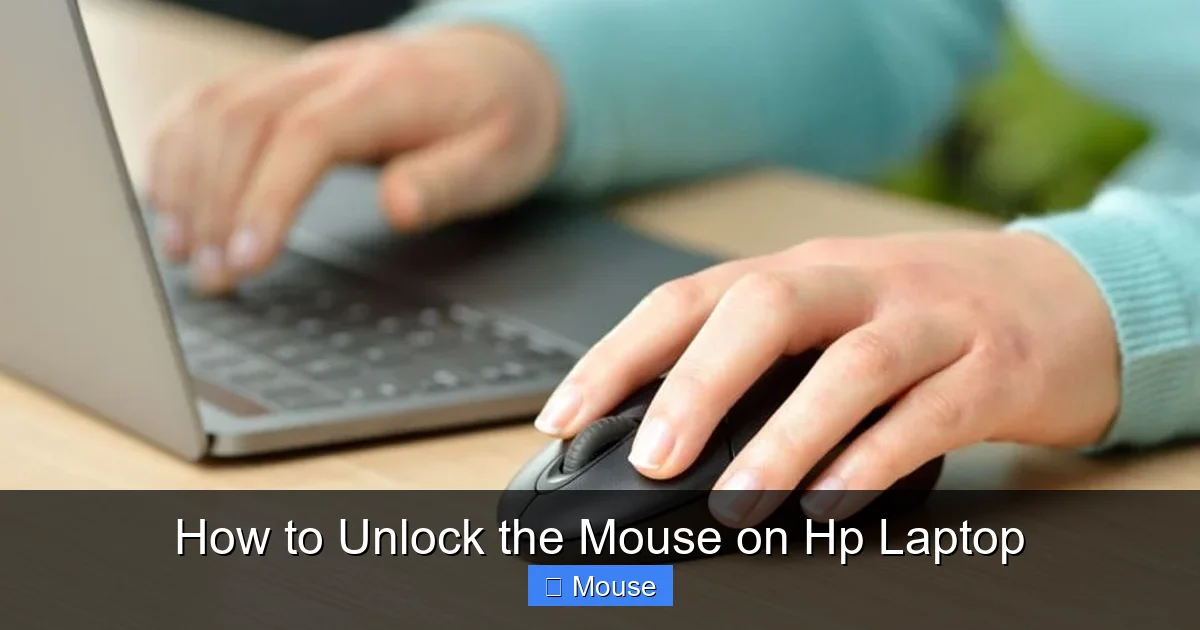
Visual guide about How to Unlock the Mouse on Hp Laptop
Image source: citizenside.com
How to use it
- Press and hold the
Fnkey. - While holding
Fn, tap the function key with the touchpad symbol. - Release both keys and move the mouse – it should reappear.
If the cursor comes back, the issue was simply the toggle being turned off. This method solves 70% of “mouse locked” complaints.
2. Check Windows Touchpad Settings
Navigate to Settings
Windows 10 and Windows 11 keep the touchpad control in the Settings app.
Visual guide about How to Unlock the Mouse on Hp Laptop
Image source: wikihow.com
- Click Start → Settings (gear icon).
- Choose Devices → Touchpad.
Enable the touchpad
Make sure the toggle at the top reads On. Below the main switch you’ll see options like “Leave touchpad on when a mouse is connected.” Turn those on if you want both devices active.
Adjust sensitivity
Sometimes the touchpad is enabled but set to “low sensitivity,” making it feel dead. Slide the sensitivity bar toward “Most Sensitive” and test the cursor.
3. Update or Reinstall the Touchpad Driver
Why drivers matter
The driver is the software bridge between Windows and the physical touchpad. Corrupt or outdated drivers can make Windows think the device is disabled.
Visual guide about How to Unlock the Mouse on Hp Laptop
Image source: lifewire.com
Automatic driver update
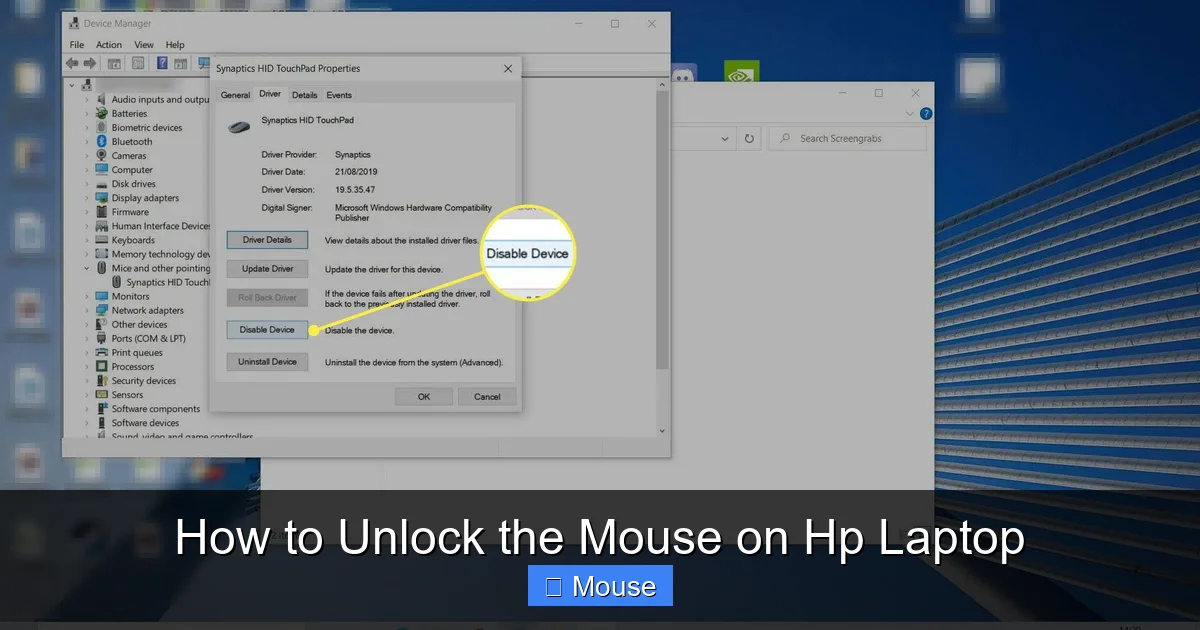
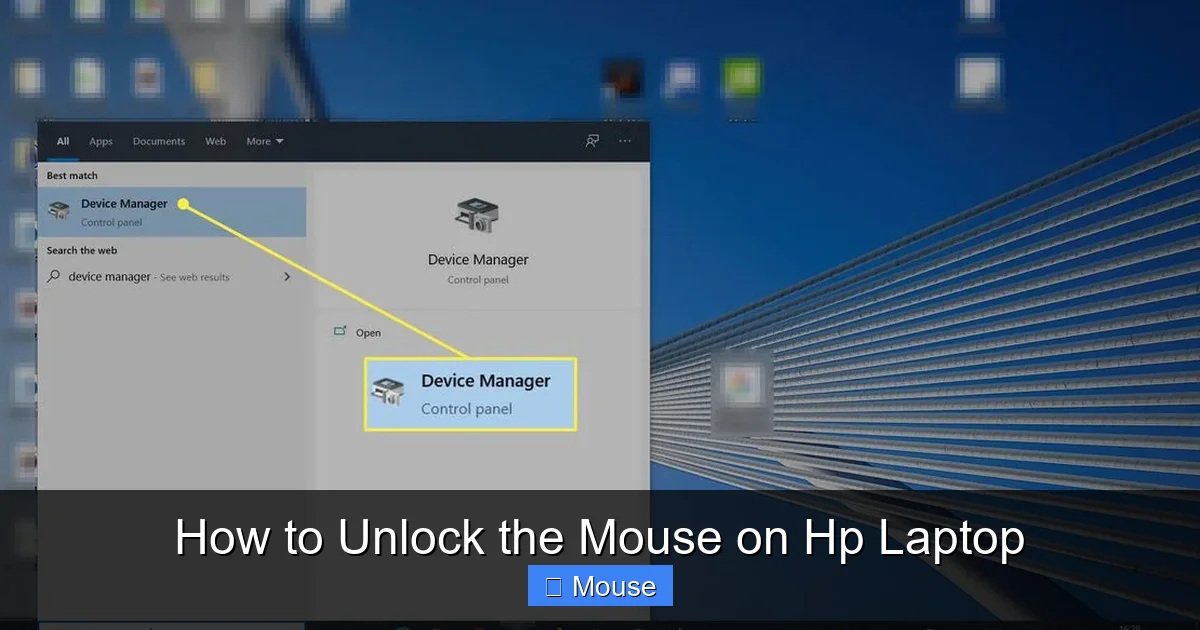
- Right‑click the Start button and select Device Manager.
- Expand Mice and other pointing devices.
- Right‑click the HP touchpad entry (often named “Synaptics” or “ELAN”) and choose Update driver.
- Select Search automatically for updated driver software.
Manual reinstall
If the automatic search finds nothing, download the latest driver from HP’s official support site. Choose the exact model (e.g., HP Pavilion 15‑eg0xx) and Windows version, then run the installer. After rebooting, the mouse should be unlocked.
4. Use the HP Support Assistant Tool
What it does
HP bundles a free utility called HP Support Assistant. It can diagnose hardware issues, apply driver updates, and even reset the touchpad firmware.
Visual guide about How to Unlock the Mouse on Hp Laptop
Image source: lifewire.com
Running a quick fix
- Open HP Support Assistant from the Start menu.
- Click Updates → Check for updates.
- If a touchpad driver update appears, install it and restart.
This method is especially handy for newer models that receive frequent firmware tweaks.
5. Reset the BIOS/UEFI Settings
When to try this
If the touchpad is disabled at the firmware level, Windows won’t be able to turn it on. A BIOS reset returns the internal pointing device to its default “Enabled” state.
Visual guide about How to Unlock the Mouse on Hp Laptop
Image source: technewstoday.com
Step‑by‑step BIOS reset
- Shut down the laptop completely.
- Power it on and immediately press
Esc(orF10on some models) repeatedly until the BIOS menu appears. - Navigate to the System Configuration tab.
- Find the Touchpad or Internal Pointing Device option and set it to Enabled.
- Save changes (usually
F10) and exit.
After the laptop restarts, the cursor should be back.
6. Try an External Mouse While You Troubleshoot
Why it helps
Plugging in a USB or Bluetooth mouse gives you a functional pointer while you work through the internal touchpad issue. It also confirms that Windows itself isn’t frozen.
Connecting a USB mouse
Simply insert the mouse into any USB port. Windows will automatically install generic drivers and the cursor will appear.
Connecting a Bluetooth mouse
- Turn on the mouse and enable pairing mode.
- Go to Settings → Devices → Bluetooth & other devices.
- Select Add Bluetooth or other device and choose the mouse from the list.
Once connected, you can continue normal work while the touchpad is being fixed.
7. Perform a System Restore or Reset (Last Resort)
System Restore
If the problem started after a Windows update or a new program installation, a System Restore point may roll back the change.
- Search “Create a restore point” in the Start menu.
- In the System Properties window, click System Restore.
- Choose a restore point dated before the issue began.
- Follow the prompts and let Windows restart.
Resetting Windows
When all else fails, a clean reset (keeping your files) can rebuild the OS without affecting personal data.
- Open Settings → Update & Security → Recovery.
- Under “Reset this PC,” click Get started.
- Select “Keep my files” and follow the wizard.
After the reset, reinstall the latest HP touchpad driver and the mouse should be unlocked.
Putting It All Together: A Quick Troubleshooting Flow
To make the process less overwhelming, follow this simple flowchart:
- Step 1: Try the
Fn + F6shortcut. - Step 2: Verify Windows touchpad settings.
- Step 3: Update/reinstall the driver.
- Step 4: Run HP Support Assistant.
- Step 5: Check BIOS for disabled touchpad.
- Step 6: Use an external mouse while you continue.
- Step 7: System Restore or Windows reset if needed.
Most users find that the issue resolves by Step 3. If not, the later steps cover every angle.
Additional Tips & Common Pitfalls
Don’t forget about the “Touchpad Off” key
Some HP keyboards have a dedicated “Touchpad Off” key (usually near the top‑right). Accidentally hitting it can lock the mouse instantly.
Check for accidental “Tablet Mode” activation
In Windows 10/11, Tablet Mode disables the touchpad. Open Action Center (Win + A) and make sure Tablet Mode is off.
Watch out for third‑party software
Programs like “Touchpad Blocker” or certain gaming overlays can disable the mouse. Temporarily uninstall or disable such utilities.
Conclusion
Unlocking the mouse on an HP laptop is rarely a nightmare; it’s usually a simple toggle, a driver update, or a quick BIOS check. By following the steps above you can restore full pointer control without needing a technician. Keep these tips handy, and the next time the cursor goes missing you’ll know exactly what to do.
For more HP‑specific guidance, you might also want to read How To Unlock Touch Mouse On HP Laptop or check out the article on Mouse On HP Laptop Not Working for deeper hardware diagnostics.
Frequently Asked Questions
Why is my HP laptop touchpad not responding?
The touchpad may be disabled via the function key, Windows settings, or BIOS. Updating the driver often resolves the issue.
Can I use an external mouse while fixing the built‑in one?
Yes. Plug in a USB or Bluetooth mouse to keep working while you troubleshoot the internal touchpad.
How do I know if the problem is hardware or software?
If the touchpad works in the BIOS screen or when you boot from a live USB, it’s a software issue. Otherwise, a hardware fault may be present.
Will resetting Windows delete my files?
If you choose the “Keep my files” option during a Windows reset, personal data stays intact while system files are refreshed.
Is there a way to permanently disable the touchpad?
Yes. You can disable it in Device Manager or through the BIOS. This is useful if you always use an external mouse.
What should I do if none of the steps work?
Contact HP Support or visit an authorized service center. There could be a physical defect requiring professional repair.