External Mouse Not Working on Laptop
External mouse not working on laptop is a frustrating but common issue that affects millions of users daily. Whether you are using a wired USB mouse or a wireless Bluetooth model, the problem often stems from simple causes like loose connections, outdated drivers, or power settings. This guide covers every proven fix to restore your mouse functionality in minutes.
Key Takeaways
- Check physical connections first: A loose USB port or dead battery is the most common reason an external mouse stops working on a laptop.
- Update or reinstall mouse drivers: Outdated or corrupted drivers in Device Manager can prevent your laptop from recognizing the mouse.
- Adjust power management settings: Windows may be turning off USB ports to save energy, which disconnects your mouse unexpectedly.
- Troubleshoot wireless interference: Bluetooth and RF wireless mice can conflict with other nearby devices or run into pairing issues.
- Try a different USB port or mouse: Isolating the hardware helps you determine if the problem is the mouse, the port, or the laptop itself.
- Disable USB selective suspend: This power-saving feature is a hidden culprit that kills mouse connectivity for many laptop users.
- Seek professional help if needed: If none of the software fixes work, the issue may be a hardware failure requiring repair or replacement.
📑 Table of Contents
- Why Your External Mouse Is Not Working on Your Laptop
- Start With the Basics: Physical Checks That Solve Most Problems
- Fix Driver Issues That Block Mouse Recognition
- Adjust Power Management Settings That Kill Mouse Connectivity
- Troubleshoot Wireless Mouse Connection Problems
- Advanced Fixes for Stubborn Mouse Issues
- Brand-Specific Tips and Common Scenarios
- Prevent Future Mouse Problems on Your Laptop
- When to Seek Professional Help
- Conclusion
Why Your External Mouse Is Not Working on Your Laptop
You plug in your mouse, and nothing happens. The cursor sits there, frozen on the screen, ignoring every movement you make. It is one of the most annoying tech problems you can face. And it always seems to happen at the worst possible time.
The good news is that an external mouse not working on laptop is almost always fixable. In most cases, the cause is something simple. Maybe the USB cable is loose. Maybe a driver needs updating. Or maybe Windows is doing something sneaky in the background.
In this guide, we will walk you through every step you need to take. From the quickest checks to more advanced fixes, you will learn how to get your mouse back up and running. No tech degree required. Let us dive in.
Start With the Basics: Physical Checks That Solve Most Problems
Before you touch any settings or download anything, start here. Physical issues cause the majority of mouse problems. These checks take less than two minutes and fix the issue more often than you would think.
Visual guide about External Mouse Not Working on Laptop
Image source: cdn.ncbi.nlm.nih.gov
Check the USB Cable and Port
If you are using a wired USB mouse, the first thing to do is unplug it and plug it back in. Sounds too simple, right? But loose connections happen all the time. USB ports on laptops can get worn out, especially if you plug and unplug devices frequently.
Try a different USB port on your laptop. If your mouse works in another port, the original port may be damaged. You can also inspect the port for dust or debris. A can of compressed air can clean it out safely.
Replace the Batteries or Charge the Mouse
Wireless mice need power. If your external mouse is not working on your laptop, check the batteries. Even if the mouse light turns on, weak batteries can cause intermittent or failed connections.
For rechargeable wireless mice, plug it in and give it a full charge. Some mice disable functionality when the battery drops below a certain level.
Test the Mouse on Another Computer
This step is crucial. Plug your mouse into a different computer. If it works there, the problem is with your laptop, not the mouse. If it does not work on another computer either, your mouse is likely broken and needs replacing.
Similarly, try a different mouse on your laptop. If a second mouse also fails, you know the issue lies with the laptop hardware or software.
Fix Driver Issues That Block Mouse Recognition
Drivers are the software that lets your laptop talk to your mouse. When drivers become outdated, corrupted, or missing, your mouse stops responding. This is one of the most common reasons an external mouse is not working on a laptop.
Update Your Mouse Driver in Device Manager
Here is how to update your mouse driver on Windows:
- Press Windows + X and select Device Manager.
- Expand the Mice and other pointing devices section.
- Right-click your mouse device and select Update driver.
- Choose Search automatically for drivers.
Windows will search for and install the latest driver. Restart your laptop afterward to make sure the changes take effect.
Uninstall and Reinstall the Mouse Driver
If updating does not work, try uninstalling the driver completely. In Device Manager, right-click the mouse device and select Uninstall device. Then restart your laptop. Windows will automatically reinstall the driver on reboot.
This process forces a fresh installation, which can resolve corruption issues that updates alone cannot fix.
Check for Windows Updates
Sometimes the problem is not the mouse driver itself but a broader Windows issue. Go to Settings > Windows Update and install any pending updates. Microsoft frequently releases patches that fix hardware compatibility bugs.
After installing updates, restart your laptop and test the mouse again.
Adjust Power Management Settings That Kill Mouse Connectivity
Windows has power-saving features that can turn off USB devices to conserve battery life. While this is great for extending battery life, it can cause your external mouse to stop working on your laptop unexpectedly.

Visual guide about External Mouse Not Working on Laptop
Image source: res.cloudinary.com
Disable USB Selective Suspend
USB selective suspend is a feature that powers down unused USB ports. Here is how to turn it off:
- Open Control Panel and go to Power Options.
- Click Change plan settings next to your active power plan.
- Select Change advanced power settings.
- Expand USB settings, then USB selective suspend setting.
- Set both On battery and Plugged in to Disabled.
- Click Apply and OK.
This fix resolves mouse disconnection issues for a huge number of laptop users.
Prevent Windows From Turning Off the Mouse
You can also stop Windows from powering down your specific mouse device:
- Open Device Manager.
- Find your mouse under Mice and other pointing devices.
- Right-click and select Properties.
- Go to the Power Management tab.
- Uncheck Allow the computer to turn off this device to save power.
- Click OK.
This tells Windows to keep your mouse powered on at all times.
Troubleshoot Wireless Mouse Connection Problems
Wireless mice add another layer of potential issues. Bluetooth pairing problems, USB receiver conflicts, and signal interference can all prevent an external mouse from working on a laptop.
Reconnect a Bluetooth Mouse
If you are using a Bluetooth mouse, try removing and re-pairing it:
- Go to Settings > Bluetooth & devices.
- Find your mouse in the list and click Remove device.
- Put your mouse into pairing mode (check your mouse manual for instructions).
- Click Add device and select your mouse from the list.
Re-pairing clears up connection glitches that can develop over time.
Check the USB Receiver for RF Wireless Mice
If your wireless mouse uses a USB receiver (the small dongle), make sure it is firmly plugged in. Try a different USB port. Some laptops have USB ports that do not provide enough power for certain receivers.
Avoid using USB hubs for wireless mouse receivers. Plug the receiver directly into the laptop for the most reliable connection.
Reduce Wireless Interference
Other wireless devices can interfere with your mouse signal. Routers, other Bluetooth devices, and even microwaves can cause problems. Move potential sources of interference away from your laptop and mouse.
If you are using a 2.4 GHz wireless mouse near a Wi-Fi router, try switching your router to 5 GHz to reduce congestion on the 2.4 GHz band.
Advanced Fixes for Stubborn Mouse Issues
When the basic steps do not work, it is time to try more advanced solutions. These fixes tackle deeper system issues that can prevent an external mouse from working on a laptop.
Run the Hardware and Devices Troubleshooter
Windows has a built-in troubleshooter for hardware issues:
- Open Settings > System > Troubleshoot.
- Click Other troubleshooters.
- Find Hardware and Devices and click Run.
The troubleshooter will scan for problems and attempt automatic fixes.
Boot Into Safe Mode
Safe Mode starts Windows with only essential drivers and services. If your mouse works in Safe Mode, a third-party program or driver is likely causing the conflict.
To boot into Safe Mode:
- Press Windows + R, type msconfig, and press Enter.
- Go to the Boot tab and check Safe boot.
- Click OK and restart your laptop.
Test your mouse in Safe Mode. If it works, start disabling startup programs one by one to identify the culprit.
Perform a System Restore
If your mouse recently stopped working after a Windows update or software installation, System Restore can roll your laptop back to a previous state:
- Search for Create a restore point in the Start menu.
- Click System Restore.
- Choose a restore point from before the problem started.
- Follow the prompts to restore your system.
System Restore does not affect your personal files, but it will remove apps and drivers installed after the restore point.
Check for BIOS Updates
In rare cases, a BIOS update can fix USB compatibility issues. Visit your laptop manufacturer’s website and check for BIOS updates. Follow their instructions carefully, as an interrupted BIOS update can cause serious problems.
Brand-Specific Tips and Common Scenarios
Different laptop brands sometimes have unique quirks that affect mouse connectivity. Here are some things to keep in mind.
Laptop-Specific Function Keys
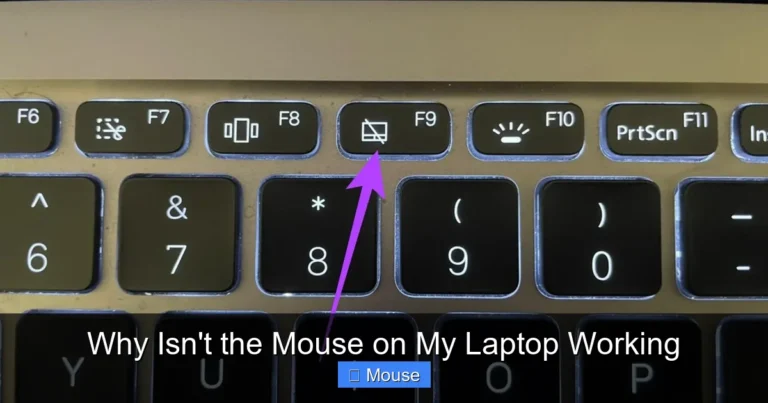
Many laptops have function keys that disable external pointing devices. Look for a key with a mouse or touchpad icon, usually in the F1-F12 row. Press Fn + that key to toggle external mouse support on or off.
If you have a Lenovo laptop, there are known issues with certain models where external input devices stop responding. You can find detailed help at our guide on Lenovo laptop mouse not working.
For HP laptop users, the process is similar but may involve specific HP software settings. Check out our article on HP laptop mouse not working for brand-specific solutions.
Dell laptop owners facing this issue should visit our dedicated resource on Dell laptop mouse not working for tailored troubleshooting steps.
When the Cursor Disappears Entirely
Sometimes the problem is not that the mouse is not working but that the cursor has vanished. This can happen due to display settings or driver glitches.
Press Windows + Ctrl + Shift + B to reset your graphics driver. Your screen will flash briefly. This often brings back a missing cursor.
You can also try pressing Ctrl + Alt + Del and then pressing Escape. This sequence can restore a frozen cursor in many cases.
Prevent Future Mouse Problems on Your Laptop
Once you have fixed the issue, take steps to prevent it from happening again. A little maintenance goes a long way.
Keep Drivers Updated
Set Windows Update to install updates automatically. You can also periodically check Device Manager for driver updates manually.
Consider downloading mouse drivers directly from the manufacturer’s website for the most current versions.
Use a Surge Protector or Quality USB Hub
Power surges can damage USB ports and connected devices. Using a surge protector or a powered USB hub can protect your hardware.
Invest in a quality USB hub with its own power supply if you connect multiple devices to your laptop.
Clean Your Laptop Regularly
Dust buildup inside your laptop can cause overheating and hardware malfunctions. Use compressed air to clean vents and USB ports every few months.
Keep your workspace clean as well. Dirt and debris can find their way into USB ports and mouse sensors.
Carry a Backup Mouse
This might sound extreme, but having a cheap backup mouse in your bag can save you in a pinch. They are inexpensive and can be a lifesaver during important meetings or deadlines.
When to Seek Professional Help
If you have tried every fix in this guide and your external mouse is still not working on your laptop, it may be time to get professional help.
Signs that you need a technician include:
- Multiple USB ports are not working.
- The laptop does not recognize any USB device.
- The laptop shows other signs of hardware failure, like random shutdowns or blue screens.
- The USB port feels physically loose or damaged.
Contact your laptop manufacturer if the device is still under warranty. Otherwise, a local repair shop can diagnose and fix hardware issues at a reasonable cost.
Conclusion
Having an external mouse not working on your laptop is never fun, but it is almost always solvable. Start with the simple physical checks. Move on to driver updates and power management settings. Then try the more advanced fixes if needed.
The key is to work through the troubleshooting steps systematically. Do not skip the basics. Most of the time, the fix is something simple like a loose cable or an outdated driver.
Now you have the knowledge to tackle this problem head-on. The next time your mouse stops responding, you will know exactly what to do. And you will be back to clicking, scrolling, and working in no time.
Frequently Asked Questions
Why is my external mouse not working on my laptop?
The most common reasons include a loose USB connection, outdated drivers, dead batteries in wireless mice, or power management settings that disable USB ports. Start by checking the physical connection and updating your mouse drivers.
How do I get my laptop to recognize an external mouse?
Unplug the mouse, restart your laptop, and plug it back into a different USB port. If that does not work, open Device Manager, uninstall the mouse driver, and restart again to force a fresh driver installation.
Can a Windows update cause my external mouse to stop working?
Yes, Windows updates can sometimes change drivers or settings that affect mouse functionality. If your mouse stopped working after an update, try rolling back the driver in Device Manager or performing a System Restore.
Why does my wireless mouse keep disconnecting from my laptop?
Wireless mouse disconnections are often caused by weak batteries, USB selective suspend settings, wireless interference, or a faulty USB receiver. Disable USB selective suspend and replace the batteries to see if that resolves the issue.
How do I fix a USB port that is not recognizing my mouse?
Try plugging the mouse into a different USB port. If no ports work, open Device Manager, expand Universal Serial Bus controllers, and uninstall all USB root hub entries. Restart your laptop to reinstall them automatically.
Do I need to install drivers for my external mouse?
Most basic USB and wireless mice work with the default drivers included in Windows. However, gaming mice or mice with special features often require manufacturer-specific software for full functionality.