Discover the perfect wireless mouse that pairs seamlessly with your Dell laptop, delivering precision, comfort, and long‑lasting battery life. This guide highlights top models, key features, and compatibility tips to help you boost productivity and enjoy a clutter‑free workspace.
Wireless Mouse for a Dell Laptop
When you first open the box of a new Dell laptop, the sleek design and crisp display are exciting, but the built‑in touchpad can feel cramped after a few hours of work or gaming. That’s where a wireless mouse for a Dell laptop becomes a game‑changer. I remember the first time I swapped my touchpad for a tiny Bluetooth mouse – the difference was like moving from a tricycle to a sports car. Suddenly, scrolling through spreadsheets, editing photos, or just browsing the web felt smoother, faster, and less tiring.
In this post I’ll walk you through everything you need to know before picking the perfect wireless mouse for a Dell laptop. We’ll cover the key features to look for, compare a few popular models, and share practical tips on how to set up and maintain your new device. By the end, you’ll have a clear picture of which mouse fits your workflow, budget, and style.
Key Takeaways
- Choose DPI wisely: Opt for 800‑1600 DPI for smooth navigation on Dell screens.
- Prioritize battery life: Select a mouse with at least 12 months of use per set of batteries.
- Check compatibility: Ensure the mouse supports Windows 10/11 for seamless Dell laptop integration.
- Prefer ergonomic design: Reduce strain during long work sessions with a sculpted grip.
- Utilize multi‑device pairing: Switch between laptop and tablet quickly via Bluetooth or USB dongle.
- Read reviews for latency: Look for sub‑10 ms response if gaming or graphic design is a priority.
📑 Table of Contents
- Why a Wireless Mouse Makes Sense for Dell Laptops
- Key Features to Look For
- Top Picks: Comparing Popular Wireless Mice for Dell Laptops
- Step‑by‑Step: Setting Up Your Wireless Mouse on a Dell Laptop
- Maintenance Tips to Keep Your Wireless Mouse Working Smoothly
- Real‑World Scenarios: How a Wireless Mouse Enhances Everyday Tasks
- Final Thoughts: Picking the Perfect Wireless Mouse for Your Dell Laptop
Why a Wireless Mouse Makes Sense for Dell Laptops
Freedom from Cables
Most Dell laptops come with USB‑C or USB‑A ports that are already occupied by chargers, external drives, or dongles. Adding a wired mouse means another cable that can tangle or limit your desk space. A wireless mouse for a Dell laptop uses a tiny receiver or Bluetooth, freeing up those precious ports.
Improved Ergonomics
Touchpads are great for quick clicks, but they force your hand into an unnatural angle for long sessions. An ergonomic wireless mouse supports a natural hand position, reducing strain on the wrist and forearm. This is especially important if you spend 6‑8 hours a day on your Dell laptop.
Better Precision for Creative Work
Graphic designers, video editors, and gamers often need DPI (dots per inch) settings that go beyond the default 800–1200 DPI of a touchpad. A good wireless mouse for a Dell laptop can reach 16000 DPI, giving you pixel‑perfect control.
Key Features to Look For
Connection Type: Bluetooth vs. USB Receiver
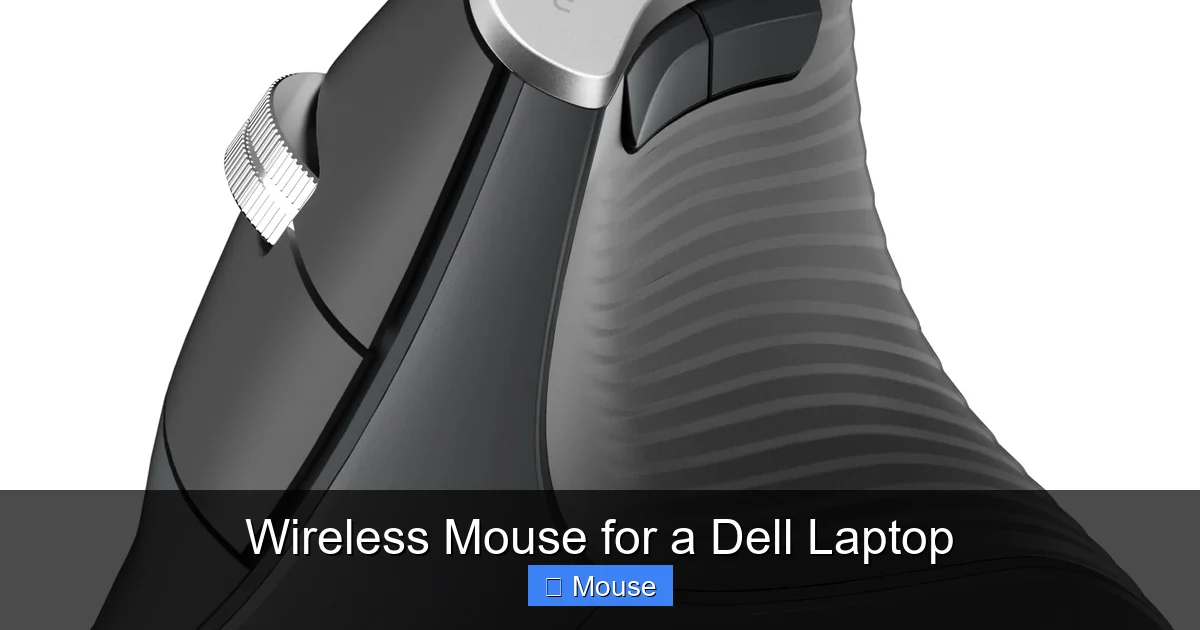
Bluetooth mice pair directly with your Dell laptop’s built‑in radio, meaning no extra dongle is needed. This is ideal if you have limited USB ports or prefer a cleaner look. However, Bluetooth can sometimes lag on older laptops. A USB receiver (often called a “nano‑receiver”) offers a dedicated 2.4 GHz link that is fast and reliable, but it occupies a USB slot.

Visual guide about Wireless Mouse for a Dell Laptop
Image source: m.media-amazon.com
Battery Life and Power Source
Most wireless mice use AA or AAA batteries, while premium models have rechargeable lithium‑ion cells. Look for a mouse that promises at least 12 months of use on a single set of batteries, or a charging time under 2 hours for rechargeable units.
Ergonomic Shape and Size
Consider whether you prefer a palm grip, claw grip, or fingertip grip. The mouse should fit comfortably in your hand without forcing your fingers to stretch. Many manufacturers provide size charts; compare those with the dimensions of your hand.
DPI and Sensitivity Controls
Adjustable DPI lets you switch between slow, precise movements and fast cursor jumps. For a Dell laptop used for both office work and occasional gaming, a range of 800–4000 DPI is usually sufficient.
Additional Buttons and Customization
Extra side buttons can be programmed for back/forward navigation, copy‑paste shortcuts, or macros. If you do a lot of video editing, a mouse with programmable buttons can speed up your workflow.
Top Picks: Comparing Popular Wireless Mice for Dell Laptops
| Model | Connection | Battery | DPI Range | Ergonomic | Price (USD) |
|---|---|---|---|---|---|
| Logitech MX Master 3 | Bluetooth & 2.4 GHz USB | Rechargeable (70 days) | 400‑4000 | Right‑hand palm | 99.99 |
| Microsoft Surface Mouse | Bluetooth | AAA (12 months) | 800‑1200 | Slim right‑hand | 59.99 |
| Logitech M720 Tri‑athlon | Bluetooth & USB | AA (24 months) | 1000‑2000 | Right‑hand palm | 49.99 |
| Razer Basilisk X HyperSpeed | Bluetooth & USB | AA (300 hours) | 100‑16000 | Right‑hand claw | 69.99 |
| HP X4000b Bluetooth Mouse | Bluetooth | AAA (12 months) | 800‑1600 | Right‑hand ambidextrous | 29.99 |
How to Choose the Right One for You
- Budget‑friendly: The HP X4000b offers solid performance for under $30, perfect for students.
- Power users: The Logitech MX Master 3’s ergonomic shape and long battery life make it ideal for developers and designers.
- Gamers: Razer Basilisk X HyperSpeed provides high DPI and low latency, which is great for fast‑paced games.
- Multi‑device users: The Logitech M720 can switch between three devices with a single button, handy if you juggle a Dell laptop, a tablet, and a desktop.
Step‑by‑Step: Setting Up Your Wireless Mouse on a Dell Laptop
1. Turn On the Mouse
Most wireless mice have a power switch on the bottom. Slide it to “on” and wait for the LED to blink, indicating it’s ready to pair.
Visual guide about Wireless Mouse for a Dell Laptop
Image source: m.media-amazon.com
2. Choose Your Connection Method
If you’re using a Bluetooth mouse, open Settings > Devices > Bluetooth & other devices on your Dell laptop and click “Add Bluetooth or other device.” Select “Bluetooth” and then pick the mouse from the list.
For a USB receiver, simply plug the nano‑receiver into an available USB‑A port. Windows should automatically install the driver.
3. Install Optional Software
Many manufacturers provide customization software (e.g., Logitech Options, Razer Synapse). Install it if you want to program extra buttons or adjust DPI on the fly.
4. Test and Calibrate
Move the cursor around and try the scroll wheel. If the speed feels off, adjust the DPI settings in the software or via the mouse’s built‑in DPI button.
5>Troubleshooting Common Issues
If the mouse disconnects frequently, try moving the receiver to a USB port closer to the laptop’s antenna, or replace the batteries. For Bluetooth lag, make sure no other wireless devices are interfering on the 2.4 GHz band.
Need more details on connecting a wireless mouse to your laptop? Check out our guide on How To Connect A Wireless Mouse To A Laptop.
Maintenance Tips to Keep Your Wireless Mouse Working Smoothly
Clean the Sensor and Buttons
Dust can build up around the optical sensor, causing jittery movement. Use a soft brush or a can of compressed air to clear debris every few weeks.
Replace Batteries Promptly
Even with long‑life batteries, a sudden drop in power can cause the cursor to freeze. Keep a spare set of AA or AAA cells nearby, or charge the built‑in battery before it drops below 20%.
Store It Safely
If you travel often, keep the mouse in a protective pouch. Avoid dropping it, as the internal PCB can crack and affect performance.
Update Firmware
Manufacturers occasionally release firmware updates that improve battery efficiency or fix connectivity bugs. Visit the brand’s support page once a year to see if an update is available.
Real‑World Scenarios: How a Wireless Mouse Enhances Everyday Tasks
Office Productivity
With a wireless mouse for a Dell laptop, dragging and dropping large files between folders becomes effortless. The extra side buttons can be set to “Copy” and “Paste,” cutting down on keyboard shortcuts.
Remote Learning and Online Meetings
During Zoom calls, a mouse lets you quickly annotate shared screens or control presentations without fumbling with the touchpad. Pairing a Bluetooth mouse also means you can sit farther from the laptop and still stay in control.
Creative Projects
Photo editors love the scroll wheel’s precision for zooming in on details. A high‑DPI mouse lets you make fine adjustments to brush size in Photoshop, something the touchpad struggles with.
Gaming on a Dell Laptop
Even if you’re not a hardcore gamer, a responsive wireless mouse gives you an edge in casual games like Fortnite or League of Legends. The low latency of a 2.4 GHz connection often beats Bluetooth for fast reflexes.
Final Thoughts: Picking the Perfect Wireless Mouse for Your Dell Laptop
Choosing a wireless mouse for a Dell laptop isn’t just about buying another peripheral; it’s about enhancing comfort, productivity, and enjoyment every time you sit down at your desk. Think about how you use your laptop – whether you’re typing reports, editing media, or gaming – and match those needs to the features we discussed: connection type, ergonomics, DPI range, and battery life.
If you’re still unsure which model fits best, start with a budget‑friendly option like the HP X4000b and see how you like the feel. You can always upgrade later to a premium mouse like the Logitech MX Master 3 once you know what you love about a wireless experience.
Ready to make the switch? Grab your favorite wireless mouse for a Dell laptop, follow the simple setup steps, and enjoy the freedom of a clutter‑free workspace. Your hands (and your Dell laptop) will thank you.
Frequently Asked Questions
What type of wireless mouse works best with a Dell laptop?
Most Dell laptops support both Bluetooth and 2.4 GHz USB dongle mice, but a Bluetooth mouse is often preferred for its plug‑and‑play simplicity and no extra USB port usage. Look for a model with low latency and ergonomic design for comfortable daily use.
Do I need a specific driver for a wireless mouse for a Dell laptop?
Generally, no. Modern wireless mice are plug‑and‑play and use generic drivers built into Windows 10/11, which work seamlessly with Dell laptops. Only specialized gaming or programmable mice may require optional software from the manufacturer.
Can I use a Bluetooth wireless mouse with my Dell XPS 13?
Yes, the Dell XPS 13 includes Bluetooth 5.0, allowing you to connect any Bluetooth-enabled wireless mouse without a dongle. Pairing is done through the Windows Settings > Devices > Bluetooth menu.
Will a 2.4 GHz wireless mouse affect Wi‑Fi performance on my Dell laptop?
Because both Wi‑Fi and many wireless mice operate in the 2.4 GHz band, there is a slight chance of interference, but modern devices use frequency hopping to minimize it. In most cases, you won’t notice any impact on internet speed.
What battery life should I expect from a wireless mouse for a Dell laptop?
Quality wireless mice typically offer 12 to 24 months of battery life on a single AA or AAA cell, and many newer models feature rechargeable lithium‑ion batteries lasting several weeks on a full charge. Check the product specs for exact estimates.
Is a wireless mouse better than a touchpad for Dell laptops?
A wireless mouse provides greater precision and ergonomics, especially for tasks like graphic design, gaming, or extensive document work. While the built‑in touchpad is convenient for quick navigation, many users find a mouse enhances overall productivity.