Mouse Won’t Work on Laptop

When your mouse won’t work on your laptop, it can bring your productivity to a grinding halt. Whether you’re dealing with a frozen cursor, an unresponsive touchpad, or a wireless mouse that refuses to connect, the good news is that most issues have simple solutions. This comprehensive guide walks you through every possible cause and gives you step-by-step instructions to get your mouse working again.
Key Takeaways
- Check the basics first: Loose connections, dead batteries, and disabled touchpads are the most common culprits behind a mouse not working on a laptop.
- Driver issues are frequent: Outdated or corrupted mouse drivers can cause your mouse to stop responding, and updating them often solves the problem instantly.
- Software conflicts happen: Recent Windows updates, third-party software, or conflicting settings can interfere with mouse functionality.
- Hardware problems are possible: Physical damage to the USB port, touchpad, or the mouse itself can cause persistent issues that require repair or replacement.
- Built-in keyboard shortcuts exist: You can enable or disable your touchpad using function keys, which is often the fastest fix.
- Bluetooth connectivity matters: Wireless and Bluetooth mice require proper pairing and can disconnect due to power-saving settings or interference.
- System-level fixes work: Restarting your laptop, running hardware troubleshooters, or performing a system restore can resolve deeper software-related mouse problems.
📑 Table of Contents
- Introduction: When Your Mouse Won’t Work on Your Laptop
- Understanding the Different Types of Laptop Mice
- Quick Fixes: The First Things to Try
- Driver-Related Issues and How to Fix Them
- Software and Settings That Can Disable Your Mouse
- Hardware Problems: When It’s Not a Software Issue
- Bluetooth Mouse Connection Problems
- Advanced Troubleshooting Steps
- Brand-Specific Tips and Common Issues
- Preventing Future Mouse Problems
- Conclusion
Introduction: When Your Mouse Won’t Work on Your Laptop
There’s nothing quite like the frustration of sitting down to work on your laptop, only to discover that your mouse has completely stopped working. The cursor won’t move. Clicks go nowhere. You’re left tapping and swiping at your touchpad with zero response. It’s one of those tech problems that always seems to happen at the worst possible moment — right before a deadline, during an important video call, or in the middle of an online shopping spree.
The truth is, a mouse that won’t work on a laptop is one of the most common computer problems people face. And while it can feel overwhelming, especially if you’re not particularly tech-savvy, the vast majority of these issues can be resolved in just a few minutes. You don’t need to be a computer expert. You just need to know where to look and what to try.
In this guide, we’re going to cover every possible reason your mouse might not be working on your laptop. We’ll start with the simplest fixes — the ones that take just seconds — and work our way up to more advanced troubleshooting steps. Whether you’re using a built-in touchpad, a wired USB mouse, or a wireless Bluetooth mouse, we’ve got you covered. Let’s dive in and get your mouse working again.
Understanding the Different Types of Laptop Mice
Before we jump into troubleshooting, it helps to understand the different types of pointing devices you might be using with your laptop. Each type has its own set of potential issues, and knowing which one you’re dealing with will help you narrow down the problem faster.
Built-In Touchpads
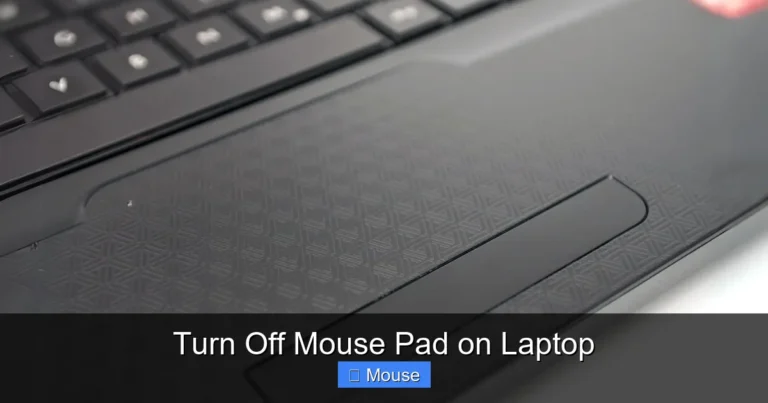
The most common pointing device on any laptop is the built-in touchpad. It’s that rectangular surface located just below your keyboard. Touchpads use capacitive sensing to detect the position and movement of your finger, translating that into cursor movement on the screen. Most modern touchpads also support multi-touch gestures like two-finger scrolling, pinch-to-zoom, and three-finger swipes.
Touchpads are convenient because they’re always there — no extra hardware needed. But they can also be accidentally disabled through keyboard shortcuts, software settings, or driver issues. If your touchpad suddenly stops working, there’s a good chance it was turned off without you realizing it.
Wired USB Mice
Wired USB mice are the traditional option. You plug them into a USB port on your laptop, and they work almost instantly. They’re reliable, affordable, and don’t require batteries. However, they can run into problems if the USB port is damaged, the cable is frayed, or the drivers become corrupted.
If you’re using a wired mouse that has stopped working, the issue is usually related to the physical connection or the software that tells your laptop how to communicate with the mouse.
Wireless and Bluetooth Mice
Wireless mice have become incredibly popular because they eliminate cable clutter and offer freedom of movement. There are two main types: those that use a USB receiver (often called a dongle) and those that connect via Bluetooth. Both types rely on batteries or rechargeable power, which means a dead battery is one of the first things to check.
Bluetooth mice, in particular, can be tricky because they depend on your laptop’s Bluetooth radio being active and properly paired. If your laptop goes to sleep or if there’s interference from other wireless devices, your Bluetooth mouse might lose its connection.
Quick Fixes: The First Things to Try
When your mouse stops working, don’t panic. Start with these quick fixes. They solve the majority of mouse problems on laptops, and each one takes less than a minute to try.
Restart Your Laptop
Yes, it sounds too simple. But restarting your laptop fixes more mouse problems than you might think. A restart clears temporary software glitches, refreshes driver connections, and resets hardware communication. If your mouse stopped working suddenly — especially after a Windows update or after your laptop woke up from sleep — a restart is often all you need.
To restart properly, save your work if possible, click the Start menu, select Power, and choose Restart. Wait for your laptop to fully boot up, then test your mouse again.
Check the Physical Connection
If you’re using a wired mouse, unplug it from the USB port and plug it back in. Try a different USB port if one is available. Sometimes a USB port can become loose or damaged, and switching to another port can make an immediate difference.
For wireless mice that use a USB dongle, do the same thing — unplug the receiver and plug it back in. Make sure it’s seated firmly in the port.
Replace or Recharge the Batteries
If you’re using a wireless or Bluetooth mouse, dead batteries are one of the most common reasons it stops working. Open the battery compartment and replace the batteries with fresh ones. If your mouse has a rechargeable battery, plug it in and let it charge for at least 15 minutes before testing again.
Many wireless mice have a small LED light that indicates power status. If the light doesn’t come on when you flip the power switch, the batteries are almost certainly the problem.
Check If the Touchpad Is Disabled
Most laptops have a keyboard shortcut that enables or disables the touchpad. It’s usually one of the function keys (F1 through F12) with a small touchpad icon on it. You typically need to hold the Fn key while pressing that function key.
On many laptops, you’ll see an on-screen notification confirming that the touchpad has been enabled or disabled. If you accidentally disabled it, pressing the same combination again will turn it back on. This is one of the most common reasons people think their mouse won’t work on their laptop — the touchpad was simply turned off.
If you’re not sure which function key controls your touchpad, check your laptop’s user manual or look for a key with an icon that looks like a touchpad with a line through it. You can also learn more about how to turn on your laptop mouse with detailed instructions for different brands.
Driver-Related Issues and How to Fix Them
Drivers are small pieces of software that tell your operating system how to communicate with hardware devices like your mouse. When drivers become outdated, corrupted, or incompatible, your mouse can stop working entirely. Driver issues are one of the most common causes of a mouse not working on a laptop, and fortunately, they’re usually easy to fix.
Update Your Mouse Drivers
Outdated drivers can cause all sorts of problems, from an unresponsive cursor to erratic mouse behavior. Here’s how to update your mouse drivers on Windows:
- Right-click the Start button and select Device Manager.
- Expand the “Mice and other pointing devices” section.
- Right-click your mouse device and select “Update driver.”
- Choose “Search automatically for drivers” and let Windows find the latest version.
- Restart your laptop after the update completes.
If Windows says you already have the best driver installed, try visiting your laptop manufacturer’s website and downloading the latest touchpad or mouse driver directly from their support page.
Reinstall the Mouse Driver
If updating doesn’t work, the driver might be corrupted. In that case, you’ll need to uninstall and reinstall it. Here’s how:
- Open Device Manager as described above.
- Right-click your mouse device and select “Uninstall device.”
- Confirm the uninstallation and restart your laptop.
- Windows will automatically reinstall the generic mouse driver when it boots back up.
This process essentially gives your mouse driver a fresh start, which can resolve issues caused by corrupted files or incorrect configurations.
Roll Back a Recent Driver Update
Sometimes a new driver update is the problem, not the solution. If your mouse stopped working right after a driver update, rolling back to the previous version can fix it. In Device Manager, right-click your mouse device, select Properties, go to the Driver tab, and click “Roll Back Driver” if the option is available.
This is particularly common after major Windows updates, which sometimes install generic drivers that don’t work well with specific hardware. If you’re dealing with a mouse that stopped working on your laptop after an update, rolling back the driver should be one of your first troubleshooting steps.
Software and Settings That Can Disable Your Mouse
Beyond drivers, several software settings and programs can interfere with your mouse functionality. Understanding these settings can save you a lot of time and frustration.
Touchpad Settings in Windows
Windows has built-in touchpad settings that can affect how your mouse behaves. To check these settings:
- Open Settings by pressing Windows + I.
- Go to Bluetooth & devices, then click Touchpad.
- Make sure the touchpad is turned on.
- Check the sensitivity settings and adjust them if needed.
- Review the gesture settings to ensure nothing is configured incorrectly.
Some laptops also have manufacturer-specific touchpad software (like Synaptics or ELAN) that provides additional settings. Check your system tray for touchpad-related icons and explore those settings as well.
Mouse Settings in Control Panel
The classic Control Panel also has mouse settings that can cause problems if configured incorrectly. Open Control Panel, go to Hardware and Sound, then Mouse. Here you can check:
- Button configuration: Make sure the buttons aren’t swapped (a common issue for left-handed users who accidentally change this setting).
- Pointer speed: If the speed is set to minimum, the cursor might appear frozen.
- ClickLock: This feature can cause unexpected behavior if enabled accidentally.
- Pointer trails: While not usually a problem, unusual pointer trail settings can make the cursor hard to see.
Third-Party Software Conflicts
Some third-party software can interfere with mouse functionality. Mouse customization software, gaming utilities, remote desktop applications, and even some antivirus programs can cause conflicts. If you recently installed new software before your mouse stopped working, try uninstalling it to see if that resolves the issue.
Boot your laptop in Safe Mode to test this theory. Safe Mode loads only essential drivers and services, so if your mouse works in Safe Mode but not in normal mode, a third-party program is likely the culprit.
Hardware Problems: When It’s Not a Software Issue
Sometimes the problem isn’t software at all. Hardware issues can cause your mouse to stop working, and they require a different approach to diagnose and fix.
Damaged USB Ports
If you’re using a wired mouse or a wireless mouse with a USB dongle, a damaged USB port can prevent the mouse from working. Look inside the USB port for bent pins, debris, or signs of physical damage. Try plugging the mouse into a different USB port to see if it works there.
If the mouse works in one port but not another, the non-working port may be damaged. You can continue using the working port, or have the damaged port repaired by a professional.
Touchpad Hardware Failure
Built-in touchpads can fail due to physical damage, liquid spills, or simply wear and tear over time. Signs of hardware failure include:
- The touchpad feels physically different (loose, raised, or depressed).
- There are visible cracks or damage to the touchpad surface.
- The touchpad works intermittently or only in certain areas.
- The cursor jumps around erratically without any input.
If you suspect a hardware failure, you may need to have the touchpad replaced by a professional repair service. In the meantime, using an external USB mouse is a practical workaround.
Overheating Issues
Laptops that run hot can experience all sorts of hardware issues, including mouse problems. If your laptop feels unusually hot to the touch or if the fans are running constantly, overheating might be affecting your touchpad or USB controllers.
Make sure your laptop’s vents are not blocked, clean out any dust from the fans, and consider using a cooling pad. Let the laptop cool down completely before testing the mouse again.
Bluetooth Mouse Connection Problems
Bluetooth mice offer convenience but come with their own set of challenges. If your Bluetooth mouse won’t work on your laptop, here are the most common causes and solutions.
Bluetooth Is Turned Off
This might seem obvious, but it’s easy to accidentally disable Bluetooth. Check that Bluetooth is enabled on your laptop by going to Settings > Bluetooth & devices and making sure the Bluetooth toggle is turned on. You can also check the Action Center (Windows + A) for a Bluetooth quick-toggle button.
Re-Pair Your Bluetooth Mouse
If your mouse was previously paired but has stopped working, try removing it from your Bluetooth devices and pairing it again:
- Go to Settings > Bluetooth & devices.
- Find your mouse in the list and click the three dots next to it.
- Select “Remove device.”
- Put your mouse into pairing mode (usually by holding a button on the bottom).
- Click “Add device” and select your mouse from the list.
This process essentially creates a fresh connection between your laptop and mouse, which can resolve pairing corruption issues.
Power Management Settings
Windows has a power-saving feature that can turn off Bluetooth devices to save battery. This can cause your mouse to disconnect or stop working after a period of inactivity. To disable this:
- Open Device Manager.
- Expand the Bluetooth section.
- Right-click your Bluetooth adapter and select Properties.
- Go to the Power Management tab.
- Uncheck “Allow the computer to turn off this device to save power.”
This is especially useful if your laptop doesn’t reconnect to your Bluetooth mouse after sleep. Many users experience this issue, and adjusting power management settings often resolves it.
Advanced Troubleshooting Steps
If none of the above solutions have worked, it’s time to try some more advanced troubleshooting techniques. These steps address deeper system issues that can cause mouse problems.
Run the Windows Hardware Troubleshooter
Windows includes a built-in troubleshooter that can automatically detect and fix hardware problems. To run it:
- Open Settings > System > Troubleshoot.
- Click “Other troubleshooters.”
- Find “Keyboard” and “Hardware and Devices” in the list.
- Click “Run” next to each one and follow the on-screen instructions.
The troubleshooter will scan for issues and attempt to fix them automatically. It’s not foolproof, but it can catch problems you might have missed.
Check for Windows Updates
Microsoft regularly releases updates that fix bugs and improve hardware compatibility. If your mouse stopped working after a recent update, a newer update might contain the fix. Go to Settings > Windows Update and click “Check for updates.” Install any available updates and restart your laptop.
Conversely, if a recent update caused the problem, you can uninstall it from Settings > Windows Update > Update History > Uninstall updates.
Perform a System Restore
If your mouse was working fine recently and suddenly stopped, a System Restore can roll your laptop back to a previous state when everything was working correctly. This undoes recent system changes without affecting your personal files.
- Search for “Create a restore point” in the Start menu.
- Click “System Restore” and follow the wizard.
- Choose a restore point from a date when your mouse was working.
- Let the process complete and test your mouse afterward.
Test with a Different Mouse
If you have access to another mouse — even an old one — plug it into your laptop and see if it works. This simple test can tell you whether the problem is with your original mouse or with your laptop itself.
If the second mouse works fine, your original mouse is likely defective and needs to be replaced. If the second mouse also doesn’t work, the problem is with your laptop’s hardware or software configuration.
Brand-Specific Tips and Common Issues
Different laptop brands have their own quirks when it comes to mouse and touchpad issues. Here are some brand-specific tips that might help.
HP Laptops
HP laptops often have a small LED light in the upper-left corner of the touchpad. If this light is amber or orange, the touchpad is disabled. Double-tap this corner to toggle the touchpad on and off. HP laptops also have specific touchpad drivers that can be downloaded from HP’s support website.
Many HP users accidentally lock their touchpad through this double-tap feature. If you’re wondering how to unlock the touch mouse on an HP laptop, the double-tap method is usually the quickest solution.
Dell Laptops
Dell laptops sometimes experience cursor disappearance issues, especially after waking from sleep. This is often related to the Dell Touchpad driver. Updating or reinstalling this driver from Dell’s support website usually resolves the problem.
Dell also provides a diagnostic tool called Dell SupportAssist that can automatically detect and fix hardware issues, including mouse and touchpad problems.
Lenovo Laptops
Lenovo laptops, particularly ThinkPad models, have both a touchpad and a TrackPoint (the red nub in the middle of the keyboard). Sometimes the TrackPoint settings can interfere with touchpad functionality. Check the Lenovo Vantage app for touchpad and pointing device settings.
Lenovo laptops are also known for Bluetooth connectivity issues after sleep mode. If your Bluetooth mouse won’t reconnect after your Lenovo laptop wakes up, check the power management settings for your Bluetooth adapter as described earlier.
Preventing Future Mouse Problems
Once you’ve gotten your mouse working again, you’ll want to take steps to prevent the problem from happening again. Here are some best practices to keep your mouse running smoothly.
Keep Your Drivers Updated
Set a reminder to check for driver updates at least once a month. You can use Windows Update, your laptop manufacturer’s support software, or third-party driver update tools. Keeping your drivers current prevents many compatibility issues before they start.
Protect Your Hardware
Handle your mouse and laptop with care. Avoid yanking cables out of USB ports, keep liquids away from your laptop, and use a protective case when traveling. For wireless mice, always turn them off when not in use to preserve battery life.
Maintain Your System
Regularly clean your laptop’s vents and fans to prevent overheating. Keep your operating system updated. Avoid installing unnecessary software that might conflict with your mouse drivers. And create system restore points before making major changes to your system.
Have a Backup Plan
Keep a cheap USB mouse in your laptop bag as a backup. If your touchpad fails or your wireless mouse dies at an inconvenient time, having a backup mouse can save you a lot of stress. They’re inexpensive and can be a lifesaver in emergencies.
Conclusion
Dealing with a mouse that won’t work on your laptop is frustrating, but as you’ve seen in this guide, most problems have straightforward solutions. Start with the basics — restart your laptop, check connections, replace batteries, and make sure your touchpad isn’t disabled. If those don’t work, move on to driver updates, software settings, and more advanced troubleshooting steps.
The key is to be methodical. Don’t skip the simple fixes and jump straight to complex solutions. In most cases, the answer is something simple that can be resolved in under five minutes. And if you’ve tried everything in this guide and your mouse still won’t work, it might be time to consult a professional technician who can diagnose hardware issues that go beyond software troubleshooting.
Remember, technology isn’t perfect, and occasional glitches are normal. The important thing is knowing how to respond when they happen. With the knowledge from this guide, you’re well-equipped to handle any mouse issue that comes your way. Now go get that cursor moving again!
Frequently Asked Questions
Why did my mouse suddenly stop working on my laptop?
A mouse can suddenly stop working due to several reasons, including a loose connection, dead batteries in a wireless mouse, an accidentally disabled touchpad, or a recent driver update that caused a conflict. Start by restarting your laptop and checking the physical connection or battery status.
How do I enable my touchpad if it’s disabled?
Most laptops have a keyboard shortcut to enable or disable the touchpad, usually involving the Fn key and one of the function keys (F1-F12) with a touchpad icon. You can also enable it through Windows Settings by going to Bluetooth & devices > Touchpad and toggling it on.
Why isn’t my Bluetooth mouse connecting to my laptop?
Bluetooth mice may fail to connect if Bluetooth is turned off on your laptop, the mouse isn’t in pairing mode, or the previous pairing has been corrupted. Try removing the mouse from your Bluetooth devices list and re-pairing it from scratch. Also, check that your mouse has sufficient battery power.
Can a Windows update cause my mouse to stop working?
Yes, Windows updates can sometimes install generic drivers that aren’t fully compatible with your specific mouse or touchpad hardware. If your mouse stopped working after an update, try rolling back the driver in Device Manager or downloading the latest driver from your laptop manufacturer’s website.
What should I do if none of the troubleshooting steps work?
If you’ve tried all the standard troubleshooting steps and your mouse still won’t work, the issue might be a hardware failure. Try testing with a different mouse to isolate the problem. If a different mouse also doesn’t work, consult a professional technician who can diagnose potential motherboard or USB controller issues.
How do I use my laptop without a mouse?
You can navigate your laptop using keyboard shortcuts. Use Tab to move between elements, Enter to select, and the arrow keys to navigate menus. Windows also has a feature called Mouse Keys that lets you control the cursor using the numeric keypad. Press Alt + Shift + Num Lock to enable it.