How Do You Unlock Your Mouse on a Laptop
Can’t move the cursor? Unlocking a laptop mouse is usually a quick tweak—whether it’s a disabled touchpad, a frozen trackpad, or a locked external mouse. Follow our friendly guide to identify the cause, apply the right fix, and keep your laptop ready for work or play.
Key Takeaways
- Identify the lock: Most laptops use a function key, a BIOS setting, or a software toggle to lock the touchpad.
- Use built‑in shortcuts: Fn + F7 (or similar) often re‑enables the mouse instantly.
- Check drivers: Out‑of‑date or corrupted drivers are a common cause of a non‑responsive mouse.
- External mouse options: USB or Bluetooth mice can bypass a locked touchpad while you troubleshoot.
- Reset settings: Restoring default touchpad settings in Windows or macOS often solves hidden lock issues.
- Hardware check: Physical damage or debris can mimic a software lock.
- Prevent future locks: Adjust power‑saving and accessibility options to keep the mouse active.
📑 Table of Contents
Introduction
Imagine you’re in the middle of an important video call and—click!—the cursor freezes. It’s not a glitch in the cloud; the mouse on your laptop is simply locked. This can happen on any brand, whether you’re using a sleek ultrabook or a rugged workhorse. The good news? Unlocking the mouse is rarely a complex repair; it’s often a quick setting change or a tiny hardware tweak.
In this guide we’ll walk through every common scenario that can lock a laptop mouse, show you how to fix it, and give you tips to avoid the problem in the future. We’ll keep the language friendly—think of us as the tech‑savvy friend who explains things over coffee.
1. Understanding Why a Laptop Mouse Gets Locked
1.1 Software vs. Hardware Locks
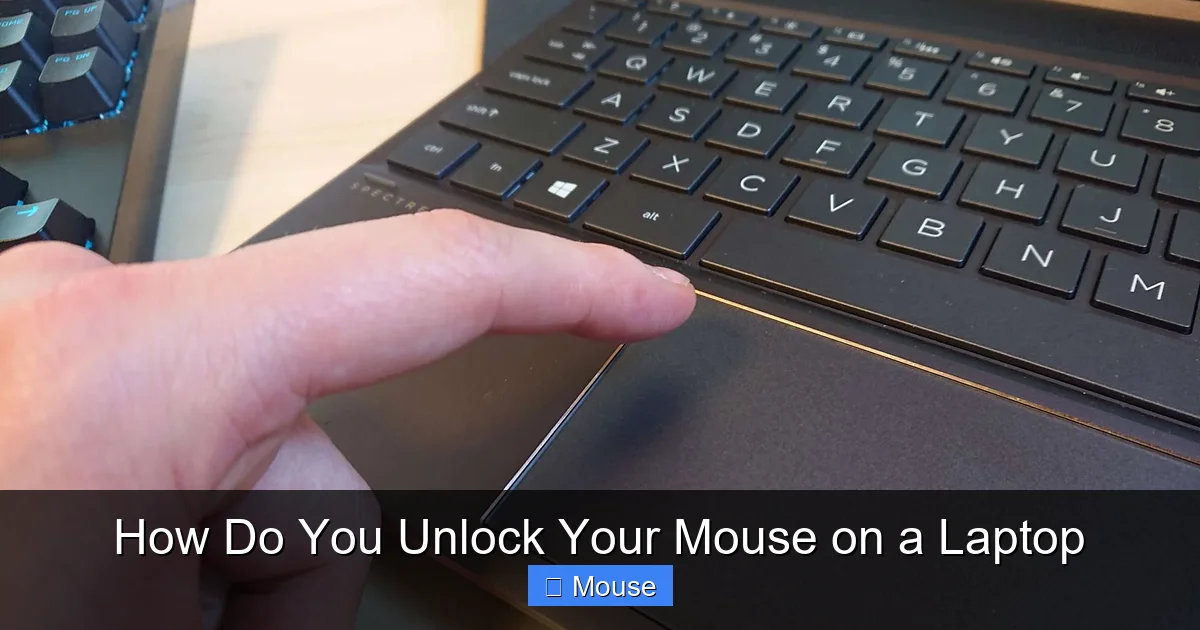
Most “locked mouse” issues are software‑based. Operating systems let users disable the built‑in touchpad to avoid accidental clicks while typing. Some laptops also include a physical switch or a function‑key shortcut that toggles the touchpad on or off.

Visual guide about How Do You Unlock Your Mouse on a Laptop
Image source: itarian.com
Hardware locks are rarer but can occur if the touchpad cable is loose, the sensor is covered with debris, or the device has suffered a drop.
1.2 Common Triggers
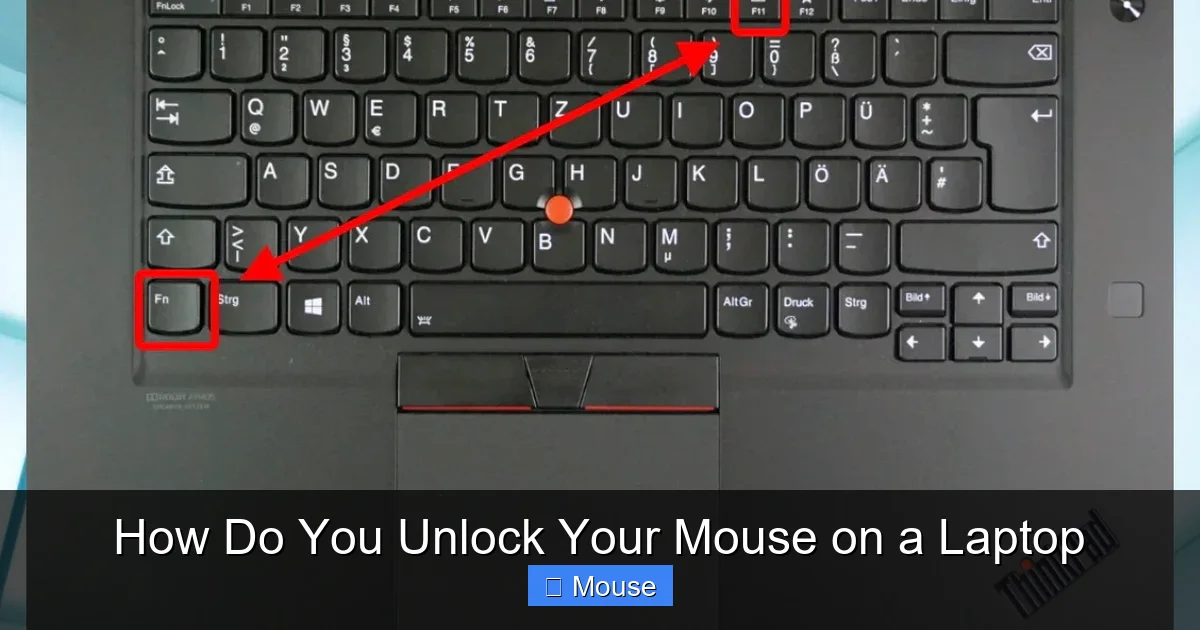
- Accidental Fn key press: Many manufacturers map the touchpad toggle to Fn + F7 (or F9, F6, etc.).
- Power‑saving settings: Windows may disable the touchpad to conserve battery.
- Driver conflicts: After a Windows update, the touchpad driver may fail to load.
- External mouse connection: Some laptops auto‑disable the built‑in mouse when a USB or Bluetooth mouse is attached.
2. Quick Methods to Unlock the Mouse
2.1 Using the Function Key Shortcut
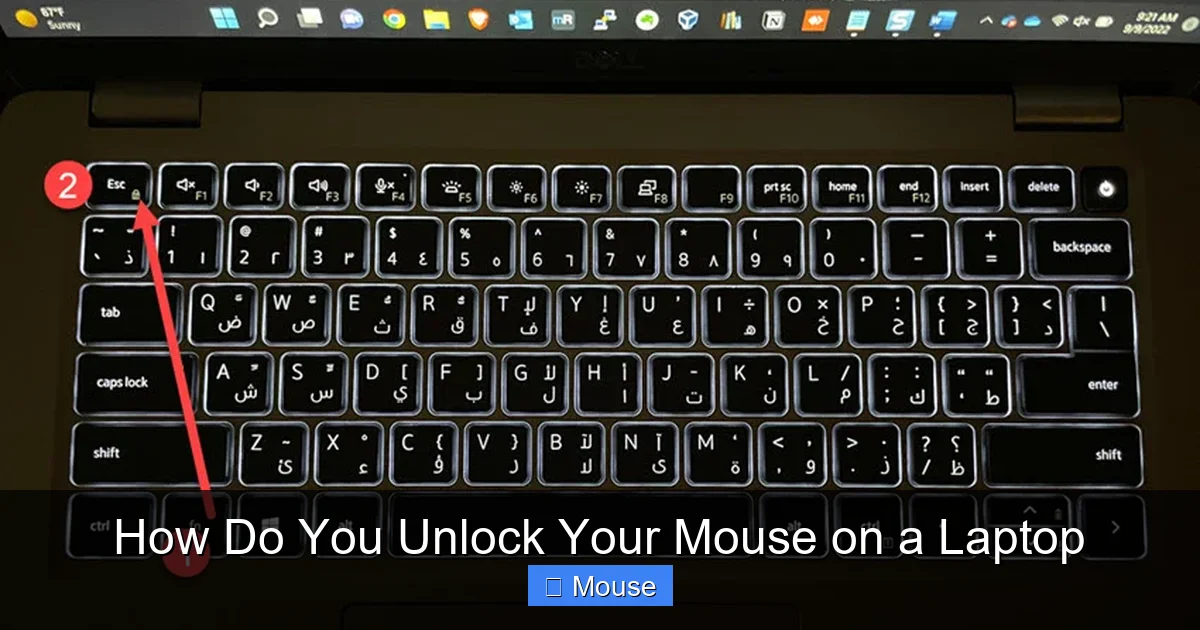
Check your laptop’s manual or the icons on the function keys. Look for a symbol that looks like a touchpad with a line through it. Press Fn + that key. On many HP models it’s Fn + F7. If the cursor reappears, you’ve just toggled the lock off.

Visual guide about How Do You Unlock Your Mouse on a Laptop
Image source: i.ytimg.com
2.2 Enabling the Touchpad in Windows Settings
- Press Windows + I to open Settings.
- Navigate to Devices > Touchpad.
- Make sure the Touchpad switch is set to On.
- If there’s an option called “Leave touchpad on when a mouse is connected,” enable it.
Saving these changes instantly restores the cursor for most users.
2.3 macOS Touchpad Settings
On a MacBook, go to Apple menu > System Settings > Trackpad. Verify that “Tap to click” and “Secondary click” are checked. If the trackpad still feels dead, click Accessibility > Pointer Control and ensure “Enable mouse keys” is turned off.
2.4 Using an External Mouse While Troubleshooting
If you need immediate control, plug in a USB mouse or pair a Bluetooth mouse. This bypasses the built‑in touchpad and lets you navigate to deeper settings. For a quick Bluetooth pairing, open Settings > Devices > Bluetooth & other devices and add your mouse.
2.5 Restarting the Computer
It sounds simple, but a reboot clears temporary driver glitches. If a recent Windows update caused the lock, a restart often reloads the correct driver version.
3. Updating or Reinstalling Touchpad Drivers
3.1 Why Drivers Matter
Drivers are the code that lets the operating system talk to hardware. A corrupted or outdated driver can make the touchpad appear disabled even when the setting is on.

Visual guide about How Do You Unlock Your Mouse on a Laptop
Image source: i.ytimg.com
3.2 Finding the Right Driver
- Open Device Manager (right‑click the Start button > Device Manager).
- Expand Mice and other pointing devices.
- Right‑click your touchpad (e.g., “Synaptics Touchpad”) and choose Update driver.
- Select “Search automatically for updated driver software.”
3.3 Manual Driver Installation
If Windows can’t find a newer driver, visit the laptop manufacturer’s support page. Download the latest touchpad driver and run the installer. After installation, restart the laptop.
3.4 Rolling Back a Faulty Update
Sometimes a driver update introduces bugs. In Device Manager, right‑click the touchpad, choose Properties > Driver > Roll Back Driver**. This reverts to the previous version that worked.
4. BIOS/UEFI Settings That May Lock the Mouse
4.1 Accessing BIOS
Restart the laptop and press the BIOS entry key (often F2**, **Delete**, or **Esc**). Look for a section called Advanced or Internal Device Configuration.
Visual guide about How Do You Unlock Your Mouse on a Laptop
Image source: sysprobs.com
4.2 Touchpad Enable/Disable Option
Some BIOS menus have a direct toggle for the internal pointing device. Ensure it is set to Enabled. Save changes and exit.
4.3 When to Change BIOS Settings
Only adjust BIOS if you’ve confirmed the OS settings and drivers are correct. A disabled touchpad in BIOS will appear dead no matter what you do in Windows.
5. Physical Checks and Cleaning
5.1 Inspecting the Touchpad Surface
Dust, oil, or a sticky sticker can interfere with the sensor. Turn the laptop upside down and gently blow away debris. A soft, lint‑free cloth lightly dampened with water can clean the surface.
Visual guide about How Do You Unlock Your Mouse on a Laptop
Image source: cdn.shopify.com
5.2 Checking the Internal Cable
If you’re comfortable opening the laptop (or have a professional do it), locate the ribbon cable that connects the touchpad to the motherboard. A loose connector can cause intermittent lock‑outs.
5.3 Testing with an External Mouse
After cleaning, connect an external mouse. If it works flawlessly, the issue is likely physical with the built‑in touchpad.
6. Preventing Future Mouse Locks
6.1 Adjust Power‑Saving Options
Go to Control Panel > Power Options > Change plan settings > Change advanced power settings. Under “USB settings” and “PCI Express,” set “Link State Power Management” to Off. This prevents the system from powering down the touchpad.
6.2 Disable Automatic Touchpad Disabling While Typing
In the touchpad settings panel, look for “Disable touchpad while typing” and turn it off if you find it too aggressive.
6.3 Keep Drivers Updated Regularly
Enable automatic driver updates or periodically visit the manufacturer’s site. Consistent updates reduce the chance of a lock caused by incompatibility.
6.4 Use Software Utilities Wisely
Some laptops ship with vendor utilities (e.g., HP Quick Launch, Dell Touchpad Settings). Make sure those utilities are not overriding the OS settings.
Conclusion
Unlocking a laptop mouse is usually a matter of checking a few settings, updating a driver, or giving the touchpad a quick clean. By following the steps above you’ll have your cursor back in no time, whether you prefer the built‑in trackpad or an external mouse. Remember, the key is to start with the simplest solution—function‑key toggle—then move to drivers, BIOS, and finally hardware checks. Keep your drivers fresh, adjust power options, and you’ll reduce the odds of a surprising lock‑out in the future.
Visual guide about How Do You Unlock Your Mouse on a Laptop
Image source: wikihow.com
Need more help with a specific brand? Check out our guide on how to unlock the mouse on an HP laptop or the general article how to unlock your mouse on a laptop. If you’re looking to add a wireless mouse while you troubleshoot, our step‑by‑step tutorial how do you connect a wireless mouse to a laptop will get you set up fast.
Frequently Asked Questions
Why is my laptop touchpad not responding after I pressed a function key?
Many laptops use a function‑key shortcut (often Fn + F7) to toggle the touchpad on and off. Press the same combination again to re‑enable it.
Can a Windows update disable my mouse?
Yes. Updates sometimes replace touchpad drivers with a version that conflicts with your hardware. Updating or rolling back the driver usually fixes the issue.
Is it safe to reinstall the touchpad driver?
Absolutely. Reinstalling the driver removes corrupted files and forces Windows to install a fresh copy, which often restores functionality.
My laptop disables the touchpad when I plug in a USB mouse. How do I keep both active?
Go to Settings → Devices → Touchpad and enable the option “Leave touchpad on when a mouse is connected.” This lets you use both simultaneously.
What should I do if the touchpad works after a restart but locks again later?
Check for a stray keyboard shortcut, update the driver, and review power‑saving settings that may turn the touchpad off after a period of inactivity.
Can dust really stop my touchpad from working?
Yes. Fine dust or residue can interfere with the sensor. A gentle clean with a soft, slightly damp cloth often restores normal operation.