How Do You Fix the Mouse on a Laptop
Having trouble with your laptop’s mouse? This guide walks you through simple software fixes, hardware checks, and practical tips to get your cursor moving again. Follow the easy steps and say goodbye to a frozen or unresponsive mouse.
Key Takeaways
- Restart first: A quick reboot often resets the mouse driver and solves many problems.
- Update drivers: Keeping touchpad and mouse drivers current prevents compatibility glitches.
- Check settings: Disabled touchpad or wrong sensitivity can make the mouse seem broken.
- Hardware inspection: Dirt, loose cables, or a faulty touchpad may need physical cleaning or replacement.
- External mouse test: Plugging in a USB or wireless mouse helps pinpoint whether the issue is internal or software‑related.
- System restore: Rolling back recent updates can reverse unexpected mouse failures.
- Backup plan: Knowing how to use keyboard shortcuts keeps you productive while you troubleshoot.
📑 Table of Contents
- Introduction
- 1. Start With the Simple Fixes
- 2. Update or Reinstall Mouse Drivers
- 3. Adjust Touchpad Settings and Accessibility Options
- 4. Hardware Inspection and Cleaning
- 5. Software Conflicts and System Restore
- 6. When All Else Fails – Consider Replacement or Professional Help
- 7. Quick Tips to Keep Your Laptop Mouse Working Smoothly
- Conclusion
- Related Reading
Introduction
Imagine you’re typing an email, and the cursor just won’t move. Frustrating, right? The good news is that most mouse problems on a laptop are fixable with a few easy steps. Whether it’s the built‑in touchpad acting up or an external mouse that won’t connect, this article shows you exactly how to diagnose and repair the issue.
We’ll cover everything from quick software resets to deeper hardware checks, all written in a friendly, conversational tone. By the end, you’ll know how to get the mouse back on your laptop without calling tech support.
1. Start With the Simple Fixes
Restart Your Laptop
A fresh start clears temporary glitches in the operating system. Shut down completely, wait a few seconds, then power on again. This alone can re‑initialize the mouse driver.
Check the Touchpad Enable/Disable Switch
Many laptops have a function key (often Fn + F7 or a key with a touchpad icon) that toggles the touchpad on and off. Press it once to make sure the touchpad isn’t disabled.
Verify Mouse Settings
Go to Settings > Devices > Touchpad (Windows) or System Preferences > Trackpad (macOS). Ensure the touchpad is turned on, sensitivity is set appropriately, and “Tap to click” is enabled if you rely on it.
Use an External Mouse to Test
Plug in a USB mouse or connect a wireless one. If the external mouse works, the problem is likely with the built‑in touchpad or its driver. If the external mouse also fails, the issue may be deeper in the OS.
2. Update or Reinstall Mouse Drivers
Why Drivers Matter
Drivers act as translators between hardware and the operating system. An outdated or corrupted driver can cause the cursor to freeze, jitter, or disappear.
Updating Drivers on Windows
- Open Device Manager (right‑click the Start button and select it).
- Expand the Mice and other pointing devices section.
- Right‑click your touchpad (often named “Synaptics,” “ELAN,” or “HID‑compatible mouse”) and choose Update driver.
- Select “Search automatically for updated driver software.” Follow any prompts.
Reinstalling Drivers
If updating doesn’t help, uninstall the driver first. Right‑click the device in Device Manager, choose Uninstall device, then restart. Windows will reinstall a generic driver automatically.
Mac Users
macOS handles drivers differently. Run Software Update from the Apple menu to ensure you have the latest macOS version, which includes touchpad fixes.
3. Adjust Touchpad Settings and Accessibility Options
Disable “Touchpad Delay”
Some laptops delay touchpad input when a mouse is connected. Go to touchpad settings and turn off any “delay” options.
Check for “Disable When Typing”
This feature stops accidental cursor movement while you type. If it’s too aggressive, it may feel like the mouse is stuck. Disable it temporarily to test.
Enable “Tap to Click” and “Three‑Finger Drag”
These gestures can make navigation easier if the physical click button is failing. Adjust them in the same settings menu.
4. Hardware Inspection and Cleaning
Clean the Touchpad Surface
Oil, dust, or crumbs can interfere with the sensor. Power off the laptop, use a soft, lint‑free cloth lightly dampened with water or isopropyl alcohol, and gently wipe the touchpad.
Check for Physical Damage
Look for cracks, loose hinges, or a wobbling touchpad. If the pad feels loose, the internal ribbon cable may have become disconnected.
Reseat the Touchpad Cable (Advanced)
Only attempt this if you’re comfortable opening your laptop:
- Power down, unplug, and remove the battery (if removable).
- Unscrew the bottom panel and locate the flat ribbon cable connecting the touchpad to the motherboard.
- Gently lift the connector latch, reseat the cable, and snap the latch back.
- Reassemble and power on.
If you’re unsure, consult a professional technician.
5. Software Conflicts and System Restore
Identify Conflicting Programs
Some third‑party utilities (e.g., custom mouse software, screen recording tools) can hijack the mouse driver. Boot into Safe Mode to see if the mouse works there. If it does, uninstall recent programs.
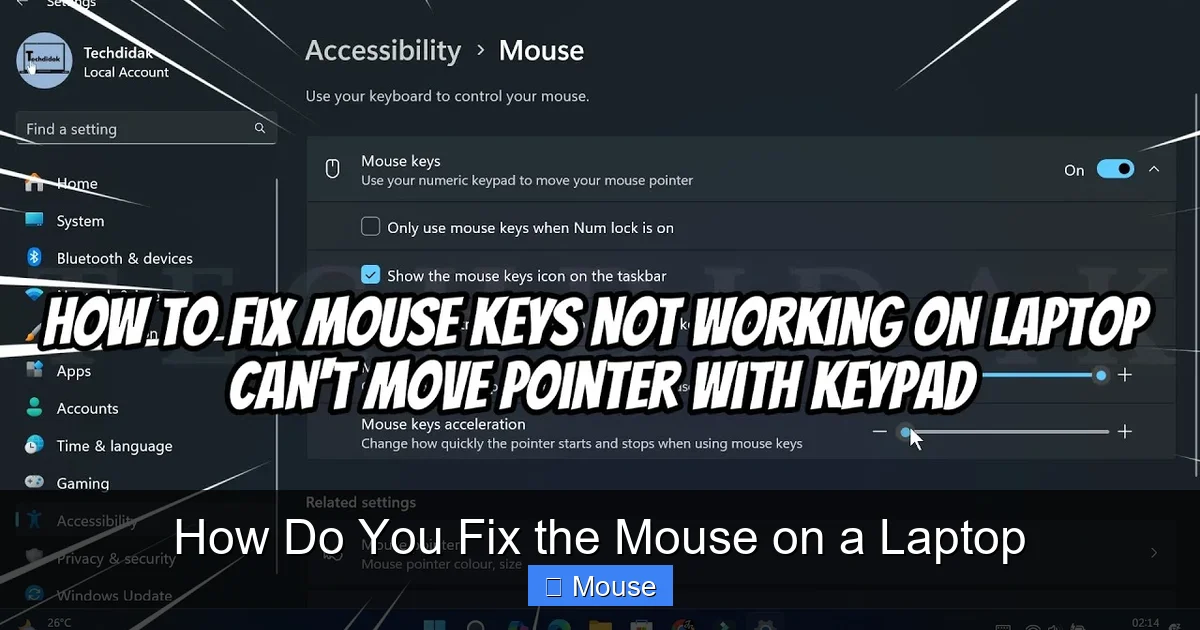
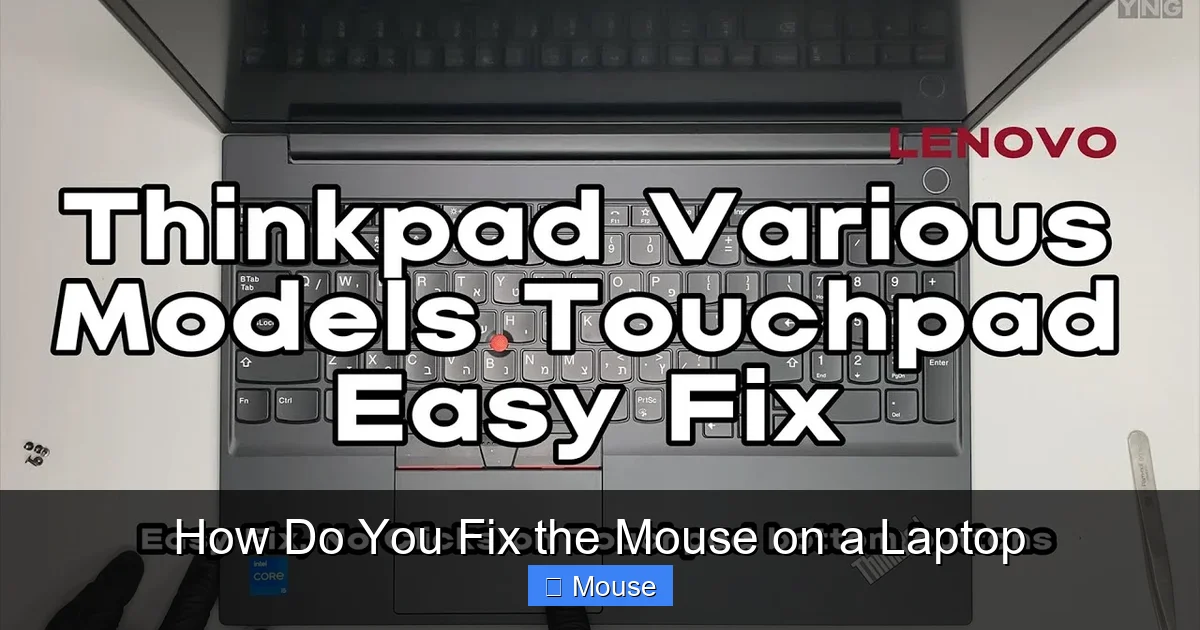
Visual guide about How Do You Fix the Mouse on a Laptop
Image source: i.ytimg.com
Run Windows Troubleshooter
Go to Settings > Update & Security > Troubleshoot and select “Hardware and Devices.” Follow the wizard; it often detects and fixes driver issues automatically.
System Restore Point
If the mouse stopped working after a Windows update or driver install, roll back to a previous restore point:
- Search “Create a restore point” and open it.
- Click System Restore and choose a date before the problem began.
- Complete the process and restart.
6. When All Else Fails – Consider Replacement or Professional Help
External Mouse as a Permanent Solution
If the built‑in touchpad is beyond repair, using a USB or Bluetooth mouse is a reliable alternative. It’s cheap, portable, and often more ergonomic.
Contact Manufacturer Support
For laptops under warranty, reach out to the brand’s support line. They may offer a free repair or replacement of the touchpad module.
Professional Repair Shops
Local repair shops can diagnose hardware failures quickly. Bring your laptop, explain the symptoms, and ask for a quote before authorizing work.
7. Quick Tips to Keep Your Laptop Mouse Working Smoothly
- Keep the touchpad clean and free of liquids.
- Regularly check for driver updates, especially after major OS upgrades.
- Avoid using heavy mouse‑heavy software (gaming macros) on a laptop unless necessary.
- Back up important data before performing system restores.
- Use a screen protector that doesn’t interfere with touchpad sensitivity.
Conclusion
Most mouse issues on a laptop are solvable with a bit of patience and systematic troubleshooting. Start with the simplest steps—restart, check settings, and test an external mouse—then move on to driver updates, hardware inspections, and, if needed, professional repair. By following this guide, you’ll know exactly how to fix the mouse on a laptop and keep it running smoothly for years to come.
Related Reading
For more tips, you might find these articles helpful:
- How To Fix Touch Mouse On Laptop
- How To Get The Mouse Back On A Laptop
- How To Unlock The Mouse On Laptop
Frequently Asked Questions
Why is my laptop touchpad not responding?
Common reasons include disabled touchpad settings, outdated drivers, or dirt on the surface. Restarting and checking the touchpad toggle key often solves it.
Can a virus cause the mouse to stop working?
Malware can interfere with drivers, but it’s rare. Run a quick antivirus scan if you suspect infection, then focus on driver and hardware checks.
How do I enable the touchpad after using an external mouse?
Press the function key with the touchpad icon (usually Fn + F7) or go to Settings → Devices → Touchpad and toggle it on.
Is it safe to reinstall the touchpad driver?
Yes. Uninstalling the driver and restarting lets Windows reinstall a fresh copy, often fixing corruption issues.
What should I do if the touchpad works intermittently?
Clean the pad, check for loose cables, and make sure no software is disabling it. Updating the driver can also improve stability.
When should I consider replacing the touchpad?
If cleaning, reseating the cable, and driver updates don’t help, the hardware is likely failing. At that point, a replacement or external mouse is the best option.