How to Connect Bt Mouse to Laptop
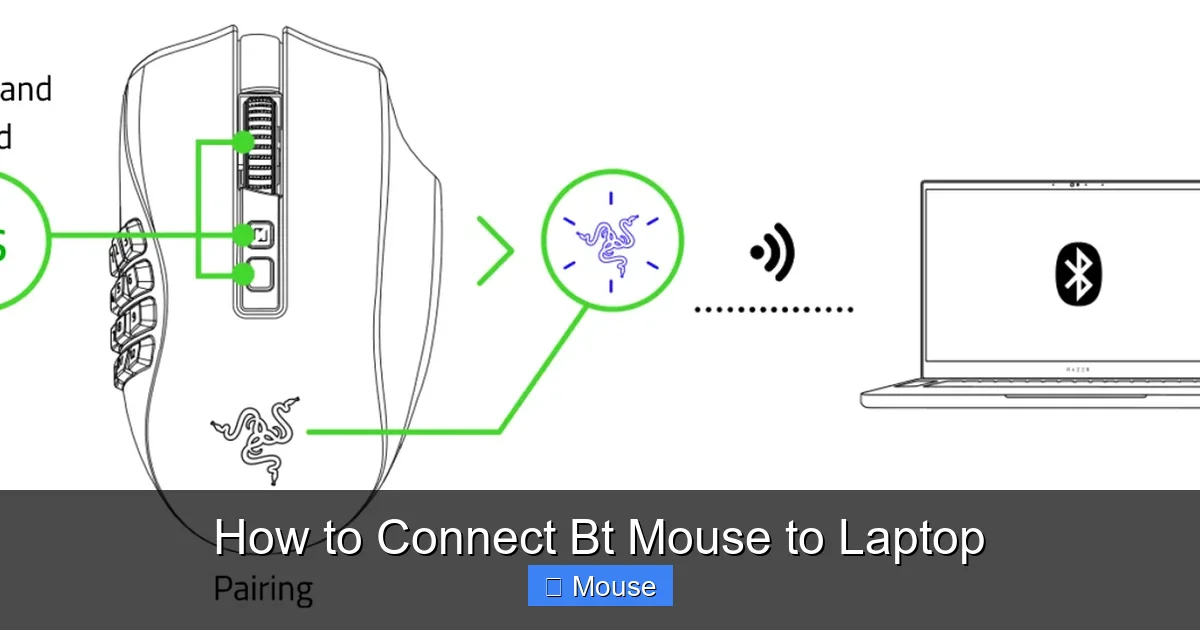
Connecting a BT mouse to your laptop is easier than you think. This guide walks you through pairing, troubleshooting, and optimizing settings so you can start using your Bluetooth mouse in minutes. Follow the simple steps and enjoy a smooth, wireless experience.
Key Takeaways
- Bluetooth readiness: Ensure your laptop’s Bluetooth is turned on and drivers are up to date before pairing.
- Pairing process: Put the mouse in discovery mode, locate it in Windows or macOS Bluetooth settings, and confirm the connection.
- Battery matters: Low battery can cause intermittent connections; replace or recharge early.
- Common fixes: Removing old pairings, restarting Bluetooth services, and checking for interference solve most issues.
- Advanced tweaks: Adjust pointer speed, enable scroll options, and customize button functions for comfort.
- Cross‑platform tips: The same steps work on Windows, macOS, and popular Linux distros.
- When all else fails: Updating drivers or resetting the mouse often restores full functionality.
📑 Table of Contents
Introduction: Why a Bluetooth Mouse?
When you first get a Bluetooth (BT) mouse, the promise of a clutter‑free desk feels like magic. No dongle, no tangled wires—just a sleek device that follows your hand wherever you go. But the excitement can turn into frustration if the mouse refuses to pair or keeps disconnecting.
Don’t worry. This article breaks down every step you need to connect a BT mouse to a laptop, whether you’re on Windows, macOS, or Linux. We’ll also share handy tips, common pitfalls, and quick fixes so you can get back to scrolling, dragging, and clicking without a hitch.
1. Preparing Your Laptop for Bluetooth Pairing
Check Bluetooth hardware
First, confirm that your laptop actually has Bluetooth. Most modern laptops do, but some budget models might need a USB‑C or USB‑A Bluetooth adapter.
Visual guide about How to Connect Bt Mouse to Laptop
Image source: technewstoday.com
- Windows: Open Device Manager → expand Bluetooth. If you see a device (e.g., “Intel Wireless Bluetooth”), you’re good.
- macOS: Click the Apple menu → About This Mac → System Report → Bluetooth. The status should read “Enabled.”
- Linux: Run
lsusborrfkill list bluetoothin a terminal to verify the adapter is present and not blocked.
Turn Bluetooth on
Even if the hardware exists, the radio might be turned off.
- Windows 10/11: Settings → Bluetooth & devices → toggle Bluetooth to On.
- macOS: System Settings → Bluetooth → click Turn Bluetooth On.
- Linux (Ubuntu example): Click the Bluetooth icon in the top‑right panel or run
sudo systemctl start bluetooth.
Update Bluetooth drivers
Out‑of‑date drivers are a frequent cause of connection problems. Visit your laptop manufacturer’s support site, download the latest Bluetooth driver, and install it before you start pairing.
2. Getting Your BT Mouse Ready
Power up the mouse
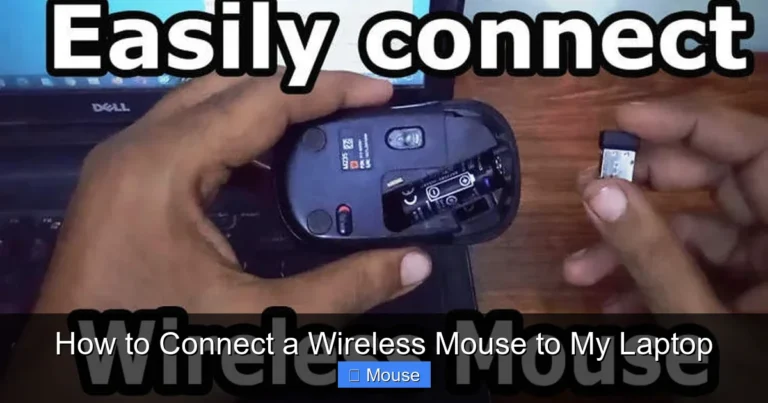
Most Bluetooth mice have a power switch on the underside. Turn it on and watch for a blinking LED—this signals that the mouse is in discovery mode.
Enter pairing mode
Different brands have different ways to initiate pairing:
- Logitech: Hold the Easy‑Switch button (usually labeled 1/2/3) for three seconds.
- Microsoft: Press and hold the Connect button near the battery compartment.
- Generic BT mouse: Hold the primary button for five seconds until the LED starts flashing rapidly.
If you’re unsure, check the mouse’s manual or look for a small “pairing” icon on the device.
Check battery level
A weak battery can cause the mouse to drop out after a few minutes. Replace AA/AAA cells or charge the built‑in battery before proceeding.
3. Pairing the Mouse with Windows
Open Bluetooth settings
Navigate to Settings → Bluetooth & devices → Add device. Choose Bluetooth from the list of device types.
Select your mouse
Windows will scan for nearby devices. Look for the mouse’s name—often the brand followed by a model number (e.g., “Logitech MX Master 3”). Click it.
Complete the pairing
Most mice pair instantly. If a PIN prompt appears, simply click Connect or enter “0000”. Once connected, you’ll see “Connected” under the device name.
Test functionality
Move the cursor. If it responds smoothly, you’re set. If the pointer jumps or lags, try the troubleshooting steps in section 5.
4. Pairing the Mouse with macOS
Open System Settings
Click the Apple menu → System Settings (or “System Preferences” on older macOS) → Bluetooth.
Make the mouse discoverable
Ensure the mouse’s LED is blinking. In the Bluetooth window, you should see the mouse appear under “Devices”.
Connect
Click Connect next to the mouse’s name. macOS may ask for a PIN; if so, use “0000”. Once the status changes to “Connected”, the mouse is ready.
Adjust tracking speed
Open System Settings → Mouse and slide the “Tracking speed” bar to suit your preference. You can also enable “Smart zoom” and “Scroll direction” here.
5. Troubleshooting Common Issues
Mouse not showing up in the device list
- Turn Bluetooth off and on again.
- Restart the mouse (power off, wait 5 seconds, power on).
- Remove old Bluetooth profiles: In Windows, go to Settings → Bluetooth & devices → Devices, click the mouse, choose Remove device. Then try pairing again.
Frequent disconnections
Interference from Wi‑Fi, microwaves, or other Bluetooth devices can cause drops. Keep the mouse within 10 feet of the laptop and away from routers. Switching the laptop’s Wi‑Fi channel (2.4 GHz vs 5 GHz) sometimes helps.
Cursor lag or jitter
Low battery is the usual suspect. Replace or recharge the mouse. If the problem persists, check for driver updates or try the mouse on another computer to rule out hardware failure.
Bluetooth service won’t start (Windows)
Open services.msc, locate “Bluetooth Support Service”, right‑click → Restart. Set the startup type to “Automatic”.
Linux pairing problems
Use the built‑in Bluetooth manager (e.g., blueman) or command line:
bluetoothctl
power on
scan on
# wait for your mouse’s MAC address, then:
pair XX:XX:XX:XX:XX:XX
trust XX:XX:XX:XX:XX:XX
connect XX:XX:XX:XX:XX:XX
When all else fails
Reset the mouse. Many models have a tiny reset button (often inside a pinhole). Hold it for 10 seconds, then repeat the pairing steps.
6. Optimizing Your Bluetooth Mouse Experience
Customize button functions
Software like Logitech Options, Microsoft Mouse and Keyboard Center, or third‑party tools (e.g., SteerMouse for macOS) let you assign shortcuts, DPI changes, or macros to extra buttons.
Adjust power settings
On Windows, go to Power & sleep → Additional power settings → Change plan settings → Change advanced power settings → Bluetooth settings. Set “Allow the computer to turn off this device to save power” to Off for a more stable connection.
Use a Bluetooth dongle for older laptops
If your laptop’s built‑in Bluetooth is weak or missing, a small USB‑C or USB‑A Bluetooth 5.0 dongle can provide a stronger, more reliable link.
Keep firmware up to date
Some manufacturers release firmware updates that fix latency or battery‑life issues. Check the brand’s support page regularly.
Pair multiple devices
Many BT mice support up to three paired devices. Switch between them using the mouse’s built‑in “Easy‑Switch” button—great for a desktop‑laptop‑tablet workflow.
Conclusion
Connecting a BT mouse to a laptop doesn’t have to be a guessing game. By confirming Bluetooth is active, putting the mouse in discovery mode, and following the simple pairing steps for your operating system, you’ll be scrolling smoothly in minutes. Should problems arise, the troubleshooting tips above—removing old pairings, updating drivers, and checking batteries—resolve the vast majority of issues. Now that you’ve mastered the basics, explore button‑mapping software, adjust pointer speed, and enjoy the freedom of a wireless workspace.
For more detailed guides on wireless mouse setup, check out how to connect wireless mouse to a laptop, learn how to pair a wireless mouse with laptop, or explore how to connect the mouse to laptop for additional tips.
Frequently Asked Questions
Can I use a BT mouse with a laptop that doesn’t have built‑in Bluetooth?
Yes. Purchase a small Bluetooth USB adapter (dongle). Plug it into a USB‑A or USB‑C port, install any required drivers, and treat it like the laptop’s native Bluetooth.
Why does my Bluetooth mouse keep disconnecting after a few minutes?
Common reasons are low battery, interference from other wireless devices, or power‑saving settings that turn Bluetooth off. Replace the battery and adjust power options to keep the connection stable.
Do I need to install special software to use a Bluetooth mouse?
Basic cursor movement works out‑of‑the‑box. However, installing the manufacturer’s utility (e.g., Logitech Options) lets you customize buttons, DPI, and scroll behavior.
Is there a difference between Bluetooth 4.0 and 5.0 for mice?
Bluetooth 5.0 offers greater range and faster data transfer, which can reduce latency and improve battery life. Both work fine for a mouse, but 5.0 provides a more reliable experience.
Can I connect more than one Bluetooth mouse to the same laptop?
Yes. Windows, macOS, and most Linux distros allow multiple Bluetooth mice simultaneously. Just pair each one separately and switch between them as needed.
My laptop’s Bluetooth won’t turn on. What should I do?
First, check Device Manager (Windows) or System Report (macOS) for a disabled adapter. Update or reinstall the driver, ensure the Bluetooth service is running, and verify that the hardware switch (if any) is turned on.