How to Get the Mouse to Work on Laptop

Is your laptop mouse not working? Don’t panic. Most mouse issues on laptops are simple to fix with basic troubleshooting steps. This guide covers everything from enabling your touchpad to connecting a wireless mouse, so you can get back to work in minutes.
Key Takeaways
- Check the basics first: Make sure your mouse is properly connected, charged, and powered on before diving into complex fixes.
- Touchpad shortcuts matter: Most laptops have a function key combination (like Fn + F7) that can accidentally disable your touchpad.
- Driver issues are common: Outdated or corrupted mouse drivers are one of the top reasons a mouse stops working on a laptop.
- Windows settings can disable your mouse: Your touchpad might be turned off in Windows Settings or Device Manager without you realizing it.
- Wireless mice need pairing: Bluetooth and USB receiver mice require proper pairing or connection to function correctly.
- Hardware failure is rare: Most mouse problems are software-related and can be fixed without replacing any hardware.
- External mice are great backups: If your touchpad fails, a simple USB or wireless mouse can save the day instantly.
📑 Table of Contents
- Introduction: Why Your Laptop Mouse Might Not Be Working
- Understanding the Different Types of Laptop Mice
- Quick Fixes to Try First
- How to Enable or Unlock Your Touchpad
- How to Fix Mouse Driver Issues
- How to Connect a Wireless Mouse to Your Laptop
- How to Fix a USB Wired Mouse That Is Not Working
- Using Your Laptop Without a Mouse
- When to Seek Professional Help
- Conclusion: Getting Your Mouse Working Again
Introduction: Why Your Laptop Mouse Might Not Be Working
There is nothing more frustrating than sitting down to work on your laptop and realizing the mouse is not responding. Maybe your touchpad is frozen. Maybe your wireless mouse has stopped connecting. Or maybe you accidentally hit a key combination and disabled everything without knowing it.
The good news is that figuring out how to get the mouse to work on laptop is usually much easier than you think. In most cases, the problem is not a broken piece of hardware. It is a simple setting, a driver issue, or a connection problem that can be resolved in just a few minutes.
In this comprehensive guide, we will walk you through every possible reason your laptop mouse might not be working and give you clear, step-by-step solutions. Whether you are using a touchpad, a USB mouse, or a wireless Bluetooth mouse, we have got you covered. Let us get that mouse working again.
Understanding the Different Types of Laptop Mice
Before we jump into troubleshooting, it helps to understand the different types of mice you might be using with your laptop. Each type has its own common issues and solutions.
The Built-In Touchpad
The touchpad is the flat rectangular surface below your keyboard. It is built into every laptop and works by sensing the movement of your finger across its surface. Touchpads are convenient but can be accidentally disabled through keyboard shortcuts or software settings.
USB Wired Mice
These are traditional mice that connect to your laptop through a USB port. They are reliable and do not require batteries. If a USB mouse stops working, it is usually a port issue, a driver problem, or a damaged cable.
Wireless Mice (Bluetooth or USB Receiver)
Wireless mice connect either through Bluetooth or a small USB receiver dongle. They offer freedom of movement but can run into pairing issues, battery problems, or signal interference. Knowing how to connect the mouse to laptop wirelessly is essential for these devices.
Quick Fixes to Try First
Before we get into detailed troubleshooting, let us start with some quick fixes that solve the majority of mouse problems on laptops.
Restart Your Laptop
This might sound too simple, but restarting your laptop fixes a surprising number of mouse issues. A restart clears temporary glitches, refreshes drivers, and resets hardware connections. If you have not tried this yet, do it now before anything else.
Check Physical Connections
If you are using a USB mouse, unplug it and plug it back in. Try a different USB port if the first one does not work. For wireless mice with a USB receiver, make sure the dongle is firmly seated in the port. A loose connection is one of the most common reasons a mouse stops working.
Replace or Recharge Batteries
If you are using a wireless mouse, low batteries could be the culprit. Replace the batteries with fresh ones or recharge your mouse if it has a built-in battery. Many wireless mice have an LED indicator that blinks when the battery is low.
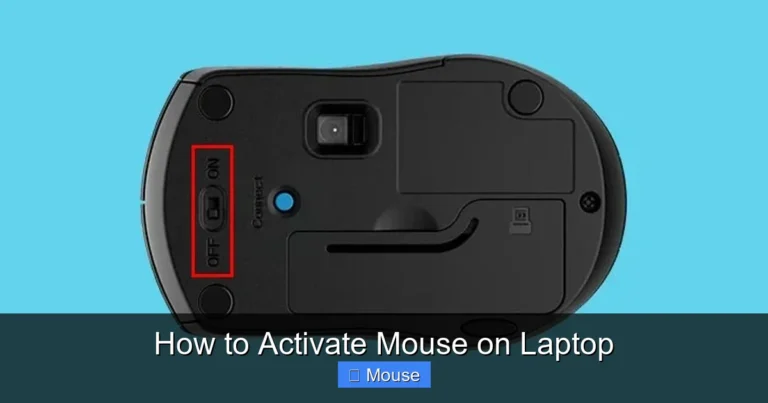
Check the Power Switch
Some wireless mice have a power switch on the bottom. Make sure it is turned on. It sounds obvious, but you would be surprised how often this is the issue.
How to Enable or Unlock Your Touchpad
One of the most common reasons people search for how to get the mouse to work on laptop is because their touchpad has been accidentally disabled. Here is how to turn it back on.
Use the Function Key Shortcut
Most laptops have a function key that toggles the touchpad on and off. Look at the top row of your keyboard (F1 through F12) for an icon that looks like a touchpad or a hand touching a rectangle. You usually need to press Fn plus that function key to enable or disable the touchpad.
Common combinations include:
- Fn + F7 on many HP laptops
- Fn + F9 on many ASUS laptops
- Fn + F5 on some Lenovo laptops
- Fn + F3 on certain Acer models
If you are not sure which key it is, look for the touchpad icon on your function keys. If you accidentally hit this combination, your touchpad will stop responding immediately. For more detailed instructions on this, check out our guide on how to unlock the mouse on laptop.
Enable the Touchpad in Windows Settings
Windows has a built-in setting that controls your touchpad. Here is how to check it:
- Open Settings by pressing Windows + I.
- Go to Bluetooth & devices.
- Click on Touchpad.
- Make sure the toggle at the top is set to On.
While you are here, you can also adjust your touchpad sensitivity and gesture settings. If the touchpad toggle was off, turning it on should immediately restore functionality.
Check Device Manager
Sometimes the touchpad driver gets disabled in Device Manager. Here is how to check:
- Right-click the Start button and select Device Manager.
- Expand the Mice and other pointing devices section.
- Look for your touchpad (it might be listed as “Synaptics TouchPad,” “ELAN TouchPad,” or “HID-compliant mouse”).
- If you see a down arrow icon on the device, right-click it and select Enable device.
If the touchpad is not listed at all, your laptop might not be detecting it, which could indicate a hardware issue or a missing driver.
How to Fix Mouse Driver Issues
Drivers are the software that allows your operating system to communicate with your mouse hardware. When drivers become outdated, corrupted, or missing, your mouse can stop working entirely.
Update Your Mouse Driver
Here is how to update your mouse driver in Windows:
- Open Device Manager by right-clicking the Start button.
- Expand Mice and other pointing devices.
- Right-click your mouse or touchpad device and select Update driver.
- Choose Search automatically for drivers.
- Windows will search for and install the latest driver available.
Reinstall the Mouse Driver
If updating does not work, try reinstalling the driver completely:
- Open Device Manager.
- Expand Mice and other pointing devices.
- Right-click your mouse device and select Uninstall device.
- Restart your laptop.
- Windows will automatically reinstall the driver when it boots back up.
This process forces Windows to start fresh with the mouse driver, which can resolve corruption issues that a simple update might not fix.
Download Drivers from the Manufacturer
For the most reliable results, download the latest touchpad driver directly from your laptop manufacturer’s website. Visit the support page for your specific laptop model and look for touchpad or pointing device drivers. This is especially important for laptops with advanced touchpad features like multi-touch gestures.
How to Connect a Wireless Mouse to Your Laptop
If your touchpad is giving you trouble, connecting an external wireless mouse is a great workaround. Here is how to do it properly.
Connecting a USB Receiver Mouse
Most wireless mice come with a small USB dongle. The process is simple:
- Insert the USB receiver into an available USB port on your laptop.
- Turn on the mouse using the power switch on the bottom.
- Wait a few seconds for Windows to recognize and install the mouse.
- Your mouse should start working automatically.
If it does not work immediately, try removing the receiver and plugging it back in. You can also try a different USB port. For more help with this process, visit our article on how to connect the wireless mouse to laptop.
Connecting a Bluetooth Mouse
Bluetooth mice do not need a USB receiver. Here is how to pair one:
- Open Settings and go to Bluetooth & devices.
- Make sure Bluetooth is turned on.
- Put your mouse into pairing mode (usually by holding a button on the bottom until an LED blinks).
- Click Add device and select Bluetooth.
- Choose your mouse from the list of available devices.
- Wait for the pairing to complete.
Once paired, your Bluetooth mouse should connect automatically whenever it is turned on and within range of your laptop.
Troubleshooting Wireless Mouse Connection Issues
If your wireless mouse is not connecting, try these steps:
- Move closer to the laptop: Wireless signals can weaken with distance.
- Remove interference: Other wireless devices, metal objects, and even USB 3.0 ports can cause interference.
- Check the USB receiver: Make sure it is fully inserted and not loose.
- Remove and re-pair: Delete the device from Bluetooth settings and pair it again from scratch.
How to Fix a USB Wired Mouse That Is Not Working
USB wired mice are generally the most reliable, but they can still run into problems. Here is what to do when your wired mouse stops responding.
Try a Different USB Port
The USB port you are using might be faulty. Unplug the mouse and try a different port. If you are using a USB hub, try plugging directly into the laptop instead. Some USB hubs do not provide enough power for certain devices.
Check the Cable for Damage
Inspect the mouse cable for any visible damage, such as fraying, kinks, or bent connector pins. A damaged cable can cause intermittent connectivity or complete failure. If the cable is damaged, you will likely need to replace the mouse.
Test the Mouse on Another Computer
Plug the mouse into a different computer to see if it works there. If it does not work on another computer either, the mouse itself is probably broken. If it does work, the issue is with your laptop’s USB ports or drivers.
Disable USB Selective Suspend
Windows has a power-saving feature that can turn off USB ports to save energy. This can sometimes cause USB mice to stop working. Here is how to disable it:
- Open Control Panel and go to Power Options.
- Click Change plan settings next to your current power plan.
- Click Change advanced power settings.
- Expand USB settings and then USB selective suspend setting.
- Set it to Disabled.
- Click Apply and OK.
Using Your Laptop Without a Mouse
While you are troubleshooting your mouse issue, you might need to use your laptop without one. Fortunately, Windows has several built-in features that let you navigate without a mouse.
Keyboard Shortcuts for Navigation
Here are some essential keyboard shortcuts that can help you get around:
- Tab: Move between interactive elements on a page or dialog box.
- Arrow keys: Navigate within menus and options.
- Enter: Activate a selected button or link.
- Alt + Tab: Switch between open applications.
- Windows key: Open the Start menu.
- Ctrl + C / Ctrl + V: Copy and paste without a mouse.
Enable Mouse Keys
Windows has a feature called Mouse Keys that lets you control the mouse pointer using the numeric keypad. Here is how to enable it:
- Press Left Alt + Left Shift + Num Lock.
- A dialog box will appear asking if you want to turn on Mouse Keys.
- Click Yes.
Once enabled, you can use the number pad to move the cursor. The 5 key acts as a click, + acts as a double-click, and 0 acts as a right-click hold.
Use the On-Screen Keyboard
If you need to type but your touchpad is not working, the on-screen keyboard can help. Press Windows + Ctrl + O to open it. You can click the keys using your touchpad (if it partially works) or navigate with Tab and Enter.
When to Seek Professional Help
Most mouse issues can be resolved with the steps above. However, there are times when professional help might be needed.
Signs of Hardware Failure
If you have tried all the software fixes and your mouse still does not work, you might be dealing with a hardware problem. Signs include:
- The touchpad is physically damaged or has visible cracks.
- The mouse works on other computers but not on your laptop (indicating a port or motherboard issue).
- USB ports are not recognizing any devices at all.
- The laptop has been dropped or exposed to liquid recently.
Contact Your Laptop Manufacturer
If your laptop is still under warranty, contact the manufacturer’s support team. They can guide you through additional troubleshooting or arrange a repair. Many manufacturers also have online diagnostic tools that can identify hardware issues automatically.
Visit a Local Repair Shop
If your laptop is out of warranty, a local computer repair shop can diagnose and fix hardware issues at a reasonable cost. They can test your USB ports, touchpad hardware, and internal connections to pinpoint the exact problem.
Conclusion: Getting Your Mouse Working Again
Figuring out how to get the mouse to work on laptop does not have to be a stressful experience. In most cases, the solution is as simple as pressing the right function key combination, updating a driver, or reconnecting a wireless device. Start with the basics like restarting your laptop and checking physical connections, then work your way through the more detailed troubleshooting steps if needed.
Remember that touchpad issues are often caused by accidental keyboard shortcuts, and wireless mice usually just need fresh batteries or a re-pairing. Driver problems are common but easily fixed through Device Manager. And if all else fails, a simple external USB mouse can get you back up and running in seconds.
Keep this guide bookmarked for the next time your mouse acts up. With these tips and tricks, you will be able to diagnose and fix the problem quickly, without the frustration of being stuck without a working mouse on your laptop.
Frequently Asked Questions
What is how to get the mouse to work on laptop?
how to get the mouse to work on laptop is an important topic with many practical applications.