Turn on Mouse on Laptop

Struggling to get your laptop mouse working? This comprehensive guide covers everything you need to know about how to turn on mouse on laptop devices. Whether you’re dealing with a disabled touchpad, a wireless mouse that won’t connect, or a USB mouse that isn’t responding, we’ve got you covered. You’ll learn multiple methods to activate your mouse, troubleshoot common issues, and get back to productive computing in no time.
Key Takeaways
- Multiple activation methods exist: You can turn on your laptop mouse through keyboard shortcuts, system settings, Device Manager, or physical connections depending on your mouse type.
- Touchpad issues are common: Most laptop mouse problems stem from accidentally disabled touchpads, which can be quickly reactivated using function keys or settings menus.
- Wireless mice need proper pairing: Bluetooth and USB receiver mice require specific pairing procedures and fresh batteries to function correctly.
- Driver problems cause failures: Outdated or corrupted mouse drivers are a leading cause of mouse malfunctions and can be fixed through Device Manager.
- Windows and Mac differ: The process to turn on mouse on laptop varies significantly between operating systems, so know your system’s specific steps.
- Troubleshooting saves time: Simple fixes like restarting your laptop, checking connections, and updating software resolve most mouse issues without professional help.
- Prevention matters: Understanding how your mouse works and avoiding accidental disablement helps prevent future frustrations.
📑 Table of Contents
- Introduction: Why Your Laptop Mouse Might Not Be Working
- Understanding Different Types of Laptop Mice
- How to Turn On Your Laptop Touchpad
- How to Activate External USB Mice
- How to Connect Wireless Mice
- Mac-Specific Mouse Activation Methods
- Common Reasons Your Mouse Won’t Turn On
- Advanced Troubleshooting Techniques
- Preventing Future Mouse Issues
- Conclusion
Introduction: Why Your Laptop Mouse Might Not Be Working
There’s nothing more frustrating than sitting down to work on your laptop only to discover that your mouse isn’t responding. Whether you’re using the built-in touchpad or an external mouse, these devices can stop working for a variety of reasons. The good news is that learning how to turn on mouse on laptop systems is usually straightforward once you understand the common causes and solutions.
Many people panic when their mouse stops working, assuming they need expensive repairs or technical expertise. In reality, most mouse issues stem from simple problems like accidentally disabled settings, outdated drivers, or loose connections. This guide will walk you through every method to get your mouse working again, regardless of whether you’re using Windows or Mac, a touchpad or external mouse.
By the end of this article, you’ll have the knowledge to confidently troubleshoot and resolve mouse issues on your own. Let’s dive into the various ways to turn on mouse on laptop devices and get you back to seamless computing.
Understanding Different Types of Laptop Mice
The Built-In Touchpad
Every laptop comes equipped with a touchpad, which is the rectangular surface located below your keyboard. This touchpad functions as your primary mouse, allowing you to move the cursor, click, scroll, and perform gestures. Understanding how your touchpad works is essential when learning to turn on mouse on laptop systems.

Visual guide about Turn on Mouse on Laptop
Image source: exitlag.com
Modern touchpads support multi-touch gestures like two-finger scrolling, pinch-to-zoom, and three-finger swipes. These features make touchpads incredibly versatile, though they can also lead to accidental disablements when you inadvertently trigger certain gestures or keyboard shortcuts.
External USB Mice
USB mice connect to your laptop through a physical port and offer a more traditional mouse experience. These devices plug directly into your laptop’s USB port and typically work immediately without additional setup. If you’re wondering how to turn on mouse on laptop when using a USB device, the process usually involves simply plugging it in.
USB mice come in various shapes and sizes, from compact travel mice to ergonomic designs that reduce wrist strain. They’re popular among users who find touchpads uncomfortable or imprecise for detailed work.
Wireless Mice
Wireless mice connect to your laptop via Bluetooth or a USB receiver. These devices offer freedom from cables and are ideal for users who prefer a clean workspace. However, wireless mice require batteries or charging and proper pairing with your laptop to function.
When learning how to turn on mouse on laptop with wireless devices, you’ll need to understand both the pairing process and power management. A wireless mouse with dead batteries or an unpaired connection won’t respond, even if everything else is configured correctly.
How to Turn On Your Laptop Touchpad
Using Keyboard Shortcuts
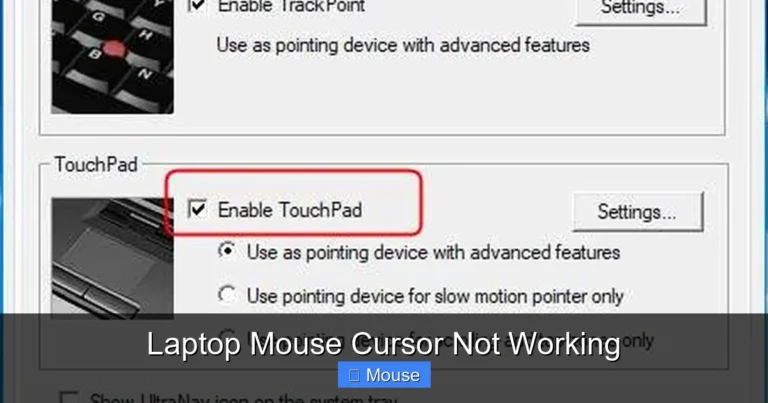
The fastest way to turn on mouse on laptop touchpads is through keyboard shortcuts. Most laptops dedicate a function key to enabling or disabling the touchpad. Look for a key with a touchpad icon, typically found among the F1-F12 keys at the top of your keyboard.

Visual guide about Turn on Mouse on Laptop
Image source: mybayutcdn.bayut.com
On many laptops, you’ll press the Fn key simultaneously with the touchpad function key. For example, Fn+F7 or Fn+F9 are common combinations. The exact key varies by manufacturer, so check your laptop’s documentation or look for the touchpad symbol on your function keys.
If pressing the shortcut doesn’t work, try holding the combination for a few seconds. Some laptops require a longer press to register the command. You should see an on-screen notification confirming that your touchpad has been enabled or disabled.
Through Windows Settings
Windows provides a dedicated settings menu for touchpad configuration. To access this, open Settings by pressing Windows+I, then navigate to Devices followed by Touchpad. Here you’ll find a toggle switch to turn your touchpad on or off.
This method is particularly useful when keyboard shortcuts aren’t working or when you want to adjust additional touchpad settings. The Windows touchpad settings also allow you to customize sensitivity, gestures, and scrolling behavior to match your preferences.
If the touchpad toggle is grayed out or unavailable, this typically indicates a driver issue. In such cases, you’ll need to update or reinstall your touchpad drivers through Device Manager, which we’ll cover later in this guide.
Using Device Manager
Device Manager offers another reliable method to turn on mouse on laptop touchpads. Press Windows+X and select Device Manager from the menu. Expand the “Mice and other pointing devices” category to see your touchpad listed.
Right-click on your touchpad device and select “Enable device” if it’s currently disabled. If you see a down arrow icon next to your touchpad, this indicates it’s disabled. If the option says “Disable device,” your touchpad is already enabled, and you should look elsewhere for the problem.
Device Manager also allows you to update drivers, which can resolve touchpad issues caused by outdated or corrupted software. Right-click your touchpad and select “Update driver” to search for the latest version automatically.
How to Activate External USB Mice
Physical Connection Steps
Connecting a USB mouse is the simplest way to turn on mouse on laptop systems. Locate an available USB port on your laptop, which is typically found on the sides or back of the device. Insert the mouse’s USB connector firmly into the port.

Visual guide about Turn on Mouse on Laptop
Image source: techvidvan.com
Windows and Mac operating systems automatically detect USB mice and install necessary drivers within seconds. You should see your cursor become responsive almost immediately after plugging in the mouse. If nothing happens, try a different USB port to rule out port-specific issues.
Some laptops have USB-C ports instead of traditional USB-A ports. If your mouse has a USB-A connector, you’ll need a USB-C to USB-A adapter. These adapters are inexpensive and widely available at electronics stores.
Troubleshooting USB Mouse Issues
When a USB mouse doesn’t work after connecting, several factors could be at fault. First, try unplugging the mouse and plugging it back in. This simple action forces your laptop to re-detect the device and can resolve recognition issues.
If re-plugging doesn’t help, test the mouse on another computer to determine if the problem is with the mouse or your laptop. A mouse that works elsewhere but not on your laptop suggests a software or port issue on your device.
Check Device Manager for any error indicators next to your mouse device. Yellow exclamation marks or red X symbols indicate driver problems or hardware conflicts. Right-click the device and select “Uninstall device,” then restart your laptop to force a fresh driver installation.
How to Connect Wireless Mice
Pairing Bluetooth Mice
Bluetooth mice offer cable-free convenience but require proper pairing to work. To turn on mouse on laptop with Bluetooth, first ensure your mouse is in pairing mode. Most Bluetooth mice enter pairing mode when you press and hold a dedicated button for several seconds.

Visual guide about Turn on Mouse on Laptop
Image source: i.pinimg.com
On your laptop, open Settings and navigate to Devices, then Bluetooth & other devices. Click “Add Bluetooth or other device” and select Bluetooth from the options. Your laptop will search for available devices, and your mouse should appear in the list.
Select your mouse from the list and follow any on-screen prompts to complete pairing. Once connected, your mouse should work immediately. If pairing fails, ensure your mouse has fresh batteries and is within range of your laptop’s Bluetooth receiver.
Using USB Receiver Mice
Many wireless mice use a small USB receiver instead of Bluetooth. These receivers plug into your laptop’s USB port and communicate with the mouse through radio frequency. To turn on mouse on laptop with a USB receiver, simply insert the receiver and power on your mouse.
Some USB receivers are extremely small and can be stored inside the mouse itself when not in use. Check your mouse’s battery compartment for a tiny receiver if you can’t locate it. Once inserted, your laptop should recognize the mouse within seconds.
If your USB receiver mouse isn’t working, try removing the receiver and plugging it into a different USB port. Also, check that your mouse has fresh batteries, as low power can prevent proper communication between the mouse and receiver.
Mac-Specific Mouse Activation Methods
System Preferences for Mouse Settings
Mac users have a slightly different process to turn on mouse on laptop devices. Open System Preferences from the Apple menu, then click on Mouse. Here you’ll find settings to enable or disable your mouse, adjust tracking speed, and configure scrolling behavior.

Visual guide about Turn on Mouse on Laptop
Image source: hostthatparty.com
If you’re using a Magic Mouse or Magic Trackpad, these devices have their own dedicated settings within System Preferences. Ensure the toggle switch is turned on and that your device appears as connected in the Bluetooth section.
Mac laptops also support keyboard shortcuts for accessibility features that can affect mouse behavior. Check System Preferences > Accessibility > Pointer Control to ensure no settings are interfering with your mouse functionality.
Bluetooth Pairing on Mac
Pairing Bluetooth mice on Mac follows a similar process to Windows but through different menus. Open System Preferences and click on Bluetooth. Ensure Bluetooth is turned on, then put your mouse in pairing mode.
Your mouse should appear in the list of available devices. Click “Connect” next to your mouse’s name to establish the pairing. Once connected, your mouse should work immediately. If connection fails, try turning Bluetooth off and back on, then attempt pairing again.
Mac computers sometimes have issues with Bluetooth interference from other devices. If your mouse connects but behaves erratically, try moving other Bluetooth devices away from your laptop or temporarily disabling them.
Common Reasons Your Mouse Won’t Turn On
Accidental Disablement
The most common reason for mouse failure is accidental disablement. Many users unknowingly press keyboard shortcuts that disable their touchpad, especially during intense typing sessions. Learning which shortcuts affect your mouse can prevent future frustrations.

Visual guide about Turn on Mouse on Laptop
Image source: storage.flixi.com
Some laptops also disable the touchpad automatically when an external mouse is connected. This feature, called “touchpad lock,” can be confusing if you’re unaware of it. Check your touchpad settings to see if this feature is enabled and adjust it according to your preferences.
Certain applications and games can also interfere with mouse functionality. Full-screen applications sometimes capture mouse input exclusively, making it appear as though your mouse isn’t working. Exiting these applications typically restores normal mouse behavior.
Driver Issues
Outdated or corrupted drivers are a leading cause of mouse problems. Drivers are software components that allow your operating system to communicate with hardware devices. When these become outdated or corrupted, your mouse may stop responding entirely.
To address driver issues, open Device Manager and expand the Mice and other pointing devices category. Right-click your mouse device and select “Update driver.” Choose the automatic search option to let Windows find and install the latest driver version.
If updating doesn’t work, try uninstalling the driver completely. Right-click the device and select “Uninstall device,” then restart your laptop. Windows will automatically reinstall the driver during startup, often resolving corruption issues.
Hardware Problems
Sometimes the issue isn’t software-related at all. Physical damage to your touchpad, broken USB ports, or defective mice can prevent proper functionality. Inspect your hardware for visible damage, loose connections, or debris that might interfere with operation.
For touchpad issues, check for cracks, unresponsive areas, or physical buttons that feel stuck. For external mice, examine the cable for fraying, the USB connector for bent pins, and the sensor on the bottom for dirt or obstructions.
If you suspect hardware damage, testing your mouse on another computer can help isolate the problem. A mouse that fails on multiple devices likely has hardware issues requiring replacement rather than software troubleshooting.
Advanced Troubleshooting Techniques
Running the Hardware Troubleshooter
Windows includes built-in troubleshooters that can automatically detect and fix mouse issues. To access this tool, open Settings and navigate to Update & Security, then Troubleshoot. Select “Hardware and Devices” and run the troubleshooter.

Visual guide about Turn on Mouse on Laptop
Image source: worldwar1.nl
The troubleshooter will scan your system for mouse-related problems and attempt automatic fixes. This tool is particularly useful when you’re unsure what’s causing the issue, as it checks multiple potential problems simultaneously.
While the troubleshooter doesn’t catch every issue, it’s an excellent starting point for resolving common problems. If the troubleshooter identifies issues, follow its recommendations and restart your laptop to apply any changes.
Checking Power Management Settings
Windows power management settings can sometimes disable USB devices to save energy, causing external mice to stop working. To check these settings, open Device Manager and expand the Universal Serial Bus controllers category.
Right-click each USB Root Hub and select Properties, then navigate to the Power Management tab. Uncheck the option “Allow the computer to turn off this device to save power.” This prevents Windows from disabling your mouse to conserve battery.
This setting is particularly important for laptop users who frequently switch between battery and plugged-in power. Disabling power management for USB devices ensures your mouse remains functional regardless of your power source.
System Restore Options
If your mouse stopped working after a recent software update or installation, System Restore can revert your computer to a previous state when the mouse functioned properly. This tool undoes recent changes without affecting your personal files.
To use System Restore, search for “Create a restore point” in the Windows search bar and click “System Restore.” Choose a restore point from before your mouse issues began and follow the prompts to restore your system.
System Restore is a powerful tool but should be used carefully. Ensure you select a restore point that predates your mouse problems, and be aware that any software installed after that point will need to be reinstalled.
Preventing Future Mouse Issues
Regular Maintenance Tips
Preventing mouse issues is easier than fixing them. Regular maintenance keeps your mouse functioning smoothly and extends its lifespan. For touchpads, clean the surface regularly with a soft, slightly damp cloth to remove oils and debris that can interfere with tracking.

Visual guide about Turn on Mouse on Laptop
Image source: thaisook.org
For external mice, keep the sensor area clean and free of dust. Compressed air can blow debris out of crevices and buttons. If you use a mouse with a ball mechanism, clean the ball and internal rollers periodically to maintain smooth movement.
Keep your drivers updated by enabling automatic updates in Windows or checking manufacturer websites regularly. Updated drivers often include bug fixes and performance improvements that prevent issues before they occur.
Backup Input Methods
Knowing alternative input methods can save you when your mouse fails unexpectedly. Windows supports keyboard shortcuts for most mouse functions, allowing you to navigate without a mouse entirely. Learning these shortcuts provides a valuable backup when troubleshooting mouse issues.
The Tab key moves between interactive elements, Enter activates selected items, and arrow keys navigate menus. Windows key combinations provide quick access to common functions. Familiarizing yourself with these shortcuts ensures productivity even when your mouse isn’t working.
Consider keeping a spare USB mouse available for emergencies. These inexpensive devices can be lifesavers when your primary mouse fails at critical moments. A basic USB mouse requires no setup and works immediately upon connection.
Conclusion
Learning how to turn on mouse on laptop systems is an essential skill for any computer user. Whether you’re dealing with a disabled touchpad, a wireless mouse that won’t pair, or a USB mouse that isn’t responding, the methods covered in this guide will help you resolve the issue quickly and confidently.
Visual guide about Turn on Mouse on Laptop
Image source: image-us.samsung.com
Remember that most mouse problems stem from simple causes like accidental disablement, outdated drivers, or loose connections. By systematically working through the troubleshooting steps outlined above, you can identify and fix the root cause without professional assistance.
Keep this guide bookmarked for future reference, and don’t hesitate to explore the related articles linked throughout for more specific troubleshooting scenarios. With the knowledge you’ve gained, you’re well-equipped to handle any mouse issue that comes your way and maintain smooth, productive computing experiences.
Frequently Asked Questions
Why is my laptop touchpad not working?
Your laptop touchpad may be disabled accidentally through a keyboard shortcut, outdated drivers, or system settings. Try pressing the touchpad function key (usually Fn+F7 or similar) to re-enable it, or check your touchpad settings in Windows Settings under Devices > Touchpad.
How do I turn on my wireless mouse?
To turn on a wireless mouse, ensure it has fresh batteries and is powered on. For Bluetooth mice, put the device in pairing mode and connect through your laptop’s Bluetooth settings. For USB receiver mice, simply plug the receiver into an available USB port.
What keyboard shortcut enables the touchpad?
The most common keyboard shortcut to enable the touchpad is Fn+F7, though this varies by laptop manufacturer. Look for a key with a touchpad icon among your function keys (F1-F12). Press Fn simultaneously with the touchpad key to toggle the touchpad on or off.
Why does my USB mouse work on other computers but not my laptop?
This typically indicates a driver issue or USB port problem on your laptop. Try updating your mouse drivers through Device Manager, testing different USB ports, or checking if power management settings are disabling USB devices to save battery.
How do I know if my mouse has a driver problem?
Signs of driver problems include your mouse not being recognized, erratic cursor movement, or error messages in Device Manager. Open Device Manager, expand “Mice and other pointing devices,” and look for yellow exclamation marks or red X symbols indicating driver issues.
Can I use my laptop without a mouse?
Yes, you can navigate your laptop using keyboard shortcuts. The Tab key moves between elements, Enter activates selections, and arrow keys navigate menus. Windows key combinations provide quick access to common functions, allowing full keyboard-based navigation.