How to Pair Two Bose Soundlink Speakers
Want to double the sound of your Bose speakers? You can easily pair two Bose Soundlink speakers together for a louder, richer audio experience. This guide shows you the exact steps to link them using Bluetooth or the Bose app. Get ready to fill your room with amazing stereo sound without any hassle.
Music sounds better when it fills the room. Sometimes one speaker is not enough. If you own Bose Soundlink speakers, you might wonder if you can connect them together. The good news is that you often can. Learning how to pair two Bose Soundlink speakers is a great way to upgrade your listening experience. It makes your music louder and gives you a wider soundstage.
Many people buy one speaker and love it. Later, they want more volume for a party or better stereo separation for movies. Bose designed some of their speakers to work together. This feature is sometimes called party mode or stereo mode. It depends on the specific model you have. In this guide, we will walk you through everything you need to know. We will cover the setup, the different modes, and troubleshooting tips.
You do not need to be a tech expert to do this. The process is user-friendly. Whether you have the Soundlink Revolve, Soundlink Color, or the original Soundlink, the steps are similar. We will break it down so you can start listening quickly. Let us dive into the details of connecting your audio gear.
Key Takeaways
- Simple Process: Connecting speakers takes just a few minutes using Bluetooth or the app.
- Stereo Mode: Pairing two speakers creates a true left and right channel sound.
- Volume Boost: Adding a second speaker significantly increases loudness without distortion.
- App Control: The Bose Music app makes managing multiple devices much easier.
- Compatibility: Not all models support pairing, so check your specific speaker version first.
- Reset Option: You can reset the connection if the speakers fail to sync properly.
- Party Mode: Some models allow you to connect more than two speakers for big gatherings.
📑 Table of Contents
Understanding Speaker Compatibility
Before you start, you need to know if your speakers can actually connect. Not every Bluetooth speaker works with another one. Bose has specific models that support this feature. You should check your speaker model number first. This saves you time and frustration later on.
Most newer Bose Soundlink models support multi-speaker pairing. This includes the Soundlink Revolve and Revolve+. The Soundlink Color II also supports this feature. However, older models might not have this capability. You can usually find the model number on the bottom of the speaker or in the settings menu.
Here are some common models that often support pairing:
- Bose Soundlink Revolve
- Bose Soundlink Revolve+
- Bose Soundlink Color II
- Bose Soundlink Flex
If you have a Mix series or a Home Speaker series, the steps might differ slightly. Some use Wi-Fi instead of Bluetooth for pairing. For this guide, we focus on the wireless Bluetooth Soundlink models. Knowing your model helps you follow the right path. You can also check the official Bose website for your specific device details.
Checking Firmware Updates
Software matters too. Your speakers should have the latest firmware. Updates often improve connectivity and pairing features. You can check for updates using the Bose Music app. Connect your speaker to the app first. Then look for a settings option labeled firmware or software update.
Updating ensures you have the latest features. It can fix bugs that might stop pairing. If one speaker is updated and the other is not, they might not connect well. So, keep both devices fresh. This is a small step that prevents big headaches.
Preparing Your Speakers for Connection
Preparation is key to a successful connection. You want both speakers ready to go before you start the pairing process. First, make sure both speakers are fully charged. Low battery can cause connection drops or weak signals. Plug them into power if needed during the setup.
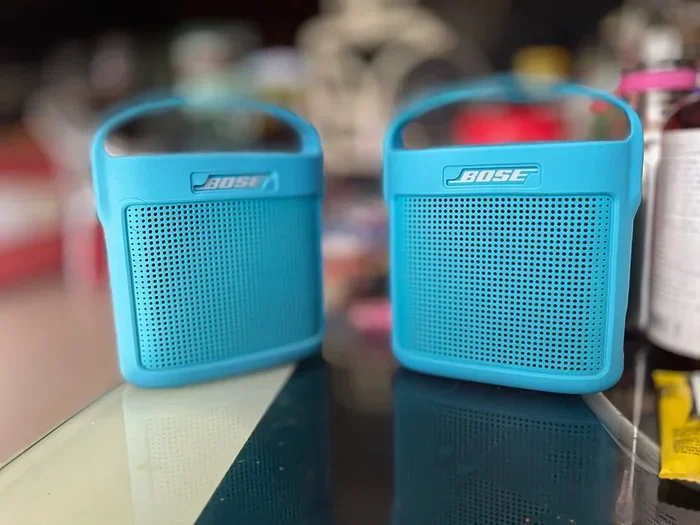
Visual guide about Bose SoundLink speakers paired together
Image source: media.karousell.com
Next, turn off any other Bluetooth devices nearby. Sometimes other phones or tablets try to connect automatically. This can interfere with the pairing process. Put your speakers in a close range to each other. Being close helps them find the signal faster.
Here is a quick checklist for preparation:
- Charge both speakers fully.
- Turn off other nearby Bluetooth connections.
- Place speakers within three feet of each other.
- Ensure both speakers are powered on.
- Reset the speakers if they have connection errors.
Resetting is a good idea if you have used the speakers before. It clears old pairing data. To reset, you usually hold the power button and the Bluetooth button together. Check your manual for the exact reset combination. This wipes the slate clean for a fresh start.
How to Pair Two Bose Soundlink Speakers via Bluetooth
This is the most common method. You do not need an app for this basic connection. You use the buttons on the speakers themselves. It is quick and works well for most situations. Follow these steps to link them directly.
Step-by-Step Bluetooth Pairing
Start with both speakers turned off. Turn on the first speaker. Press the Bluetooth button to make it discoverable. Then, turn on the second speaker. The key is the timing. You need to press the Bluetooth button on the second speaker while holding the volume up button. This varies by model, so listen for a tone.
For many Soundlink models, you hold the Bluetooth button and the volume up button simultaneously on the second speaker. You will hear a voice prompt saying pairing started. The first speaker should detect the second one. You might hear a confirmation sound. Once linked, the audio will play through both devices.
Here is the general process:
- Turn on Speaker A and enable Bluetooth.
- Turn on Speaker B and enter pairing mode.
- Hold the specific sync buttons on Speaker B.
- Wait for the connection tone from Speaker A.
- Test the audio by playing a song.
If you hear sound from both, you are done. The speakers will remember each other. Next time, you might just need to turn them on. They will auto-connect if they are in range. This makes future use very convenient.
Using Stereo Mode vs. Party Mode
Once paired, you can often choose the sound mode. Stereo mode splits the sound. One speaker plays the left channel, and the other plays the right. This gives you a wider soundstage. It is great for listening to albums or watching movies.
Party mode plays the same sound on both speakers. This makes the volume louder. It is better for gatherings or filling a large room. You can usually switch between these modes in the Bose Music app. Some models let you switch using the speaker buttons. Check your manual to see which modes your model supports.
Stereo mode gives a richer experience. Party mode gives more power. Think about where you will use them most. If you watch movies, stereo is better. If you host friends, party mode wins. Knowing the difference helps you get the best sound.
Connecting Through the Bose Music App
Using the app is often easier. It gives you more control over the settings. The Bose Music app is available for iOS and Android. You need to download it first. Then you connect your speakers to the app individually.
Once both speakers are in the app, you can group them. The app will show you options to link them. This method is very stable. It also allows you to manage EQ settings for the pair. You can adjust the bass or treble for the whole group.
Benefits of App Control
The app offers features buttons do not. You can rename your speakers. This helps if you have more than two. You can also see battery levels for both units. Some models allow you to add more than two speakers in the app. This is great for bigger parties.
Another benefit is remote volume control. You can adjust the volume from your phone. You do not need to walk over to the speaker. This is handy if the speaker is in a hard spot. The app makes managing your audio system simple.
If you have trouble with Bluetooth, try the app. Sometimes the app handles the handshake better. It ensures both speakers are on the same network settings. This reduces connection drops during playback.
Troubleshooting Common Pairing Issues
Sometimes things do not go smoothly. You might face connection errors. Do not worry. Most issues are easy to fix. Here are some common problems and how to solve them.
Speakers Not Connecting
If the speakers fail to find each other, check the distance. Move them closer together. Walls and furniture can block Bluetooth signals. Also, ensure both speakers are in pairing mode. One might be connected to a phone already. Disconnect any phones from the speakers first.
Interference is another cause. Other wireless devices can cause noise. Move away from Wi-Fi routers or microwaves. Turn off other Bluetooth accessories nearby. This clears the air for your speakers to talk.
Audio Sync Issues
Sometimes one speaker plays sound slightly later than the other. This is called latency. It can be annoying for movies. Try resetting the connection. Turn both off and start the pairing process again. Firmware updates often fix sync issues too.
If the problem persists, check the battery levels. Low power can affect performance. Charge both speakers fully. This ensures they have enough power to maintain a stable link.
Expert Insights
Experts recommend keeping your speakers updated. Bose releases updates to improve stability. Also, avoid pairing too many devices at once. If you have many Bluetooth gadgets, disconnect the ones you do not need. This reduces signal congestion. For the best sound, place the speakers apart. Give them space to create a good stereo field.
Maximizing Your Sound Experience
Once paired, you want the best sound possible. Placement matters a lot. Do not put them in corners where bass might boom. Place them at ear level if possible. This gives you the clearest audio.
You can also tweak the EQ settings. The Bose app lets you change sound profiles. Try different settings to see what you like. Some people like more bass. Others prefer clear vocals. Adjust it to fit your music taste.
Here are some tips for better sound:
- Space them out: Keep speakers at least a few feet apart.
- Avoid obstacles: Keep the path between speakers clear.
- Use quality source: Play high-quality audio files for better fidelity.
- Check volume balance: Ensure both speakers are at the same volume level.
Enjoying your music is the goal. With two speakers, you have more flexibility. You can move them around for different rooms. You can take them outside for a picnic. The possibilities are wide open.
Learning how to pair two Bose Soundlink speakers opens up new ways to listen. It is a simple upgrade that makes a big difference. You get louder volume and better sound separation. Follow the steps above and enjoy your music. Whether you use Bluetooth or the app, the result is worth it. Happy listening.
Frequently Asked Questions
Can I pair different Bose Soundlink models together?
Generally, it is best to pair the same model together for the best experience. While some different models might connect, the sound balance and features may not work correctly. Check your specific model compatibility before trying to mix them.
Do I need the Bose Music app to pair speakers?
No, you do not always need the app. You can pair many models directly using the Bluetooth and volume buttons on the speakers. However, the app offers easier management and more settings options for your connected speakers.
Will pairing two speakers drain the battery faster?
Yes, using two speakers will consume more battery power overall. You are powering two devices instead of one. Keep them charged or plugged in during long listening sessions to avoid interruptions.
Can I connect more than two speakers at once?
Some Bose models support connecting more than two speakers in Party Mode. This depends on the specific speaker series and firmware. Check the Bose Music app to see if your model allows adding additional speakers to the group.
What should I do if the audio is out of sync?
If the audio sounds out of sync, try resetting the Bluetooth connection on both speakers. Turn them off and repeat the pairing process. Updating the firmware via the app can also resolve latency and sync issues.
Does pairing affect the sound quality?
Pairing should not negatively affect sound quality if done correctly. In stereo mode, it can actually improve the experience by creating a wider soundstage. Just ensure both speakers are at similar volume levels for balanced audio.