Adding Ram to a Laptop
Adding RAM to a laptop is one of the simplest and most affordable ways to boost performance. Whether you want smoother multitasking or faster program loading, upgrading your laptop memory makes a real difference. This guide walks you through every step, from picking the right RAM stick to completing the install.
Adding RAM to a laptop is one of the best ways to breathe new life into an aging computer. If your machine feels slow when you open multiple browser tabs or run demanding apps, more memory can help. This guide will show you exactly how to do it yourself.
You do not need to be a tech expert. With a few simple tools and about 15 minutes, you can complete the upgrade process at home. Let us walk through everything you need to know.
Key Takeaways
- Easy Upgrade: Adding RAM to a laptop is a straightforward process most people can do at home.
- Better Performance: More memory means faster multitasking, smoother browsing, and quicker app launches.
- Check Compatibility First: Not all RAM works with every laptop. Always verify your laptop’s specifications before buying.
- Affordable Boost: A memory upgrade costs far less than buying a new laptop.
- Right Tools Needed: A small screwdriver and anti-static wrist strap are all you need.
- Know Your Limits: Every laptop has a maximum memory capacity. Check yours before purchasing.
📑 Table of Contents
- Why Adding RAM to a Laptop Matters
- Understanding RAM Types and Compatibility
- How to Choose the Right RAM for Your Laptop
- Step-by-Step Guide to Installing RAM
- Common Mistakes to Avoid When Adding RAM
- How to Maximize the Benefits of Your RAM Upgrade
- How Much Does a RAM Upgrade Cost?
- Frequently Asked Questions
- Conclusion
Why Adding RAM to a Laptop Matters
RAM stands for Random Access Memory. It is the short-term memory your laptop uses to handle tasks. When you open programs, browse the web, or edit documents, your computer stores that active data in RAM. The more RAM you have, the more tasks your laptop can handle at once without slowing down.
Think of RAM like a desk. A small desk gets cluttered fast. A bigger desk gives you room to spread out and work efficiently. When your laptop runs low on memory, it starts swapping data to your hard drive. This makes everything feel sluggish and frustrating.
Here are some clear signs your laptop needs more memory capacity:
- Your browser slows down with many tabs open
- Apps take longer to launch
- Your system freezes during multitasking
- Videos and games stutter or lag
- Your laptop uses a lot of swap memory
If you recognize these issues, a laptop memory upgrade could be the solution. It is much cheaper than replacing your entire computer.
How RAM Affects System Performance
RAM directly impacts how fast your laptop handles everyday tasks. More memory means your processor can access data quickly without waiting. This leads to a noticeable performance boost in daily use.
For basic tasks like web browsing and word processing, 8GB of RAM works fine. But if you edit photos, run virtual machines, or play games, 16GB or more makes a big difference. Understanding your RAM type and what your workflow demands helps you choose the right upgrade.
Understanding RAM Types and Compatibility
Not all RAM is the same. Before you buy any memory modules, you need to know what your laptop supports. Using the wrong type will not work, so this step is essential.
DDR4 vs DDR5 RAM
The two most common types today are DDR4 and DDR5. DDR4 has been the standard for years and offers reliable performance. DDR5 is newer and faster, but not all laptops support it yet.
Here is a quick comparison:
- DDR4 RAM: Widely compatible, affordable, speeds from 2133MHz to 3200MHz
- DDR5 RAM: Faster and more efficient, speeds from 4800MHz and up
Check your laptop manual or the manufacturer’s website to find which type your machine uses. Some older laptops use DDR3, which is still available but less common now.
SO-DIMM vs Desktop RAM
Laptops use a special form factor called SO-DIMM, which stands for Small Outline Dual In-Line Memory Module. It is much smaller than desktop RAM sticks. You cannot swap desktop RAM into a laptop, so always buy SO-DIMM modules for your laptop specifications.
Most modern laptops have one or two SO-DIMM slots. Some ultra-thin models have memory soldered to the motherboard and cannot be upgraded. This is an important detail to check before purchasing.
How to Choose the Right RAM for Your Laptop
Choosing the right RAM stick involves a few key decisions. Let us break them down so you can shop with confidence.
Check Your Current RAM
Before buying anything, find out how much RAM your laptop currently has. You can check this in your system settings on Windows or About This Mac on macOS. Knowing your current memory capacity helps you decide how much more you need.
For example, if you have 8GB and want 16GB, you might need to add one 8GB stick or replace your existing 8GB with a 16GB stick. Some laptops let you mix and match sticks, but matching pairs usually performs better.
Consider Your Usage Needs
Think about what you do on your laptop every day. Different tasks demand different amounts of memory:
- Basic use: 8GB is enough for web browsing, email, and office apps
- Intermediate use: 16GB handles photo editing, light gaming, and heavy multitasking
- Advanced use: 32GB or more suits video editing, 3D rendering, and programming
Be honest about your needs. Buying more RAM than you use is a waste of money. But too little means you will not see the performance boost you want.
Speed and Frequency Matter
RAM speed, measured in MHz, affects how fast data moves between your memory and processor. Higher speeds help in demanding tasks. However, for most users, the difference is subtle. Focus on capacity first, then speed if your budget allows.
Step-by-Step Guide to Installing RAM
Now comes the hands-on part. Installing RAM into a laptop is simpler than most people think. Follow these steps carefully and you will have it done in no time.
Step 1: Gather Your Tools
You only need a few items:
- A small Phillips-head screwdriver
- An anti-static wrist strap (optional but recommended)
- Your new SO-DIMM RAM stick
- A clean, flat workspace
Working on a hard, non-carpeted surface is best. Static electricity can damage components, so touching a metal surface before handling your RAM helps discharge any buildup.
Step 2: Power Down and Unplug
Shut your laptop completely. Unplug the power cable and remove any connected devices. If your laptop has a removable battery, take it out. This ensures safety while you work inside the machine.
Step 3: Open the Back Panel
Flip your laptop over and locate the screws holding the back panel. Use your screwdriver to remove them carefully. Keep the screws in a safe place. Gently pry off the panel using a plastic spudger or your fingernail.
Some laptops have easy-access panels just for memory. Others require removing the entire back. Check your model online if you are unsure.
Step 4: Locate the RAM Slots
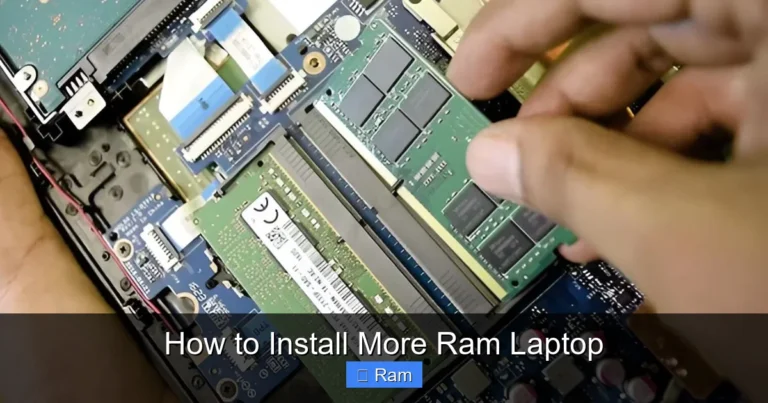
Once the panel is off, look for the existing RAM sticks. They are long, thin rectangles held in place by small clips on each side. You should see at least one slot, sometimes two.
If you are replacing existing RAM, gently press the clips outward to release the old stick. It will pop up at an angle. Carefully remove it.
Step 5: Insert the New RAM
Take your new memory module and align the notch on the bottom with the ridge inside the slot. Insert it at a 30-degree angle and press down firmly until the clips click into place. This is the most satisfying part of the whole process.
If you are adding RAM to an empty slot, the process is the same. Just make sure the stick sits flat and secure.
Step 6: Close Up and Test
Replace the back panel and screw it back in. Plug in your laptop and power it on. Your system should recognize the new memory automatically.
To confirm the upgrade worked, check your system information. On Windows, right-click the Start button and select System. You should see your new total memory capacity listed there.
If you want a detailed walkthrough of this process, check out our guide on how to install RAM into a laptop for more visual instructions and troubleshooting tips.
Common Mistakes to Avoid When Adding RAM
Even a simple upgrade can go wrong if you skip precautions. Here are the most common mistakes people make:
- Buying incompatible RAM: Always double-check your laptop model and supported RAM type before purchasing.
- Forgetting to discharge static: A quick touch of a metal surface prevents electrostatic damage.
- Forcing the stick: RAM should slide in smoothly. If it resists, check the alignment.
- Mixing different speeds: While possible, mismatched sticks can run at the slower speed of the pair.
- Overlooking max capacity: Every laptop has a limit. Exceeding it wastes money.
Taking your time and following each step carefully saves you from frustration. Rushing through the process is the number one cause of problems.
When to Seek Professional Help
Most people can handle this upgrade without any issues. But if your laptop has a sealed back panel or soldered memory, you may need professional assistance. In these cases, a hardware upgrade technician can help safely.
How to Maximize the Benefits of Your RAM Upgrade
Once your new memory is installed, a few extra steps help you get the most out of it.
Update Your Drivers and BIOS
After upgrading, check for BIOS and driver updates from your laptop manufacturer. These updates ensure your system fully recognizes and optimizes the new memory capacity. Sometimes a simple firmware update improves memory compatibility.
Monitor Your Usage
Use your task manager to watch how your laptop uses memory after the upgrade. You should notice smoother performance during multitasking. Apps should load faster and your system should feel more responsive overall.
Pair Your Upgrade with Other Improvements
For the best results, consider pairing your RAM upgrade with other improvements. Switching to an SSD, cleaning up startup programs, and keeping your system updated all contribute to a faster laptop. Together, these changes can make an old machine feel almost new.
For more tips on keeping your laptop running smoothly, visit our article on what is good RAM on a laptop to learn about optimal memory configurations.
How Much Does a RAM Upgrade Cost?
One of the best things about upgrading your laptop memory is the price. RAM sticks are affordable compared to other hardware upgrades. A typical 8GB SO-DIMM costs between $20 and $40. A 16GB stick ranges from $40 to $80 depending on speed and brand.
Compare that to the cost of a new laptop, and the value is clear. For a fraction of the price, you get a noticeable performance boost and extended usable life for your machine.
Shop around and compare prices from reputable retailers. Look for deals during sales events like Black Friday or Amazon Prime Day. Always buy from trusted sellers to avoid counterfeit or defective modules.
Frequently Asked Questions
Can I add RAM to any laptop?
Most laptops allow RAM upgrades, but not all. Some thin and ultra-portable models have soldered memory that cannot be replaced. Check your laptop specifications or user manual to confirm whether your machine has accessible memory slots.
How do I know if my laptop needs more RAM?
If your laptop slows down when multitasking, takes long to open apps, or uses heavy swap memory, it likely needs more RAM. You can also check your task manager to see how much memory you are using during normal tasks. If you regularly hit 80% or more, an upgrade will help.
Is it better to replace old RAM or add new RAM?
It depends on your laptop and your needs. Adding RAM gives you more total memory. Replacing old RAM with higher-capacity sticks can also work. If your laptop has two slots, you can fill both with matching sticks for the best dual-channel performance.
Does adding RAM improve gaming performance?
Yes, adding RAM can improve gaming performance, especially if your current memory is low. Most modern games benefit from 16GB of RAM or more. However, your GPU and processor also play major roles, so RAM alone may not solve all performance issues.
Can I mix different brands of RAM?
You can mix brands, but matching the same speed, type, and capacity is recommended for best results. Mismatched RAM usually works but may run at the slower stick’s speed. For optimal performance, use identical memory modules.
How long does a RAM upgrade take?
The entire process takes about 10 to 20 minutes. Opening the laptop, inserting the new stick, and closing it up is quick. If you need to research compatibility or order parts, that adds extra time. But the actual installation is fast and simple.
Conclusion
Adding RAM to a laptop is one of the most worthwhile upgrades you can make. It costs little, takes little time, and delivers real results. Whether you use your laptop for work, school, or entertainment, more memory makes everything smoother and faster.
Start by checking your laptop’s compatibility. Choose the right RAM type and capacity for your needs. Follow the installation steps carefully, and you will be up and running in minutes. The performance boost you feel afterward makes the whole effort worthwhile.
Do not let a slow laptop hold you back. A simple memory upgrade brings your machine back to life and extends its usefulness for years to come. Grab your screwdriver, pick up a new RAM stick, and give your laptop the upgrade it deserves.