Laptop 8gb Ram Windows 10
A laptop 8gb ram windows 10 setup offers a solid balance of speed and affordability for everyday computing. This guide covers everything from performance expectations to upgrade tips, helping you decide if 8GB RAM meets your needs. You will learn what tasks run best, how to check your RAM, and how to get the most out of your Windows 10 machine.
Choosing the right laptop 8gb ram windows 10 setup can feel confusing at first. There are so many options, specs, and numbers flying around. But here is the good news: 8GB of RAM with Windows 10 hits a sweet spot for most people. It gives you enough power for daily tasks without breaking the bank.
Whether you are a student, a remote worker, or someone who just wants a reliable machine, this guide has you covered. We will walk through what you need to know, step by step. By the end, you will feel confident about your 8gb ram windows 10 laptop choice.
Key Takeaways
- Smooth Everyday Use: A laptop with 8GB RAM and Windows 10 handles browsing, office work, and media with ease.
- Know Your Limits: Heavy multitasking and demanding software may push 8GB to its ceiling.
- Easy to Check RAM: Windows 10 has built-in tools to monitor your memory usage in seconds.
- Upgrade Friendly: Many laptops allow you to expand RAM without buying a new machine.
- Great Value: 8GB RAM laptops offer the best price-to-performance ratio for most users.
- Optimization Matters: Simple tweaks can free up RAM and boost your system speed.
📑 Table of Contents
- What Is 8GB RAM and Why Does It Matter for Windows 10?
- Who Should Choose a Laptop with 8GB RAM and Windows 10?
- Top Tasks You Can Run Smoothly on 8GB RAM Windows 10
- How to Check and Optimize Your RAM Usage on Windows 10
- 8GB RAM vs Other Configurations: Which Is Right for You?
- Common Problems and How to Fix Them on 8GB RAM Windows 10
- Final Thoughts on Laptop 8GB RAM Windows 10
What Is 8GB RAM and Why Does It Matter for Windows 10?
RAM stands for Random Access Memory. Think of it as your laptop’s short-term workspace. When you open apps, browse the web, or edit documents, your laptop uses RAM to keep everything running smoothly. The more RAM you have, the more tasks your computer can handle at once.
Windows 10 itself uses a chunk of your memory just to run the operating system. On a fresh install, it typically eats up around 2GB to 3GB. That leaves about 5GB to 6GB for your apps and programs. For light to moderate users, this is more than enough.
But what does RAM actually do on a laptop? It holds data your processor needs right now. Without enough RAM, your system slows down. Programs lag. Your laptop starts swapping data to the hard drive, which is much slower. This is why choosing the right amount of memory matters so much.
How Much RAM Does Windows 10 Really Need?
Microsoft lists 1GB as the minimum for 32-bit Windows 10 and 2GB for 64-bit. But minimum is not the same as recommended. For a comfortable experience, most experts suggest at least 8GB. This gives you room to open a browser with multiple tabs, run office apps, and still have memory left over.
If you are wondering whether 8GB is enough for a laptop, the answer is yes for most use cases. You will be surprised how far 8GB goes when you are doing everyday tasks. Let us look at what you can realistically do with this setup.
Who Should Choose a Laptop with 8GB RAM and Windows 10?
Not everyone needs a powerhouse machine. Many users will find that an 8GB RAM Windows 10 laptop is the perfect fit. Here is a closer look at who benefits most from this configuration.
Students and Learners
Students need a laptop that handles research, writing papers, and video calls. An 8GB machine does all of this without breaking a sweat. You can have Chrome open with 15 tabs, Microsoft Word running, and Spotify playing in the background. Everything stays responsive.
Remote Workers and Freelancers
Working from home means juggling video conferencing, cloud apps, and document editing. An 8GB RAM laptop handles these tasks with room to spare. You will not experience annoying freezes or slowdowns during important Zoom meetings.
Casual Gamers
Casual gamers will be happy with 8GB RAM on Windows 10. Many popular games run well at medium settings. Titles like Minecraft, Fortnite (at lower settings), and indie games perform great. However, if you want to play the latest AAA games at high settings, you may need more memory.
Home Office and Business Users
For business professionals, 8GB provides a reliable platform. Spreadsheets, presentations, email clients, and multiple browser windows all run smoothly. It is a dependable setup for daily office work without paying extra for higher specs.
Top Tasks You Can Run Smoothly on 8GB RAM Windows 10
Curious about what your machine can actually do? Here is a list of tasks that run great on 8GB RAM Windows 10:
- Web Browsing: Open 10 to 20 browser tabs without slowdowns.
- Office Productivity: Run Microsoft Word, Excel, PowerPoint, and Outlook simultaneously.
- Video Streaming: Watch YouTube, Netflix, and other streaming platforms in HD or 4K.
- Video Conferencing: Use Zoom, Microsoft Teams, or Google Meet without issues.
- Photo Editing: Edit photos in Lightroom or basic Photoshop workflows.
- Light Video Editing: Handle 1080p video editing in software like DaVinci Resolve.
- Music Production: Run a DAW with a reasonable number of tracks and plugins.
- Coding and Development: Use IDEs like Visual Studio Code with multiple projects open.
These tasks cover the needs of most everyday users. You will find that an 8gb ram windows 10 laptop keeps up with your workflow without any hiccups.
When Does 8GB Become a Bottleneck?
There are times when 8GB might hold you back. Heavy multitasking with many resource-hungry apps can push your memory to the limit. If you regularly work with large datasets, run virtual machines, or edit 4K video, you may notice performance drops. In those cases, upgrading to 16GB RAM or more makes a big difference.
How to Check and Optimize Your RAM Usage on Windows 10
One of the best things about Windows 10 is that it gives you easy tools to monitor your memory. You do not need third-party software to see how your RAM is performing. Here is how to check your laptop RAM usage step by step.
Using Task Manager
Press Ctrl + Shift + Esc to open Task Manager. Click on the Performance tab, then select Memory. You will see a real-time graph of your RAM usage. It shows how much memory is in use, how much is available, and how fast your memory is running.
If you notice your usage is consistently above 80%, your laptop might benefit from optimization. Let us look at some quick ways to free up memory.
Quick Tips to Free Up RAM
- Close unused programs: Shut down apps you are not actively using.
- Disable startup apps: Go to Task Manager, click the Startup tab, and disable unnecessary programs that launch at boot.
- Clear your browser cache: Browsers eat up memory. Clearing cache helps free some of it.
- Restart your laptop regularly: A fresh restart clears out temporary memory and refreshes your system.
- Use lighter apps: Switch to lightweight alternatives when possible. For example, use a simpler browser instead of a heavy one.
- Check for malware: Malicious software can secretly consume your memory. Run a full system scan regularly.
How to Check RAM Details on Your Laptop
Want to know exactly how much RAM your laptop has? Right-click on the Start button and select System. You will see your installed memory listed clearly. If you want even more details, open Task Manager and go to the Performance tab.
You can also use the built-in Windows Memory Diagnostic tool. Type “Windows Memory Diagnostic” in the Start menu search bar. This tool checks your RAM for errors and helps you troubleshoot memory issues.
8GB RAM vs Other Configurations: Which Is Right for You?
Not sure if 8GB is the right choice? Let us compare it with other common configurations. This table makes it easy to see the differences:
RAM Comparison Table
| RAM Amount | Best For | Windows 10 Performance | Price Range |
|---|---|---|---|
| 4GB | Basic browsing, word processing | Slow with multiple apps | Budget-friendly |
| 8GB | Everyday use, office work, light gaming | Smooth and responsive | Mid-range, great value |
| 16GB | Multitasking, video editing, gaming | Excellent performance | Moderately priced |
| 32GB | Professional workloads, heavy editing | Top-tier performance | Premium pricing |
For most users, 8GB RAM offers the best balance. You get solid performance without overspending. If your budget allows and you do heavy workloads, stepping up to 16GB is a smart move. But for the average person, 8GB on Windows 10 is more than sufficient.
Can You Upgrade from 8GB to 16GB?
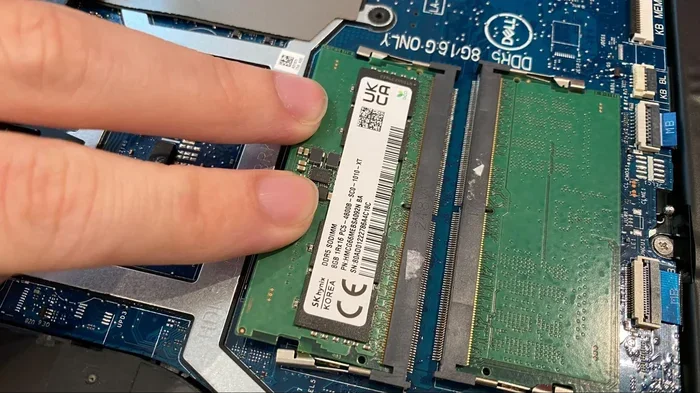
Many laptops allow RAM upgrades. Check your laptop model to see if it has a removable RAM slot. Some machines come with soldered RAM, which cannot be upgraded. Before buying, look up your specific model’s upgrade options. Upgrading is often much cheaper than buying a brand new laptop.
Common Problems and How to Fix Them on 8GB RAM Windows 10
Even with 8GB of RAM, you might run into occasional issues. These are common and usually easy to fix. Let us look at the most frequent problems and their solutions.
Slow Performance After Updates
Windows 10 updates sometimes use extra memory during the installation process. Your laptop may feel slow for a while after an update. Simply restarting your machine usually resolves this. Give it a few minutes after rebooting, and performance should return to normal.
High Memory Usage by Background Processes
Windows 10 runs many background services. Some of these consume more memory than you might expect. To fix this, open Task Manager, sort by memory usage, and identify resource-heavy processes. Right-click and end tasks you do not need running in the background.
Browser Memory Hogging
Chrome and other modern browsers are notorious for eating up RAM. Each tab you open uses memory. If you tend to keep many tabs open, consider using a browser extension like The Great Suspender. It puts inactive tabs to sleep, freeing up memory for active tasks.
RAM Not Showing Full Amount
Sometimes your laptop shows less RAM than you installed. This can happen if you have a 32-bit version of Windows 10. A 32-bit system can only use about 3.2GB of RAM. Make sure you are running the 64-bit version of Windows 10 to use all of your memory. You can check this by going to Settings, then System, then About.
Final Thoughts on Laptop 8GB RAM Windows 10
A laptop 8gb ram windows 10 setup remains one of the best choices for everyday computing. It delivers reliable performance for work, study, entertainment, and light creative tasks. You get a machine that is fast enough for most needs without paying a premium price.
If you are shopping for a new laptop, 8GB of RAM with Windows 10 should be your baseline. It gives you room to grow and handles whatever daily life throws at you. And if you ever need more power, many laptops allow you to upgrade your RAM down the road.
Take some time to optimize your setup using the tips in this guide. Check your RAM usage regularly, close unused apps, and keep your system updated. With the right care, your 8GB RAM Windows 10 laptop will serve you well for years to come.
Remember, the best laptop is the one that fits your needs and your budget. Do not overpay for specs you do not need. And do not underbuy a machine that will hold you back. For most people, the sweet spot is right here: 8GB RAM running Windows 10.
Frequently Asked Questions
Is 8GB RAM enough for Windows 10 in 2024?
Yes, 8GB RAM is still plenty for Windows 10 in 2024 if you are doing everyday tasks like browsing, office work, and streaming. Most users will find 8GB more than adequate for their daily needs.
Can I upgrade the RAM on my laptop myself?
Many laptops allow user-upgradeable RAM. Check your laptop’s manual or look up your model online to see if it has a removable RAM slot. If it does, upgrading is straightforward and affordable.
What happens if my laptop has less than 8GB RAM?
A laptop with 4GB RAM will still run Windows 10, but you may notice slowdowns when multitasking. If you only do basic tasks like web browsing and word processing, 4GB can still work, though 8GB is strongly recommended.
How do I know if my laptop needs more RAM?
Open Task Manager and check the Memory tab. If your usage stays above 80% during normal use, you might benefit from adding more RAM. Sluggish performance and frequent freezing are also signs of insufficient memory.
Does Windows 10 run better with more RAM?
Windows 10 runs smoothly with 8GB of RAM for most users. Adding more RAM beyond that helps mainly with heavy multitasking, professional workloads, and demanding applications like video editing or virtual machines.
Should I buy a laptop with 8GB RAM or 16GB RAM?
Choose 8GB if you do everyday tasks and want to save money. Choose 16GB if you plan to game, edit videos, or run multiple heavy applications at once. For most users, 8GB offers the best value.