How to Upgrade Ram in Laptop
Learning how to upgrade RAM in a laptop is one of the fastest and most affordable ways to breathe new life into a sluggish computer. More RAM means smoother multitasking, faster application loading, and a noticeably better overall experience whether you work, game, or create content. In this guide, we walk you through every step — from checking compatibility to installing your new memory — so you can upgrade your laptop with confidence and save money without hiring a professional.
Key Takeaways
- Check your current RAM first: Know what you have before buying anything new.
- Find your laptop’s max capacity: Not all laptops support the same amount of RAM.
- Match the RAM type exactly: DDR4 won’t work in a DDR3 slot. Always verify.
- Use dual-channel pairs for speed: Two matching sticks outperform one stick significantly.
- Ground yourself before touching components: Static electricity can destroy your laptop’s internals instantly.
- Back up data before upgrading: Hardware work can sometimes cause unexpected issues.
- Test new RAM immediately: Run a memory test to confirm it works properly.
📑 Table of Contents
Why Upgrading Your Laptop RAM Makes a Real Difference
If your laptop feels slow, freezes when you have too many tabs open, or struggles with basic multitasking, the problem might be low RAM. Upgrading your laptop RAM is one of the easiest and most affordable ways to breathe new life into an aging machine. You do not need to be a tech expert. With the right guidance, most people can complete the process in under 30 minutes.
Think of RAM as your laptop’s short-term memory. When you open apps, browse the web, or edit documents, everything lives in RAM temporarily. More RAM means your laptop can handle more tasks at once without slowing down. Whether you are a student, a remote worker, or a casual user, understanding how to upgrade ram in laptop can save you hundreds of dollars compared to buying a new computer.
Before you start, it helps to know what you are working with. You need to check your current memory, find compatible RAM, and follow a few simple steps. This guide walks you through everything clearly and practically.
How to Check Your Current RAM
You should always check your existing memory before buying anything new. You need to know how much RAM you currently have, what type it is, and how many free slots are available. This information saves you money and prevents buying the wrong parts.
Check RAM on Windows
Open the Task Manager by pressing Ctrl + Shift + Esc. Click on the Performance tab, then select Memory. You will see your total RAM, speed, and how many slots are in use. This gives you a quick snapshot of your system’s memory status.
Check RAM on macOS
Click the Apple menu and choose About This Mac. You will see your total memory right on the overview screen. For more detailed information, open the System Information app and look under the Memory section.
Another great way to learn about your system is to visit How To Check Ram In Laptop for detailed guidance on checking your memory specifications across different systems.
How to Upgrade RAM in Laptop: Step by Step
The actual RAM upgrade process is simpler than most people think. Follow these steps carefully, and you will have your new memory installed in no time.
Step 1: Gather Your Tools
You only need a few basic items:
- A small Phillips-head screwdriver
- An anti-static wrist strap (optional but recommended)
- A clean, flat workspace
- Your new compatible RAM module
Step 2: Power Down and Unplug
Turn off your laptop completely. Unplug the power cable and remove the battery if it is removable. This protects both you and your laptop from electrical damage. Hold the power button for a few seconds to discharge any remaining electricity.
Step 3: Open the Back Panel
Flip your laptop over and locate the screws holding the back panel. Use your screwdriver to remove them carefully. Keep the screws in a safe place. Gently pry the panel off using a plastic spudger or your fingernail. Avoid metal tools that could scratch the surface.
Step 4: Locate the RAM Slots
Once the panel is off, you will see the RAM modules. They are long, thin sticks plugged into horizontal slots. If you want to learn more about finding RAM in your specific setup, check out How To Find Ram In Laptop for helpful tips.
Step 5: Remove Old RAM (If Needed)
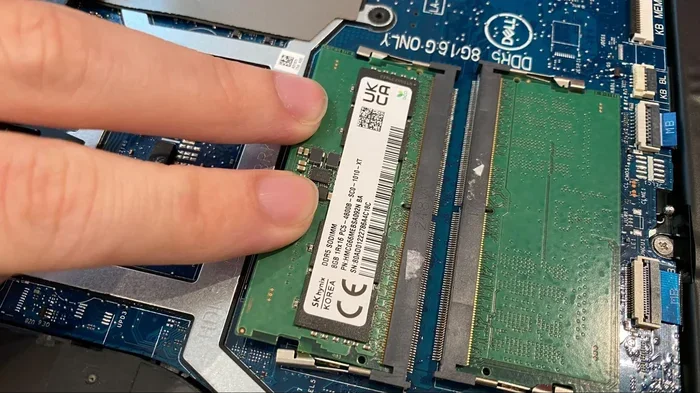
Push the small clips on either side of the RAM stick outward. The module will pop up at an angle. Gently pull it straight out. If you are adding RAM instead of replacing, you can skip this step.
Step 6: Insert the New RAM
Align the notch on the new RAM stick with the ridge in the slot. Press the module firmly into the slot at a 45-degree angle. Push it down until the clips snap into place with a click. Make sure it is fully seated and secure.
For a more detailed walkthrough of the installation process, you can also refer to How To Install Ram In Laptop which covers installation in greater depth.
Step 7: Close Up and Test
Replace the back panel and screw it back in. Reconnect the battery and power cable. Turn on your laptop and check if the system recognizes the new memory. Go back to your system settings to confirm the upgrade was successful.
Choosing the Right RAM for Your Laptop
Not all RAM is the same. Buying the wrong type is the most common mistake people make. Here is what you need to know before purchasing.
DDR3 vs DDR4 vs DDR5
Most modern laptops use DDR4 RAM. Some newer models support DDR5, which is faster and more efficient. Older laptops may still use DDR3. Check your laptop manual or use a system scanner tool to confirm which type you need.
RAM Speed and Frequency
RAM speed is measured in megahertz (MHz). Higher numbers mean faster data transfer. For most users, 3200 MHz is a sweet spot. Gamers and professionals may benefit from faster speeds, but the difference in everyday use is minimal.
Capacity Considerations
Most laptops support between 8GB and 64GB of RAM. For general use, 16GB is the recommended minimum. If you run heavy applications like video editing software or virtual machines, consider going with 32GB or more.
| RAM Type | Best For | Speed Range | Max Capacity |
|---|---|---|---|
| DDR3 | Older laptops (pre-2015) | 1600 – 2133 MHz | Up to 16GB |
| DDR4 | Most modern laptops | 2400 – 3200 MHz | Up to 64GB |
| DDR5 | Latest generation laptops | 4800 – 6400 MHz | Up to 64GB |
Single Channel vs Dual Channel
If your laptop has two RAM slots, installing a pair of matching modules in dual channel mode improves performance. The system can access memory faster when data is split across two sticks. Always try to match the brand, speed, and capacity of your RAM modules.
Common Mistakes to Avoid When Upgrading RAM
Even simple upgrades can go wrong if you are not careful. Here are the mistakes most people make.
- Buying incompatible RAM: Always verify the type, speed, and maximum capacity your laptop supports before purchasing.
- Forcing the RAM stick: If it does not go in easily, you may have the wrong orientation. Do not use excessive force.
- Skipping the grounding step: Static electricity can damage components. Touch a metal surface before handling RAM.
- Not securing the back panel properly: Loose panels can cause rattling and even short circuits.
- Mixing different RAM brands: While it sometimes works, matching brands and specifications ensures the best stability.
If you are concerned about compatibility or want to explore your options, you can also look into How To Expand Ram In Laptop for additional guidance on maximizing your system’s memory potential.
What to Expect After Upgrading Your RAM
Once the installation is complete, you should notice immediate improvements. Apps will launch faster, multitasking will feel smoother, and your laptop will handle demanding tasks with ease. Here is what changes you can expect.
- Faster boot times: Your laptop will start up more quickly.
- Better multitasking: Switch between apps without delays or freezing.
- Improved browser performance: Keep dozens of tabs open without slowdowns.
- Smoother video editing: Render and export files faster.
- Better gaming performance: Reduce lag and stuttering in demanding games.
To learn more about the broader benefits of upgrading your system’s memory, visit How To Upgrade Laptop Ram for expert insights and practical advice.
If you found this guide helpful, you might also want to explore How To Upgrade Ram On Laptop for additional tips and troubleshooting advice specific to different laptop brands and models.
Key Takeaways
Upgrading your laptop RAM is one of the simplest and most cost-effective ways to improve performance. You do not need expensive tools or professional help. Just follow these key points:
- Always check your current RAM and compatible type before buying anything.
- Work on a clean, static-free surface and handle components gently.
- Match your new RAM to your laptop’s specifications for the best results.
- Test your system after installation to confirm everything works correctly.
Whether you are a student juggling multiple apps or a professional running demanding software, a RAM upgrade can transform your daily computing experience. It is a quick project with lasting benefits. Take the time to do it right, and your laptop will thank you for it.
Frequently Asked Questions
How to Upgrade RAM in Laptop?
First, check your laptop’s manual or use a tool like Crucial’s scanner to confirm compatibility. Then, power off the laptop, remove the back panel, locate the RAM slots, and gently insert the new module at a 45-degree angle until it clicks. Finally, reassemble and boot up to verify the upgrade worked.
How Much RAM Do I Need for Better Performance?
For everyday tasks like browsing and office work, 8GB is usually enough. If you run demanding apps or multitask heavily, 16GB offers a noticeable boost. Power users and gamers should aim for 32GB to future-proof their setup.
Can I Upgrade My Laptop RAM Myself?
Yes, upgrading laptop RAM is one of the easiest DIY projects you can tackle. You just need a small screwdriver, an anti-static wrist strap, and about 15 minutes of your time. Just make sure you buy the right type and size of RAM for your specific model.
What Type of RAM Do I Need for My Laptop?
The RAM type depends on your laptop’s age and model — common types include DDR4 and DDR5 SODIMM modules. You can find this information in your laptop’s specifications or by using a free system info tool. Always match the speed and voltage listed by your manufacturer.
How Do I Know If My Laptop RAM Is Upgradeable?
Check your laptop’s user manual or the manufacturer’s website for memory upgrade details. Some ultrabooks have soldered RAM that cannot be replaced. You can also open the back panel to see if there is an empty RAM slot available for an upgrade.
How Can I Check My Current RAM Before Upgrading?
On Windows, press Ctrl + Shift + Esc to open Task Manager and go to the Performance tab. On a Mac, click the Apple menu and select About This Mac. This will show you your current RAM size, type, and speed so you know exactly what to buy.