How Increase Ram in Laptop
Want to increase RAM in your laptop and make it faster? This guide shows you how to check your current memory, when to upgrade laptop RAM, and step-by-step installation tips. Whether you’re a beginner or a pro, you’ll learn everything about laptop RAM upgrade and adding more memory to speed up your device.
Key Takeaways
- Check first: Always verify your laptop’s current RAM and upgrade limits before buying new memory.
- Compatibility matters: Not all laptops support RAM upgrades. Some have soldered memory that cannot be replaced.
- 8GB is the minimum: For most users in 2024, at least 8GB of RAM is recommended for smooth daily use.
- DIY is possible: Most laptop RAM upgrade tasks are simple enough to do at home with basic tools.
- Dual-channel helps: Matching RAM sticks in pairs can improve performance more than a single stick.
- SSD + RAM combo: Pairing a RAM upgrade with an SSD swap delivers the biggest speed boost.
📑 Table of Contents
- How to Increase RAM in Laptop: A Complete Guide
- Why You Need More RAM in Your Laptop
- How to Check Your Current RAM
- Can Your Laptop Support a RAM Upgrade?
- How Much RAM Do You Actually Need?
- How to Increase RAM in Laptop: Step-by-Step Installation
- Tips for a Successful RAM Upgrade
- Common Mistakes When Upgrading Laptop RAM
- When Should You Upgrade Your Laptop RAM?
- How to Increase RAM in Laptop: Quick Tips Summary
- Conclusion
How to Increase RAM in Laptop: A Complete Guide
Is your laptop running slow? Do apps take forever to load? The problem might be insufficient RAM. Learning how to increase RAM in laptop is one of the easiest and most affordable ways to breathe new life into your device. Whether you’re browsing the web, editing photos, or playing games, more memory means smoother performance.
In this guide, we’ll walk you through everything. You’ll learn how to check your current RAM, find out if your laptop supports an upgrade, pick the right memory, and install it yourself. No tech degree required. Let’s get started.
Why You Need More RAM in Your Laptop
RAM stands for Random Access Memory. It’s your laptop’s short-term memory. When you open apps, browse tabs, or run programs, RAM holds all that data so your processor can access it quickly. More RAM means more apps can run at the same time without slowing down.
Here’s why upgrading your laptop memory matters:
- Faster multitasking — Switch between apps without lag.
- Smoother browsing — Open more tabs without crashes.
- Better gaming performance — Games run more fluidly.
- Quicker file editing — Photo and video editing becomes faster.
- Longer laptop lifespan — Delay the need for a new device.
If your laptop struggles with basic tasks, a RAM upgrade can make a huge difference. It’s often cheaper than buying a whole new machine.
How to Check Your Current RAM
Before you upgrade, you need to know what you’re working with. Checking your current laptop RAM is quick and easy. Here are a few methods.
Use Task Manager (Windows)
Right-click the taskbar and select Task Manager. Go to the Performance tab. Click on Memory. You’ll see your total RAM and how much is currently in use. This also shows how many memory slots are available.
Use System Information
Press Windows + R, type msinfo32, and hit Enter. Look for “Installed Physical Memory.” This tells you exactly how much RAM your laptop has.
Use Command Prompt
Open Command Prompt and type wmic memorychip get capacity. This shows the capacity of each memory stick installed. It’s handy for checking if you have one or two sticks.
For a more detailed look, you can also check RAM in laptop using built-in Windows tools or third-party software like CPU-Z. These tools show RAM speed, type, and slot information too.
Can Your Laptop Support a RAM Upgrade?
Not every laptop allows RAM upgrades. This is the first thing you need to figure out. Some modern laptops have soldered RAM that’s permanently attached to the motherboard. Others have accessible memory slots.
Types of Laptop RAM Configurations
- Replaceable RAM — Standard laptops with accessible SO-DIMM slots. Easy to swap out.
- Soldered RAM — Memory is glued onto the motherboard. Cannot be upgraded.
- Partial soldering — Some memory is soldered, with one slot available for upgrade.
To find out your laptop’s configuration, check the manufacturer’s specs online. You can also open the laptop’s back panel and physically inspect the memory area. If you see a removable stick held by small clips, your laptop supports an upgrade. If there are no slots at all, the RAM is soldered.
MacBooks from recent years, for example, often have soldered memory. Many budget Windows laptops still allow upgrades. When in doubt, search for your specific laptop model and “RAM upgrade capability.”
How to Find Out Your Laptop’s Maximum RAM
Even if your laptop supports upgrades, it has a maximum capacity. Most budget laptops support up to 16GB or 32GB. Gaming laptops may go up to 64GB. Check your laptop manufacturer’s website for the official maximum memory specification.
How Much RAM Do You Actually Need?
This depends on how you use your laptop. Here’s a simple breakdown to help you decide how much RAM you need on your laptop:
| Usage Type | Recommended RAM |
|---|---|
| Web browsing and office work | 8GB minimum |
| Photo editing and light gaming | 16GB recommended |
| Video editing and heavy gaming | 32GB recommended |
| Professional workloads (3D rendering, coding) | 32GB to 64GB |
For most everyday users, 8GB is the minimum in 2024. If you’re on 4GB, you’ll definitely notice a boost by upgrading to 8GB or 16GB. Power users should aim for at least 16GB, while creative professionals benefit greatly from 32GB.
If you’re unsure about your needs, consider this: more RAM is never wasted. Even if you don’t use it all today, future apps and updates will demand more memory over time.
You can also learn more about RAM requirements by reading our detailed guide on how much RAM do I need on a laptop for specific use cases.
How to Increase RAM in Laptop: Step-by-Step Installation
Now for the exciting part — actually upgrading your memory. Here’s a detailed walkthrough for how to install RAM in laptop safely.
Step 1: Gather Your Tools and Materials
- New RAM stick(s) compatible with your laptop
- Phillips-head screwdriver (small)
- Anti-static wrist strap (optional but recommended)
- Clean, flat workspace
- Your laptop’s manual or online specs
Step 2: Back Up Your Data
Before touching any hardware, back up your important files. While RAM installation rarely causes data loss, it’s always smart to be safe. Use an external drive or cloud storage.
Step 3: Power Off and Unplug
Shut down your laptop completely. Disconnect the charger and any peripherals. Remove the battery if your laptop has a removable one. This prevents electrical damage.
Step 4: Open the Back Panel
Use your screwdriver to remove the screws on the laptop’s underside. Keep them in a safe place — a small bowl works great. Gently lift off the back panel. Some laptops have clips instead of screws. Use a plastic spudger to release them carefully.
Step 5: Locate the RAM Slots
Look for the memory sticks. They’re usually rectangular and secured by small metal clips on each side. If you’re unsure, check your laptop manual or search for a video guide specific to your model.
Step 6: Remove the Old RAM (If Replacing)
Gently push the clips on both sides outward. The RAM stick will pop up at an angle. Pull it out carefully. Don’t touch the gold contacts on the bottom — oils from your fingers can damage them.
Step 7: Install the New RAM
Take your new stick and align the notch on the bottom with the slot’s key. Insert it at roughly a 30-degree angle. Press it down firmly until it clicks. Push the stick flat and secure the clips on both sides. Make sure they lock in place snugly.
Step 8: Close and Test
Replace the back panel and screws. Reconnect the battery and charger. Power on your laptop. Go to Task Manager or System Information to verify the new RAM is recognized. If your laptop shows the upgraded amount, you’re all set!
Need more visual guidance? Check our step-by-step guide on how to install RAM in laptop for detailed photos and tips.
Tips for a Successful RAM Upgrade
Match Your RAM Sticks
For best performance, use matching RAM sticks. This means the same brand, speed, size, and ideally the same model number. Matching pairs enable dual-channel mode, which improves data transfer speeds significantly.
Know Your RAM Type
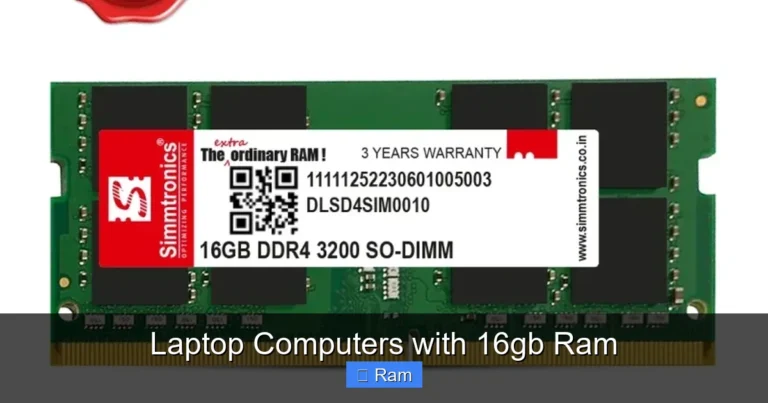
Laptops use SO-DIMM sticks, not the full-size DIMMs from desktops. Also, check whether your laptop needs DDR4 or the newer DDR5 memory. Mixing DDR4 and DDR5 will not work. Your laptop’s manual or manufacturer website will specify the exact type.
Ground Yourself
Static electricity can fry computer components. Touch a metal surface before handling RAM. An anti-static wrist strap is a great investment for any DIY hardware work.
Don’t Force Anything
If a stick won’t slide in, double-check the alignment. Forcing it can break the slot or damage the stick. Patience prevents costly mistakes.
Update Your BIOS
Sometimes, a BIOS update is needed for the laptop to recognize new RAM properly. Check your laptop manufacturer’s support page for the latest BIOS version before installing.
Common Mistakes When Upgrading Laptop RAM
Even simple upgrades can go wrong. Here are pitfalls to avoid:
- Buying incompatible RAM — Always verify type, speed, and capacity before purchasing.
- Forgetting to ground yourself — Static damage is invisible but deadly.
- Not seating the RAM fully — A partially inserted stick causes boot failures or instability.
- Mixing too different speeds — If mixing speeds, all sticks will run at the slower speed.
- Skipping the backup step — Always protect your data first.
- Overlooking soldered RAM limits — If your laptop has soldered memory, adding a stick in the free slot is your only option.
When Should You Upgrade Your Laptop RAM?
Here are clear signs that a laptop RAM upgrade is overdue:
- Your laptop takes ages to open programs.
- You get “out of memory” errors frequently.
- Browser tabs refuse to load or crash regularly.
- Your system freezes during routine tasks.
- Task Manager shows memory usage above 80% consistently.
- You just can’t fit everything in your workflow with current capacity.
If several of these apply, don’t wait. A RAM upgrade delivers instant, noticeable improvement. Combined with an SSD upgrade, it’s the most impactful hardware change you can make for a slow laptop.
Expert Insight: RAM vs. Other Upgrades
Tech experts often say: RAM first, SSD second, CPU last. Why? Because RAM directly affects multitasking. An SSD improves boot and load times. But if your RAM is maxed out, even the fastest processor will bottleneck. Prioritize memory when budget is tight.
However, if your laptop is several years old and has a traditional hard drive, swapping to an SSD might give you the biggest immediate feel-good boost. Ideally, do both at the same time.
How to Increase RAM in Laptop: Quick Tips Summary
- Check current specs before buying anything.
- Verify compatibility — DDR4, DDR5, SO-DIMM, correct speed.
- Buy from reputable brands — Crucial, Kingston, Corsair, Samsung.
- Install in pairs for dual-channel performance gains.
- Test after installation to confirm the system recognizes the new RAM.
- Keep your receipts — Returns are easier if something doesn’t work.
Conclusion
Learning how to increase RAM in laptop is a valuable skill that saves you money and frustration. A simple memory upgrade can transform a sluggish laptop into a responsive machine that handles modern apps with ease. From checking your current specs to picking compatible sticks and installing them safely, every step is manageable at home.
Remember to always verify compatibility, ground yourself against static, and back up your data before starting. If you follow this guide, you’ll have more memory and a faster laptop in under an hour. Don’t settle for a slow device — take control and boost your laptop’s performance today.
Frequently Asked Questions
How do I know if my laptop RAM can be upgraded?
Check your laptop manufacturer’s website for specs, or physically open the back panel and look for removable memory slots. If you see SO-DIMM slots with clips, your laptop supports an upgrade. If there are no slots, the RAM is likely soldered and cannot be changed.
What’s the difference between DDR4 and DDR5 RAM for laptops?
DDR5 is the newer standard offering faster speeds and better power efficiency than DDR4. However, they are not interchangeable — your laptop’s motherboard supports one or the other, not both. Always confirm which type your laptop requires before purchasing.
Can I mix different RAM sizes in my laptop?
Yes, you can mix sizes like 8GB and 16GB, but all sticks will run at the speed of the slower one. For best results, use identical sticks in matching slots to enable dual-channel mode and get optimal performance.
Is it safe to upgrade RAM in a laptop by myself?
Absolutely. Most laptop RAM upgrades are simple and require just a small screwdriver. Just make sure to power off, unplug, and ground yourself to prevent static damage. If you’re nervous, a YouTube video for your specific model helps a lot.
How much does a laptop RAM upgrade cost?
A standard 16GB DDR4 SO-DIMM stick typically costs between $25 and $50, depending on the brand and speed. DDR5 sticks are slightly more expensive. Overall, it’s one of the most budget-friendly hardware upgrades you can do.
Will adding more RAM speed up my laptop?
If your laptop is currently running low on memory, adding more RAM will definitely improve speed and responsiveness. However, if you already have enough RAM for your tasks, adding more won’t provide noticeable benefits. A RAM upgrade is most impactful when your current capacity is the bottleneck.