What Is a Good Ram for a Laptop

Choosing good RAM for a laptop means matching capacity, type, and speed to your specific tasks. For most users, 16GB of DDR4 or DDR5 RAM is the sweet spot for smooth multitasking and future-proofing. Always check your laptop’s maximum supported RAM and whether the memory is upgradeable before purchasing.
You’re staring at a laptop spec sheet, and there it is: RAM. Random Access Memory. It’s the short-term memory your laptop uses to run everything—your operating system, browser tabs, applications, and games. But what actually constitutes a good RAM for a laptop? It’s not just about throwing the biggest number you see at the problem. Choosing the right RAM is about understanding a delicate balance between capacity, type, speed, and your laptop’s own limitations. Get it wrong, and you’ve wasted money. Get it right, and you unlock a smoother, faster, and more capable machine. Let’s break it down, friend to friend.
First, let’s kill a myth right now: more RAM is almost always better, but only up to a point. If you’re browsing the web with ten tabs and a word processor open, 32GB of RAM is like buying a moving truck to carry a backpack. It’s overkill. Conversely, trying to edit a 4K video with 4GB of RAM is like trying to carry that backpack while running a marathon—it’s simply not going to end well. The goal is to find the Goldilocks zone: not too little, not too much, but just right for your needs. And to find that zone, we need to speak the language of RAM.
Key Takeaways
- RAM Capacity is Primary: For general use, 8GB is the absolute minimum; 16GB is the recommended sweet spot for most users today; 32GB+ is for heavy professional workloads.
- DDR Generation Matters: DDR5 is the latest standard, offering better performance and efficiency, but DDR4 is still highly capable and often more affordable. Your laptop’s motherboard dictates which you can use.
- Speed (MHz) Has Limits: Higher RAM speeds (e.g., 3200MHz vs 2666MHz) provide minor performance gains in specific tasks like gaming and content creation, but capacity upgrades almost always offer a bigger real-world improvement.
- Upgradeability is Key: Many modern laptops have soldered RAM. Check if your model has accessible SO-DIMM slots before planning an upgrade. If all RAM is soldered, you’re locked into your initial configuration.
- Dual-Channel is Ideal: Using two matching sticks of RAM (e.g., 2x8GB) enables dual-channel mode, significantly boosting performance across the board compared to a single stick (1x16GB).
- Latency (CL) is Secondary: Lower CAS Latency (CL) numbers are better, but the difference between, say, CL16 and CL18 is often negligible in everyday laptop use compared to the impact of capacity or DDR generation.
- Brand and Warranty: Buy from reputable brands (Crucial, Corsair, G.Skill, Kingston) with good warranties. For laptops, compatibility is king—use the manufacturer’s tools or trusted configurators to find guaranteed compatible RAM.
📑 Table of Contents
- Understanding the ABCs: What RAM Actually Is
- DDR4 vs. DDR5: The Generation Gap
- How Much RAM Do You Actually Need? The Capacity Breakdown
- RAM Speed (MHz) and Latency (CL): The Fine Print
- The Golden Rule: Dual-Channel vs. Single-Channel
- How to Choose & Upgrade: A Step-by-Step Guide
- Future-Proofing and Final Recommendations
Understanding the ABCs: What RAM Actually Is
Think of your laptop’s SSD or hard drive as a massive warehouse. It stores all your files, programs, and the operating system permanently. But when you want to do something—open a photo, launch a game, type a document—the CPU can’t work directly with that slow warehouse storage. It needs a fast, accessible workspace. That’s RAM. It’s a series of memory chips that hold all the active data and instructions the CPU needs right now. The more RAM you have, the bigger that workspace is, and the more things you can have “on the table” for the CPU to work on instantly without constantly running back and forth to the slow warehouse.
The Crucial Difference: Soldered vs. Slot-Based RAM
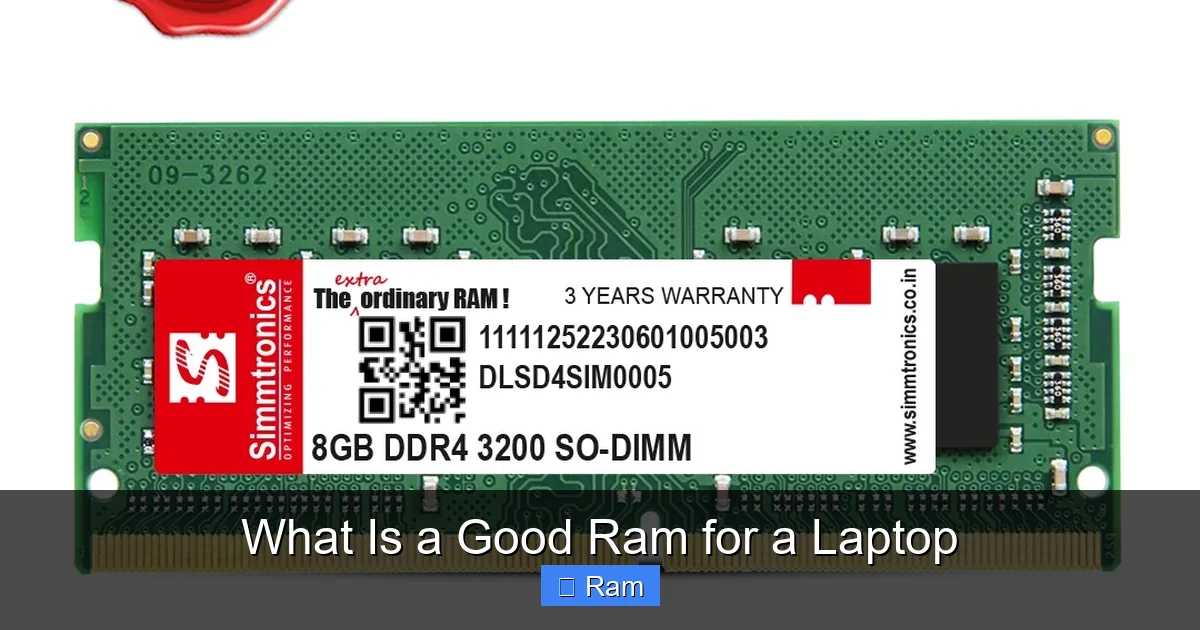
Before we talk numbers, we must talk about physical form. Laptop RAM, called SO-DIMM (Small Outline Dual In-line Memory Module), comes in two installation scenarios:
- Upgradeable (Slot-Based): The RAM sticks are plugged into accessible slots under a panel on the laptop’s bottom. You can open it up, swap the sticks, and upgrade. This is becoming rarer but is still common in many business laptops, gaming laptops, and older models.
- Soldered: The RAM chips are permanently welded onto the motherboard. You cannot upgrade or replace them. This allows for thinner, lighter laptop designs but locks you into the RAM capacity you bought at the factory. This is now the norm for most ultrabooks and modern consumer laptops.
Why this matters: Knowing if your laptop has upgradeable RAM is the single most important first step. If it’s all soldered, your “good RAM” choice was made the day you bought it. You can’t change it. You must focus on optimizing everything else. If you have slots, you have a path to a performance boost later.
DDR4 vs. DDR5: The Generation Gap
This is the big current debate. DDR (Double Data Rate) is the technology standard. The number after it indicates the generation. As of 2024, DDR4 and DDR5 are the relevant players for laptops.
Visual guide about What Is a Good Ram for a Laptop
Image source: komlap.id
DDR4: The Trusted Workhorse
DDR4 has been the dominant standard for nearly a decade. It’s mature, widely available, and cost-effective. For a vast majority of users, a good RAM for a laptop based on DDR4 is perfectly fantastic. Speeds typically range from 2133MHz to 3200MHz in laptops. Its power efficiency is good, and it powers millions of capable machines. If you’re buying a laptop today that uses DDR4, don’t feel shortchanged—it’s still an excellent performer for general use, office work, and even many gaming scenarios.
DDR5: The New Standard with Promise
DDR5 is the successor, bringing higher base speeds (starting around 4800MHz), improved power efficiency, and a doubled burst length. In theory, it’s a significant leap. In practice, for laptop use, the real-world performance difference between fast DDR4 and standard DDR5 in everyday tasks is often minimal. Where you’ll see a benefit is in specific, memory-bandwidth-intensive workloads like high-resolution video editing, 3D rendering, and some simulation software. For gaming, the GPU is usually the bigger bottleneck, though the latest titles with “Resizable BAR/SAM” support can leverage faster DDR5. The key takeaway: DDR5 is the future and is great, but don’t overpay for it if your laptop’s CPU/GPU can’t utilize the extra bandwidth. A good RAM for a laptop with a last-gen Intel or AMD processor might be better served by faster DDR4.
Compatibility is Non-Negotiable
Here’s the hard rule: your laptop’s chipset and CPU determine which DDR generation it supports. You cannot put DDR5 RAM into a laptop designed for DDR4, and vice versa. You must check your laptop’s specifications or use a tool like Crucial’s System Scanner to know for sure. Mixing and matching generations is impossible.
How Much RAM Do You Actually Need? The Capacity Breakdown
This is the heart of the question. Let’s segment by user type. Remember, these are general guidelines for a good RAM for a laptop in 2024 and beyond.
Casual Users & Students (Web, Office, Media)
Minimum: 8GB | Recommended: 16GB
If your laptop is primarily for web browsing (10-20 tabs), streaming video, Microsoft Office/Google Docs, and light photo viewing, 8GB is the absolute bare minimum you should consider today. It will work, but you may feel slowdowns with many browser tabs open. 16GB is the new “good” standard here. It provides ample headroom for smooth multitasking, keeps your browser zippy with dozens of tabs, and ensures your laptop feels fast for years. It’s the best value-for-money capacity for most people.
Professionals & Content Creators (Multitasking, Medium Workloads)
Recommended: 16GB | Ideal: 32GB
If you run multiple applications simultaneously—think a design tool like Figma, a dozen Chrome tabs, Slack, Spotify, and a PDF—16GB is your starting point. For serious content creation (1080p/1440p video editing, working with large Photoshop files, music production with many tracks), 32GB becomes the mark of a good RAM for a laptop in this category. It prevents frustrating slowdowns when scrubbing through timelines or applying filters, allowing you to stay in your creative flow.
Gamers & Enthusiasts
Sweet Spot: 16GB | High-End: 32GB+
For 1080p and 1440p gaming, 16GB of fast RAM (DDR4-3200 or DDR5-5200+) is the proven sweet spot. It’s enough for virtually all current games. 32GB is where you start for 4K gaming, playing while streaming, or running extremely demanding simulation games (like *Microsoft Flight Simulator* with extensive mods) or modded open-world games. The GPU and CPU are still more critical, but insufficient RAM will cause stuttering and hitches no matter how good your graphics card is.
Developers, Engineers, Data Scientists
Recommended: 32GB | Common: 64GB+
Running virtual machines, local development servers, large datasets, or complex IDEs (like Android Studio) is brutally memory-hungry. Here, a good RAM for a laptop starts at 32GB and quickly scales to 64GB or 128GB for professional workstations. If you’re in this field, you likely already know your specific application’s requirements. The rule is simple: buy as much as your budget and laptop allow.
RAM Speed (MHz) and Latency (CL): The Fine Print
Once you’ve settled on capacity and DDR generation, you’ll see specs like “DDR4-3200 CL16” or “DDR5-5600 CL40.” The number before “DDR” is the speed in megatransfers per second (MT/s), often marketed as MHz. The “CL” is the CAS Latency, a measure of delay.
Visual guide about What Is a Good Ram for a Laptop
Image source: simmtronics.co.in
Does RAM Speed Actually Matter for Laptops?
In a word: sometimes, but less than you think. Higher MHz means more data can be transferred per second. In memory-sensitive games and professional apps, this can equate to a few extra frames per second or faster render times. However, the performance jump from, say, 2666MHz to 3200MHz is noticeable, but the jump from 3200MHz to 4000MHz is often much smaller, especially on laptops where the CPU and GPU have their own internal limits. For general use, you will not feel the difference between a 2666MHz and a 4800MHz kit. Your money is almost always better spent on increasing capacity first.
Understanding Latency (CL)
Latency is the delay between the RAM receiving a command and executing it. A lower CL number is better (CL16 is faster than CL18). However, latency and speed are intertwined. A faster kit (higher MHz) often has a slightly higher CL number, but the higher clock speed can offset the latency increase. For example, DDR4-3200 CL16 and DDR4-3600 CL18 have very similar real-world timings. For a laptop, don’t stress over CL16 vs. CL18. Prioritize capacity and the correct DDR generation.
The Golden Rule: Dual-Channel vs. Single-Channel
This is a critical, often overlooked performance factor. Most laptop CPUs support dual-channel memory mode. To activate it, you must have two identical RAM sticks (same capacity, speed, and timings) installed in the appropriate slots.
Why Dual-Channel is a Must
Dual-channel mode effectively doubles the data bandwidth between the RAM and the memory controller. The performance uplift is significant and consistent across almost all tasks—gaming, productivity, even boot times. You can expect a 10-30% performance increase in many applications simply by using two sticks instead of one.
The Practical Implication
This means that 2x8GB is almost always a better choice than 1x16GB, provided your laptop has two slots. The dual-channel benefit of two 8GB sticks will make your laptop feel faster than a single 16GB stick, even though the total capacity is the same. Only opt for a single stick if you have only one slot available and need to maximize capacity for future expansion (e.g., putting a 32GB stick in a single slot). For a good RAM for a laptop with two slots, always go for a matched pair kit (often sold as “dual-channel kit” or “2x8GB”).
How to Choose & Upgrade: A Step-by-Step Guide
Now, let’s put it all together into an action plan.
Step 1: Diagnose Your Current Situation
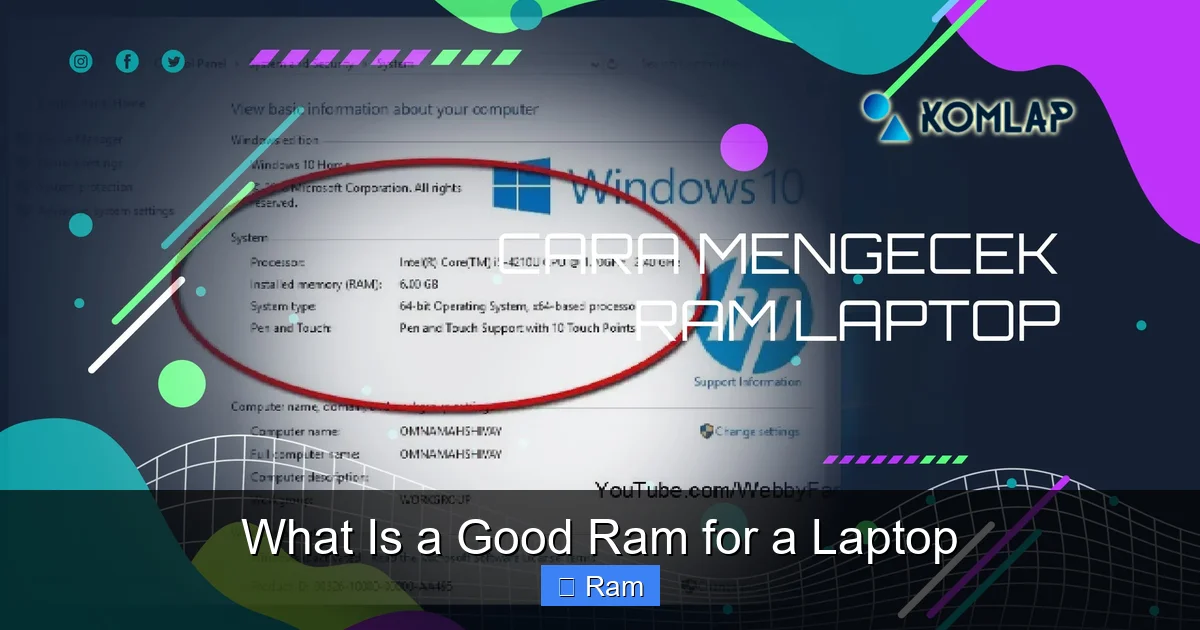
Before you buy anything, know what you have. On Windows, press Ctrl+Shift+Esc to open Task Manager, go to the “Performance” tab, and click “Memory.” Here you’ll see:
- In use (Committed): How much RAM is currently being used.
- Speed: Its current clock speed (e.g., 3200MHz).
- Form factor: It will say “SO-DIMM.”
- Hardware reserved: Some RAM is used by the GPU (if it’s integrated) and system. This is normal.
If you consistently see your memory usage over 80% during normal use, an upgrade is likely needed.
Step 2: Research Your Laptop Model’s Limits
This is the most important step. You need to find:
- Maximum Supported RAM: The absolute maximum capacity your laptop’s motherboard/CPU can handle (e.g., 64GB). This is a hard limit.
- Number of Slots: Does it have one or two SO-DIMM slots? If it has one slot and it’s occupied, you must replace the existing stick.
- Supported DDR Generation & Speeds: What type (DDR4/DDR5) and what speeds are officially supported? The CPU often dictates this.
How to find this: Search for your exact laptop model number (found on a sticker on the bottom) + “specifications” or “upgrade guide.” The manufacturer’s support page is the best source. Also, community forums for your specific model are invaluable for real-world upgrade experiences.
Step 3: Buy the Right Kit
Armed with the info above, you can shop. Use a configurator from a major brand like Crucial or Kingston. They have databases that filter by laptop model and show only guaranteed compatible RAM. When choosing:
- Match the DDR generation exactly.
- For two slots, buy a matched pair (2x kit).
- Speed: Buy the fastest speed your laptop’s CPU officially supports or the highest speed within a reasonable price premium. For DDR4, 3200MHz is the sweet spot. For DDR5, 5600-6400MHz is common.
- Capacity: Based on your needs from the section above.
Step 4: The Installation (If Possible)
If your laptop has an accessible panel, upgrading RAM is one of the easiest DIY laptop repairs. Power off, unplug, remove the battery if possible (many are internal now), and unscrew the panel. The RAM slots are easy to identify—they have little clips on the side. To remove a stick, gently pry the clips outward; the stick will pop up at an angle. To insert a new stick, align the notch, insert it at the same angle, and press down firmly until the clips snap into place. Reassemble. That’s it! If you’re uncomfortable, a local repair shop can do it for a small fee.
Future-Proofing and Final Recommendations
A “good RAM for a laptop” isn’t just about today; it’s about tomorrow. Software and operating systems become more demanding over time. That 8GB that feels fine today might feel cramped in three years with newer versions of Windows and Chrome. Therefore, when in doubt, err on the side of slightly more capacity. The price of RAM is relatively low compared to the cost of a new laptop.
Here is a consolidated, simple buying guide for 2024:
- For the average user (web, office, media): 16GB of DDR4-3200 or DDR5-5200. This is the undisputed sweet spot. It’s affordable, widely available, and provides excellent longevity.
- For gamers and creative pros: 16GB (minimum) or 32GB of fast DDR4/DDR5. Aim for a matched 2x8GB or 2x16GB kit to enable dual-channel. Prioritize capacity first, then speed.
- For extreme workloads (VM, 4K editing, simulation): 32GB as a starting point, 64GB for comfort. Here, speed and latency matter more, but only after ensuring you have the maximum capacity your laptop supports.
Final Pro Tip: If your laptop has soldered RAM and comes with 8GB, it’s often not worth buying the machine for heavy tasks. Look for models with at least 16GB soldered or, better yet, with upgradeable slots. The ability to upgrade is a huge asset in a laptop’s long-term value.
In the end, a good RAM for a laptop is the one that eliminates “waiting” from your workflow. It’s the silent partner that lets your CPU and GPU do their best work without bottlenecks. By understanding your needs, respecting your laptop’s limits, and making a smart, balanced choice between capacity, generation, and speed, you can ensure your laptop feels fast and responsive for years to come. Don’t overcomplicate it. For most, 16GB of the correct type is the answer. Now, go check your laptop’s specs and see what’s possible!
Frequently Asked Questions
Can I add more RAM to my laptop if some of it is soldered?
Yes, often. Many laptops have a combination: a small amount of RAM (e.g., 4GB or 8GB) soldered to the motherboard plus one or two empty SO-DIMM slots. You can add a stick to the empty slot(s) to increase total capacity. Check your laptop’s manual or teardown videos online to confirm your specific model’s configuration.
Is 32GB of RAM overkill for a laptop in 2024?
For general web browsing, office work, and 1080p gaming, yes, 32GB is overkill. 16GB is the sweet spot. However, for 1440p/4K gaming, streaming, video editing, 3D work, or running virtual machines, 32GB is becoming the new recommended standard for a smooth, future-proof experience.
What’s the real-world difference between DDR4 and DDR5 in a laptop?
For everyday tasks like web browsing and office apps, the difference is negligible. In memory-intensive games and professional applications (video editing, rendering), DDR5 can provide a 5-15% performance uplift due to higher bandwidth. However, this benefit is only realized if the laptop’s CPU and GPU can utilize that extra bandwidth.
How do I find out what type and speed of RAM my laptop currently has?
On Windows, open Task Manager (Ctrl+Shift+Esc), go to the Performance tab, and select Memory. It will show the speed (e.g., 3200 MHz) and form factor (SO-DIMM). For the exact type (DDR4 vs. DDR5) and detailed timings, you can use a free system information tool like CPU-Z and check the Memory tab.
Does RAM speed matter more than capacity for gaming?
No. Capacity is almost always the priority. Gaming with 8GB of RAM will perform far worse than gaming with 16GB of slower RAM, due to constant stuttering from lack of memory. Once you have sufficient capacity (16GB for most games), then faster RAM (higher MHz) can provide a small additional boost in some titles, especially when paired with AMD’s Ryzen CPUs or with Resizable BAR enabled.
Should I buy a single 16GB stick or two 8GB sticks?
If your laptop has two RAM slots, always choose two 8GB sticks. This enables dual-channel mode, which provides a significant performance increase (often 10-30%) across all tasks compared to a single 16GB stick running in single-channel mode. Only use a single stick if you have only one slot available.