Ddr4 8 Gb Laptop Ram

DDR4 8 GB laptop RAM remains one of the most popular and practical memory choices for everyday computing. It delivers reliable performance for web browsing, streaming, office work, and light multitasking without breaking the bank. In this guide, you will learn how this memory type works, how to check compatibility, and whether upgrading is the right move for your laptop.
Key Takeaways
- DDR4 8 GB laptop RAM is ideal for everyday tasks like browsing, streaming, and office work.
- DDR4 speed ranges from 2133 MHz to 3200 MHz, and higher speeds improve performance noticeably.
- Not all laptops support DDR4 RAM, so always check your laptop’s specifications before upgrading.
- Upgrading to 8 GB of RAM from 4 GB can dramatically improve multitasking and app responsiveness.
- Dual-channel memory configurations can boost bandwidth and overall system speed.
- For gaming or video editing, you may need more than 8 GB, such as 16 GB or 32 GB.
- Always match your RAM type (DDR4) and form factor (SO-DIMM) to your laptop’s motherboard.
📑 Table of Contents
- What Is DDR4 8 GB Laptop RAM?
- How DDR4 8 GB RAM Affects Your Laptop Performance
- DDR4 8 GB Laptop RAM vs Other RAM Options
- How to Check If Your Laptop Supports DDR4 8 GB RAM
- How to Upgrade to DDR4 8 GB Laptop RAM
- Common Mistakes When Choosing DDR4 8 GB Laptop RAM
- Expert Insights on DDR4 8 GB Laptop RAM
- Quick Tips for Getting the Most Out of DDR4 8 GB Laptop RAM
- Conclusion
What Is DDR4 8 GB Laptop RAM?
Let’s start with the basics. DDR4 8 GB laptop RAM is a type of computer memory that stores temporary data your laptop needs to run programs. DDR4 stands for Double Data Rate version 4. It is the fourth generation of DDR memory technology used in modern laptops and desktops.
The “8 GB” part tells you how much data the memory can hold at one time. Think of it like a desk. The bigger the desk, the more papers you can spread out at once. With 8 GB, you have plenty of room to work with for most daily tasks. If you want to dig deeper into this topic, check out our detailed guide on 8 GB RAM for laptops to understand all the ins and outs.
Understanding DDR4 Technology
DDR4 replaced DDR3 back around 2014. It brought several important improvements. First, it runs at a lower voltage. DDR4 uses 1.2 volts compared to DDR3’s 1.5 volts. That means less power consumption and less heat. Your laptop battery lasts a little longer, and it runs cooler too.
Second, DDR4 offers higher data transfer rates. DDR3 typically topped out at 1600 MHz. DDR4 starts at 2133 MHz and goes well beyond 3200 MHz. Faster speeds mean your laptop moves data quicker between the memory and the processor. This translates to snappier performance in everyday use.
DDR4 also uses a different physical connector than DDR3. The pins are shaped differently, so you cannot accidentally install the wrong type. This is a small detail, but it matters a lot when you are shopping for memory. For more on how 8 GB fits into the bigger picture, our article on 8 GB RAM in laptops covers everything you need to know.
Why 8 GB Is the Sweet Spot
For many laptop users, 8 GB hits the sweet spot between cost and capability. It is enough to run Windows 10 or Windows 11 comfortably. You can open multiple browser tabs, stream music, and work in Microsoft Office without slowdowns. It also handles light photo editing and casual gaming well.
The reason 8 GB became so popular is simple. Most operating systems and everyday apps need at least 4 GB just to run. Adding another 4 GB gives you breathing room for multitasking. That is why so many laptops ship with 8 GB of RAM as a standard configuration.
How DDR4 8 GB RAM Affects Your Laptop Performance
RAM directly impacts how smoothly your laptop runs. More and faster RAM means your processor gets data faster. When your laptop has enough memory, everything feels snappier. Let’s look at the specific ways DDR4 8 GB laptop RAM shapes your day-to-day experience.
Speed and Bandwidth Matter
DDR4 memory speeds are measured in megahertz (MHz). Common speeds include 2133 MHz, 2400 MHz, 2666 MHz, and 3200 MHz. Higher MHz means more data moves per second. This is called bandwidth. Think of it like a highway. A wider highway lets more cars pass through at once.
For most users, 2666 MHz or 3200 MHz provides a noticeable boost. The difference between 2133 MHz and 3200 MHz may feel subtle during basic tasks. But if you multitask heavily or work with larger files, the higher speed makes a real difference. The key is making sure your laptop’s processor and motherboard support the speed you choose.
Real-World Performance Benefits
Here is what you can expect with DDR4 8 GB laptop RAM in everyday use:
- Faster app launches. Programs open quicker because data loads from RAM instead of the slower hard drive.
- Smoother multitasking. Switch between browser tabs, documents, and media without lag.
- Better browser performance. Chrome and Firefox love RAM. More memory means more tabs without crashing.
- Improved gaming. Many casual games run great at 8 GB. Titles like Minecraft, Fortnite, and League of Legends perform well.
- Quicker updates and downloads. System updates process faster when the data has plenty of memory to work with.
If you currently have only 4 GB, upgrading to 8 GB feels like getting a brand-new laptop. The improvement is immediate and dramatic. For those considering a bigger leap, our comprehensive guide on 16 GB RAM for laptops can help you decide if more memory is right for you.
DDR4 8 GB Laptop RAM vs Other RAM Options
Not all laptops need the same amount of memory. Your choice should match your actual usage. Let’s compare DDR4 8 GB laptop RAM against other common configurations so you can see where it fits best.
Comparison Table
| RAM Option | Best For | Limitations |
|---|---|---|
| 4 GB DDR4 | Basic web browsing, email | Struggles with multitasking, modern apps |
| 8 GB DDR4 | Everyday use, office work, streaming, light gaming | Not ideal for heavy video editing or AAA gaming |
| 16 GB DDR4 | Gaming, creative work, heavy multitasking | Overkill for basic tasks, costs more |
| 32 GB DDR4 | Professional video editing, 3D rendering, servers | Expensive, unnecessary for most users |
When to Choose More RAM
If you are a gamer who plays demanding titles, 8 GB may feel tight. Modern AAA games increasingly recommend 16 GB. Similarly, if you edit videos or work with large design files, 16 GB or even 32 GB gives you the headroom you need. Check out our deals on 32 GB RAM for laptops if you need serious power.
But for the average student, office worker, or casual user, 8 GB is more than enough. It delivers excellent value and solid performance. You will not feel limited in your daily routine, and you save money compared to higher configurations.
DDR4 vs DDR3: Why It Matters
If your laptop still uses DDR3, upgrading to DDR4 is a smart move. DDR4 is faster, uses less power, and runs cooler. However, DDR4 is not backward compatible with DDR3 slots. You cannot mix them. Your laptop must have a DDR4 slot to use DDR4 memory. Always double-check before purchasing.
How to Check If Your Laptop Supports DDR4 8 GB RAM
Before buying any RAM, you need to confirm your laptop supports it. This step saves you from costly mistakes. Not every laptop accepts DDR4 memory, and some have soldered RAM that cannot be replaced.
Checking Your Current Specs
Start by finding out what your laptop currently has. On Windows, open the Task Manager and click the “Performance” tab. You will see your memory type and how much RAM is installed. On a Mac, click the Apple menu and select “About This Mac.” It shows your memory details right away.
You can also use free tools like CPU-Z. This program gives you detailed information about your memory type, speed, and manufacturer. It is especially helpful for confirming whether your laptop uses DDR3 or DDR4.
Another approach is to check your laptop manufacturer’s website. Enter your model number, and the specs page will list supported memory types and maximum capacity. This is the most reliable method. For example, if you own an HP device, you might want to explore options like HP laptops with 16 GB RAM to see how HP handles memory configurations across different models.
Compatibility Considerations
Here are a few things to keep in mind:
- Form factor. Laptops use SO-DIMM modules, not full-size DIMMs. Make sure you buy the correct size.
- Maximum capacity. Your laptop’s motherboard limits how much RAM it can recognize. Check the manual or manufacturer website.
- Speed support. Some laptops cap the supported speed. A laptop supporting 2666 MHz may not take full advantage of 3200 MHz RAM.
- Number of slots. Some laptops have two slots, others have one. This affects whether you can add or replace memory.
How to Upgrade to DDR4 8 GB Laptop RAM
Upgrading your laptop’s RAM is one of the easiest and most rewarding improvements you can make. It does not require advanced technical skills. With a few basic tools and a little patience, you can boost your laptop’s performance in under an hour.
Step-by-Step Upgrade Process
Follow these steps to install your new DDR4 8 GB laptop RAM:
- Back up your data. Always create a backup before opening your laptop. You never know what might go wrong.
- Power off and unplug. Shut down completely and disconnect the charger. Remove the battery if possible.
- Ground yourself. Touch a metal surface to discharge static electricity. Static can damage sensitive components.
- Open the back panel. Use the correct screwdriver for your laptop model. Most laptops have small Phillips screws.
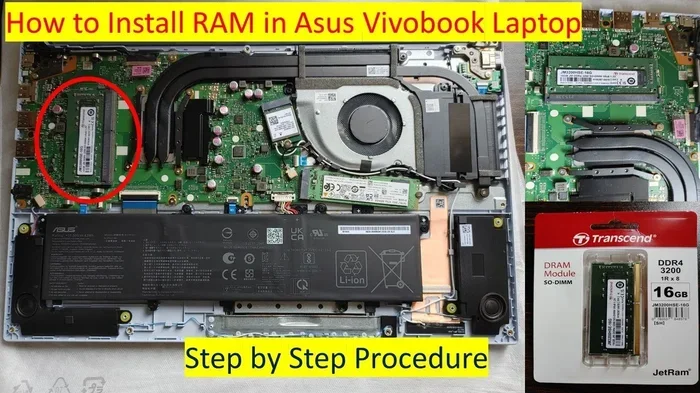
- Locate the RAM slots. Look for the rectangular covers over the memory slots. Some laptops expose the slots directly.
- Remove old RAM. Gently push the clips on both sides. The module will pop up at an angle. Pull it out carefully.
- Insert new RAM. Align the notch on the module with the slot. Press it down at a 45-degree angle until it clicks. Then press flat until the clips lock.
- Close and restart. Put the back panel back on, plug in your laptop, and boot up. Check Task Manager to confirm the new RAM is recognized.
Tips for a Smooth Upgrade
- Watch a video tutorial for your specific laptop model before starting.
- Buy RAM from a reputable brand like Kingston, Crucial, or Samsung.
- If your laptop has two slots and currently has one 4 GB stick, you can add a second 4 GB stick to reach 8 GB for a dual-channel boost.
- After installing, restart your laptop twice to ensure the system recognizes the new memory properly.
Common Mistakes When Choosing DDR4 8 GB Laptop RAM
Even a simple upgrade can go wrong if you make the wrong choice. Here are the most common mistakes people make when buying DDR4 8 GB laptop RAM.
Buying the Wrong Type
The biggest mistake is buying DDR3 RAM for a DDR4 slot, or vice versa. These are physically different and cannot be swapped. Always verify your laptop supports DDR4 before placing an order. Check your laptop manual, manufacturer website, or use a diagnostic tool like CPU-Z to confirm.
Another common mix-up is buying desktop DIMMs instead of laptop SO-DIMMs. Desktop RAM is physically larger and will not fit into a laptop slot. Always look for SO-DIMM modules when shopping for laptop memory.
Ignoring Dual-Channel Benefits
Many laptops support dual-channel memory. This means using two sticks simultaneously instead of one. Dual-channel can nearly double your memory bandwidth. For example, two 4 GB sticks in dual-channel mode outperform a single 8 GB stick in many scenarios.
If your laptop has two slots and currently has a single 4 GB module, consider adding a matching 4 GB stick. This creates a dual-channel 8 GB configuration that performs noticeably better. It costs a little more, but the speed improvement is worth it.
Overlooking Latency and Timings
Speed is not everything. RAM latency also matters. Lower CAS latency means faster response times. Look for modules with CAS latency of 17 or lower for best performance. Premium DDR4 kits often have tighter timings, which can give your laptop an extra edge.
Skipping Brand Quality
Cheap, no-name RAM can cause stability issues. Blue screens, random crashes, and data corruption are red flags. Stick to trusted brands. Crucial, Kingston, Corsair, and Samsung produce reliable laptop memory. The small price difference is worth the peace of mind.
Expert Insights on DDR4 8 GB Laptop RAM
Industry experts generally agree that DDR4 8 GB laptop RAM remains a strong choice for most consumers. Tech reviewers consistently rate 8 GB as the minimum recommended configuration for Windows 11. They note that web browsers alone can consume 2 to 4 GB with multiple tabs open.
Memory manufacturers also point to DDR4’s longevity. Despite the rise of DDR5, DDR4 is still widely supported and affordable. Prices for DDR4 modules have dropped significantly, making 8 GB kits very budget-friendly. Experts predict DDR4 will remain relevant for several more years, especially in the laptop market where upgrade cycles are longer.
One expert tip worth noting: always check your laptop’s maximum supported RAM speed. A 3200 MHz module will still work in a 2666 MHz laptop, but it will run at the lower speed. Save your money by matching the supported speed exactly.
Quick Tips for Getting the Most Out of DDR4 8 GB Laptop RAM
- Close unused background apps. They consume RAM even when you are not actively using them.
- Use an SSD alongside RAM. An SSD compensates for lower memory by speeding up data access.
- Keep your OS updated. Windows updates often include memory management improvements.
- Disable startup programs you do not need. Use Task Manager to manage startup items and free up memory at boot.
- Consider upgrading to 16 GB if you plan to keep your laptop long-term. It future-proofs your setup for more demanding tasks ahead.
Conclusion
DDR4 8 GB laptop RAM is a reliable, affordable, and performance-oriented choice for most laptop users. It handles everyday tasks with ease, supports multitasking smoothly, and offers excellent value for the price. Whether you are a student, a professional, or a casual user, 8 GB gives you the memory headroom you need without overspending.
We have covered what DDR4 is, how it impacts performance, how to check compatibility, and how to upgrade. You also learned about common mistakes to avoid and expert tips to maximize your setup. Armed with this knowledge, you are ready to make a confident decision.
If 8 GB feels right for your needs, go ahead and make the upgrade. Your laptop will feel faster, more responsive, and better equipped to handle whatever you throw at it. And if you find you need more power down the road, options like 16 GB or 32 GB laptop RAM are ready and waiting. The right memory choice starts with understanding your own needs, and now you have all the tools to do exactly that.
Frequently Asked Questions
Is DDR4 8 GB RAM enough for gaming?
DDR4 8 GB RAM works well for casual and many mainstream games. Titles like Fortnite, Minecraft, and League of Legends run smoothly at this capacity. However, newer AAA games increasingly recommend 16 GB for the best experience. If you play competitively or want maximum settings, consider upgrading to 16 GB.
Can I mix DDR4 8 GB with DDR4 16 GB in the same laptop?
Yes, you can mix different capacities as long as both modules are DDR4 and SO-DIMM. However, the system will run both at the speed of the slower module. For best results, use matching modules with the same speed and brand. This also enables dual-channel mode, which boosts performance.
How do I know if my laptop has DDR3 or DDR4 RAM?
Open Task Manager on Windows and go to the Performance tab. It shows your memory type clearly. You can also use CPU-Z, which displays detailed memory information. Another reliable method is checking your laptop manufacturer’s website using your model number. The specs page will list the supported RAM type.
What is the difference between 2133 MHz and 3200 MHz DDR4 RAM?
The difference is in data transfer speed. 3200 MHz moves data faster than 2133 MHz. In real-world use, you will notice the difference mostly during heavy multitasking, large file transfers, and gaming. For basic web browsing and office work, the difference is subtle. Always ensure your laptop’s processor supports the higher speed before purchasing 3200 MHz modules.
Is it worth upgrading from 4 GB to 8 GB DDR4 RAM?
Absolutely. Upgrading from 4 GB to 8 GB is one of the most impactful improvements you can make. Your laptop will boot faster, open apps quicker, and handle multitasking without lag. The cost is relatively low, and the performance boost feels dramatic. It is especially noticeable if you currently struggle with slow performance and frequent system freezes.
Does DDR4 8 GB RAM support dual-channel mode?
Yes, but it depends on your laptop’s hardware. If your laptop has two RAM slots and you install two 4 GB modules, dual-channel mode activates automatically. This nearly doubles memory bandwidth compared to a single module. Check your laptop manual to confirm how many slots it has and whether dual-channel is supported. Using matched pairs always delivers better performance than a single stick.