8gb Ram Windows 10 Laptop
An 8GB RAM Windows 10 laptop offers solid performance for everyday tasks like browsing, office work, and light multitasking. This guide covers system requirements, speed benchmarks, upgrade tips, and whether 8GB RAM is enough for your workflow. You’ll learn how to get the most out of your Windows 10 laptop with 8GB RAM and when to consider more memory.
An 8GB RAM Windows 10 laptop remains one of the most popular choices for everyday computing. Whether you are a student, a remote worker, or someone who just needs a reliable machine for browsing and office tasks, 8GB of memory hits the right balance between performance and price. In this guide, we will walk you through everything you need to know about running Windows 10 with 8GB of RAM.
## Why 8GB RAM Works Well for Windows 10
Windows 10 has specific system requirements that determine how well it runs on different machines. Microsoft recommends at least 4GB of RAM for the 64-bit version of Windows 10. However, 4GB is the bare minimum, and you will notice slowdowns if you open several apps at once.
With 8GB of RAM, your laptop has double the minimum requirement. This means your system can handle multiple browser tabs, office applications, and background processes without breaking a sweat. The operating system uses RAM to store temporary data, and having more of it means faster access to the information your apps need.
### What Does RAM Do on Your Laptop?
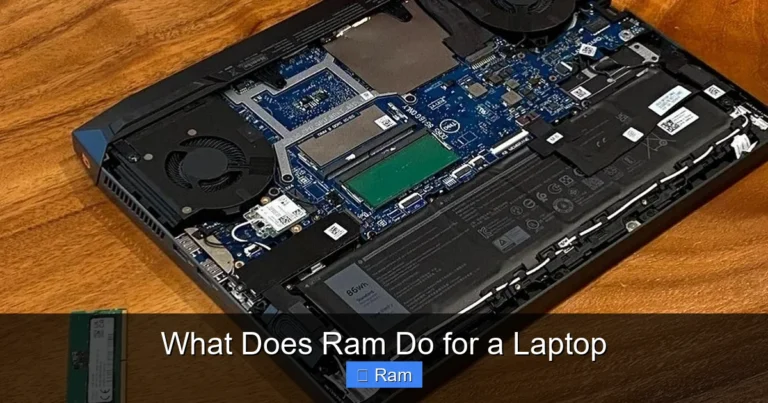
Understanding what RAM does on a laptop helps you appreciate why 8GB matters so much. Random Access Memory acts as short-term memory for your computer. When you open an app, a browser, or a game, the data loads into RAM for quick access.
When you close the app, that data clears out. Unlike your hard drive or SSD, RAM is volatile, meaning it loses everything when you power off. This is why your laptop feels snappy when you have enough RAM. If your system runs low on memory, it starts using your storage drive as temporary memory, which slows everything down significantly.
### Is 8GB RAM Enough for a Laptop?
For most users, the answer is yes. An 8GB RAM laptop runs Windows 10 with ease for tasks like:
– Web browsing with multiple tabs open
– Microsoft Office applications (Word, Excel, PowerPoint)
– Email and video conferencing
– Streaming music and videos
– Light photo editing
– Casual gaming
If you do heavy video editing, 3D rendering, or run virtual machines, 8GB might feel limiting. In those cases, you may want to look at 16GB or 32GB options. But for the average user, 8GB provides a smooth and responsive experience on Windows 10.
## How Much RAM Do You Really Need?
The right amount of RAM depends entirely on what you use your laptop for. Let us break it down by use case so you can decide if 8GB is right for you.
### Light Use (4GB to 8GB)
If your laptop usage involves browsing, emailing, streaming, and basic document work, 8GB is more than enough. You will not experience lag or slowdowns during normal use. In fact, 8GB gives you room to spare compared to 4GB, which struggles with modern websites and apps.
### Moderate Use (8GB to 16GB)
Users who run several applications simultaneously, use multitasking tools, or do light creative work will find 8GB comfortable. You can have a browser with 15 tabs open, Spotify running, and a Word document active without any issues. This is the most common use case for laptops today.
### Heavy Use (16GB+)
Video editors, game developers, data analysts, and professionals running specialized software need 16GB or more. If your work involves large files, complex calculations, or running multiple virtual machines, 8GB will hold you back. For these users, checking how much RAM for a laptop is a smart first step.
## 8GB RAM Windows 10 Laptop Performance
### Speed and Responsiveness
A Windows 10 laptop with 8GB RAM delivers solid everyday performance. Boot times are fast, apps launch quickly, and switching between windows feels seamless. The key factor that affects performance is not just the amount of RAM but also the type of storage and processor your laptop has.
For example, pairing 8GB RAM with an SSD makes a huge difference compared to an HDD. The SSD handles data loading much faster, and combined with 8GB of memory, your laptop feels responsive and ready to go. If you want to find a great combo, look at an 8GB RAM 256GB SSD laptop for excellent value.
### Multitasking with 8GB RAM
One of the biggest benefits of having 8GB of memory is multitasking capability. You can keep several apps open at the same time without your laptop slowing down. Here is what 8GB handles comfortably:
1. A web browser with 10 to 15 tabs
2. A Microsoft Office app like Word or Excel
3. A music or video streaming app
4. A messaging app like Slack or Teams
5. A few background processes and system services
If you try to push beyond this, you might notice some slowdown. But for the vast majority of users, 8GB covers multitasking needs perfectly.
## How to Check Your Laptop RAM
Before you decide to upgrade, you should first check how much RAM your laptop currently has. Windows 10 makes this very easy to do.
### Method 1: Using Task Manager
Open Task Manager by pressing Ctrl + Shift + Esc. Click on the Performance tab, then select Memory. You will see your total RAM and how much is currently in use. This gives you a real-time view of your memory usage.
### Method 2: Using Settings
Go to Settings > System > About. Scroll down to Device Specifications, and you will see Installed RAM listed there. This is the simplest way to find out your current memory without opening any additional tools.
### Method 3: Using Command Prompt
Open Command Prompt and type systeminfo. Press Enter, and look for Total Physical Memory in the output. This method works well if you prefer using command-line tools.
If you want a detailed breakdown of your system, you can also learn how to check the RAM on your laptop for more advanced options and tips.
## Upgrading Your 8GB RAM Windows 10 Laptop
### When Should You Upgrade?
You should consider upgrading your RAM if you experience any of these signs:
– Your laptop takes a long time to open apps
– You get memory warnings or error messages
– Your system freezes when you multitask
– Your browser tabs crash frequently
– Windows 10 uses the page file constantly
If you notice these issues, adding more RAM can make a world of difference. Before buying new memory, check your laptop’s maximum RAM capacity and what type of RAM it supports.
### How to Upgrade RAM on Your Laptop
Upgrading RAM is one of the easiest laptop upgrades you can do. Here is a simple step-by-step process:
1. Turn off your laptop and unplug it from the power source
2. Remove the battery if it is removable
3. Locate the RAM compartment on the bottom of the laptop
4. Use a screwdriver to open the access panel
5. Press the clips on either side of the existing RAM stick
6. The RAM will pop up at an angle
7. Remove the old stick and insert the new one at the same angle
8. Push it down until the clips click into place
9. Close the panel and reattach the battery
10. Power on your laptop and check the new RAM in System settings
If you need detailed guidance for HP laptops specifically, you can read our guide on how to upgrade RAM on an HP laptop.
### Cost of RAM Upgrades
RAM prices have come down significantly over the years. An 8GB RAM stick typically costs between $25 and $50, depending on the brand and type. If your laptop has a free RAM slot, you can simply add another 8GB stick to double your memory to 16GB for a very affordable price.
Before purchasing, make sure you check the RAM type your laptop supports. Most modern laptops use DDR4 RAM, but older models may use DDR3. Buying the wrong type will not work, so always double-check your laptop’s specifications.
## Best 8GB RAM Windows 10 Laptops to Consider
If you are shopping for a new laptop, here are some things to look for in an 8GB RAM Windows 10 machine:
– Processor: An Intel Core i5 or AMD Ryzen 5 processor pairs well with 8GB RAM for balanced performance.
– Storage: An SSD is a must. Avoid laptops that only come with HDD storage.
– Display: A 14-inch or 15.6-inch Full HD display offers a great viewing experience.
– Battery Life: Look for at least 8 hours of battery life for all-day use.
– Build Quality: A lightweight aluminum or magnesium alloy body makes the laptop portable and durable.
For users looking for specific recommendations, an laptop with 8GB RAM and an i5 processor is an excellent choice for most users.
## Common Mistakes to Avoid with 8GB RAM Laptops
Even with 8GB of memory, some habits can slow down your laptop. Here are mistakes to avoid:
1. Opening too many browser tabs: Each tab uses memory. Keep your tab count manageable.
2. Running unnecessary background apps: Close apps you are not using to free up RAM.
3. Ignoring software updates: Windows 10 updates often include performance improvements for memory management.
4. Using a hard drive instead of an SSD: An HDD bottlenecks your system, no matter how much RAM you have.
5. Not restarting your laptop regularly: A simple restart clears temporary memory and refreshes your system.
## Expert Tips to Maximize 8GB RAM Performance
Want to squeeze every bit of performance out of your 8GB RAM Windows 10 laptop? Try these expert tips:
– Disable startup apps: Go to Task Manager > Startup tab and disable apps you do not need at boot time.
– Use ReadyBoost: If you have an SD card or USB flash drive, Windows 10 can use it as extra memory cache.
– Adjust visual effects: Go to Settings > System > About > Advanced system settings > Performance Settings, and choose Adjust for best performance.
– Keep your system clean: Regularly delete temporary files and clear your browser cache.
– Monitor RAM usage: Keep an eye on Task Manager to see which apps are using the most memory.
## Quick Tips for 8GB RAM Windows 10 Users
Here are some quick tips to keep your laptop running smoothly:
– Restart your laptop at least once a week to clear memory.
– Use the built-in Windows 10 Memory Diagnostic tool if you suspect RAM issues.
– Keep your laptop cool — overheating can cause performance throttling.
– Update your drivers regularly for optimal memory management.
– Use a lightweight antivirus to reduce background memory usage.
## Conclusion
An 8GB RAM Windows 10 laptop is a reliable, capable machine for the vast majority of users. It handles everyday tasks with ease, supports smooth multitasking, and offers excellent value for the price. Whether you are using it for work, school, or entertainment, 8GB of memory gives you the headroom you need without overspending.
If you find that 8GB is not enough for your needs, upgrading is simple and affordable. And if you are shopping for a new machine, look for a laptop with an SSD and a decent processor to pair with your 8GB of RAM. By following the tips in this guide, you can get the best performance possible from your Windows 10 laptop with 8GB of memory.
Key Takeaways
- 8GB RAM is the sweet spot for Windows 10: It handles most daily tasks smoothly and efficiently.
- Upgrade your laptop RAM easily: Most laptops allow RAM upgrades in minutes with basic tools.
- Check your current RAM first: Knowing what you have helps you decide if an upgrade is needed.
- 8GB RAM suits students, professionals, and casual users: It covers browsing, office apps, and light gaming.
- Pair 8GB RAM with an SSD for best results: An SSD boosts overall speed dramatically.
- Windows 10 runs well on 8GB: Microsoft’s minimum is 4GB, so 8GB gives you breathing room.
Frequently Asked Questions
Is 8GB RAM enough for Windows 10?
Yes, 8GB RAM is more than enough for Windows 10. Microsoft requires only 4GB for the 64-bit version, so 8GB gives you double the minimum. Most everyday tasks, including browsing, office work, and streaming, run smoothly with 8GB of memory.
Can I upgrade my laptop from 4GB to 8GB RAM?
In most cases, yes. Check if your laptop has a free RAM slot or if you can replace the existing 4GB stick with an 8GB one. Upgrading RAM is one of the easiest and most affordable ways to boost your laptop’s performance on Windows 10.
What is the best laptop with 8GB RAM and Windows 10?
The best laptop depends on your budget and needs. Look for models with an Intel Core i5 or AMD Ryzen 5 processor, an SSD for storage, and at least 8GB of RAM. These specs deliver excellent performance for everyday Windows 10 use.
Does 8GB RAM slow down over time on Windows 10?
Not necessarily. RAM does not slow down on its own. However, if you install more apps, update Windows, and accumulate files over time, your overall system may feel slower. Keeping your laptop clean and well-maintained helps maintain performance.
How do I check how much RAM my Windows 10 laptop has?
You can check your RAM by going to Settings > System > About. Alternatively, open Task Manager, click the Performance tab, and select Memory. Both methods show your total installed RAM and current usage in real time.
Is 8GB RAM good for gaming on Windows 10?
8GB RAM is sufficient for casual and mid-range gaming on Windows 10. Most modern games run well with 8GB of memory. However, demanding AAA titles or games with high-resolution textures may benefit from 16GB for smoother performance.