Ram Upgrade for My Laptop
A ram upgrade for my laptop is one of the easiest and most affordable ways to breathe new life into a slow computer. This guide walks you through everything from checking your current memory to choosing the right modules. You will learn step-by-step instructions, common mistakes to avoid, and expert tips that make the process simple and stress-free.
A ram upgrade for my laptop can feel like a magic trick. Suddenly, slow programs open faster, multitasking becomes smooth, and your machine stops freezing at the worst possible moments. If your laptop has been dragging its feet lately, adding more memory might be the fix you have been looking for.
Many people assume they need to buy a whole new computer when things start to slow down. The truth is far simpler. A memory upgrade costs a fraction of a new laptop and delivers noticeable results almost immediately. Whether you use your computer for work, school, gaming, or casual browsing, this guide covers everything you need to know.
We will walk you through every step of the process. From understanding what RAM does, to checking compatibility, purchasing the right module, and installing it yourself. By the end, you will feel confident enough to complete the upgrade on your own. Let us get started.
Key Takeaways
- Easy Performance Boost: A ram upgrade for my laptop can make your computer feel brand new without replacing the whole machine.
- Simple Process: Most laptop RAM upgrades take less than 30 minutes and require only a screwdriver and your new module.
- Check Compatibility First: Always verify your laptop model supports the RAM type, speed, and maximum capacity before buying.
- Right Amount Matters: 8GB to 16GB is the sweet spot for most users, but your needs may vary based on how you use your laptop.
- Avoid Common Mistakes: Skipping compatibility checks or buying the wrong RAM type are the most frequent errors people make.
📑 Table of Contents
- What Does RAM Do and Why Does It Matter?
- Why Upgrade Your Laptop RAM?
- How to Check Your Current RAM and Compatibility
- How to Upgrade RAM on Your Laptop
- How Much RAM Do You Really Need?
- How Much Does a RAM Upgrade Cost?
- When Should You NOT Upgrade Your RAM?
- Expert Tips to Get the Most from Your RAM Upgrade
- Conclusion
What Does RAM Do and Why Does It Matter?
RAM stands for Random Access Memory. Think of it as your laptop’s short-term workspace. When you open a browser tab, a document, or a game, your laptop loads that data into RAM so it can be accessed quickly. The more RAM you have, the more tasks your laptop can handle at the same time without slowing down.
Here is a simple way to understand it. Imagine your desk is RAM. A small desk can only hold a few papers at once. You keep shuffling things in and out of a filing cabinet, which takes time. A bigger desk lets you spread everything out and work faster. That is exactly what more memory does for your computer.
When your RAM fills up, your laptop starts using your hard drive or SSD as temporary storage. This is called paging or swapping, and it is much slower. That is why your computer crawls when you have too many tabs open. A laptop memory upgrade gives you a bigger desk and keeps everything running smoothly.
Types of RAM Used in Laptops
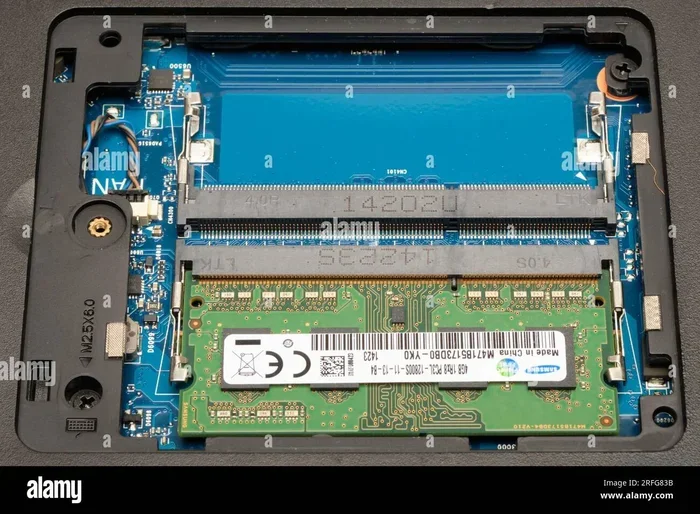
Laptops use a specific type of memory called SODIMM, which stands for Small Outline Dual In-Line Memory Module. It is smaller than the RAM sticks used in desktop computers. The two most common types you will encounter are DDR4 and DDR5. DDR4 is still widely used and offers great value. DDR5 is newer and faster but comes at a higher price.
Another important detail is the speed of the RAM, measured in megahertz (MHz). Higher MHz numbers mean faster data transfer. However, your laptop’s motherboard can only support certain speeds. Always check your laptop’s specifications before purchasing new modules.
Why Upgrade Your Laptop RAM?
If you are wondering whether a ram upgrade for my laptop is worth the effort, the answer is almost always yes. Here are the biggest reasons people choose to upgrade their memory.
Faster Multitasking. Do you regularly have multiple apps, browser tabs, and documents open at once? More RAM means your laptop can juggle all of these without breaking a sweat. You will notice fewer pauses and less waiting.
Better Performance for Demanding Tasks. Video editing, photo manipulation, coding, and light gaming all benefit from extra memory. These activities eat up RAM quickly. Adding more gives your laptop the headroom it needs to perform at its best.
Extended Laptop Lifespan. Software updates tend to demand more resources over time. Programs that ran fine two years ago might struggle today. Upgrading your memory future-proofs your machine and delays the need for a replacement.
Cost Savings. A new laptop can cost anywhere from $500 to $1500 or more. A memory upgrade typically costs between $20 and $80. The performance improvement is dramatic compared to the small investment. It is one of the best returns on investment you can get for your computer.
No Need for Technical Expertise. Many people fear opening up their laptop. In reality, swapping out RAM is one of the simplest upgrades you can do. Most laptops have a dedicated access panel on the bottom. You will be done in minutes.
How to Check Your Current RAM and Compatibility
Before you buy anything, you need to know what your laptop currently has and what it can support. This step is critical because not all RAM works with all laptops.
To check your current memory on Windows, open the Task Manager by pressing Ctrl + Shift + Esc. Click on the Performance tab and then select Memory. You will see how much RAM is installed, what type it is, and how fast it runs. On a Mac, click the Apple menu, choose About This Mac, and look at the Memory section.
Next, find out your laptop’s maximum RAM capacity. Check your laptop manufacturer’s website or look up your specific model number online. Some older laptops support only 8GB total, while newer ones can handle 32GB or even 64GB.
You should also confirm how many RAM slots your laptop has. Some models have one slot that is already occupied, meaning you can only add one more module. Others have two empty slots, allowing you to double your memory right away. If your laptop has soldered RAM, unfortunately, it cannot be upgraded at all. This is why checking compatibility first saves you money and frustration.
Quick Tip: Use a Scanner Tool
If you are not sure about compatibility, free online tools can scan your laptop and recommend the exact RAM modules that work with your system. This removes all the guesswork and makes shopping much easier.
How to Upgrade RAM on Your Laptop
Now for the fun part. Installing a new memory module is straightforward, but taking the right precautions matters. Follow these steps carefully for a smooth experience.
Step 1: Gather Your Tools. You will need a small Phillips-head screwdriver, your new RAM module, and a clean, flat workspace. An anti-static wrist strap is helpful but not required. Just make sure your hands are dry and you are not working on a carpeted surface.
Step 2: Power Down and Unplug. Shut your laptop completely. Unplug the power cable and remove the battery if it is removable. This protects both you and your laptop from electrical damage.
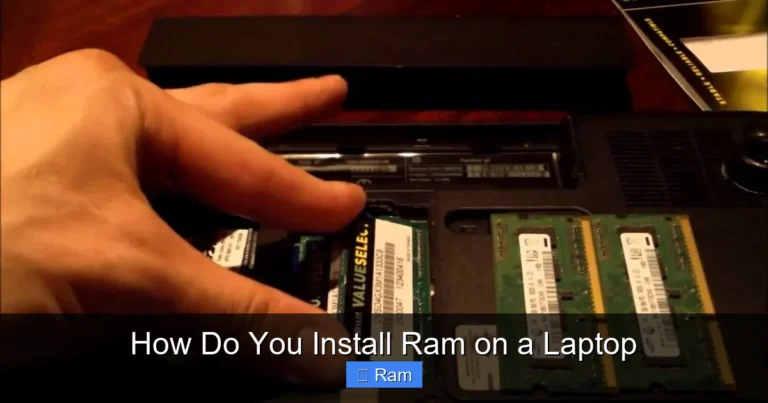
Step 3: Locate the RAM Access Panel. Flip your laptop over and look for a small panel on the bottom, usually marked with a memory icon. Remove the screws holding it in place and gently lift the panel off.
Step 4: Remove the Old Module (If Needed). You will see metal clips on either side of the existing RAM stick. Push these clips outward gently. The module will pop up at an angle. Pull it straight out and set it aside.
Step 5: Install the New Module. Align the notch on the bottom of the new stick with the ridge inside the slot. Insert it at an angle and press down firmly until the metal clips click into place. You should feel it lock securely.
Step 6: Close Up and Test. Replace the access panel, screw it back in, reconnect the battery and power cable, and turn on your laptop. Go to your system settings and confirm the new memory is recognized. That is it. You just completed a ram upgrade for my laptop successfully.
Common Mistakes During Installation
Do not force the RAM stick. If it does not go in easily, check the alignment. Never touch the gold connectors on the module. Work on a non-static surface. And always ground yourself by touching a metal object before handling the RAM to prevent static damage.
How Much RAM Do You Really Need?
This is one of the most common questions people ask. The answer depends entirely on how you use your laptop. Here is a practical breakdown.
4GB: This is the bare minimum for basic tasks like web browsing, email, and word processing. It works but leaves very little room for anything else. Most modern applications will struggle with only 4GB available.
8GB: This is the sweet spot for most everyday users. You can browse the web with multiple tabs, stream videos, use office applications, and do light photo editing without issues. For the majority of people, 8GB provides a solid and satisfying experience.
16GB: This is ideal for power users. If you edit videos, work with large spreadsheets, run virtual machines, or play modern games, 16GB gives you plenty of headroom. It is also a great choice if you want your laptop to stay fast for several more years.
32GB and Above: This level is for professionals who work with heavy software like 3D modeling tools, video rendering, or complex data analysis. For most casual and even professional users, 32GB is overkill unless your specific work demands it.
If you are unsure, check out our detailed guide on how much RAM for laptop to find the right amount for your specific needs.
How Much Does a RAM Upgrade Cost?
The cost of a memory upgrade varies depending on the type and capacity you choose. As of 2024, here is a general price range to expect.
| RAM Capacity | Approximate Cost | Best For |
|---|---|---|
| 8GB DDR4 | $20 – $40 | Basic users, web browsing |
| 16GB DDR4 | $40 – $70 | Most users, multitasking |
| 16GB DDR5 | $60 – $90 | Future-proofing, gaming |
| 32GB DDR4 | $70 – $120 | Heavy workloads, professionals |
Keep in mind that prices fluctuate based on brand, speed, and availability. Shopping around on reputable retailers can help you find the best deal. The investment is small compared to the performance gains you will enjoy.
Where to Buy Laptop RAM
You can purchase RAM from electronics retailers, online marketplaces, or directly from manufacturers. Always buy from trusted sellers to avoid counterfeit or incompatible modules. Reading reviews and checking return policies before purchasing gives you peace of mind.
When Should You NOT Upgrade Your RAM?
A ram upgrade for my laptop is not always the solution. Here are situations where upgrading memory will not help much.
If your laptop already has plenty of RAM and is still slow, the bottleneck is likely somewhere else. A slow hard drive, an outdated processor, or too many background programs could be the real culprit. In these cases, upgrading RAM will not make a noticeable difference.
Similarly, if your laptop has soldered memory that cannot be replaced or expanded, you simply cannot upgrade it. Some ultra-thin laptops are designed this way to save space. In such cases, you might want to consider other optimizations like clearing storage or resetting your operating system.
Finally, if your laptop is already several generations old and struggling with modern software demands, a RAM upgrade alone may not be enough. The processor might also be too outdated to keep up. Evaluate your entire system before deciding on an upgrade path.
Expert Tips to Get the Most from Your RAM Upgrade
After completing your upgrade, a few simple habits will help you maintain and maximize the benefits. Here are some expert-backed tips.
- Restart Regularly: Restarting your laptop clears out temporary memory and keeps things running efficiently. Aim to restart at least once a week.
- Close Unused Programs: Even with extra RAM, running too many programs simultaneously will slow things down. Be mindful of what you have open.
- Check for Memory-Hungry Apps: Use your Task Manager or Activity Monitor to identify programs that consume excessive memory and close them when not needed.
- Keep Your System Updated: Software updates often include performance improvements that help your laptop use memory more efficiently.
- Use SSD Storage: If your laptop still uses a traditional hard drive, upgrading to a solid-state drive alongside your RAM upgrade will transform your experience.
These small habits combined with your new memory will keep your laptop running fast for years to come.
Conclusion
A ram upgrade for my laptop is one of the simplest and most impactful improvements you can make. It costs little, takes minutes to install, and delivers immediate results. Whether your laptop feels sluggish when you open multiple tabs or freezes during demanding tasks, adding more memory can transform your experience.
Start by checking your current setup and compatibility. Choose the right module for your needs and budget. Follow the installation steps carefully, and enjoy the boost in performance. You do not need to be a tech expert to pull this off. With the right guidance, anyone can do it.
Do not let a slow laptop hold you back any longer. Take action today and give your computer the memory upgrade it deserves. Your future self will thank you every time you open a program without waiting.
Frequently Asked Questions
Can I upgrade the RAM in my laptop myself?
Yes, in most cases you can. Laptop RAM upgrades are designed to be user-friendly. You typically just need a small screwdriver and about 15 to 30 minutes. Just make sure to check compatibility and follow safety precautions like powering down completely before opening your laptop.
How do I know if my laptop RAM is upgradeable?
Check your laptop model specifications online or use a system information tool. Look for details about maximum supported RAM, number of slots, and whether the memory is soldered or removable. If your laptop has removable modules and free slots, you are good to go.
What happens if I install the wrong type of RAM?
If the RAM is incompatible, your laptop will not recognize it or will not boot up. This is why checking compatibility before purchasing is so important. Always match the RAM type, speed, and form factor to your laptop’s specifications.
Will upgrading RAM make my laptop faster for gaming?
Yes, but only to a point. If your current RAM is low, adding more will significantly improve game performance and reduce stuttering. However, once you have enough RAM for your games, other components like the graphics card and processor matter more for overall speed.
How long does a RAM upgrade take?
The actual installation process takes about 10 to 30 minutes. Researching compatibility and ordering the right module may take a bit longer, but the physical upgrade is quick and straightforward for most laptop models.
Is 16GB of RAM enough for most users?
For the vast majority of users, 16GB is more than sufficient. It handles multitasking, office work, light creative tasks, and even modern gaming with ease. Only specialized professionals working with extremely demanding software need 32GB or more.