What Does Ram Do for a Laptop
RAM is the short‑term memory that lets your laptop run apps, load files, and switch tasks instantly. More RAM means smoother multitasking, faster program launches, and better performance in games and creative software.
Key Takeaways
- RAM stores active data: It holds the information your CPU needs right now, enabling quick access.
- More RAM = smoother multitasking: Adding memory reduces lag when many programs run together.
- Speed matters too: Higher MHz and lower latency improve data transfer rates.
- Compatibility is key: Match RAM type (DDR3, DDR4, DDR5) and form factor (SO-DIMM) to your laptop.
- Upgrade limits: Some laptops cap the maximum RAM; check the specs before buying.
- Gaming & creative work benefit most: Intensive apps need extra RAM for textures, renders, and simulations.
- Power consumption: Modern low‑voltage RAM helps preserve battery life.
📑 Table of Contents
- Introduction: Why RAM Matters in a Laptop
- What RAM Actually Does
- How Much RAM Do You Really Need?
- Types of RAM and What They Mean for Laptops
- How to Check Your Laptop’s RAM Specs
- Upgrading RAM: Step‑by‑Step Guide
- Practical Tips to Get the Most Out of Your RAM
- Conclusion: The Real Impact of RAM on Laptop Performance
Introduction: Why RAM Matters in a Laptop
When you power on a laptop, the first thing that decides how fast it feels is the memory inside it. That memory is called Random Access Memory, or RAM. Think of RAM as a desk where you spread out the papers you’re currently working on. The bigger the desk, the more papers you can have open without constantly shuffling them back into a filing cabinet.
In everyday use—checking email, browsing the web, streaming videos—RAM works behind the scenes, feeding the processor the data it needs at lightning speed. When the desk gets too small, the laptop has to pause, close some papers, and retrieve them later, which you notice as lag or stutter. Understanding what RAM does helps you choose the right laptop and know when an upgrade will make a real difference.
What RAM Actually Does
Temporary Storage for Active Data
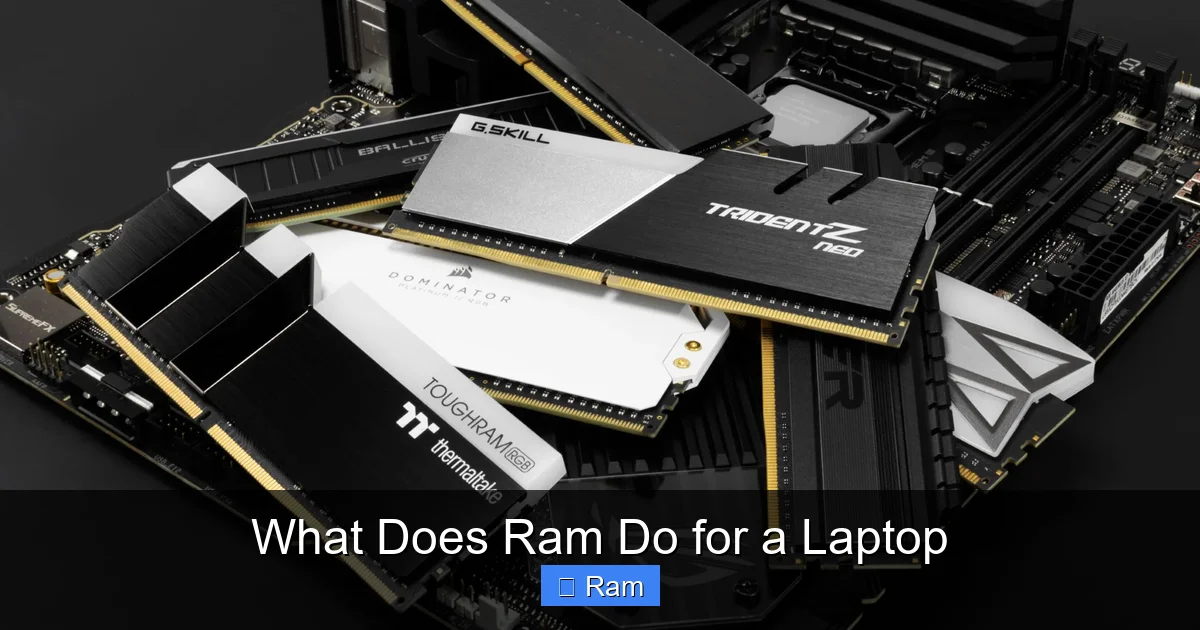
RAM is volatile memory, meaning it only holds data while the laptop is powered on. When you open a program, the operating system copies the necessary files from the slower hard drive or SSD into RAM. The CPU then reads and writes to this fast memory, which is measured in nanoseconds—far quicker than the milliseconds it takes to access a disk.
Visual guide about What Does Ram Do for a Laptop
Image source: robots.net
Facilitates Multitasking
Each open app, browser tab, or background service consumes a chunk of RAM. If you have 4 GB of RAM and try to run a heavy video editor alongside a game, the system will start swapping data to the disk, a process called paging. Paging dramatically slows things down because the disk cannot keep up with the CPU’s demand for data.
Improves System Responsiveness
Even simple actions—like typing in a word processor or scrolling through a photo gallery—rely on RAM. The larger the RAM pool, the more data the laptop can keep “ready” for the CPU, resulting in snappy, lag‑free interactions.
How Much RAM Do You Really Need?
Basic Tasks (Web Browsing, Office Apps)
For everyday activities, 8 GB of RAM is often sufficient. Modern browsers can be memory‑hungry, especially with many tabs open, but 8 GB provides a comfortable cushion.
Visual guide about What Does Ram Do for a Laptop
Image source: pc-servis.ba
Power Users (Programming, Virtual Machines)
If you run development environments, Docker containers, or multiple virtual machines, aim for 16 GB or more. Each VM typically needs at least 2 GB, so the extra space prevents constant swapping.
Gaming and Creative Work (Video Editing, 3D Rendering)
Modern games and professional software thrive on 16 GB to 32 GB of RAM. Large texture packs, high‑resolution video timelines, and complex 3D scenes demand ample memory to stay in RAM rather than constantly loading from storage.
Future‑Proofing
Software requirements are always climbing. If you plan to keep your laptop for 4–5 years, buying a model that supports 32 GB gives you headroom for future OS updates and applications.
Types of RAM and What They Mean for Laptops
DDR Generations (DDR3, DDR4, DDR5)
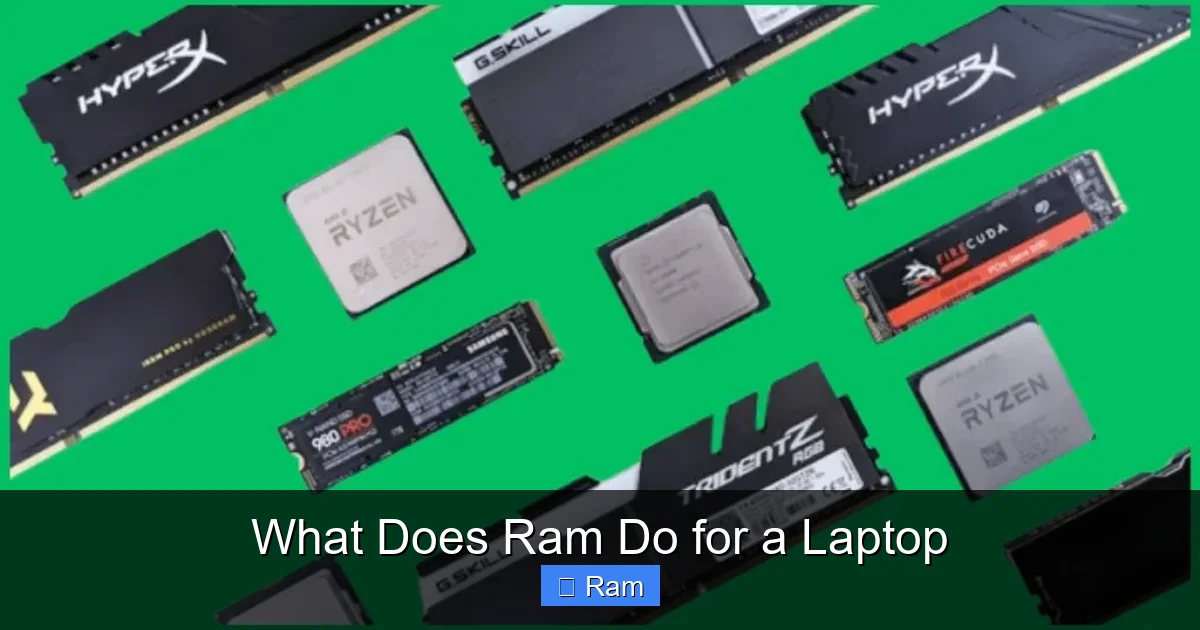
DDR stands for Double Data Rate. Each new generation doubles the data rate per clock cycle and usually reduces power consumption.
Visual guide about What Does Ram Do for a Laptop
Image source: techshergole.com
- DDR3: Older laptops, slower (up to 2133 MHz), higher voltage (1.5 V).
- DDR4: Current mainstream, speeds from 2133 MHz to 3200 MHz, lower voltage (1.2 V).
- DDR5: Emerging, speeds start at 4800 MHz, even lower power draw, but limited availability and higher cost.
SO‑DIMM Form Factor
Laptops use Small Outline Dual Inline Memory Modules (SO‑DIMM). They are half the length of desktop DIMMs, making them perfect for thin chassis. Always verify that your laptop’s slots accept the specific SO‑DIMM type you plan to buy.
Speed (MHz) and Latency (CL)
Higher MHz numbers mean faster data transfer, while a lower CL (CAS latency) number means the RAM can start delivering data more quickly. For most users, the speed difference between 2666 MHz CL19 and 3200 MHz CL16 is barely noticeable, but gamers and creators may see small gains.
How to Check Your Laptop’s RAM Specs
Windows
Press Ctrl + Shift + Esc to open Task Manager, click the “Performance” tab, and select “Memory.” You’ll see total size, speed, and form factor.
macOS
Click the Apple menu → “About This Mac.” The Overview tab displays total RAM, while “System Report” → “Memory” shows slot details.
Linux
Open a terminal and type sudo lshw -c memory or free -h for a quick glance.
Physical Inspection
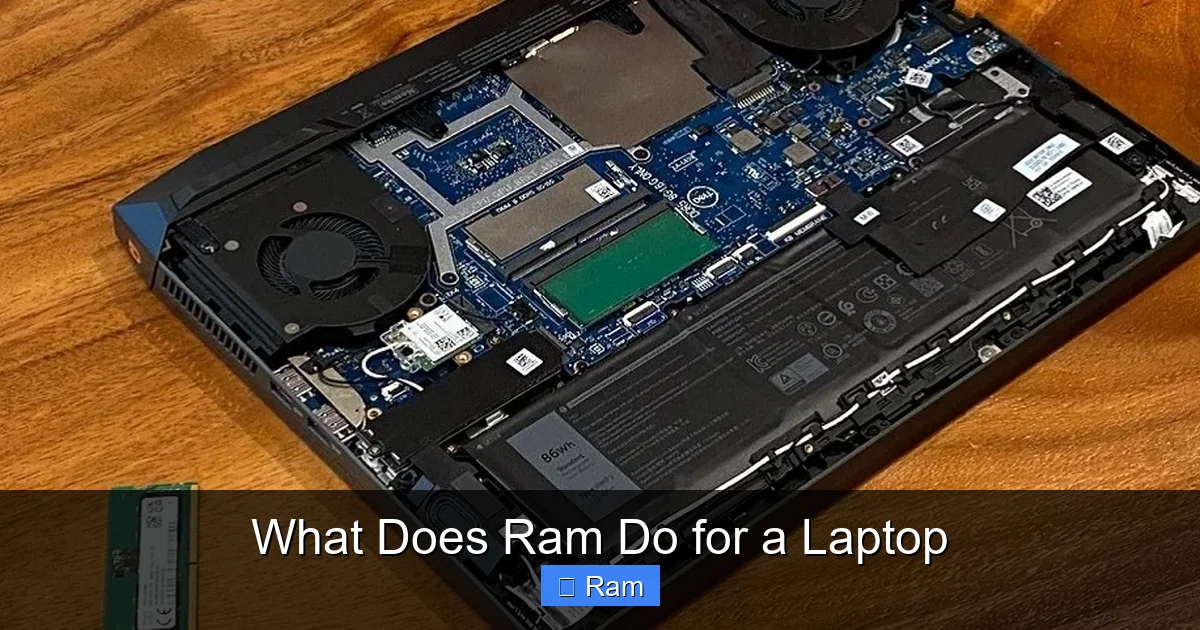
If you’re comfortable opening the back panel, you can see the sticks directly. Look for the label that reads something like “DDR4 3200 MHz 8 GB.” Note the number of slots and whether any are empty.
Upgrading RAM: Step‑by‑Step Guide
1. Verify Upgrade Limits
Check the manufacturer’s specifications for maximum supported RAM and the number of slots. Some ultrabooks have the RAM soldered to the motherboard, making upgrades impossible.
2. Choose Compatible Modules
Match the DDR generation, voltage, and speed. If the laptop supports up to 3200 MHz, buying 3600 MHz modules will default to the lower speed.
3. Gather Tools
You’ll need a small Phillips screwdriver, an anti‑static wrist strap (optional but recommended), and a clean, static‑free workspace.
4. Power Down and Remove Battery
Shut down the laptop, unplug the charger, and remove the battery if it’s removable. Press the power button for a few seconds to discharge residual charge.
5. Access the Memory Slots
Unscrew the back panel, gently pry it open, and locate the RAM slots. They’re usually side‑by‑side with a small retaining clip on each side.
6. Install the New RAM
Align the notch on the module with the ridge in the slot, insert at a 30‑degree angle, then press down firmly until the clips click into place.
7. Reassemble and Test
Replace the back panel, re‑insert the battery, power on, and verify the new memory appears in the system information tools mentioned earlier.
Practical Tips to Get the Most Out of Your RAM
- Close Unused Apps: Even with plenty of RAM, background programs consume resources. Use the task manager to end tasks you don’t need.
- Use ReadyBoost (Windows): If you can’t add more RAM, a fast USB flash drive can act as a supplemental cache.
- Enable XMP Profiles (if supported): Some laptops let you enable Extreme Memory Profile in BIOS to run RAM at its rated speed.
- Keep Drivers Updated: BIOS and chipset drivers often include memory‑related optimizations.
- Balance RAM with SSD Speed: A fast SSD reduces the need for excessive RAM because data loads quickly from storage.
Conclusion: The Real Impact of RAM on Laptop Performance
RAM is the unsung hero that keeps your laptop responsive, allowing the CPU to focus on processing rather than waiting for data. While a faster processor or a larger SSD are also important, without enough RAM the system will constantly stumble, no matter how powerful the other components are. By understanding what RAM does, how much you need, and how to upgrade it, you can extend the life of your laptop, enjoy smoother multitasking, and get the most out of games and creative software.
So the next time you feel that annoying lag, check your RAM first. A simple upgrade could be the most cost‑effective way to breathe new life into your machine.
Frequently Asked Questions
What is the difference between RAM and storage?
RAM is temporary, fast memory that holds data your CPU is actively using. Storage (SSD/HDD) is permanent, slower memory where files and programs reside when the laptop is off.
Can I mix different sizes or speeds of RAM in a laptop?
Mixing sizes (e.g., 8 GB + 4 GB) works, but the system will run in dual‑channel mode only for the matching portion. Mixing speeds forces both sticks to operate at the slower speed.
Will adding more RAM improve battery life?
Modern low‑voltage RAM uses less power than older modules, but adding more RAM slightly increases power draw. The impact on battery life is usually minimal.
Is DDR5 worth the extra cost for a laptop?
DDR5 offers higher speeds and lower power consumption, but the performance gain over DDR4 is modest for most tasks. It’s best for users who need the absolute latest specs and are okay with the premium price.
My laptop says “Maximum RAM: 16 GB” but I have 2 slots. Can I use two 8 GB sticks?
Yes. The total capacity is limited to 16 GB, so two 8 GB modules will fill the limit. Just ensure both sticks are the same type and speed.
Why does my laptop still feel slow after upgrading RAM?
Other bottlenecks—such as an old CPU, a slow HDD, or background bloatware—can limit performance. Check for software issues and consider upgrading the storage to an SSD for a bigger impact.