Can Ram Be Added to a Laptop
Yes, you can add RAM to a laptop in many cases, but it depends on your model, available slots, and maximum memory support. This guide walks you through checking compatibility, choosing the right RAM, and installing it yourself. Learn the exact steps to upgrade your laptop’s memory and improve performance.
Have you ever wondered can RAM be added to a laptop? The short answer is yes — in many cases. But the real question is whether your specific laptop allows it. Some machines make it easy. Others have memory soldered right to the motherboard, leaving no room for upgrades. This guide breaks down everything you need to know about adding memory to your laptop. You will learn how to check compatibility, pick the right RAM, and install it yourself.
Upgrading your laptop’s RAM is one of the best ways to breathe new life into an older machine. It costs a fraction of buying a new laptop. And the performance boost can be dramatic. Whether you are a student juggling multiple apps or a professional running heavy software, more memory helps. Let us dive into the details of laptop RAM upgrades and get you started.
Key Takeaways
- Not all laptops allow RAM upgrades: Some models have soldered memory that cannot be changed.
- Check your laptop specs first: Use built-in tools to find your current RAM and maximum capacity.
- Match the RAM type: Your laptop needs the right DDR generation and form factor (SO-DIMM).
- Installation is straightforward: With the right screwdriver and patience, most upgrades take under 30 minutes.
- More RAM means better multitasking: Expect smoother performance with more browser tabs, apps, and heavier workloads.
- Check for a free RAM slot: You need either an empty slot or an existing module you can replace with a higher-capacity one.
📑 Table of Contents
- Understanding Laptop RAM Basics
- Can RAM Be Added to a Laptop? The Compatibility Check
- How to Check Your Current RAM and Slots
- How to Choose the Right RAM for Your Laptop
- How to Install RAM in Your Laptop
- Common Mistakes to Avoid When Upgrading Laptop RAM
- Benefits of Adding RAM to Your Laptop
- When You Cannot Add RAM to a Laptop
- Final Thoughts
Understanding Laptop RAM Basics
Before you ask can RAM be added to a laptop, it helps to understand what RAM actually does. Random Access Memory is your laptop’s short-term memory. It holds data for active tasks. When you open a browser, a game, or a video editor, it all lives in RAM. More RAM means your laptop can handle more tasks at once without slowing down.
Types of Laptop RAM
Laptops use a special form factor called SO-DIMM (Small Outline Dual In-Line Memory Module). This is smaller than desktop RAM. Here are the common types you will encounter:
- DDR4 SO-DIMM: The most common type in modern laptops. Fast and widely available.
- DDR5 SO-DIMM: The newest standard. Found in high-end and newer laptops. Offers better speed and efficiency.
- DDR3 SO-DIMM: Older generation. Still found in some legacy machines.
You must match the RAM type to your laptop’s supported generation. Mixing DDR4 and DDR5, for example, will not work. Always check your laptop’s specifications before purchasing any memory upgrade module.
How Much RAM Does Your Laptop Support?
Every laptop has a maximum RAM capacity. This is set by the motherboard and BIOS. Some laptops support up to 16GB, while others can handle 32GB or even 64GB. You can usually find this information in your laptop’s manual or on the manufacturer’s website. You can also use built-in tools to check this. For a detailed walkthrough, see our guide on how to check the RAM of a laptop.
If you are curious about the upper limits, check out our article on how much RAM a laptop can have. It covers maximum capacities across many popular models.
Can RAM Be Added to a Laptop? The Compatibility Check
So, can RAM be added to a laptop in your specific case? It comes down to three key factors. Let us walk through each one so you know exactly where you stand.
1. Does Your Laptop Have a Free RAM Slot?
Some laptops come with one RAM slot already occupied and one empty. This makes upgrades simple. You just buy a matching module and insert it into the open slot. Other laptops have both slots filled. In that case, you must remove one existing module and replace it with a larger one. A few laptops have no user-accessible slots at all. These models have soldered RAM, and unfortunately, you cannot upgrade them.
2. What Generation of RAM Does Your Laptop Use?
This is critical. Your laptop’s motherboard only supports a specific RAM generation. You cannot put DDR4 RAM into a DDR3 slot or vice versa. Check your laptop’s manual or look up the model number online. The specs will list the supported RAM type and speed. Matching these exactly ensures everything works properly.
3. Is Your Laptop’s BIOS Up to Date?
Sometimes a BIOS update is needed to recognize higher-capacity RAM modules. Before you buy new memory, visit your laptop manufacturer’s support page. Download and install the latest BIOS update if available. This simple step can save you from headaches later.
How to Check Your Current RAM and Slots
Before buying any new RAM, you need to know what you currently have and how many free slots exist. Here is how to find out on different operating systems.
On Windows
Open the Task Manager by pressing Ctrl + Shift + Esc. Click on the “Performance” tab, then select “Memory.” You will see your total RAM, speed, and the number of used slots. This gives you a clear picture of your current setup.
On macOS
Click the Apple menu and select “About This Mac.” You will see your total memory right there. For more detailed slot information, you can use a free app like “System Information” to dig deeper into your memory configuration.
For a more thorough approach, our guide on how to check RAM of a laptop provides step-by-step instructions for every operating system.
How to Choose the Right RAM for Your Laptop
Once you confirm your laptop supports upgrades, the next step is picking the right module. The wrong choice can cause compatibility issues or simply not work at all.
Matching RAM Speed and Frequency
RAM speed is measured in megahertz (MHz). A higher number means faster data transfer. But here is the key point: your laptop will run at the speed of the slowest module installed. If you have a 3200MHz module and add a 3200MHz module, they both run at 3200MHz. But if your existing module is 2666MHz and you add a 3200MHz one, everything will drop to 2666MHz.
Single Channel vs. Dual Channel
Most laptops benefit from dual-channel memory. This means using two matching RAM sticks instead of one. Dual-channel mode doubles the data transfer rate between RAM and the processor. The result is smoother multitasking and better overall performance. When buying RAM, try to purchase a matching pair if your laptop has two slots.
Recommended RAM Brands for Laptops
Not all RAM is created equal. Stick with reputable brands to ensure reliability and compatibility:
- Corsair: Known for quality and wide compatibility.
- Kingston: A trusted name with solid performance.
- Crucial: Offers easy compatibility tools on their website.
- Samsung: High-quality modules used by many laptop manufacturers.
How to Install RAM in Your Laptop
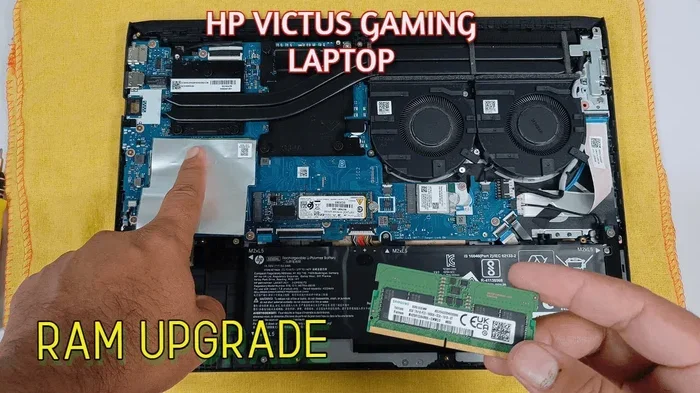
Installing RAM is one of the easiest laptop upgrades you can do. You do not need to be a tech expert. With a few simple tools and careful handling, you can complete the process in minutes. For a full step-by-step walkthrough, see our detailed guide on how to install RAM into a laptop.
What You Will Need
- A small Phillips-head screwdriver
- An anti-static wrist strap (optional but recommended)
- Your new RAM module(s)
- A clean, flat workspace
Step-by-Step Installation Process
- Power off your laptop completely and unplug it from the charger.
- Remove the battery if it is removable. If not, hold the power button for 15 seconds to discharge any residual power.
- Locate the RAM access panel on the bottom of your laptop. It is usually marked with a small memory icon.
- Remove the screws holding the panel in place. Keep them somewhere safe.
- Carefully remove the panel and set it aside.
- Push the side clips on either side of the existing RAM module outward. The module will pop up at an angle.
- Remove the old module by pulling it straight out.
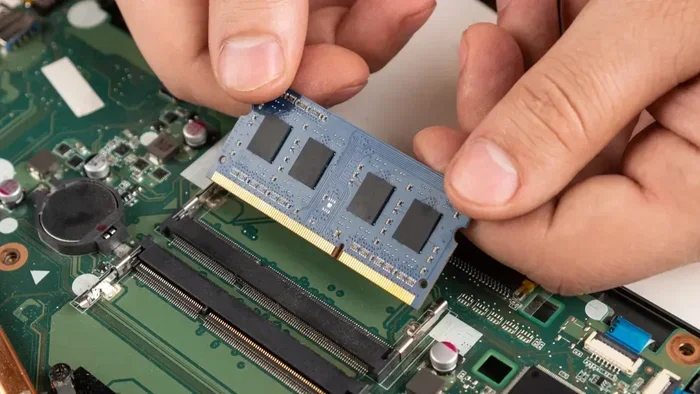
- Align the new module with the slot at a 45-degree angle. Press it firmly into place until the side clips click and hold it securely.
- Replace the access panel and screw it back in.
- Reconnect the battery and power on your laptop.
For a more detailed visual guide, check out our article on how to upgrade RAM on a laptop. It covers common pitfalls and pro tips to make the process even smoother.
Quick Tips for a Successful Installation
- Always handle RAM by the edges. Never touch the gold contacts on the bottom.
- Work on a non-conductive surface like a wooden table.
- If the module does not click in, double-check the alignment angle.
- Take a photo of the inside of your laptop before you start. This helps you remember how everything is connected.
Common Mistakes to Avoid When Upgrading Laptop RAM
Even with the best intentions, mistakes happen. Here are the most common errors people make when adding RAM to a laptop — and how to avoid them.
Buying the Wrong RAM Type
The most frequent mistake is purchasing incompatible RAM. Always triple-check your laptop’s specifications. Confirm the DDR generation, form factor (SO-DIMM), and maximum supported capacity. When in doubt, use the Crucial System Scanner or Kingston Memory Finder tools on their respective websites. These free tools analyze your system and recommend the exact modules that will work.
Ignoring the Maximum Capacity Limit
Buying a 32GB module for a laptop that only supports 16GB total is a waste of money. The excess capacity simply will not be recognized. Always check the maximum RAM limit for your specific model before making a purchase.
Forgetting to Remove Static Electricity
Static discharge can damage RAM modules and other components. Always touch a grounded metal surface before handling RAM. An anti-static wrist strap is a cheap and effective way to protect your investment.
Not Testing After Installation
Once you have installed new RAM, do not just close the laptop and walk away. Boot it up and check that the system recognizes the full amount of memory. Use the same tools you used before the upgrade to verify everything is working correctly.
Benefits of Adding RAM to Your Laptop
If you have been on the fence about upgrading, here are the real-world benefits you can expect from adding more memory to your laptop.
- Faster multitasking: Switch between apps, browser tabs, and windows without lag.
- Smoother performance: Heavy applications like video editors and IDEs run more responsively.
- Better gaming: Many games require a minimum of 16GB for smooth gameplay.
- Longer laptop lifespan: Instead of buying a new laptop, an upgrade extends the useful life of your current one.
- Cost-effective upgrade: A RAM stick costs far less than a new laptop and delivers noticeable improvements.
Upgrading your memory is especially worthwhile if you currently have 4GB or 8GB and find your laptop struggling with everyday tasks. Even moving from 8GB to 16GB can feel like a completely different machine. For those wondering about specific upgrade paths, our guide on can I upgrade my laptop RAM from 4GB to 16GB addresses this exact scenario in detail.
When You Cannot Add RAM to a Laptop
It is important to be honest about the limitations. Not every laptop can be upgraded. Here is when adding RAM is simply not possible:
- Soldered RAM: Many modern ultrabooks and thin laptops have memory soldered directly to the motherboard. Apple MacBook Air and MacBook Pro models (Apple Silicon) are a prime example.
- Single slot with no expansion: Some laptops have only one slot that is already occupied, with no room for a second module.
- Proprietary or non-standard modules: A few manufacturers use custom memory designs that are not user-replaceable.
If your laptop falls into one of these categories, your best option is to optimize the memory you already have. Close unused background apps, disable startup programs, and use lighter alternatives to heavy software. You can also use an external drive for additional storage, which helps free up system resources.
Final Thoughts
So, can RAM be added to a laptop? In the majority of cases, yes. The key is doing your homework first. Check your laptop’s specifications, confirm compatibility, and choose the right module. The process is simpler than most people think, and the results are well worth the effort.
Whether you are looking to upgrade laptop RAM for work, school, or gaming, a memory upgrade is one of the smartest investments you can make. It is affordable, easy to do, and delivers immediate performance gains. Do not let a slow laptop hold you back. Take action today and give your machine the boost it deserves.
Remember to back up your data before opening your laptop. Handle all components with care. And if you ever feel unsure, consult a professional technician. With the right approach, you will be enjoying a faster, more responsive laptop in no time.
Frequently Asked Questions
Can I add RAM to any laptop?
No, not every laptop allows RAM upgrades. Some models have soldered memory, especially ultra-thin laptops and Apple Silicon MacBooks. Always check your laptop’s specifications to confirm whether it has user-accessible RAM slots before purchasing any memory.
How do I know what type of RAM my laptop needs?
You can check your laptop’s manual, visit the manufacturer’s website, or use a free tool like the Crucial System Scanner. Look for the DDR generation (DDR4 or DDR5), form factor (SO-DIMM), and supported speed. Matching all three ensures full compatibility.
Is it hard to install RAM in a laptop?
No, installing RAM is one of the easiest laptop upgrades. It typically takes less than 15 minutes. You just need a small screwdriver and careful handling. Most laptops have an access panel on the bottom that gives you direct reach to the RAM slots.
Will adding RAM make my laptop faster?
Yes, adding RAM can significantly improve performance, especially during multitasking. If your laptop currently has 4GB or 8GB and you upgrade to 16GB, you will notice smoother operation with multiple apps and browser tabs open.
Can I mix different RAM brands in my laptop?
Yes, you can mix brands, but it is best to match the same DDR generation, speed, and capacity. Using mismatched modules may cause the system to run at the slower speed of the two sticks. For optimal results, use a matched pair of RAM modules.
How much RAM do I really need in a laptop?
For everyday tasks like browsing and office work, 8GB is usually sufficient. For multitasking, photo editing, or gaming, 16GB is the sweet spot. Power users running virtual machines or heavy software may benefit from 32GB.