What Does More Ram Do for a Laptop
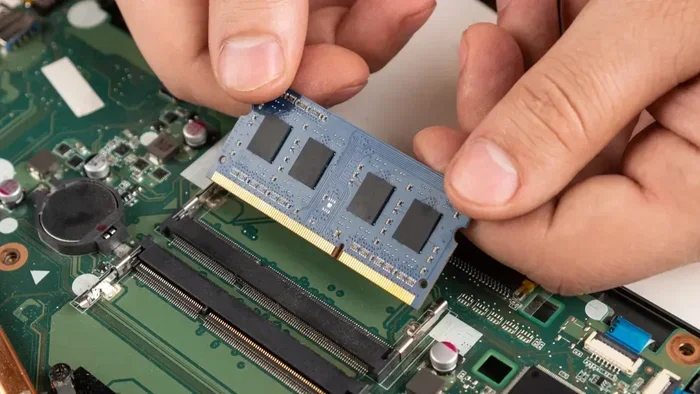
More RAM gives your laptop the power to run multiple apps at once without slowing down. It improves system speed, enhances multitasking, and makes heavy tasks like video editing smoother. If your laptop feels sluggish, a memory upgrade might be the easiest fix.
Have you ever noticed your laptop freezing when you have a dozen browser tabs open? Maybe your video editing software stutters, or your game crashes right in the middle of an intense session. These frustrating moments often point to one simple problem — not enough RAM.
So, what does more RAM do for a laptop? In short, it gives your computer more working space to handle tasks quickly and efficiently. Think of RAM as your laptop’s short-term memory. The more you have, the more your system can juggle at once without breaking a sweat.
Many laptop users don’t realize how much their daily experience depends on memory capacity. Whether you’re a student, a remote worker, or a casual gamer, understanding RAM can completely change how you use your device. Let’s dive into everything you need to know about how extra memory transforms laptop performance.
Key Takeaways
- Faster Multitasking: More RAM lets you switch between apps quickly and keeps everything running smooth.
- Better System Speed: Your laptop handles demanding tasks with less lag and fewer freezes.
- Smoother Gaming and Creative Work: Heavy apps like video editors and games run better with extra memory.
- Easy Upgrade Path: Adding RAM to a laptop is often simple and affordable.
- Right Amount Matters: Knowing your ideal RAM size prevents wasted money on unnecessary upgrades.
📑 Table of Contents
What Does More RAM Do for a Laptop?
RAM stands for Random Access Memory. It’s the temporary workspace your laptop uses to store data while you’re actively working on something. When you open an app, browse the web, or edit a document, all of that activity lives in your RAM.
Here’s the key thing — RAM is much faster than your hard drive or SSD. So when your laptop has enough memory, it can pull data quickly and keep everything running smoothly. But when memory runs low, your system starts shuffling data to your storage drive, which slows things down dramatically.
That’s exactly why understanding what does more RAM do for a laptop matters so much. Extra memory means your system can hold more active data in that fast workspace, reducing delays and keeping your experience seamless.
How RAM Affects Everyday Performance
On a basic level, RAM impacts how fast your laptop responds to your actions. When you click an icon or open a file, the system pulls that information from memory. More RAM means more of those files and apps stay ready to go, so you experience almost instant responses.
With insufficient memory, your laptop has to constantly clear space. It closes background processes or moves data to your storage drive. This creates those annoying pauses and lags you feel during daily use.
Adding more memory solves this problem at its root. Your system keeps more apps active in the background without sacrificing speed. The result? A laptop that feels faster and more responsive in every way.
Multitasking Becomes Effortless
One of the biggest benefits of extra RAM is multitasking. Think about your typical workflow. You might have a web browser with 15 tabs open, a Spotify playlist running, a Word document in the background, and a video call active. That’s a lot of simultaneous activity.
Without enough memory, your laptop struggles to keep all those apps running smoothly. You’ll notice delays when switching between windows or apps freezing temporarily. With a memory upgrade, your system handles all of these tasks at once with ease.
Here’s what happens when you increase your laptop’s memory for multitasking:
- Browser tabs stay loaded and don’t need to reload constantly
- Apps switch faster when you click between them
- Background downloads and updates don’t slow down your work
- Video calls run smoothly even with other apps open
- Your system stays stable instead of crashing under pressure
For anyone who juggles multiple apps throughout the day, a memory upgrade is one of the most impactful changes you can make. It transforms a frustrating experience into a seamless one.
Gaming and Creative Work Shine with Extra Memory
If you use your laptop for gaming or creative projects, RAM plays an even bigger role. Modern games and creative software like Adobe Premiere Pro or Photoshop demand a lot of memory. They load high-resolution textures, process complex calculations, and manage large files in real time.
When you don’t have enough memory, games stutter, render times drag on, and creative apps crash unexpectedly. Adding more RAM gives these demanding applications the breathing room they need to perform at their best.
Here’s a quick comparison of how memory affects common tasks:
| Task | With Low RAM (4GB) | With More RAM (16GB+) |
|---|---|---|
| Web Browsing | Tabs reload frequently | All tabs stay active |
| Video Editing | Laggy playback, slow renders | Smooth timeline, faster exports |
| Gaming | Stuttering, long load times | Stable frame rates, quick loads |
| Photo Editing | Slow filters, app crashes | Instant adjustments, smooth workflow |
| Coding | Slow compilation, laggy IDE | Fast builds, responsive environment |
The difference is night and day. Whether you’re a gamer chasing high frame rates or a content creator working on tight deadlines, extra memory makes a tangible impact on your workflow.
How to Know If Your Laptop Needs More RAM
Not sure if your laptop would benefit from a memory upgrade? There are clear signs that your system is running low on memory. Watch for these common indicators:
- Slow performance: Your laptop takes forever to open apps or files
- Frequent freezing: The system locks up when you run multiple programs
- High memory usage: Your task manager shows RAM is nearly full during normal use
- Slow boot times: Your laptop takes longer than usual to start up
- Browser slowdowns: Web pages take extra time to load or respond
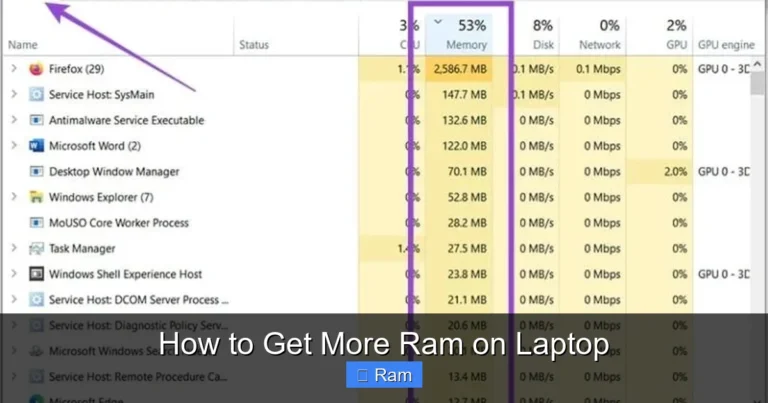
If you notice these issues regularly, it’s time to check your current memory usage. On Windows, you can open Task Manager and look at the Performance tab. On a Mac, use Activity Monitor. Both tools show you exactly how much memory your system is using.
Another approach is to consider your laptop’s intended use. If you’ve upgraded your workflow or started using more demanding apps, your old memory configuration might no longer be enough. Understanding what does RAM do for a laptop in your specific situation helps you make the right call.
Quick Tip: Check Your RAM Usage
Keep an eye on your memory usage over a typical workday. If you consistently see usage above 80%, you would benefit from more memory. A simple upgrade can eliminate those frustrating slowdowns before they even start.
How Much RAM Does Your Laptop Actually Need?
The right amount of RAM depends on how you use your laptop. Different users have different needs, and understanding this helps you avoid overspending or under-upgrading.
For basic tasks like web browsing, email, and document editing, 8GB of memory is usually sufficient. This is the sweet spot for most everyday users who don’t run demanding applications.
For multitasking, light creative work, or casual gaming, 16GB provides a comfortable buffer. You can run multiple apps without worrying about performance drops.
Professional creators, heavy gamers, and users who run virtual machines should consider 32GB or more. These workflows push memory to its limits and benefit greatly from a larger capacity.
If you’re unsure about the right amount, check out our guide on what is a good RAM size for a laptop for more detailed recommendations.
Understanding RAM Types and Speeds
Not all memory is created equal. Different laptops support different types of RAM modules, and the speed of that memory also matters. DDR4 is the most common type found in modern laptops, while newer models may use DDR5 for even faster data transfer.
Faster memory speeds improve how quickly your system can read and write data. This translates to snappier app launches, smoother multitasking, and better overall responsiveness. However, the capacity usually matters more than the speed for most users.
When planning an upgrade, always check your laptop’s specifications first. Some laptops have soldered memory that can’t be upgraded, while others have open slots for easy installation. Knowing your options helps you make the best decision.
How to Add More RAM to Your Laptop
If you’ve decided your laptop needs more memory, the next step is the upgrade process. Fortunately, adding RAM to many laptops is simpler than most people think.
First, check if your laptop has upgradeable memory. Look up your laptop model online or consult the manufacturer’s documentation. Some slim laptops have memory soldered to the motherboard, which means you can’t add more. But many traditional laptops have one or two accessible slots.
Here’s a basic overview of the upgrade process:
- Purchase the right type of RAM for your laptop model
- Power off your laptop and unplug it from the charger
- Remove the back panel using a screwdriver
- Locate the existing memory module or empty slot
- Carefully insert the new RAM at an angle and press it down
- Replace the back panel and power on your laptop
- Check that the system recognizes the new memory
If you’re not comfortable doing this yourself, you can always visit a repair shop or contact the manufacturer for assistance. The cost of professional installation is usually reasonable, and it ensures the upgrade goes smoothly.
For a detailed walkthrough, check out our guide on how to add more RAM to a laptop for step-by-step instructions tailored to different models.
Common Mistakes to Avoid When Upgrading RAM
While upgrading memory is straightforward, a few common mistakes can cause problems. Here’s what to watch out for:
- Buying the wrong RAM type: Always match the DDR generation and form factor to your laptop
- Ignoring maximum capacity: Some laptops can only support a certain amount of total memory
- Mixing different speeds: Using mismatched modules can cause compatibility issues
- Forgetting to ground yourself: Static electricity can damage sensitive components
- Not testing before reassembly: Boot up with the panel open to confirm everything works
Avoiding these pitfalls ensures your upgrade goes smoothly and delivers the performance boost you’re expecting.
Is a RAM Upgrade Always Worth It?
Here’s the honest truth — a memory upgrade isn’t always the solution to every laptop slowdown. If your storage drive is nearly full or your processor is outdated, adding RAM might not fix the problem you’re experiencing.
Before spending money on a memory upgrade, consider the bigger picture. Run a diagnostic to identify what’s actually causing the slowdown. Often, a combination of factors affects performance, and RAM is just one piece of the puzzle.
However, for most users experiencing multitasking issues or slowdowns with demanding apps, a RAM upgrade delivers excellent value. It’s one of the most cost-effective ways to breathe new life into an aging laptop.
If you want to understand the full scope of what memory does in your system, read our article on what does RAM do in a laptop for a deeper dive into how memory impacts every aspect of your computing experience.
Ultimately, knowing your usage patterns and matching them to the right memory configuration is the key to getting the most out of your laptop. A thoughtful upgrade can make your device feel like new again.
Conclusion
So, what does more RAM do for a laptop? It transforms the way your system handles everyday tasks. From smoother multitasking to better gaming and creative performance, extra memory makes a real difference in how you experience your device.
Whether you’re a casual user who wants a faster laptop or a professional who needs reliable performance under heavy workloads, a memory upgrade is one of the smartest investments you can make. It’s affordable, relatively simple, and delivers noticeable results immediately.
Take a moment to evaluate your current setup. Check your memory usage, consider your workflow, and decide if an upgrade makes sense. You might be surprised at how much better your laptop can feel with just a little extra memory.
The bottom line is clear — more RAM means a faster, more capable laptop. Don’t let slowdowns hold you back when the fix is within reach.
Frequently Asked Questions
Does adding more RAM make a laptop faster?
Yes, adding more RAM can make your laptop faster, especially during multitasking and when running demanding applications. Extra memory gives your system more space to handle active tasks without slowing down. However, if other components like your processor or storage drive are the bottleneck, RAM alone may not solve all speed issues.
How much RAM is enough for a laptop in 2024?
For most users, 8GB is the minimum for basic tasks, while 16GB is the sweet spot for comfortable multitasking and light creative work. Power users, gamers, and professionals should aim for 32GB or more. The right amount depends entirely on what you use your laptop for on a daily basis.
Can you upgrade RAM on any laptop?
Not all laptops allow RAM upgrades. Many slim and lightweight models have soldered memory that cannot be changed. Before purchasing RAM for an upgrade, check your laptop’s specifications to confirm it has accessible memory slots and supports the type of RAM you want to install.
What happens when your laptop runs out of RAM?
When your laptop runs out of RAM, it starts using your storage drive as temporary memory, which is much slower. This causes apps to lag, freeze, or crash. You may also experience slow performance, long load times, and difficulty running multiple programs simultaneously.
Is 32GB of RAM overkill for a laptop?
32GB is overkill for basic users who only browse the web and use office applications. However, for video editors, 3D designers, heavy gamers, and developers running virtual machines, 32GB provides essential headroom. Match your RAM capacity to your actual workload to avoid spending money unnecessarily.
How long does a RAM upgrade take?
A RAM upgrade typically takes about 10 to 20 minutes if you’re comfortable opening your laptop. The process involves accessing the memory slots, inserting the new module, and verifying the system recognizes it. For those who prefer professional help, installation at a repair shop usually takes less than an hour.