Lenovo Amd A6 Laptop Ram Upgrade
A Lenovo AMD A6 laptop RAM upgrade can breathe new life into your machine. Whether you want more speed, better multitasking, or smoother performance, adding memory is one of the simplest and most affordable upgrades you can make. This guide covers everything you need to know, from checking compatibility to installing your new RAM sticks.
A Lenovo AMD A6 laptop RAM upgrade is one of the best ways to make your older machine feel brand new again. If your laptop has been running slow, struggling with multiple tabs, or freezing during everyday tasks, a memory upgrade might be the fix you need.
Upgrading RAM is simple, affordable, and one of the few laptop improvements you can do yourself without any special tools or training. In this guide, we walk you through every step. From understanding what RAM your laptop needs to actually installing it, you will find everything right here.
The Lenovo AMD A6 series is a popular budget-friendly lineup. Many users find these laptops perfectly fine for basic tasks when they have enough memory. But over time, software updates and heavier workloads can push older RAM to its limits. That is where a laptop RAM upgrade comes in.
Key Takeaways
- Know Your Limits: Every Lenovo AMD A6 model has a maximum RAM capacity you need to check before buying.
- DDR3 vs DDR4 Matters: Using the wrong RAM type will not work. Always match your RAM type to your laptop model.
- DIY Is Easy: Upgrading RAM on a Lenovo laptop is a straightforward process you can do at home in minutes.
- Dual Channel Helps: Installing matching RAM sticks in pairs can significantly boost your laptop speed.
- Check Before You Buy: Use built-in tools or online specs to confirm what RAM your laptop supports.
📑 Table of Contents
- Understanding Your Lenovo AMD A6 Laptop
- Can You Upgrade RAM on a Lenovo AMD A6 Laptop?
- How to Choose the Right RAM for Your Upgrade
- Step-by-Step Guide to Upgrading Your Lenovo AMD A6 RAM
- Common Mistakes to Avoid During a RAM Upgrade
- How Much Performance Boost Can You Expect?
- Where to Buy RAM for Your Lenovo AMD A6
- Final Thoughts
Understanding Your Lenovo AMD A6 Laptop
Before you buy any RAM, you need to know what your laptop currently has and what it can support. Not all Lenovo AMD A6 models are the same. Different years and configurations use different types of memory.
Check Your Current RAM
Start by checking how much RAM your laptop already has. On Windows, you can open the Task Manager by pressing Ctrl + Shift + Esc. Click on the Performance tab and look at Memory. This will tell you your current RAM amount, speed, and type.
You can also use the System Information tool. Press the Windows key, type “System Information,” and hit Enter. Look for “Installed Physical Memory (RAM).” This gives you a clear picture of what you are working with.
Find Your Exact Model
Your laptop model number matters a lot. Check the sticker on the bottom of your laptop or go to Settings > System > About. Write down the exact model name. This will help you find the right RAM specifications later.
If you are unsure whether your laptop can be upgraded, you can search online for your specific model. Many Lenovo support pages list the maximum RAM and RAM type for each model. You can also check if your laptop has a free RAM slot available.
Can You Upgrade RAM on a Lenovo AMD A6 Laptop?
This is the first question most people ask. The answer depends on your specific model. Many Lenovo AMD A6 laptops do allow RAM upgrades, but some come with soldered memory that cannot be replaced.
Before you proceed, it is a good idea to confirm your laptop supports upgrades. If you are not sure, check the Lenovo support website or contact their customer service with your model number. You can also look for online teardown videos that show the inside of your specific model.
If your laptop does support upgrades, you will need to know a few key details. These include the RAM type, maximum capacity, and how many memory slots are available. This information will guide your purchase and make the whole process smooth.
Maximum RAM Capacity
Most Lenovo AMD A6 laptops support a maximum of 8GB or 16GB of RAM. Some newer models can handle up to 32GB. Check your specific model to be sure. Going beyond the maximum supported capacity will not work, even if the RAM stick physically fits.
RAM Type: DDR3 vs DDR4
Older Lenovo AMD A6 models use DDR3 RAM. Newer ones use DDR4. These two types are not interchangeable. You cannot put DDR4 RAM into a DDR3 slot or vice versa. Always double-check which type your laptop uses before making a purchase.
RAM Speed and Frequency
RAM speed is measured in megahertz (MHz). Common speeds for laptop RAM include 1600MHz, 2400MHz, and 3200MHz. Your laptop will only run at the speed its motherboard supports. Buying faster RAM than your laptop can handle is fine, but it will just run at the slower supported speed.
How to Choose the Right RAM for Your Upgrade
Now that you know what your laptop needs, it is time to pick the right RAM. There are a few things to keep in mind to make sure you get the best results.
Match the RAM Type
Make sure the RAM you buy matches the type your laptop uses. Look for DDR3 or DDR4 based on your model. The RAM should also be in SODIMM format, which is the small size used in laptops. Desktop RAM will not fit inside a laptop.
Buy Matching Sticks for Dual Channel
If your laptop has two RAM slots, consider buying a matching pair. Running two identical sticks in dual channel mode can improve performance by up to 20 percent. Look for RAM sticks with the same brand, size, speed, and timings for the best results.
Choose the Right Capacity
Think about how you use your laptop. For basic tasks like browsing and word processing, 8GB is usually enough. If you do photo editing, light gaming, or run many programs at once, 16GB will feel much better. Here is a quick look at what different amounts can handle.
- 4GB: Basic tasks only. Web browsing and document editing. Feels limited today.
- 8GB: Good for everyday use. Handles multitasking and light creative work well.
- 16GB: Great for smoother performance. Handles heavier workloads and modern software with ease.
- 32GB: Overkill for most users. Best for video editing, programming, and intensive tasks.
Step-by-Step Guide to Upgrading Your Lenovo AMD A6 RAM
Upgrading RAM on a Lenovo laptop is one of the easiest DIY projects you can try. You do not need to be a tech expert. Just follow these steps carefully and you will be done in under 15 minutes.
Step 1: Gather Your Tools
You will need a small Phillips-head screwdriver, an anti-static wrist strap (optional but recommended), and your new RAM sticks. A clean, flat workspace is also important. Make sure your laptop is powered off and unplugged before you start.
Step 2: Back Up Your Data
While a RAM upgrade is very safe, it is always smart to back up your important files first. Use an external drive or a cloud service to save anything you cannot afford to lose. This step takes just a few minutes and gives you peace of mind.
Step 3: Open the Laptop Back Panel
Flip your laptop over and locate the screws on the bottom panel. Use your screwdriver to carefully remove them. Keep the screws in a safe place. Gently pry off the back panel using a plastic spudger or your fingernail. Avoid using metal tools that could scratch the laptop.
Step 4: Locate the RAM Slots
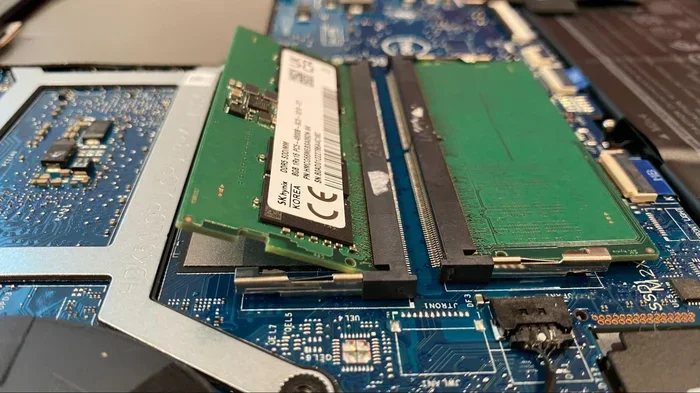
Once the back panel is off, you will see the inside of your laptop. The RAM sticks are long and thin, usually held in place by small clips on each side. If your laptop has a second free slot, you can add RAM there. If both slots are filled, you will need to remove the existing sticks before installing new ones.
Step 5: Remove Old RAM (If Needed)
To remove old RAM, gently push the clips on each side outward. The stick will pop up at an angle. Pull it straight out. Be careful not to touch the gold connectors on the bottom of the stick. Hold the new RAM stick by its edges.
Step 6: Install the New RAM
Align the notch on the new RAM stick with the slot. Press the stick firmly into the slot at an angle. When it is halfway in, push it down flat until the clips snap into place. You should hear a soft click. This means the stick is securely seated.
Step 7: Close Up and Test
Replace the back panel and screw it back in. Plug in your laptop and power it on. Windows should automatically recognize the new RAM. You can check by going to Settings > System > About. The total installed memory should now reflect your upgrade.
If the laptop does not recognize the new RAM, try reseating the sticks. Sometimes they need a little extra pressure to click into place. You can also run a memory diagnostic tool to check for any issues.
Common Mistakes to Avoid During a RAM Upgrade
Even though RAM upgrades are simple, mistakes can happen. Here are a few common errors to watch out for.
- Buying the Wrong RAM Type: DDR3 and DDR4 look similar but are not compatible. Always verify the type before purchasing.
- Forcing the RAM Stick: If the stick does not go in easily, check the alignment. Forcing it can damage the slot or the stick.
- Ignoring Maximum Capacity: Buying RAM beyond what your laptop supports is a waste of money.
- Not Grounding Yourself: Static electricity can damage RAM and other components. Touch a metal surface before handling RAM sticks.
- Mixing Different RAM Brands: While it sometimes works, mixing brands can cause compatibility issues. Stick with matching sticks when possible.
How Much Performance Boost Can You Expect?
The performance improvement from a Lenovo AMD A6 laptop RAM upgrade depends on what you were working with before. If you went from 4GB to 8GB or 16GB, you will likely notice a big difference. Apps will open faster, multitasking will feel smoother, and your laptop will handle more tasks at once without slowing down.
Users who upgraded from 4GB to 8GB often report that their laptop feels like a new machine. The difference is especially noticeable when you have multiple browser tabs open or when running office applications alongside media playback.
For users who already had 8GB and upgraded to 16GB, the improvement is more subtle but still valuable. Heavy tasks like photo editing or running virtual machines benefit the most from extra memory.
When a RAM Upgrade Won’t Help
RAM upgrades are not a magic fix for every slow laptop problem. If your laptop is slow because of an old hard drive, upgrading RAM will not solve that. In those cases, switching to a solid state drive (SSD) might be a better investment. Similarly, if your processor is too old to handle modern software, more RAM alone may not make a big difference.
If you are not sure what is causing your laptop slowdowns, run a performance check first. Open Task Manager and look at how much RAM you are using during normal tasks. If you are consistently using more than 80 percent of your available RAM, an upgrade will likely help a lot.
Where to Buy RAM for Your Lenovo AMD A6
You can find laptop RAM from many retailers, both online and in-store. Popular options include Amazon, Best Buy, and Newegg. When shopping, make sure to check the specifications carefully. Look for DDR3 or DDR4 SODIMM sticks in the right capacity and speed for your model.
Buying from a reputable brand like Kingston, Crucial, or Corsair is a safe bet. These brands offer good compatibility and reliable performance. You can also use online RAM configurators. Just enter your laptop model and the tool will show you exactly which RAM sticks work with your machine.
Final Thoughts
A Lenovo AMD A6 laptop RAM upgrade is a simple, affordable way to improve your laptop’s speed and responsiveness. Whether you are a student, a remote worker, or just someone who uses their laptop for everyday tasks, extra memory can make a real difference in your daily experience.
The process is straightforward and does not require any technical expertise. With the right RAM, a few basic tools, and this guide, you can upgrade your laptop in less than 15 minutes. Just remember to check compatibility first, follow the steps carefully, and avoid the common mistakes we covered.
If you are still unsure about whether your laptop supports upgrades, check out our guide on can I upgrade RAM in my laptop for more details. It covers the basics of laptop RAM compatibility across different brands and models.
Once you have upgraded, you will wonder why you did not do it sooner. Your Lenovo AMD A6 laptop will thank you with faster load times, smoother multitasking, and a much better overall experience. Give it a try and enjoy the boost.
Frequently Asked Questions
How do I know if my Lenovo AMD A6 laptop can be upgraded?
Check your laptop model number on the bottom sticker or in Settings > System > About. Then visit the Lenovo support website and search for your model. The specifications page will list the maximum RAM, RAM type, and number of available slots.
Can I mix 4GB and 8GB RAM sticks in my Lenovo AMD A6?
Yes, you can mix different sizes, but it is best to use matching sticks for optimal performance. Mixing sizes may cause your laptop to run in single-channel mode, which is slower than dual-channel mode. For the best results, use two identical sticks.
How much does it cost to upgrade RAM on a Lenovo AMD A6 laptop?
A single 8GB DDR3 or DDR4 SODIMM stick typically costs between $20 and $40. A pair of matching 8GB sticks usually runs $40 to $70. The price depends on the brand, speed, and where you purchase it. It is one of the most affordable laptop upgrades you can do.
Is it hard to upgrade RAM on a Lenovo laptop?
No, it is one of the easiest laptop upgrades you can do. You only need a small screwdriver and about 10 to 15 minutes. If you can follow simple step-by-step instructions, you can handle it without any technical experience.
Will upgrading RAM void my laptop warranty?
In most cases, upgrading RAM yourself does not void the warranty. However, it is a good idea to check your specific warranty terms. If your laptop is still under warranty, you may want to contact Lenovo support before opening the back panel.
What happens if I install the wrong type of RAM?
If you install the wrong RAM type, such as DDR4 in a DDR3 slot, the laptop will not boot. The RAM simply will not fit or be recognized. Always double-check your laptop specifications before purchasing RAM to avoid this issue.
=== CONCLUSION ===
A Lenovo AMD A6 laptop RAM upgrade is one of the smartest investments you can make for your laptop. It is affordable, easy to do, and delivers noticeable improvements in speed and multitasking ability. Whether you are upgrading from 4GB to 8GB or pushing your machine to 16GB, the difference in day-to-day performance is hard to ignore.
Remember to check your laptop specifications before buying, choose the right RAM type and capacity, and follow the installation steps carefully. Avoid the common mistakes we highlighted, and you will have a smooth upgrade experience. If you need more help understanding laptop RAM compatibility, visit our guide on how to upgrade RAM on a laptop for additional tips and detailed instructions.
Take the leap and give your Lenovo AMD A6 the memory boost it deserves. Your laptop will run faster, smoother, and ready to handle whatever tasks you throw at it.