Can I Upgrade Ram in My Laptop

If you have ever asked yourself “can I upgrade RAM in my laptop,” you are not alone. The good news is that many laptops allow you to upgrade RAM, giving your device a significant speed boost without buying a new computer. This guide will walk you through everything you need to know about laptop memory upgrades.
Key Takeaways
- Most laptops can be upgraded: Many models have accessible RAM slots, but some modern ultrabooks have soldered memory that cannot be changed.
- Check compatibility first: Always verify the type, speed, and maximum capacity your laptop supports before buying new RAM.
- Upgrading improves performance: More RAM lets you run more apps at once and reduces slowdowns during heavy multitasking.
- DIY installation is possible: With basic tools and careful handling, most people can install new RAM in under 30 minutes.
- Know your current setup: Use system tools or third-party software to check how much RAM you currently have and how many slots are available.
- Dual channel matters: Installing RAM in matching pairs can unlock better performance through dual channel memory architecture.
- Static electricity is a risk: Always ground yourself before touching internal components to avoid damaging sensitive electronics.
📑 Table of Contents
- Can I Upgrade RAM in My Laptop? Here Is Everything You Need to Know
- How to Determine If Your Laptop RAM Can Be Upgraded
- Understanding RAM Specifications and Compatibility
- How to Check Your Current RAM Configuration
- Choosing the Right RAM for Your Laptop
- Step by Step Guide to Installing RAM in Your Laptop
- What Performance Improvements Can You Expect?
- Common Mistakes to Avoid When Upgrading Laptop RAM
- When Upgrading RAM Is Not Worth It
- Frequently Asked Questions About Laptop RAM Upgrades
- Conclusion
Can I Upgrade RAM in My Laptop? Here Is Everything You Need to Know
If you have ever found yourself staring at a sluggish laptop, waiting endlessly for programs to load, you have probably wondered: can I upgrade RAM in my laptop? It is one of the most common questions people ask when their computer starts feeling slow. The answer is often yes, and upgrading your RAM can breathe new life into your machine without the hefty price tag of buying a brand new laptop.
RAM, which stands for Random Access Memory, is the short term memory your laptop uses to store data for active tasks. Think of it like a desk where you spread out your work. The bigger the desk, the more projects you can have open at the same time without things getting messy and slow. When your laptop runs out of RAM, it starts using your hard drive as a backup, which is dramatically slower. That is when you notice freezing, lag, and frustrating delays.
In this comprehensive guide, we will answer the question “can I upgrade RAM in my laptop” in full detail. We will cover how to determine if your laptop supports upgrades, how to choose the right memory, how to install it, and what kind of performance improvements you can expect. By the end, you will have all the knowledge you need to make an informed decision and potentially transform your computing experience.
How to Determine If Your Laptop RAM Can Be Upgraded
Before you rush out to buy new memory, the first step is figuring out whether your laptop even allows RAM upgrades. Not all laptops are created equal in this regard. Some models are designed with user upgrades in mind, while others lock everything down to keep the device as thin and light as possible.
Check Your Laptop Manufacturer Specifications
The easiest way to find out if you can upgrade is to look up your specific laptop model on the manufacturer’s website. Companies like HP, Dell, Lenovo, and ASUS publish detailed specifications for every model they produce. These specs will tell you how many RAM slots your laptop has, what type of memory it supports, and the maximum amount of RAM it can handle. For example, many HP Pavilion laptops come with upgradeable RAM, making them a popular choice for users who want flexibility.
Soldered RAM vs Slotted RAM
Here is where things get tricky. Many modern ultrabooks and thin laptops have their RAM soldered directly onto the motherboard. This means the memory chips are permanently attached and cannot be removed or replaced. Apple MacBook Air models and many Microsoft Surface devices use this design. If your laptop has soldered RAM, unfortunately the answer to “can I upgrade RAM in my laptop” is no.
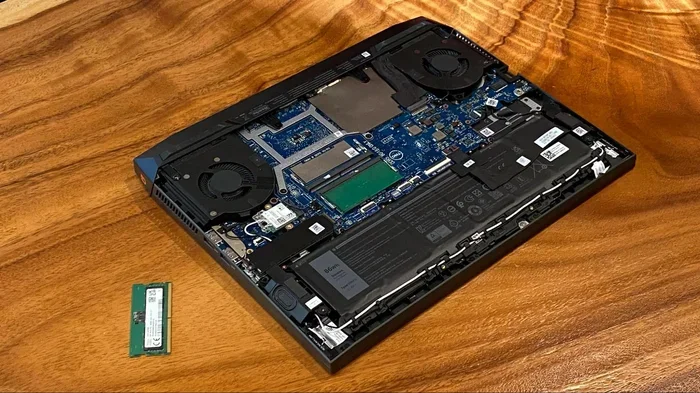
On the other hand, laptops with slotted RAM use small circuit boards called DIMMs or SO DIMMs that fit into slots on the motherboard. These can be removed and replaced. Most traditional laptops, gaming laptops, and business laptops still use slotted memory, which is great news for anyone looking to upgrade.
Use System Information Tools
You can also check your current RAM setup directly from your operating system. On Windows, open Task Manager by pressing Ctrl plus Shift plus Esc, then go to the Performance tab and click on Memory. This will show you how much RAM you have, how many slots are in use, and the speed of your current memory. On a Mac, click the Apple menu, select About This Mac, and look at the Memory tab. These built in tools give you a quick snapshot without opening your laptop.
For even more detailed information, free tools like CPU Z or Speccy can tell you the exact type of RAM installed, how many slots your motherboard has, and whether any slots are empty. This is incredibly helpful when shopping for compatible memory modules.
Understanding RAM Specifications and Compatibility
Once you have confirmed that your laptop supports RAM upgrades, the next step is understanding what kind of memory you need. Buying the wrong type of RAM is a common mistake, and incompatible memory simply will not work or could even damage your system.
DDR Generations Explained
RAM comes in different generations, including DDR3, DDR4, and the newer DDR5. Each generation has a different physical design, so a DDR4 module will not fit in a DDR3 slot and vice versa. Most laptops manufactured in the last few years use DDR4, while the latest models are starting to adopt DDR5. Check your laptop specifications to determine which generation you need.
Speed and Frequency
RAM speed is measured in megahertz, such as 2400MHz, 2666MHz, or 3200MHz. Higher speeds generally mean better performance, but your laptop motherboard will have a maximum supported speed. Buying RAM faster than what your system supports is not wasteful because the memory will simply run at the maximum speed your laptop can handle. However, mixing RAM speeds can cause instability, so it is best to match the speed of your existing memory if you are adding to it rather than replacing it.
Form Factor
Laptops use SO DIMMs, which are smaller than the full size DIMMs used in desktop computers. Make sure you are buying laptop specific memory, not desktop memory. The physical size difference means desktop RAM simply will not fit in a laptop slot.
Maximum Capacity
Every laptop has a maximum RAM limit determined by the motherboard and chipset. Some laptops max out at 16GB, while others can handle 32GB or even 64GB. Exceeding this limit will not damage your laptop, but the extra memory will not be recognized by the system. Always check your manufacturer documentation for the maximum supported capacity.
How to Check Your Current RAM Configuration
Before purchasing new memory, it helps to know exactly what you are working with right now. Understanding your current configuration will help you decide whether to add more RAM or replace existing modules entirely.
Using Windows Task Manager
As mentioned earlier, Task Manager is your quickest option. Open it with Ctrl plus Shift plus Esc, navigate to the Performance tab, and select Memory. You will see your total RAM, the speed, the form factor, and crucially, how many slots are used. If you have two slots and only one is occupied, you have room to add another module.
Using Command Line Tools
For a more technical approach, you can use the Windows Command Prompt. Type “wmic memorychip get capacity, speed, manufacturer” and press Enter. This will list each RAM stick installed along with its size and speed. On Linux systems, the command “sudo dmidecode -t memory” provides similar detailed information.
Physical Inspection
If you are comfortable opening your laptop, you can physically inspect the RAM slots. Most laptops have a small access panel on the bottom secured by a few screws. Removing this panel reveals the RAM slots and lets you see how many are populated. Just remember to power off the laptop and disconnect the battery before touching any internal components.
Choosing the Right RAM for Your Laptop
Now comes the fun part: picking out your new memory. With so many options available, it can feel overwhelming. Here are some practical tips to help you make the right choice.
Match Your Existing RAM
If you are adding RAM to an existing stick, try to match the brand, speed, and capacity as closely as possible. Mismatched RAM can work, but it may cause stability issues or force both sticks to run at the speed of the slower module. For the best results, buy a matching pair from the same manufacturer.
Consider Dual Channel Performance
Many laptops support dual channel memory, which essentially doubles the data transfer rate between the RAM and the memory controller. To take advantage of this, install RAM in pairs of equal size and speed. For example, two 8GB sticks will perform better than a single 16GB stick in most scenarios. This is one of the most overlooked benefits when people ask “can I upgrade RAM in my laptop” and rush to buy a single large module.
Trusted Brands to Consider
Stick with reputable memory manufacturers like Corsair, Kingston, Crucial, G.Skill, and Samsung. These brands offer reliable products with warranties and excellent compatibility. Crucial even has a system scanner tool on their website that automatically detects your laptop model and recommends compatible memory upgrades.
Budget Considerations
RAM prices fluctuate, but generally speaking, 8GB of DDR4 laptop memory costs between 20 and 40 dollars, while 16GB kits range from 40 to 80 dollars. For most users, 16GB is the sweet spot for modern computing. If you do heavy video editing, 3D rendering, or run virtual machines, 32GB may be worth the investment.
Step by Step Guide to Installing RAM in Your Laptop
If you have confirmed that your laptop supports upgrades and purchased compatible memory, it is time to install it. Do not worry, this process is simpler than most people think. Here is a detailed walkthrough.
What You Will Need
- Your new RAM module or modules
- A small Phillips head screwdriver, usually size 0 or 1
- A plastic prying tool or old credit card
- An anti static wrist strap, recommended but optional
- A clean, flat workspace with good lighting
Power Down and Prepare
Shut down your laptop completely. Do not just put it to sleep or hibernate. Unplug the power adapter and remove the battery if it is removable. For laptops with built in batteries, you will need to disconnect the battery cable from the motherboard after opening the case. Press and hold the power button for about 10 seconds to discharge any remaining electricity in the system.
Open the Laptop Case
Locate the RAM access panel on the bottom of your laptop. It is usually marked with a small memory chip icon. Remove the screws holding the panel in place and gently lift it off. On some laptops, you may need to remove the entire bottom cover. Keep track of where each screw goes, as they are often different lengths.
Ground Yourself
Before touching any internal components, ground yourself to prevent static discharge. You can do this by touching a metal part of the laptop chassis or by wearing an anti static wrist strap attached to a grounded surface. Static electricity can fry sensitive memory chips without you even feeling a shock.
Remove Existing RAM If Necessary
If you are replacing existing RAM rather than adding to it, you need to remove the old modules first. Gently push the retention clips on either side of the RAM stick outward. The module will pop up at an angle. Carefully pull it out by holding the edges, avoiding contact with the gold contacts or the chips on the board.
Install the New RAM
Align the notch on the bottom edge of the new RAM module with the key in the slot. This ensures you insert it in the correct orientation. Slide the module into the slot at about a 30 degree angle until the gold contacts are mostly hidden. Then gently press down on the top of the module until the retention clips snap into place on both sides. You should hear and feel a satisfying click.
Reassemble and Test
Replace the access panel or bottom cover and secure all screws. Reconnect the battery if you disconnected it. Power on your laptop and check if the new RAM is recognized. Open Task Manager or System Information to confirm the total memory has increased. If the laptop does not boot or does not recognize the new RAM, power off and reseat the module to ensure it is properly installed.
What Performance Improvements Can You Expect?
So you have upgraded your RAM, but what does it actually mean for your day to day computing? The benefits depend on how you use your laptop, but here are the most common improvements people experience.
Better Multitasking
The most noticeable improvement is the ability to run more programs simultaneously without slowdowns. If you typically have a web browser with dozens of tabs open, a music streaming app, a word processor, and maybe a video call running at the same time, more RAM keeps everything running smoothly. Your laptop will stop freezing or stuttering when switching between applications.
Faster Application Loading
With sufficient RAM, applications load faster because more of their data can be stored in memory rather than being read from the slower hard drive or SSD. This is especially noticeable with large programs like Adobe Photoshop, video editing software, and modern web browsers.
Improved Gaming Performance
If you game on your laptop, more RAM can lead to smoother gameplay and fewer frame rate drops. Many modern games recommend at least 16GB of RAM. While RAM alone will not transform a weak gaming laptop into a powerhouse, it eliminates memory related bottlenecks and lets your GPU and CPU perform at their best.
Enhanced Browser Performance
Web browsers are among the most memory hungry applications. Chrome, Firefox, and Edge can consume several gigabytes of RAM with just a few tabs open. Upgrading your memory means you can keep more tabs open without your browser becoming sluggish or crashing.
Common Mistakes to Avoid When Upgrading Laptop RAM
Even though upgrading RAM is straightforward, there are some pitfalls you should watch out for. Avoiding these common mistakes will save you time, money, and frustration.
Buying Incompatible Memory
This is the number one mistake people make. Always double check that the RAM you buy matches your laptop requirements for generation, speed, and form factor. When in doubt, use a compatibility checker tool from a reputable memory manufacturer.
Forgetting to Ground Yourself
It might seem like a minor step, but static electricity can destroy a RAM module instantly. Always ground yourself before handling memory or any other internal component. The cost of a new RAM stick is not worth the risk of skipping this simple precaution.
Ignoring Dual Channel Benefits
Many people buy a single large RAM stick when two smaller sticks would actually deliver better performance. If your laptop has two slots, consider buying a matched pair to take advantage of dual channel memory. This can provide a meaningful boost in memory intensive tasks.
Not Checking Maximum Supported RAM
Some users assume that more RAM is always better and buy 64GB for a laptop that only supports 16GB. The excess memory will simply go unused. Check your laptop specifications to find the maximum supported capacity and plan your upgrade accordingly.
Skipping the Post Installation Check
After installing new RAM, always verify that your operating system recognizes it. Some people reassemble their laptop only to discover later that the new memory was not seated properly or is not compatible. A quick check in Task Manager or System Information takes seconds and can save hours of troubleshooting.
When Upgrading RAM Is Not Worth It
While upgrading RAM is a great way to improve performance, there are situations where it might not be the best use of your money. Understanding these scenarios will help you make a smarter decision.
Your Laptop Has Soldered RAM
If your laptop has soldered memory, there is no way to upgrade it. In this case, your only option is to buy a new laptop with more RAM. This is increasingly common in ultrabooks and thin devices where manufacturers prioritize slim designs over upgradeability.
Your Laptop Is Very Old
If your laptop is more than seven or eight years old, upgrading RAM might not provide a meaningful improvement. Older processors, slow mechanical hard drives, and outdated chipsets will bottleneck performance regardless of how much memory you add. In these cases, investing in a new laptop is usually the better choice.
You Already Have Enough RAM
If your laptop already has 16GB or more of RAM and you primarily use it for basic tasks like web browsing and email, adding more memory will not noticeably improve your experience. The bottleneck is likely elsewhere, such as the processor or storage drive. Consider upgrading to an SSD instead if you are still using a traditional hard drive.
Frequently Asked Questions About Laptop RAM Upgrades
Let us address some of the most common questions people have when considering a RAM upgrade for their laptop.
Can I upgrade RAM in my laptop if it currently has 4GB?
Yes, in most cases you can upgrade from 4GB to 8GB or even 16GB depending on your laptop model. This is one of the most impactful upgrades you can make, as 4GB is barely enough for modern computing tasks. Going to 8GB or 16GB will dramatically improve your experience.
Will upgrading RAM void my laptop warranty?
In most cases, upgrading RAM does not void your warranty. Many manufacturers design their laptops with accessible RAM panels specifically to encourage user upgrades. However, some manufacturers may consider any internal modification as grounds for voiding the warranty, so it is worth checking your warranty terms before proceeding.
Can I mix different brands of RAM?
You can mix different brands of RAM, but it is not recommended. Different brands may use different chip configurations, timings, and speeds, which can lead to instability or reduced performance. For the best results, use matching RAM sticks from the same manufacturer and product line.
How much RAM do I actually need?
For basic tasks like web browsing and document editing, 8GB is sufficient. For moderate multitasking, gaming, and creative work, 16GB is the sweet spot. Professional video editing, 3D rendering, and running virtual machines may require 32GB or more. Your specific needs should guide your decision.
Is it better to have one large RAM stick or two smaller ones?
Two smaller sticks are generally better because they enable dual channel memory, which improves data transfer speeds. Two 8GB sticks will typically outperform a single 16GB stick. However, if you plan to upgrade further in the future, a single larger stick leaves an open slot for later expansion.
Do I need to reinstall my operating system after upgrading RAM?
No, you do not need to reinstall your operating system after upgrading RAM. RAM is a plug and play component, and your operating system will automatically detect the new memory on the next boot. No software changes or reinstallation are required.
Conclusion
So, can I upgrade RAM in my laptop? For the vast majority of users, the answer is a resounding yes. Upgrading your laptop RAM is one of the most cost effective ways to improve performance, extend the life of your device, and enjoy a smoother computing experience. Whether you are a casual user who wants to browse the web without frustration, a gamer looking for better frame rates, or a professional running demanding applications, more RAM can make a real difference.
The key steps are straightforward. First, verify that your laptop supports RAM upgrades by checking the manufacturer specifications or using system diagnostic tools. Second, choose compatible memory that matches your laptop requirements for generation, speed, and capacity. Third, follow proper installation procedures, including grounding yourself and carefully seating the new modules. Finally, verify that your system recognizes the new memory and enjoy the improved performance.
If you have been on the fence about upgrading, now is the perfect time. RAM prices are reasonable, the installation process is simpler than most people expect, and the performance benefits are immediate and noticeable. Instead of struggling with a slow laptop or spending hundreds on a new one, consider giving your current machine the memory boost it deserves. Your future self will thank you every time your laptop handles tasks effortlessly instead of grinding to a halt.
Frequently Asked Questions
Can I upgrade RAM in my laptop myself?
Yes, most people can upgrade their laptop RAM themselves with just a screwdriver and a few minutes of time. The process involves opening the laptop case, inserting the new RAM module into the available slot, and closing everything back up.
How do I know what type of RAM my laptop needs?
You can find out by checking your laptop manufacturer specifications, using system information tools like Task Manager, or running free software like CPU Z. These methods will tell you the RAM generation, speed, and form factor your laptop requires.
Will more RAM make my laptop faster?
More RAM will make your laptop faster if you currently do not have enough memory for your tasks. It improves multitasking, reduces loading times, and prevents slowdowns. However, if you already have sufficient RAM, adding more will not provide a noticeable speed boost.
Can I upgrade RAM in any laptop?
Not all laptops support RAM upgrades. Some modern ultrabooks and thin laptops have soldered memory that cannot be replaced. Check your laptop specifications to confirm whether the RAM is upgradeable before purchasing new memory.
How much does it cost to upgrade laptop RAM?
The cost varies depending on the amount and type of RAM you need. Generally, 8GB of DDR4 laptop RAM costs between 20 and 40 dollars, while a 16GB kit ranges from 40 to 80 dollars. Prices fluctuate based on market conditions and specific memory specifications.
Is 16GB of RAM enough for a laptop?
For most users, 16GB of RAM is more than enough. It handles multitasking, gaming, and creative work comfortably. Only users running professional video editing, 3D rendering, or virtual machines may benefit from 32GB or more.