Ddr4 Ram for Hp Laptop
DDR4 RAM for HP laptop is the go-to upgrade for anyone looking to boost speed and multitasking power. This guide covers everything you need to know about choosing the right DDR4 memory, checking compatibility, and installing it in your HP laptop. Whether you have an HP Pavilion, Omen, or Notebook, you will find practical tips to make your upgrade a success.
Upgrading your laptop memory is one of the easiest ways to breathe new life into an older machine. If you own an HP laptop, DDR4 RAM for HP laptop is the upgrade path that makes the most sense today. Whether you are dealing with slow performance, constant freezing, or just want to run more apps at once, the right memory upgrade can transform your experience.
DDR4 RAM has been the standard for laptop memory for several years now. It is faster, runs cooler, and uses less power than its predecessor, DDR3. This means your HP laptop will not only perform better but also last longer on battery after an upgrade. In this guide, we will walk you through everything you need to know about DDR4 RAM for HP laptop upgrades, from compatibility checks to installation.
If you have been wondering whether your HP laptop can handle DDR4 memory or how much RAM you actually need, you are in the right place. This article breaks it all down in simple terms. No jargon, no confusion, just clear advice that helps you make the right decision.
Key Takeaways
- DDR4 RAM is the current standard: It offers faster speeds and better power efficiency than older DDR3 memory for HP laptops.
- Check your laptop model first: Not all HP laptops support DDR4 RAM, so always verify compatibility before buying.
- 8GB to 16GB is the sweet spot: Most users will see a big performance boost with 16GB of DDR4 RAM in their HP laptop.
- Speed and dual channel matter: Matching RAM speed and using dual channel configuration can significantly improve performance.
- Installation is straightforward: With the right tools and a little care, you can upgrade your HP laptop RAM in under 30 minutes.
📑 Table of Contents
- What Is DDR4 RAM and Why Does It Matter for HP Laptops?
- How to Check if Your HP Laptop Supports DDR4 RAM
- How Much DDR4 RAM Do You Need for Your HP Laptop?
- DDR4 RAM Speeds for HP Laptops Explained
- How to Install DDR4 RAM in Your HP Laptop
- Where to Buy DDR4 RAM for HP Laptop
- Benefits of Upgrading to DDR4 RAM in Your HP Laptop
- Common Questions About DDR4 RAM for HP Laptops
- Final Thoughts on DDR4 RAM for HP Laptop
What Is DDR4 RAM and Why Does It Matter for HP Laptops?
DDR4 stands for Double Data Rate 4th generation. It is the fourth version of double data rate synchronous dynamic random access memory. In plain English, it is the type of short-term memory your laptop uses to handle everything you do. Every app you open, every browser tab you keep running, and every video you stream relies on your laptop’s RAM.
DDR4 RAM for HP laptop systems offers several clear advantages over older memory types:
- Faster speeds: DDR4 starts at 2133 MHz and can go well beyond 3200 MHz, making tasks feel much snappier.
- Lower power consumption: DDR4 runs at 1.2 volts compared to DDR3’s 1.5 volts, which means less heat and better battery life.
- Higher capacity options: You can easily find DDR4 modules in 8GB, 16GB, 32GB, and even 64GB sizes.
- Better multitasking: More bandwidth means your HP laptop can handle multiple apps without slowing down.
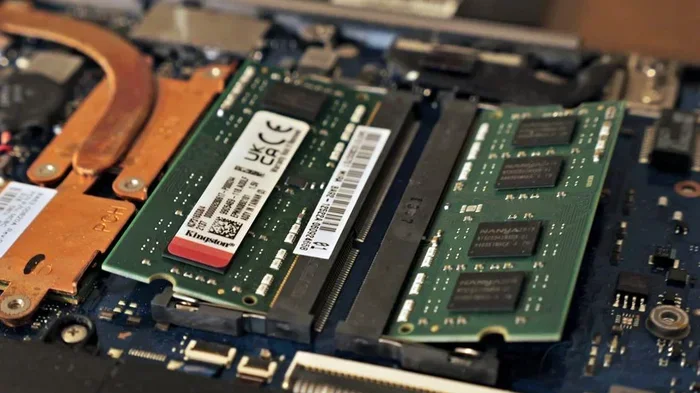
If your HP laptop currently has DDR3 memory, upgrading to DDR4 is not possible because the physical slots are different. DDR4 SO-DIMM modules have a different notch position and pin configuration. So before you buy anything, make sure your HP laptop actually supports DDR4 RAM. This is the first and most important step.
DDR3 vs DDR4: What Is the Difference?
The jump from DDR3 to DDR4 was a big one. Here is a quick comparison to help you understand why DDR4 is the better choice for your HP laptop:
- Speed: DDR3 maxes out around 1600 MHz, while DDR4 starts at 2133 MHz and goes higher.
- Power efficiency: DDR4 uses less voltage, which keeps your laptop cooler and extends battery life.
- Capacity: DDR4 modules are available in much larger sizes, making it easier to add 16GB or more.
- Latency: DDR4 has slightly higher latency per clock cycle but makes up for it with much higher overall bandwidth.
For most users, the performance improvement from DDR4 is noticeable right away. Web browsing feels smoother, applications open faster, and your HP laptop handles heavy workloads with much less strain.
How to Check if Your HP Laptop Supports DDR4 RAM
Not every HP laptop uses DDR4 memory. Some older models still rely on DDR3, and some newer ones support DDR5. Before you spend money on an upgrade, you need to confirm what your specific HP model supports.
Here is how you can check your HP laptop’s memory compatibility:
- Check your HP laptop model number: Look on the bottom of the laptop or in the system information. The model number usually starts with something like “HP Pavilion 15” or “HP Omen 17.”
- Use the HP Support Assistant: This free tool from HP can tell you exactly what type of RAM your laptop currently has and what it supports.
- Check the user manual: HP publishes detailed specs for every laptop model. Look up your model on the HP website to find the supported RAM type.
- Use a system information tool: Free tools like CPU-Z or Speccy can tell you the exact type of RAM installed in your laptop right now.
If your HP laptop does support DDR4 RAM, the next step is figuring out how much you can install and what speed it supports. Some HP laptops have two RAM slots, while others have one soldered module and one free slot. This affects how much total memory you can add.
For most HP Pavilion and HP Omen laptops from the last few years, DDR4 RAM for HP laptop upgrades are fully supported and straightforward. You can typically install up to 16GB or 32GB depending on the model. If you are unsure, check the HP website or your laptop’s manual for the maximum supported RAM capacity.
How Much DDR4 RAM Do You Need for Your HP Laptop?
The amount of RAM you need depends entirely on what you use your HP laptop for. Different tasks demand different amounts of memory. Here is a breakdown to help you decide:
4GB DDR4 RAM
Four gigabytes is the bare minimum today. It is enough for basic web browsing and simple document editing, but you will run into problems fast if you open multiple tabs or run anything heavier. If your HP laptop only has 4GB, a DDR4 RAM for HP laptop upgrade is almost essential for a usable experience.
8GB DDR4 RAM
Eight gigabytes is the current standard for most users. It handles everyday tasks like web browsing, office work, video streaming, and light photo editing with ease. 8GB of DDR4 RAM is a solid starting point for most HP laptop users who do not run demanding software.
16GB DDR4 RAM
Sixteen gigabytes is the sweet spot for most people. It gives you room to multitask heavily, run virtual machines, edit videos, and play games without slowdowns. If you want your HP laptop to stay fast for years to come, 16GB of DDR4 RAM is the best investment you can make.
32GB DDR4 RAM
Thirty-two gigabytes is for power users. If you do professional video editing, 3D rendering, heavy programming, or run multiple virtual machines, 32GB will give you the headroom you need. For most casual and business users, though, 16GB is more than enough.
Quick Tip: If your HP laptop has two RAM slots, consider buying a matched pair of 8GB modules for 16GB total. This enables dual channel mode, which can boost memory performance by up to 20%. Always buy the same brand, speed, and capacity for both modules to ensure compatibility.
DDR4 RAM Speeds for HP Laptops Explained
DDR4 RAM comes in different speeds, measured in megahertz (MHz). The speed number tells you how fast the memory can transfer data. For HP laptops, the most common DDR4 speeds are 2400 MHz, 2666 MHz, 2933 MHz, and 3200 MHz.
Here is what you need to know about DDR4 RAM speeds:
- 2400 MHz and 2666 MHz: These are the most common speeds for laptop DDR4 RAM. They offer a great balance of performance and affordability. For most HP laptop users, this speed range is more than enough.
- 2933 MHz and 3200 MHz: These faster speeds are found in higher-end HP Omen and HP Envy laptops. They provide a noticeable boost in memory-intensive tasks but come at a higher price.
- Matching speeds: If your HP laptop has two RAM slots, always match the speed of both modules. Mixing different speeds can cause both modules to run at the slower speed.
When shopping for DDR4 RAM for HP laptop, check what speed your laptop supports. You can find this in the HP specs page for your model. Buying RAM that exceeds the supported speed will still work, but it will run at the maximum speed your laptop allows.
Does Faster RAM Really Make a Difference?
The short answer is yes, but with some caveats. Faster DDR4 RAM helps most in tasks that are heavily dependent on memory bandwidth. This includes video editing, large data processing, and some games. For everyday tasks like web browsing and document editing, the difference between 2400 MHz and 3200 MHz is barely noticeable.
If you are on a budget, stick with 2666 MHz DDR4 RAM. It is widely available, affordable, and provides excellent performance for the price. Save your money for adding more capacity instead, which will have a bigger impact on your daily experience.
How to Install DDR4 RAM in Your HP Laptop
Installing DDR4 RAM in an HP laptop is one of the simplest upgrades you can do. You do not need to be a tech expert. With a few basic tools and about 15 to 30 minutes, you can have your new memory installed and working.
What You Will Need
- A compatible DDR4 SO-DIMM module (check your HP laptop’s specs for the right type)
- A small Phillips-head screwdriver
- An anti-static wrist strap (optional but recommended)
- A clean, flat workspace
Step-by-Step Installation Guide
- Power off your HP laptop: Shut it down completely and unplug the power adapter. Remove the battery if your laptop has a removable battery.
- Ground yourself: Touch a metal surface to discharge any static electricity. This protects your laptop’s components from static damage.
- Locate the RAM compartment: Most HP laptops have a RAM access panel on the bottom. Look for a small rectangular cover held by one or two screws.
- Remove the old RAM (if needed): Push the clips on either side of the existing RAM module outward. The module will pop up at an angle. Gently pull it out.
- Insert the new DDR4 RAM: Align the notch on the DDR4 module with the ridge in the slot. Insert it at a 45-degree angle and press down firmly until the clips click into place.
- Replace the cover and boot up: Put the access panel back on, screw it in, and power on your laptop. The system should recognize the new RAM automatically.
If you want a more detailed walkthrough, check out our guide on how to upgrade RAM on HP laptop for step-by-step instructions with images.
Common Mistakes to Avoid During Installation
- Forcing the RAM module: DDR4 RAM should slide in with firm, even pressure. If it does not go in easily, check the alignment.
- Mixing different RAM types: Do not put DDR3 and DDR4 modules in the same laptop. They are physically different and will not work together.
- Forgetting to ground yourself: Static electricity can damage RAM modules and other components. Always discharge yourself before touching internal parts.
- Over-tightening screws: The access panel screws only need to be snug. Over-tightening can strip the threads or crack the panel.
Where to Buy DDR4 RAM for HP Laptop
DDR4 SO-DIMM modules are widely available both online and in retail stores. When buying DDR4 RAM for HP laptop, here are some trusted places to look:
- Amazon: Wide selection, competitive prices, and fast shipping. Look for well-known brands like Crucial, Kingston, Corsair, and Samsung.
- Best Buy: You can see the products in person and get same-day pickup if you need the RAM quickly.
- Newegg: Great for tech enthusiasts who want to compare specs and find the best deals.
- HP Store: HP sells its own branded RAM modules that are guaranteed to be compatible with HP laptops.
When choosing a DDR4 RAM module, pay attention to the following specs:
- Capacity: 8GB, 16GB, or 32GB depending on your needs.
- Speed: Match the speed to what your HP laptop supports.
- Form factor: Make sure it is SO-DIMM (laptop size), not DIMM (desktop size).
- Type: DDR4, not DDR3 or DDR5.
For guidance on how much RAM is right for your specific use case, visit our article on what is a good RAM size for a laptop. It covers everything from basic use to professional workloads.
Benefits of Upgrading to DDR4 RAM in Your HP Laptop
Still on the fence about upgrading? Here are the real-world benefits you can expect after installing DDR4 RAM for HP laptop:
- Faster application loading: Apps and programs open noticeably quicker with more and faster RAM.
- Smoother multitasking: Run multiple browser tabs, office apps, and media simultaneously without slowdowns.
- Better gaming performance: Games load faster and run more smoothly with adequate DDR4 memory.
- Improved battery life: DDR4 uses less power than DDR3, which can extend your laptop’s battery by 15 to 30 minutes under light use.
- Longer laptop lifespan: A RAM upgrade can keep your HP laptop relevant for another 2 to 3 years without needing a full replacement.
- Better video editing: Rendering and exporting videos is much faster with 16GB or more of DDR4 RAM.
The cost of a DDR4 RAM upgrade is one of the best values in laptop improvements. A 16GB DDR4 SO-DIMM module typically costs between $40 and $80. For that small investment, you get a laptop that feels brand new again. It is hard to find any other upgrade that delivers this much improvement for this little money.
Common Questions About DDR4 RAM for HP Laptops
Before we wrap up, let us address some of the most common questions people ask about DDR4 RAM upgrades for HP laptops:
- Can I mix DDR4 RAM from different brands? Yes, but it is best to match the speed and capacity for optimal performance.
- Will upgrading RAM void my HP warranty? Usually no. HP does not void warranties for RAM upgrades, but always check your specific warranty terms.
- Can I upgrade RAM on an HP laptop with soldered memory? Some HP laptops have one soldered RAM module and one free slot. You can only upgrade the free slot in those cases.
- How do I know if my HP laptop recognizes the new RAM? After installation, go to Settings > System > About. The total installed memory should reflect your new module.
If you have more questions about HP laptop RAM, feel free to check out our detailed guide on HP laptop 16GB RAM for in-depth information on this popular configuration.
Final Thoughts on DDR4 RAM for HP Laptop
Upgrading to DDR4 RAM for HP laptop is one of the simplest and most effective ways to improve your laptop’s performance. It is affordable, easy to install, and delivers immediate results. Whether you are a student, a professional, or a casual user, the right amount of DDR4 memory can make your HP laptop feel faster and more responsive.
Start by checking your HP laptop model to confirm DDR4 compatibility. Then decide how much RAM you need based on your usage. Finally, purchase a quality DDR4 SO-DIMM module and follow the installation steps we covered. In less than 30 minutes, you will have a faster, more capable HP laptop that handles everything you throw at it.
Do not let a slow laptop hold you back any longer. A DDR4 RAM upgrade is the quickest path to a better computing experience. Your HP laptop will thank you for it.