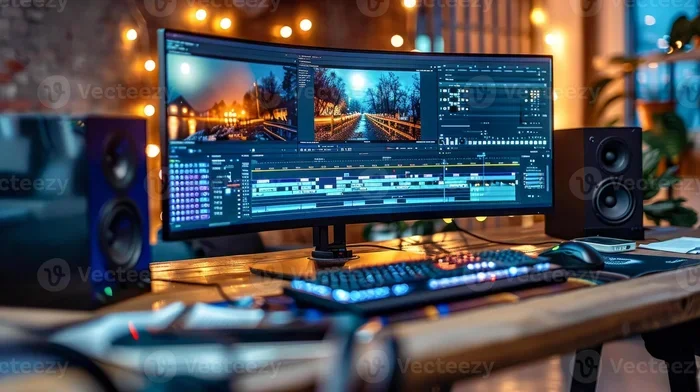
Adobe Premiere Pro Cc 2020 System Requirements
The Adobe Premiere Pro CC 2020 system requirements outline the minimum and recommended hardware needed to edit video without lag. You need at least 8GB of RAM, a multicore processor, and a CUDA-enabled GPU for best performance. Meeting these specs ensures smooth playback, fast rendering, and a better editing experience overall.
Are you planning to install Adobe Premiere Pro CC 2020 on your computer? Before you dive into video editing, you need to know whether your machine can handle it. The Adobe Premiere Pro CC 2020 system requirements tell you exactly what hardware you need to run this powerful video editing software without frustrating slowdowns.
Video editing is demanding work. Your computer needs to process high-resolution footage, apply effects in real time, and export finished projects quickly. If your system falls short, you will face lag, crashes, and wasted time. That is why checking the Premiere Pro CC 2020 requirements before installation is so important. Let us break down everything you need to know.
Key Takeaways
- Minimum RAM: 8GB is required, but 16GB or more is recommended for smoother editing.
- Processor Matters: A multicore Intel or AMD processor is essential for handling video files.
- GPU Acceleration: A CUDA-enabled graphics card speeds up rendering and effects.
- Storage Speed: An SSD is strongly recommended for faster file access and playback.
- OS Compatibility: Windows 10 (64-bit) and macOS 10.14 or later are supported.
- Display: A 1920×1080 resolution monitor is the minimum for comfortable editing.
📑 Table of Contents
- Why System Requirements Matter for Premiere Pro CC 2020
- Adobe Premiere Pro CC 2020 System Requirements: The Full Breakdown
- Minimum vs Recommended: Adobe Premiere Pro CC 2020
- Common Mistakes to Avoid When Checking System Requirements
- How to Check If Your PC Meets the Requirements
- Optimizing Your System for Premiere Pro CC 2020
- Final Thoughts on Adobe Premiere Pro CC 2020 System Requirements
Why System Requirements Matter for Premiere Pro CC 2020
Every version of Adobe Premiere Pro comes with updated features and higher performance demands. Premiere Pro CC 2020 is no exception. It introduced new AI-powered features, improved playback engines, and enhanced color grading tools. All of these features need horsepower behind them.
If your computer does not meet the minimum system requirements for Premiere Pro, you will notice stuttering playback. Effects may take longer to apply. Rendering times will stretch into what feels like forever. On the other hand, meeting or exceeding the recommended specs for video editing gives you a fluid, responsive editing experience.
Think of it like building a car for a race. You need the right engine, enough fuel, and good tires. Your computer needs the right processor, RAM, GPU, and storage to edit video effectively. Let us look at each component in detail.
Adobe Premiere Pro CC 2020 System Requirements: The Full Breakdown
Processor (CPU) Requirements
The processor is the brain of your computer. For Premiere Pro CC 2020, Adobe recommends a multicore Intel or AMD processor. The minimum requirement is a 6th generation Intel Core i5 or equivalent. However, for smoother performance, a 7th generation Intel Core i7 or better is ideal.
Video editing relies heavily on multicore processing. Each core handles a different task simultaneously. This is called multicore processor Premiere Pro optimization. More cores mean faster rendering and better real-time playback. If you are building or buying a machine for editing, prioritize core count and clock speed.
Here is what to look for:
- Minimum: Intel Core i5 (6th gen) or AMD equivalent
- Recommended: Intel Core i7 (7th gen or newer) or AMD Ryzen 7
- Ideal for 4K editing: Intel Core i9 or AMD Ryzen 9
RAM: How Much Memory Do You Need?
RAM is where your computer stores data it is actively working on. When you edit video, you are juggling multiple clips, effects, and timelines in memory. The RAM for Premiere Pro CC 2020 needs are significant.
The minimum requirement is 8GB of RAM. But let us be honest, 8GB will feel limiting. If you work with 1080p footage, 8GB might get you by. However, if you edit 4K video or use heavy effects, you will want 16GB or even 32GB. Video editing workstation specs almost always list RAM as a top priority.
Quick tip: If your budget allows, go for 16GB as your baseline. It makes a noticeable difference in Premiere Pro CC performance optimization. You can always add more RAM later if needed.
Graphics Card (GPU) Requirements
The graphics card handles rendering, effects processing, and hardware acceleration. Adobe Premiere Pro CC 2020 relies on GPU acceleration to speed up many tasks. A CUDA-enabled GPU is particularly important because Premiere Pro uses CUDA cores for parallel processing.
Here is what Adobe recommends:
- Minimum: NVIDIA GeForce GTX 600 series or AMD equivalent
- Recommended: NVIDIA GeForce GTX 1060 or higher
- For 4K and heavy effects: NVIDIA RTX series or AMD Radeon RX 5000 series
When choosing a graphics card Premiere Pro 2020 setup, look for VRAM. More VRAM means your GPU can handle larger files and more complex effects without slowing down. The Premiere Pro hardware acceleration feature offloads tasks from the CPU to the GPU, which dramatically improves performance.
Storage Requirements
Storage plays a huge role in video editing speed. Adobe recommends at least 8GB of available hard-disk space for installation. But that is just for the software itself. Your media files, projects, and cache files need much more space.
The best practice is to use an SSD storage Premiere Pro setup. Solid-state drives read and write data much faster than traditional hard drives. This means smoother playback, faster scrubbing on the timeline, and quicker export times.
Consider this storage setup:
- SSD: For your operating system, Premiere Pro, and active projects
- HDD: For storing finished projects and archived footage
- External SSD: For transporting and backing up large video files
If you want to learn more about optimizing your PC setup for video work, check out our guide on PC Best Premiere Pro Proxies for tips on improving workflow.
Operating System and Display Requirements
Your operating system and display settings also matter. Premiere Pro CC 2020 supports Windows 10 (64-bit) version 1903 or later and macOS 10.14 (Mojave) or later. Make sure your OS is up to date before installing.
For the display, a 1920×1080 resolution monitor is the minimum. However, if you can afford a 4K display, it gives you more screen real estate for editing timelines and viewing details in your footage. A color-accurate monitor is also a big plus for video editors who need precise color grading.
Here is a quick comparison of what different setups offer:
Minimum vs Recommended: Adobe Premiere Pro CC 2020
Understanding the difference between minimum and recommended specs helps you plan your build or upgrade. The minimum specs will get the software running, but you will likely experience limitations. The recommended specs give you a comfortable editing experience.
Minimum Specs: 8GB RAM, 6th gen Intel i5, 8GB storage, GTX 600 series GPU, 1920×1080 display.
Recommended Specs: 16GB RAM, 7th gen Intel i7, SSD storage, GTX 1060 or higher, 1920×1080 display or better.
If you are on a tight budget, meeting the minimum specs will let you work with 1080p footage. But for 4K editing or complex projects, aim for the recommended specs or higher. Your patience will thank you.
Also, keep your system cool during heavy editing sessions. A best cooling system for PC can prevent thermal throttling, which slows down your processor when it gets too hot. This is especially important during long rendering sessions.
Common Mistakes to Avoid When Checking System Requirements
Many people make mistakes when evaluating whether their computer can run Premiere Pro CC 2020. Here are some common pitfalls to watch out for.
First, people confuse minimum requirements with recommended requirements. The minimum specs are the bare floor, not the target. Running Premiere Pro on minimum specs is like driving a car with the parking brake on, it works but it is not fun.
Second, many users overlook storage speed. Having 500GB of storage space does not matter if it is on a slow HDD. An SSD makes a world of difference for video editing performance. Third, some people forget to check their GPU driver version. Outdated drivers can cause crashes and compatibility issues with Premiere Pro CC 2020.
Finally, do not ignore your operating system version. Running an outdated OS can block installation or cause unexpected bugs. Always keep your system updated to the latest supported version.
How to Check If Your PC Meets the Requirements
Checking your system specs is easy on both Windows and Mac. On Windows, go to Settings, then System, then About. You will see your processor, RAM, and system type. On Mac, click the Apple menu, then About This Mac. You will find your processor, memory, and macOS version.
For a more detailed check, you can use free tools like CPU-Z or Speccy on Windows. These tools give you a full breakdown of your hardware, including your GPU model and driver version. This helps you identify exactly what needs upgrading before you install Adobe Premiere Pro CC 2020.
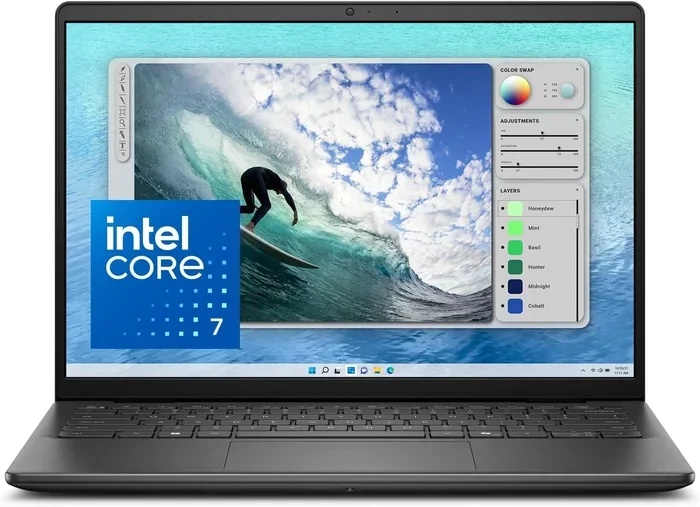
If you are considering a new laptop or desktop for editing, look at models with dedicated GPUs and at least 16GB of RAM. For inspiration on affordable options, you can explore best laptops under 20000 in India 2020 for budget-friendly choices that can handle video editing.
Optimizing Your System for Premiere Pro CC 2020
Once you have a system that meets the Adobe Premiere Pro CC 2020 system requirements, you can further optimize it for better performance. Start by updating your GPU drivers to the latest version. Adobe works closely with NVIDIA and AMD to ensure compatibility with current drivers.
Next, configure your media cache settings. The media cache stores temporary files that speed up playback. By default, Premiere Pro stores these on your system drive. Moving the cache to a separate SSD can free up resources and improve playback smoothness.
You should also close unnecessary applications while editing. Every open program uses RAM and CPU power. The more resources you free up for Premiere Pro, the smoother your editing experience will be. If you want to explore more about creating professional video content, consider trying Canva Pro for quick graphics and templates to enhance your videos.
Final Thoughts on Adobe Premiere Pro CC 2020 System Requirements
The Adobe Premiere Pro CC 2020 system requirements are your roadmap to a great video editing experience. Meeting the minimum specs lets you get started, but investing in recommended or ideal hardware pays off in speed, stability, and creative freedom. Focus on getting a strong multicore processor, at least 16GB of RAM, a CUDA-enabled GPU, and fast SSD storage.
Remember, video editing is a journey. Your needs will grow as your skills improve. Start with what you have, optimize your settings, and upgrade when you can. The most important thing is to start creating. With the right Premiere Pro CC 2020 requirements in place, you will have a powerful tool to bring your creative vision to life.
Frequently Asked Questions
What is the minimum RAM needed for Adobe Premiere Pro CC 2020?
Adobe lists 8GB of RAM as the minimum requirement for Premiere Pro CC 2020. However, 8GB is quite limiting for real-world editing. For a comfortable experience with 1080p footage, 16GB of RAM is strongly recommended.
Can I run Premiere Pro CC 2020 on a Mac?
Yes, Premiere Pro CC 2020 is compatible with macOS 10.14 (Mojave) or later. You will need a multicore Intel processor or Apple Silicon for the best experience. Check the recommended specs for the smoothest performance.
Do I need a dedicated GPU for Premiere Pro CC 2020?
A dedicated GPU is not strictly required, but it is highly recommended. Premiere Pro uses GPU acceleration for rendering, effects, and playback. A CUDA-enabled NVIDIA card or a compatible AMD GPU will significantly improve your editing workflow.
Is an SSD necessary for Premiere Pro CC 2020?
An SSD is not mandatory, but it makes a huge difference. SSDs provide much faster read and write speeds compared to traditional HDDs. This translates to smoother playback, faster scrubbing, and quicker export times in Premiere Pro.
What processor do I need for Adobe Premiere Pro CC 2020?
The minimum processor is a 6th generation Intel Core i5 or equivalent AMD chip. For better performance, especially with 4K video, a 7th generation Intel Core i7 or AMD Ryzen 7 processor is recommended.
How much storage space do I need for Premiere Pro CC 2020?
Adobe requires 8GB of available hard-disk space for installation alone. However, video files, projects, and cache files will need much more. Aim for at least 256GB of SSD storage for the system and software, plus additional storage for your media files.