Blue Iris System Requirements
Blue Iris is a powerful video surveillance software that demands the right system requirements to perform at its best. Knowing the minimum and recommended specs ensures your camera monitoring setup runs without lag, crashes, or dropped feeds. This guide covers hardware, software, and network requirements so you can build a reliable surveillance system with confidence.
Setting up a video surveillance system with Blue Iris is one of the smartest moves you can make for home or business security. But before you dive in, there is one thing that can make or break your experience: your system requirements. Blue Iris is a robust camera monitoring software, and it needs the right hardware, software, and network setup to run smoothly.
Whether you are setting up a single IP camera or managing a full 16 camera security system 4K, understanding what your PC needs is the first step. In this guide, we will walk you through every requirement in plain language. No jargon. No fluff. Just the facts you need to get your surveillance system up and running without headaches.
If you have ever experienced lag, dropped feeds, or crashes with your camera recording software, the problem likely starts with your hardware. Let us fix that right now.
Key Takeaways
- Processor Power Matters: A multi-core CPU is essential for handling multiple camera feeds and motion detection processing without lag.
- RAM Is Non-Negotiable: At least 8 GB is the minimum, but 16 GB or more ensures smooth video management with several cameras.
- Storage Speed and Capacity Go Hand in Hand: SSDs offer faster write speeds for video recording, while HDDs provide affordable bulk storage.
- Network Bandwidth Affects Camera Performance: A wired Ethernet connection delivers the most stable IP camera streaming experience.
- GPU Acceleration Helps with AI Features: A compatible graphics card improves video analytics and reduces CPU strain.
- Software Compatibility Is Key: Blue Iris runs best on Windows 10 or 11, and keeping drivers updated prevents camera system errors.
📑 Table of Contents
- Understanding Blue Iris and Why System Requirements Matter
- Minimum System Requirements for Blue Iris
- Recommended System Requirements for Optimal Performance
- Network Requirements for Multi-Camera Setups
- Hardware Compatibility and Camera Support
- Common Mistakes to Avoid When Meeting System Requirements
- Quick Tips for Optimizing Blue Iris Performance
- Expert Insights: Getting the Most from Blue Iris
- Conclusion
Understanding Blue Iris and Why System Requirements Matter
Blue Iris is a popular video management system used by homeowners and businesses alike. It supports a wide range of cameras, from basic USB models to advanced IP camera systems with motion detection and video analytics features. But here is the thing: the software is only as good as the machine running it.
Think of it like a car engine. You can have the best fuel in the world, but if the engine cannot handle it, nothing moves. Similarly, Blue Iris needs a capable processor, enough memory, fast storage, and a stable network to handle all the video streams you throw at it.
What Happens When Requirements Are Not Met
Running Blue Iris on underpowered hardware leads to real problems. You might notice video lag, missing frames, or delayed motion detection alerts. In some cases, the entire camera system becomes unresponsive. This is especially common when people try to run multiple high-resolution cameras on older machines.
For example, if you are using a four camera wireless security system, each camera sends a continuous video stream. Your PC has to decode, process, and store that data in real time. Without the right specs, your system will struggle. And if you have ever seen the dreaded camera system unavailable Dodge Charger error, you know how frustrating that can be.
Minimum System Requirements for Blue Iris
Blue Iris lists its minimum requirements on the official site, but let us break them down in a way that actually makes sense. These are the bare minimums to get the software running, not the levels for smooth performance.
Processor
You need at least a dual-core processor. A basic Intel Core i3 or AMD Ryzen 3 will technically run Blue Iris. However, do not expect miracles with multiple cameras. The CPU handles video decoding and motion detection, so a weak processor will bottleneck your entire setup.
Memory (RAM)
The minimum RAM requirement is 4 GB. But honestly, 4 GB is not enough for any serious surveillance work. If you want to run even four cameras, you will be swapping to disk constantly, which kills performance. We strongly recommend starting at 8 GB.
Storage
Blue Iris needs storage for video recordings. The minimum requirement is about 10 GB of free space just for the software. But your actual storage needs depend on how many cameras you have, the resolution, and how long you want to keep footage. A single 1080p camera can fill a 1 TB drive in about two weeks of continuous recording.
Operating System
Blue Iris runs on Windows 10 and Windows 11. It also supports some Linux setups, but Windows is where you get the full feature set. Make sure your OS is updated to the latest version for the best camera system compatibility.
Network
A basic broadband connection works for a single camera. But if you are running multiple IP cameras, a wired Ethernet connection is highly recommended. Wi-Fi introduces latency and packet loss, which can cause missed events or choppy video.
Recommended System Requirements for Optimal Performance
The minimum specs will get you running, but the recommended specs are what you should aim for if you want a reliable, lag-free experience. Think of this as the sweet spot where Blue Iris truly shines.
Processor: The Heart of Your Surveillance Setup
For smooth performance, go with an Intel Core i5 or AMD Ryzen 5 as a starting point. If you plan to run eight or more cameras, especially at 4K resolution, an Intel Core i7 or AMD Ryzen 7 is a better choice. The more cores your processor has, the better it handles simultaneous video streams.
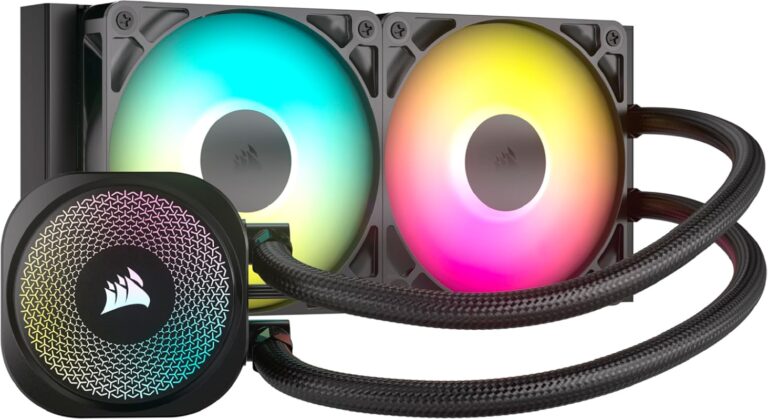
One thing many people overlook: CPU temperature matters. Running multiple cameras pushes your processor hard, which generates heat. If your cooling system is not up to par, thermal throttling will slow everything down. Make sure your fans are working and your heatsink is clean.
RAM: More Is Always Better
For a solid surveillance setup, 16 GB of RAM is the sweet spot. This gives Blue Iris enough headroom to handle video decoding, motion detection, and background tasks without choking. If you are running a 16 channel security camera system, 32 GB is even better.
Storage: Speed and Capacity
Here is a tip that many people miss: use an SSD for your operating system and Blue Iris installation, and pair it with an HDD for video storage. The SSD speeds up your video management system response time, while the HDD handles the heavy lifting of storing hours of footage.
If you want the fastest possible write speeds for video recording, consider NVMe SSDs. They are significantly faster than traditional SATA drives and can handle the demands of multiple high-resolution camera feeds.
Graphics Card: Optional but Helpful
Blue Iris does not require a dedicated GPU for basic operation. However, if you use AI-powered features like face detection, license plate recognition, or advanced video analytics, a compatible graphics card will offload work from your CPU and improve performance significantly.
Network Requirements for Multi-Camera Setups
Your network is the backbone of any IP camera surveillance system. If your network is slow or unreliable, your cameras will suffer, no matter how good your PC is.
Wired vs. Wireless Connections
Wired Ethernet connections are always the best choice for security cameras. They offer lower latency, more stable connections, and higher bandwidth. Wi-Fi works for a single camera or two, but once you start adding more, you will run into interference and bandwidth issues.
If you are using a four camera wireless security system, make sure your router supports the latest Wi-Fi standards (Wi-Fi 5 or Wi-Fi 6). And place your router close to the cameras for the strongest signal possible.
Bandwidth Considerations
Each 1080p camera typically uses about 2-4 Mbps of bandwidth. A 4K camera can use 8 Mbps or more. If you have 10 cameras running at 4K, that is 80 Mbps of constant bandwidth usage. Make sure your internet plan and router can handle the load.
Hardware Compatibility and Camera Support
Blue Iris supports a huge range of cameras, but not every camera works perfectly with every system. Compatibility depends on your hardware, your network, and the camera brand.
USB Cameras
USB cameras are the easiest to set up. Just plug them in and they work. But USB bandwidth is limited, so you cannot run more than a few USB cameras on a single PC without issues. If you plan to use USB cameras, make sure your motherboard has enough USB 3.0 ports.
IP Cameras and ONVIF Support
Most modern IP cameras use the ONVIF protocol, which Blue Iris supports natively. This means cameras from brands like Hikvision, Dahua, Reolink, and Amcrest should work seamlessly. Just make sure your camera firmware is up to date to avoid system disabled due to poor outward camera visibility errors or similar issues.
For larger setups, consider a dedicated 16 camera security system 4K with a built-in NVR. This takes the recording load off your PC and gives you a more reliable setup.
Audio and Microphone Support
If your cameras have built-in microphones, Blue Iris can record audio alongside video. Make sure your sound drivers are up to date. If you experience audio issues, check your sound system with speakers crossword of connections and make sure everything is plugged in correctly.
Common Mistakes to Avoid When Meeting System Requirements
Even with the right specs, people still run into problems. Here are the most common mistakes and how to avoid them.
Underestimating Storage Needs
Many people buy a small drive and wonder why they run out of space in days. Calculate your storage needs before you buy drives. A good rule of thumb: multiply the number of cameras by the daily storage per camera, then multiply by the number of days you want to keep footage.
Skipping Driver Updates
Outdated camera drivers are one of the top causes of camera system unavailable errors. Always update your camera firmware and your PC drivers before setting up Blue Iris. This simple step can save you hours of troubleshooting.
Ignoring Cooling
A PC running multiple camera streams generates a lot of heat. If your system overheats, it will throttle performance or shut down entirely. Make sure your cooling system for PC is adequate for the workload. Clean your fans, replace thermal paste, and consider adding extra case fans if needed.
Using Wi-Fi for Critical Cameras
Wi-Fi is convenient, but it is not reliable enough for security cameras that need to capture every event. Use wired connections for cameras that cover entry points, driveways, and other critical areas.
Quick Tips for Optimizing Blue Iris Performance
- Use Motion-Only Recording: Instead of recording 24/7, set Blue Iris to record only when motion is detected. This saves enormous amounts of storage and reduces CPU load.
- Lower Resolution for Non-Critical Areas: You do not need 4K for a backyard camera. Use 1080p for areas where detail is less important and save 4K for entry points.
- Keep Windows Updated: Windows updates often include driver and security patches that improve camera system compatibility.
- Use a UPS: A uninterruptible power supply keeps your system running during power outages, protecting your recordings.
- Regularly Maintain Your System: Delete old footage, check disk health, and update Blue Iris to the latest version for the best performance.
Expert Insights: Getting the Most from Blue Iris
Experienced users of Blue Iris always start with the hardware before touching the software. The software is powerful, but it is only as strong as the machine behind it. One pro tip: set up your AI camera offline alert system on a dedicated PC rather than sharing the machine with other tasks. This ensures Blue Iris gets all the resources it needs.
Another tip from the community: invest in a best cooling system for PC setup if you are running more than four cameras. Heat is the silent killer of surveillance systems, and a good cooling solution can extend the life of your hardware while keeping performance steady.
For those building a larger setup, consider a dedicated NVR for the cameras and use Blue Iris on a separate machine for monitoring and management. This separation of duties keeps everything running smoothly and gives you more flexibility in your surveillance camera setup.
Conclusion
Getting the Blue Iris system requirements right is the foundation of a reliable video surveillance system. From processor power and RAM to storage speed and network stability, every component plays a role in how well your camera monitoring software performs.
Start with the minimum specs if you are on a tight budget, but aim for the recommended specs for the best experience. Avoid the common mistakes we covered, follow the quick tips, and you will have a surveillance setup that works reliably for years to come.
Take the time to plan your hardware before you install Blue Iris. Your future self, watching clear footage of every event, will thank you. And if you ever run into issues, come back to this guide to troubleshoot your setup step by step.
Frequently Asked Questions
What is the minimum RAM needed for Blue Iris?
The minimum RAM requirement is 4 GB, but this is only for running the software with one or two cameras. For a practical surveillance system with multiple cameras, 8 GB is the real minimum, and 16 GB is recommended for smooth performance.
Can Blue Iris run on a laptop?
Yes, Blue Iris can run on a laptop as long as it meets the system requirements. However, laptops often have limited cooling and processing power, so performance may be lower than a desktop setup. Use a laptop with at least an Intel Core i5 and 8 GB of RAM for the best results.
Do I need a dedicated GPU for Blue Iris?
No, a dedicated GPU is not required for basic operation. However, if you use AI features like face detection or video analytics, a compatible graphics card will significantly improve performance and reduce CPU strain.
How much storage do I need for Blue Iris recordings?
Storage needs depend on the number of cameras, resolution, and recording schedule. A single 1080p camera recording continuously uses about 1 TB per month. For a four camera wireless security system, plan for at least 2-4 TB of storage, or use motion-only recording to reduce requirements.
Why is my camera showing as unavailable in Blue Iris?
A camera system unavailable error usually means a connection problem. Check your network cable, Wi-Fi signal, camera IP address, and driver updates. If you are using a Dodge Charger with a built-in camera system, ensure the vehicle software is updated to avoid compatibility conflicts.
What operating system does Blue Iris support?
Blue Iris runs on Windows 10 and Windows 11. It also has limited support for Linux distributions. For the best camera system compatibility and feature access, use Windows 10 or 11 with the latest updates installed.