Adobe Captivate System Requirements
Adobe Captivate system requirements are essential to know before you install this powerful e-learning authoring tool. You need a modern processor, at least 8GB of RAM, and enough storage space to build responsive courses and simulations. Meeting these specs guarantees a smooth workflow whether you are creating simple slides or complex interactive projects.
If you are planning to use Adobe Captivate for building e-learning courses, the first thing you should do is check your computer specs. You would not want to install the software only to find out your machine cannot handle it. This guide walks you through every detail you need to know about Adobe Captivate system requirements. We cover everything from processor speed to storage space so you can get started with confidence.
Adobe Captivate is a robust e-learning authoring tool. It lets you create responsive courses, software simulations, and interactive quizzes. Because of its powerful features, it needs a capable computer to run well. Whether you are a beginner or a seasoned instructional designer, understanding the hardware and software needs is the first step toward a smooth experience.
Key Takeaways
- Minimum vs. Recommended Specs: Always check both minimum and recommended requirements to avoid performance issues during course creation.
- Operating System Matters: Adobe Captivate works best on supported Windows and macOS versions for full feature access.
- RAM Is Critical: At least 8GB of RAM is needed, but 16GB or more ensures smoother multitasking and faster previews.
- Storage Space Adds Up: Course assets, templates, and published files can consume significant disk space quickly.
- Graphics and Display: A dedicated GPU and a high-resolution monitor improve the editing and preview experience.
- Cooling and Power: Running Captivate alongside other tools demands good thermal management and a stable power supply.
- Check Before You Buy: Verifying your system meets the requirements saves time, money, and frustration during development.
📑 Table of Contents
Why System Requirements Matter for Adobe Captivate
Every software tool has a baseline. Adobe Captivate is no different. The Adobe Captivate system requirements tell you what your computer must have to run the application properly. Ignoring these specs can lead to slow performance, crashes, and frustrated workflows.
When you are building a course with video, audio, and interactive elements, your computer works hard behind the scenes. The processor handles rendering, the RAM manages multiple open files, and the storage holds all your assets. If any one of these components falls short, your entire development process slows down.
Meeting the recommended specs also means you can take full advantage of Captivate’s features. You get smoother previews, faster publishing, and better responsiveness in the editor. Think of it like fueling a car with the right type of gasoline. The wrong fuel might let you drive a little, but the right fuel lets you go the distance.
Minimum vs. Recommended Requirements
Adobe provides both minimum and recommended specifications. The minimum specs let you run the software, but you may experience limitations. The recommended specs give you a comfortable buffer for handling larger projects and multitasking with other tools.
For example, the minimum RAM requirement might let you open a simple slide-based course. But if you are working on a project with hundreds of slides, HD video, and interactive widgets, you will need more. Always aim for the recommended specs if your budget allows it.
Processor Requirements
The processor is the brain of your computer. For Adobe Captivate, you need a modern multi-core processor to handle the rendering and preview tasks efficiently. The minimum requirement is a multi-core processor with a reasonable clock speed, but a faster processor makes a big difference.
Intel and AMD both offer processors that work well with Captivate. If you are building or buying a new machine, look for at least an Intel Core i5 or AMD Ryzen 5 series. These processors handle the e-learning authoring workflow with ease and leave room for other applications.
Here are some quick tips for processor selection:
- Choose a processor with at least 4 cores for smooth performance.
- Higher clock speeds (above 3.0 GHz) reduce rendering time.
- Avoid older generation processors if possible.
- Consider your overall workload if you run other software alongside Captivate.
Your processor speed directly affects how quickly you can preview and publish your courses. A faster processor means less waiting and more creating.
RAM and Memory
Random Access Memory, or RAM, is where your computer stores data it is actively using. Adobe Captivate uses a significant amount of RAM, especially when you have multiple projects open or when you work with rich media files.
The minimum RAM for Captivate is 8GB. However, if you are working on complex projects, 16GB or even 32GB is much better. When you run Captivate alongside a web browser with multiple tabs, a design tool, and a video editor, your RAM gets used up fast.
Think of RAM like your desk space. A small desk lets you work on one thing at a time. A bigger desk lets you spread out and work on several things at once without shuffling papers around constantly.
How Much RAM Do You Really Need?
The answer depends on what kind of courses you create. Simple slide-based courses with text and images need less memory. But if you include software simulations, high-resolution videos, and interactive quizzes, you need more.
Here is a simple breakdown to help you decide:
- 8GB RAM: Enough for basic courses with minimal media.
- 16GB RAM: Ideal for most e-learning developers. Handles multitasking well.
- 32GB RAM: Best for large projects and professionals who run multiple apps.
Investing in more RAM is one of the best upgrades you can make for a smoother Captivate experience. It is also one of the easiest components to upgrade in most desktop computers.
Storage and Disk Space
Adobe Captivate installation itself takes up several gigabytes of space. But that is just the beginning. Your projects, media files, templates, and published outputs all add up over time. You need enough storage to keep everything organized and accessible.
A Solid State Drive, or SSD, is strongly recommended over a traditional Hard Disk Drive, or HDD. SSDs read and write data much faster, which means quicker load times for Captivate and faster publishing. If you work on a laptop, make sure it has an SSD as your primary drive.
Here are some storage tips for Captivate users:
- Allocate at least 50GB of free space for the application and your projects.
- Use an SSD for your operating system and Captivate installation.
- Store large media files on a separate drive or external storage.
- Regularly clean up unused projects and cache files to free up space.
Running low on disk space can cause unexpected errors and slow performance. Keep an eye on your storage and plan ahead, especially if you work on multiple projects simultaneously.
Operating System Compatibility
Adobe Captivate supports specific operating systems. Before you download or purchase the software, make sure your OS is compatible. Using an unsupported operating system can lead to installation failures and missing features.
For Windows users, Captivate generally works well on Windows 10 and Windows 11. Make sure your system is updated with the latest patches and service packs. For Mac users, Captivate supports recent versions of macOS. Always check the Adobe website for the latest supported OS versions before installing.
If you are unsure about which operating system to use, consider reading our guide on the best operating system for gaming PC. While that guide focuses on gaming, the principles of choosing a compatible and well-supported OS apply to any demanding software, including Adobe Captivate.
32-Bit vs. 64-Bit Systems
Adobe Captivate is a 64-bit application. This means it requires a 64-bit operating system to run. Older computers with 32-bit operating systems will not be able to install or run Captivate. If you are still using a 32-bit system, upgrading your operating system or your hardware is strongly recommended.
A 64-bit system allows Captivate to access more RAM and process larger files. This is especially important when you work with high-resolution media or complex project files. Almost all modern computers sold in the last decade come with 64-bit operating systems, so this should not be a concern for most users.
Graphics and Display Requirements
While Adobe Captivate does not demand a top-tier graphics card, having a decent GPU improves your experience. The software uses hardware acceleration for rendering previews and animations. A supported graphics card ensures smoother playback and faster rendering times.
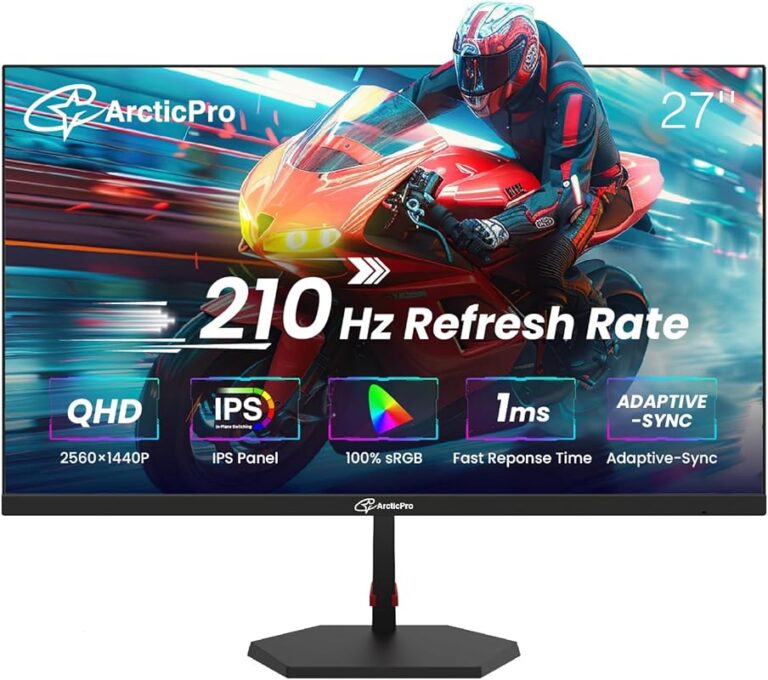
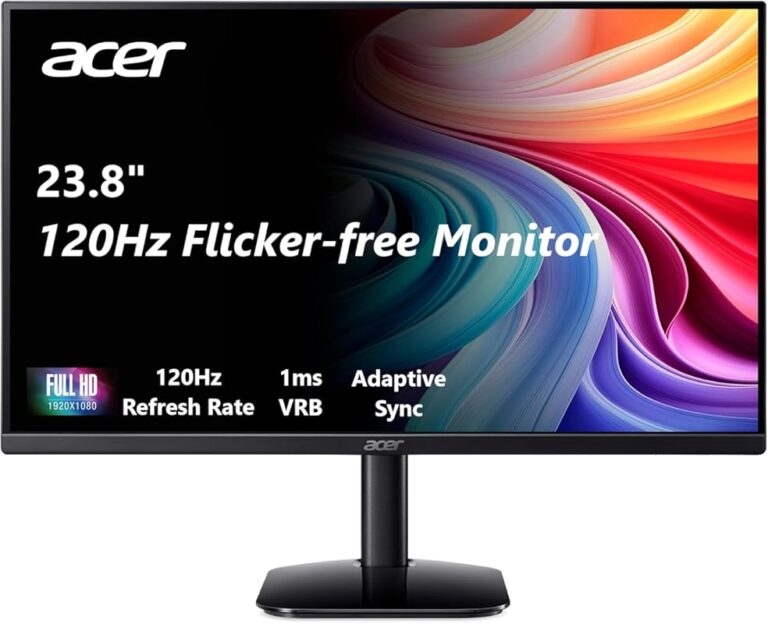
Your display also matters. A high-resolution monitor gives you more screen real estate to work with. When you are building responsive courses, you need to see how your content looks on different screen sizes. A larger monitor or even a dual-monitor setup can boost your productivity significantly.
Here are some display and graphics tips:
- A dedicated GPU with at least 1GB of VRAM is recommended.
- Integrated graphics can work for basic tasks but may slow down with complex projects.
- Use a monitor with at least Full HD (1920 x 1080) resolution.
- Consider a color-accurate display if you work with video and images.
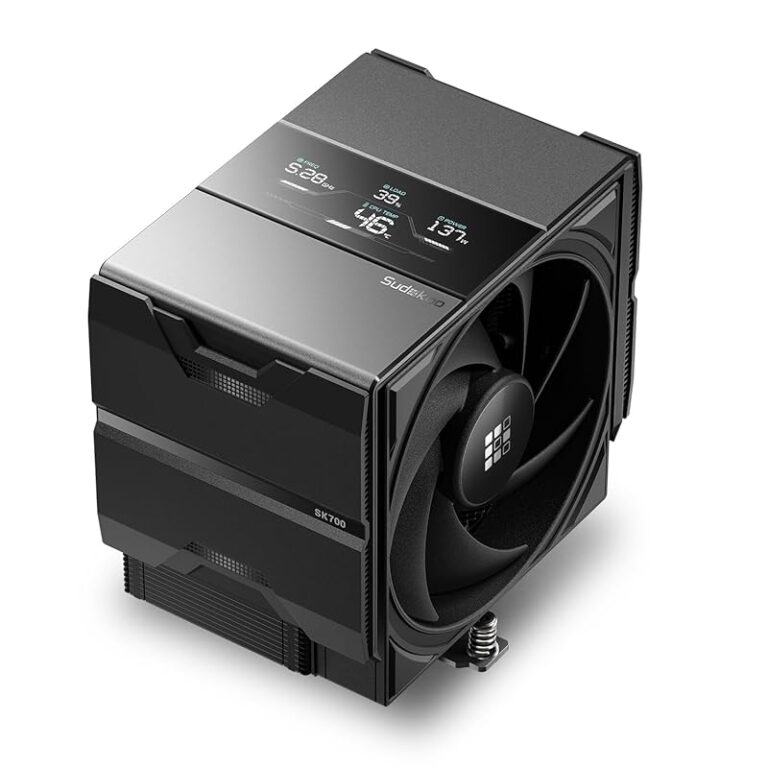
Running Captivate for long hours can generate heat, especially when rendering or previewing content. Make sure your computer has adequate cooling. If you want tips on keeping your system cool during heavy workloads, check out our article on the best cooling system for PC. Good thermal management protects your hardware and keeps your workflow uninterrupted.
Internet and Other Requirements
Adobe Captivate requires an internet connection for activation and updates. You also need a broadband connection for downloading the software and accessing Adobe Creative Cloud services. While you can work offline for the most part, you will need to connect periodically to verify your license.
Beyond the core hardware specs, there are a few other requirements to keep in mind. These include a supported web browser for previewing HTML5 output and enough USB or Thunderbolt ports for connecting external devices like cameras or drawing tablets.
When you publish your courses, you may upload them to a content management system or a learning management system. If you want to learn more about how these systems work, you can explore our article on content management system to understand the broader ecosystem of digital content delivery.
Common Mistakes to Avoid
Many users overlook the system requirements and run into problems later. Here are some common mistakes to avoid when setting up your system for Adobe Captivate.
- Skipping the recommended specs: Minimum specs are just that, minimum. Your experience will be much better with recommended hardware.
- Ignoring storage speed: A slow HDD can make Captivate feel sluggish. Always prefer an SSD.
- Running outdated software: An older operating system may not support the latest version of Captivate.
- Overlooking thermal management: Long rendering sessions can overheat your system without proper cooling.
- Not checking browser compatibility: Some preview features require a modern, supported web browser.
Avoiding these mistakes saves you time and prevents headaches down the road. Take the time to verify your system before you start a major project.
Expert Tips for Optimal Performance
Once your system meets the requirements, you can fine-tune your setup for even better performance. These expert tips help you get the most out of Adobe Captivate.
First, close unnecessary applications while working on Captivate projects. Every open program uses RAM and processor power. Second, clear your Captivate cache regularly. Temporary files accumulate over time and can slow things down. Third, keep your graphics drivers updated. Updated drivers improve compatibility and performance with hardware acceleration features.
Fourth, use the right project settings. If you do not need HD video, do not set your project to export in 4K. This saves both processing power and storage space. Fifth, consider using a dedicated machine for Captivate if you work on large projects. Sharing a computer with resource-heavy applications can cause conflicts and slowdowns.
Final Thoughts
Understanding the Adobe Captivate system requirements is the foundation of a successful e-learning development experience. From processor speed to RAM, storage, and operating system compatibility, every component plays a role in how smoothly you can create courses. Take the time to review your system, upgrade where needed, and you will enjoy a much more productive workflow.
Remember, the goal is not just to meet the minimum specs. It is to create an environment where you can focus on your creativity without technical interruptions. With the right setup, Adobe Captivate becomes a powerful tool that brings your e-learning ideas to life.
Start by checking your current system against the requirements outlined in this guide. Make any necessary upgrades, and then dive into building engaging, interactive courses with confidence. Your learners will thank you for the smooth, professional experience you deliver.
Frequently Asked Questions
What is the minimum RAM required for Adobe Captivate?
The minimum RAM required for Adobe Captivate is 8GB. However, for a smoother experience with larger projects, 16GB or more is strongly recommended. Having enough RAM prevents slowdowns and crashes during course creation.
Can Adobe Captivate run on a Mac?
Yes, Adobe Captivate is compatible with macOS. You need a supported version of macOS and a 64-bit architecture. Always check the Adobe website for the latest macOS compatibility information before installing.
Do I need a dedicated graphics card for Adobe Captivate?
A dedicated graphics card is not strictly required, but it is recommended. A GPU with at least 1GB of VRAM improves rendering speed and preview performance. Integrated graphics can handle basic tasks but may struggle with complex projects.
How much storage space do I need for Adobe Captivate?
You need at least 50GB of free disk space for the application and your projects. Using an SSD instead of an HDD significantly improves load times and overall performance. Plan for additional storage if you work with large media files.
Is an internet connection required to use Adobe Captivate?
Yes, you need an internet connection for initial activation and software updates. You can work offline for the most part, but you must connect periodically to verify your Adobe Creative Cloud license. A stable broadband connection is recommended for downloading the software.
What operating systems are supported by Adobe Captivate?
Adobe Captivate supports recent versions of Windows and macOS. Windows 10 and Windows 11 are commonly supported. For macOS, you need a recent version that supports 64-bit applications. Always verify the latest supported operating systems on the Adobe website.