Nvme M 2 Pcie Ssd
An NVMe M.2 PCIe SSD is a high-speed storage drive that uses the NVMe protocol over PCIe lanes in a compact M.2 form factor. These drives deliver blazing fast read and write speeds compared to older SATA SSDs. Whether you are upgrading a laptop or building a new PC, understanding NVMe M.2 PCIe SSD technology helps you make the right choice for performance and value.
Storage technology has changed a lot over the past few years. If you are shopping for a new SSD, you have probably seen the term NVMe M.2 PCIe SSD everywhere. These drives are fast, compact, and powerful. They have become the go-to choice for gamers, creators, and everyday users alike.
But what exactly makes them different from regular hard drives or older SSDs? And how do you know which one to buy? This guide breaks it all down in simple terms. By the end, you will know exactly what to look for and why NVMe M.2 PCIe SSD storage is worth your attention.
Let us start with the basics and build up from there. No jargon. No confusing tech talk. Just clear, helpful information you can use right away.
Key Takeaways
- Blazing Speed: NVMe M.2 PCIe SSDs offer speeds up to 14,000 MB/s on Gen4 and even faster on Gen5 drives.
- Compact Design: The M.2 form factor is tiny, making it perfect for laptops and compact desktops.
- NVMe Protocol Matters: Unlike SATA SSDs, NVMe uses PCIe lanes directly, cutting out bottlenecks.
- Easy to Install: Most modern motherboards have M.2 slots ready to go.
- Multiple Generations: PCIe Gen3, Gen4, and Gen5 offer different speed tiers and price points.
- Great Value: Prices have dropped significantly, making NVMe M.2 SSDs affordable for everyone.
📑 Table of Contents
What Is an NVMe M.2 PCIe SSD?
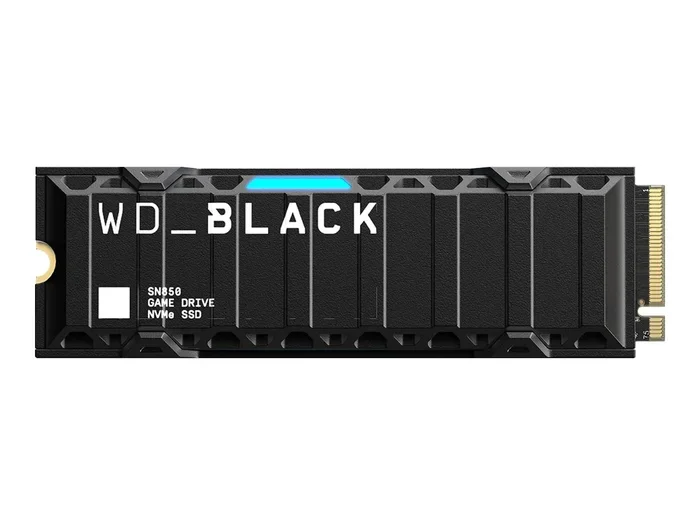
Let us break down the name piece by piece. NVMe stands for Non-Volatile Memory Express. It is a communication protocol designed specifically for flash storage. M.2 is the physical shape and size of the drive. It looks like a small stick of gum. PCIe stands for Peripheral Component Interconnect Express. It is the pathway the drive uses to talk to your computer’s motherboard.
When you put them together, you get a NVMe M.2 PCIe SSD. This is a solid state drive that plugs directly into your motherboard using an M.2 slot and communicates through PCIe lanes using the NVMe protocol. The result is incredibly fast storage that leaves older drives in the dust.
For comparison, traditional hard drives use spinning disks. Even older SATA SSDs use a slower connection path. The NVMe M.2 PCIe SSD skips all of that and connects directly to the fastest lanes available.
Why the Name Matters
Understanding the name helps you understand the product. Each part of the name tells you something important:
- NVMe tells you the drive uses a modern, optimized protocol for flash memory.
- M.2 tells you the physical size and connector type.
- PCIe tells you the interface and speed potential of the connection.
- SSD tells you it is a solid state drive with no moving parts.
When you see all four terms together, you know you are looking at a top-tier storage solution. If you want to explore more about SSD NVMe M.2 PCIe options, our detailed guide on SSD NVMe PCIe M.2 covers the full picture.
How NVMe M.2 PCIe SSDs Work
Now let us look under the hood. How does a NVMe M.2 PCIe SSD actually achieve such impressive speeds?
The secret lies in the connection. Your motherboard has different types of slots and lanes. A traditional SATA SSD uses a cable connection that caps out at about 550 MB/s. An NVMe M.2 PCIe SSD bypasses that cable entirely. It plugs straight into the motherboard and uses PCIe lanes, which are much wider and faster.
Think of it like a highway. A SATA connection is a two-lane road. A PCIe connection is a multi-lane highway. More lanes mean more data can travel at the same time. This is why NVMe M.2 PCIe SSD drives can reach speeds that SATA drives simply cannot match.
PCIe Generations Explained
Not all PCIe connections are the same. They come in different generations, and each one is faster than the last:
- PCIe Gen 3: Offers speeds up to about 3,500 MB/s. This is the older standard but still very capable.
- PCIe Gen 4: Doubles the speed to around 7,000 MB/s. This is the current mainstream standard.
- PCIe Gen 5: The newest generation pushes past 14,000 MB/s. These drives are just starting to hit the market.
Each generation uses the same M.2 form factor. The difference is in the speed and bandwidth. When choosing a drive, check which PCIe generation your motherboard supports. You do not want to buy a Gen5 drive if your board only supports Gen3.
For a deeper look at PCIe NVMe M.2 SSD drives across different generations, check out our PCIe NVMe M.2 SSD Drives review page.
NVMe M.2 PCIe SSD vs SATA SSD
This is the question most people ask. How does a NVMe M.2 PCIe SSD compare to a regular SATA SSD? The answer is simple: speed, and a lot of it.
Here is a quick comparison to show the difference:
| Feature | SATA SSD | NVMe M.2 PCIe SSD |
|---|---|---|
| Max Read Speed | ~550 MB/s | ~7,000 MB/s (Gen4) |
| Max Write Speed | ~520 MB/s | ~5,000 MB/s (Gen4) |
| Connection Type | SATA Cable | M.2 Slot (Direct) |
| Form Factor | 2.5-inch | M.2 Stick |
| Protocol | AHCI | NVMe |
| Power Usage | Higher | Lower |
The speed difference is massive. A NVMe M.2 PCIe SSD can copy a large file in seconds where a SATA SSD takes much longer. For gamers, this means faster load times. For video editors, it means smoother workflow. For everyday users, it means a more responsive computer overall.
SATA SSDs are not dead, though. They still have a place, especially if you need a lot of storage on a budget or your motherboard does not have M.2 slots. But for most people, NVMe M.2 PCIe SSD storage is the better choice today.
If you want to understand the full technical breakdown, our article on Solid State Drive PCIe 3.0 TLC NVMe M.2 SSD dives deep into the technology behind these drives.
Key Benefits of NVMe M.2 PCIe SSDs
Why should you care about NVMe M.2 PCIe SSD technology? Here are the real-world benefits you will notice every day.
1. Lightning Fast Boot and Load Times
Your operating system will boot in seconds. Games and applications open almost instantly. This is one of the most noticeable upgrades you can make to any computer.
2. Compact and Space-Saving
The M.2 form factor is tiny. It takes up no cables and no drive bays. This makes it perfect for small form factor PCs, laptops, and mini PCs. You can fit a NVMe M.2 PCIe SSD in spaces where a traditional drive simply would not fit.
3. Lower Power Consumption
NVMe drives use less power than SATA SSDs. This can lead to better battery life on laptops and lower heat output overall. Less heat means a quieter, cooler system.
4. Future-Proof Your System
As software and games get larger, they demand faster storage. A NVMe M.2 PCIe SSD ensures your system can keep up. You will not need to upgrade your storage again for many years.
5. Great Price-to-Performance Ratio
These drives have become very affordable. You can get a 1TB NVMe M.2 PCIe SSD for a reasonable price. The performance jump over SATA is enormous, making every dollar count.
For those looking at top-tier options, the Crucial T705 PCIe Gen5 NVMe M.2 SSD represents the cutting edge of what is available today.
How to Choose the Right NVMe M.2 PCIe SSD
Shopping for an NVMe M.2 PCIe SSD can feel overwhelming. There are so many options. Here is what you need to focus on to make the right choice.
Check Your Motherboard Compatibility
Not all M.2 slots support NVMe. Some only support SATA. Look at your motherboard manual or check the specs online. You need an M.2 slot that supports PCIe NVMe to get the full speed benefit.
Consider the PCIe Generation
As we discussed earlier, Gen3, Gen4, and Gen5 offer different speeds. Gen4 is the sweet spot for most users right now. It is fast, widely available, and reasonably priced. Gen5 is the fastest but still premium-priced.
Pick the Right Capacity
Storage needs vary. Here is a quick guide:
- 500GB: Good for the operating system and a few games.
- 1TB: The sweet spot for most users. Plenty of room for OS, apps, and games.
- 2TB: Great for creators, gamers with large libraries, and professionals.
- 4TB: Overkill for most, but perfect for heavy workloads and mass storage.
Look at NAND Flash Type
Most NVMe M.2 drives use TLC (Triple-Level Cell) NAND. TLC offers a good balance of speed, endurance, and price. Some budget drives use QLC, which is slower and less durable. Stick with TLC for the best experience.
Read and Write Speeds
Manufacturers advertise sequential read and write speeds. These are lab conditions and real-world speeds may vary. Still, they give you a good idea of what to expect. Look for drives with at least 5,000 MB/s read speeds for Gen4.
For a specific recommendation, our Crucial P310 1TB PCIe Gen4 NVMe 2280 M.2 SSD review covers an excellent budget-friendly option.
Installing and Setting Up Your NVMe M.2 PCIe SSD
Good news. Installing a NVMe M.2 PCIe SSD is one of the easiest upgrades you can do. No cables. No adapters. Just one small drive and a screw.
Here is a simple step-by-step overview:
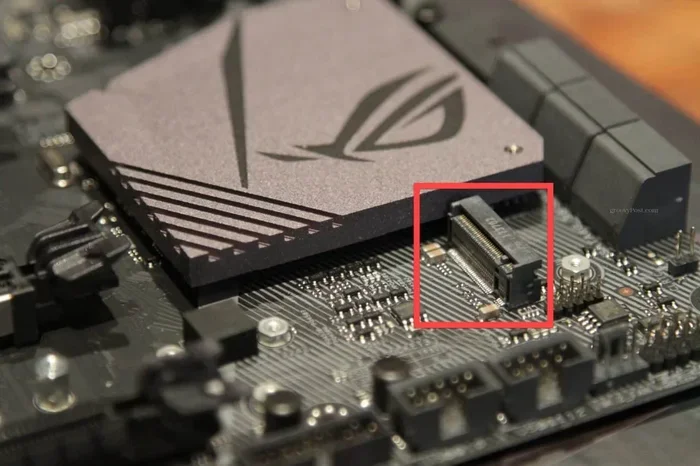
- Find the M.2 slot on your motherboard. It is usually labeled.
- Remove the small screw holding the slot’s heatsink or bracket.
- Insert the drive at a 30-degree angle into the slot.
- Press the drive down gently until it sits flat.
- Secure it with the screw you removed earlier.
- Power on your PC and enter BIOS to confirm detection.
- Format and install your operating system or use it as a secondary drive.
That is it. Most modern motherboards make this process very straightforward. Some even come with M.2 heatsinks already installed, which help keep the drive cool during heavy workloads.
One tip: if your drive is not showing up in BIOS, make sure the M.2 slot is enabled in your BIOS settings. Some boards disable certain slots by default. This is an easy fix and nothing to worry about.
For users interested in external enclosures, you can also check out our M.2 SSD NVMe Enclosure guide for turning your internal drive into a portable external solution.
Common Mistakes to Avoid
Even though installing an NVMe M.2 PCIe SSD is easy, there are a few common mistakes people make:
- Buying a drive that does not fit your motherboard: Always check the M.2 key type (B-key or M-key) and your motherboard’s supported protocols.
- Ignoring thermal management: High-speed drives can get hot. A heatsink or thermal pad can prevent throttling.
- Not updating your motherboard BIOS: Older BIOS versions may not support newer NVMe drives properly.
- Expecting advertised speeds in real life: Real-world speeds are usually lower than advertised. This is normal.
- Forgetting to enable the NVMe mode in BIOS: Some boards default to SATA mode for M.2 slots.
Avoiding these pitfalls ensures you get the best performance from your NVMe M.2 PCIe SSD from day one.
Final Thoughts
The NVMe M.2 PCIe SSD is hands down the best storage option available today. It is fast, compact, efficient, and affordable. Whether you are building a new PC or upgrading an existing one, this type of drive delivers real-world performance gains that you will feel every single day.
From lightning-fast boot times to smooth gaming and effortless file transfers, the benefits are clear. The technology continues to evolve with each new PCIe generation, making storage faster and more accessible than ever before.
If you have been on the fence about upgrading, now is the perfect time. Prices are competitive, drives are widely available, and the performance difference is night and day compared to older storage solutions. Make the switch to NVMe M.2 PCIe SSD storage and experience your computer like never before.
Frequently Asked Questions
What does NVMe M.2 PCIe SSD stand for?
NVMe stands for Non-Volatile Memory Express, M.2 is the physical form factor, PCIe is the interface connection, and SSD stands for Solid State Drive. Together, they describe a fast, compact storage drive that connects directly to the motherboard.
Is NVMe M.2 PCIe SSD faster than SATA SSD?
Yes, significantly faster. A typical NVMe M.2 PCIe Gen4 SSD can reach speeds around 7,000 MB/s, while a SATA SSD tops out at about 550 MB/s. The difference is enormous in real-world use.
Do I need a special motherboard for NVMe M.2 PCIe SSD?
Your motherboard needs an M.2 slot that supports NVMe over PCIe. Most modern motherboards from the last few years include at least one compatible slot. Always check your motherboard specs before buying.
Can I use NVMe M.2 PCIe SSD as a boot drive?
Absolutely. In fact, using an NVMe M.2 PCIe SSD as your boot drive is one of the best upgrades you can make. Your operating system will load much faster, and your entire system will feel more responsive.
How much does an NVMe M.2 PCIe SSD cost?
Prices have dropped a lot. A 1TB NVMe M.2 PCIe SSD can be found for around $60 to $100 depending on the brand and generation. 2TB drives typically range from $120 to $200. They offer excellent value for the performance they deliver.
Do NVMe M.2 PCIe SSDs need cooling?
Some drives run warm under heavy load, especially Gen4 and Gen5 models. Many motherboards include M.2 heatsinks to help. If your board does not have one, a simple aftermarket M.2 heatsink can prevent thermal throttling and keep speeds consistent.