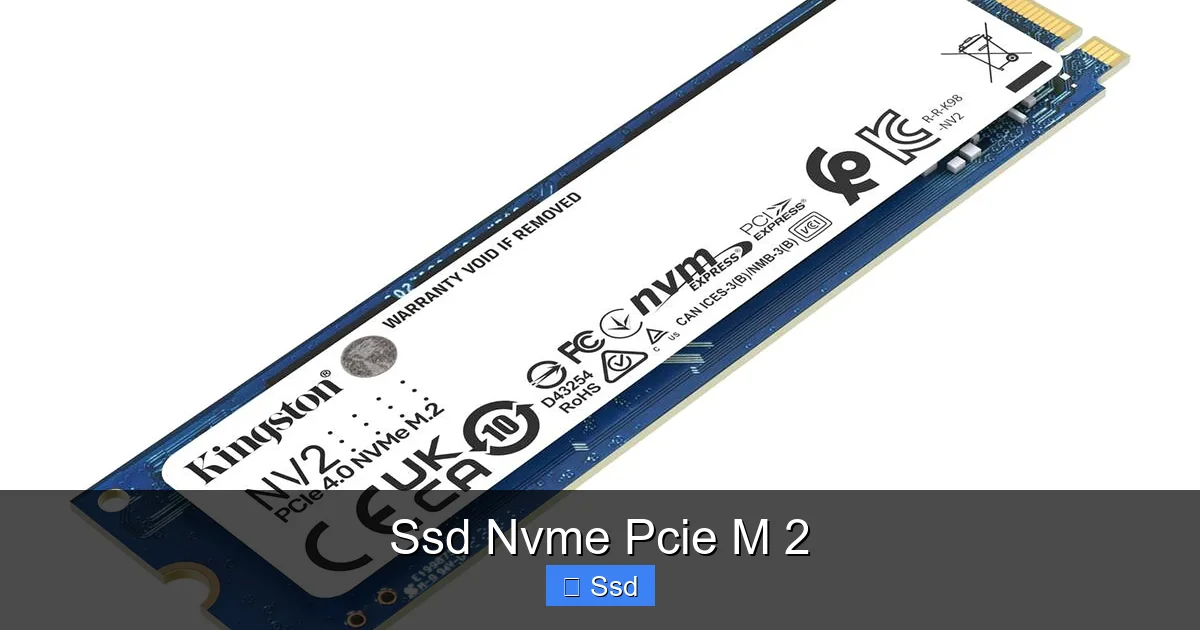
Ssd Nvme Pcie M 2
SSD NVMe PCIe M.2 represents the current pinnacle of consumer storage technology, combining a compact form factor with a direct, high-speed connection to your motherboard’s PCIe bus. This eliminates the bottlenecks of older SATA interfaces, delivering read/write speeds that can be over six times faster. It’s the essential upgrade for modern gaming, content creation, and system responsiveness, but requires a compatible M.2 slot on your motherboard. Choosing the right drive involves understanding PCIe generations (3.0, 4.0, 5.0) and ensuring your system supports the desired protocol (NVMe).
Remember the feeling? That agonizing wait for a game to load, for a massive project file to open, or for your operating system to finally boot up after hitting the power button. For years, the hard disk drive (HDD) was the bottleneck. Then came the SATA SSD, and it was a revelation. But today, we’re talking about the technology that has made even the fastest SATA SSD feel like a horse-and-buggy on the information superhighway. We’re diving deep into the world of the SSD NVMe PCIe M.2—the storage drive that is redefining what “fast” means for your PC.
If you’ve shopped for a new laptop or desktop recently, or even just browsed for storage upgrades, you’ve seen the terms: NVMe, PCIe, M.2. They’re often used together, sometimes interchangeably, which can be confusing. This guide will cut through the jargon. We’ll explain what each term means, how they work together, why this technology is so blisteringly fast, and most importantly, how you can make sure you buy the right one for your specific machine. Whether you’re a hardcore gamer, a professional video editor, or just someone who hates waiting for their computer, understanding SSD NVMe PCIe M.2 is key to building or buying a truly modern system.
Key Takeaways
- NVMe is the Protocol, M.2 is the Form Factor: NVMe (Non-Volatile Memory Express) is the super-fast communication protocol designed for flash storage. M.2 is the small, stick-like physical shape and connector. They are often paired together but are not synonymous.
- Massive Speed Leap Over SATA: SATA SSDs max out around 550 MB/s. NVMe PCIe 3.0 x4 drives start around 3,500 MB/s, PCIe 4.0 doubles that to ~7,000 MB/s, and PCIe 5.0 pushes past 14,000 MB/s.
- Your Motherboard’s M.2 Slot is Key: Not all M.2 slots are equal. You must check if your slot supports NVMe (PCIe) or only the slower SATA protocol, its length (2280 is most common), and its PCIe generation (3.0, 4.0, or 5.0).
- Heatsinks Are Often Necessary: High-performance NVMe drives, especially PCIe 4.0 and 5.0 models, generate significant heat. A heatsink (either built-in or aftermarket) is crucial to prevent thermal throttling and maintain peak speeds.
- It’s a Direct CPU/PCIe Connection: Unlike SATA, which routes through a controller chip, an NVMe drive connects directly to the CPU’s PCIe lanes. This provides lower latency and massively higher throughput, making it ideal for loading games, editing 4K video, and handling massive files.
- Future-Proofing vs. Real-World Need: For most users, a high-quality PCIe 3.0 or 4.0 NVMe drive offers more than enough speed. PCIe 5.0 drives are available but require the latest platforms and offer diminishing returns for general use, with higher heat and cost.
- Installation is Simple but Requires Care: Installing an M.2 SSD involves screwing it into a standoff on the motherboard. The main pitfalls are forgetting to remove a protective film on the drive’s heatsink and not securing the screw properly.
📑 Table of Contents
- Demystifying the Jargon: What Exactly is an SSD NVMe PCIe M.2?
- The Speed Revolution: Just How Fast is Fast?
- PCIe Generations Explained: Gen 3, 4, and 5
- The M.2 Form Factor Deep Dive: Size, Keying, and Compatibility
- Your Complete Buying Guide: Picking the Perfect NVMe Drive
- Installation and Optimization: Getting the Most from Your NVMe Drive
- Conclusion: Is an SSD NVMe PCIe M.2 Right for You?
Demystifying the Jargon: What Exactly is an SSD NVMe PCIe M.2?
Let’s break down that mouthful: “SSD NVMe PCIe M.2.” It’s actually a description of three different things that work in perfect harmony. Think of it like a high-performance sports car: the body style (M.2), the engine type (PCIe), and the fuel it runs on (NVMe).
The Foundation: The SSD (Solid-State Drive)
First, the basics. An SSD is any storage drive with no moving parts. It uses NAND flash memory chips to store data permanently. This is opposed to an HDD, which uses spinning magnetic platters and a moving read/write head. The lack of moving parts makes SSDs faster, quieter, more durable, and more power-efficient. Everything that follows—NVMe, PCIe, M.2—is about how that solid-state memory talks to the rest of your computer.
The Connector & Shape: The M.2 Form Factor
Before NVMe, the common SSD looked like a 2.5-inch laptop hard drive. The M.2 form factor changed that. It’s a small, gumstick-shaped card that plugs directly into a dedicated slot on your motherboard. This saves massive amounts of space, especially in compact laptops and small-form-factor PCs. There are no cables to route. The key thing to know about M.2 is the “keying”—the notch on the connector. An M.2 slot can be keyed for M (for PCIe/NVMe) or B (often for SATA or older PCIe). Most modern NVMe drives use the M key, but you must check your motherboard’s slot compatibility. M.2 also comes in different lengths (2242, 2260, 2280, 22110), with 2280 (22mm wide, 80mm long) being the standard for consumer drives.
The Highway: The PCIe Interface
This is the critical upgrade. PCIe (Peripheral Component Interconnect Express) is the high-speed expansion bus standard in your computer. Your graphics card, Wi-Fi card, and now your fastest storage drives all use PCIe lanes to communicate directly with the CPU. A SATA SSD, by contrast, uses the much slower SATA bus (max 600 MB/s), which was originally designed for hard drives. An NVMe PCIe M.2 SSD uses those precious, direct PCIe lanes. The number of lanes (usually x4 for M.2) and the PCIe generation (3.0, 4.0, 5.0) determine the theoretical maximum speed of the highway your data travels on.
The Language: The NVMe Protocol
Here’s the magic sauce. NVMe (Non-Volatile Memory Express) is the software protocol, the set of rules and commands that tells the SSD how to communicate over the PCIe highway. The old protocol used for SATA SSDs is called AHCI (Advanced Host Controller Interface). AHCI was designed for the slow, spinning HDD era and has inherent inefficiencies when talking to super-fast flash memory. NVMe was built from the ground up for flash storage. It supports massively parallel operations (thousands of queues with tens of thousands of commands each), has lower latency, and is far more efficient. An NVMe drive on a PCIe 3.0 x4 connection will feel dramatically faster than a SATA drive, not just because of the wider highway, but because of the vastly superior communication language.
So, an SSD NVMe PCIe M.2 is a solid-state drive that uses the small M.2 connector, plugs into the motherboard’s PCIe lanes, and speaks the ultra-efficient NVMe language. That combination is what delivers the mind-bending speeds we’re about to discuss.
The Speed Revolution: Just How Fast is Fast?
Numbers can be abstract, so let’s put the speed of an SSD NVMe PCIe M.2 into perspective. We’ll compare it to the storage technologies that came before it.
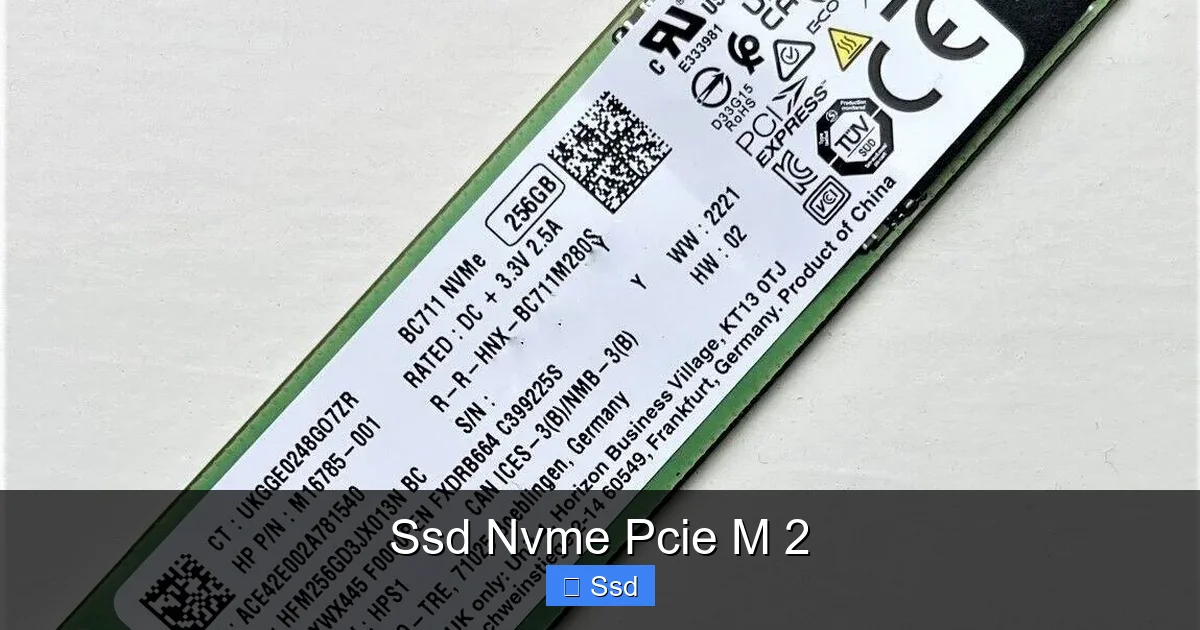
Visual guide about Ssd Nvme Pcie M 2
Image source: microless.com
SATA SSD: The Reliable Workhorse (550 MB/s)
A good SATA SSD is still a fantastic upgrade from an HDD. It makes your system feel snappy, boots Windows in seconds, and loads games much faster. Its limit is the SATA 3.0 interface, capping at about 550 megabytes per second (MB/s). For everyday tasks, web browsing, and office work, this is more than sufficient. But for professional workloads and next-gen gaming, it’s becoming a ceiling.
NVMe PCIe 3.0 x4: The Game Changer (~3,500 MB/s)
This is where the revolution began for mainstream consumers. A PCIe 3.0 x4 lane offers a theoretical maximum of ~4,000 MB/s (3.94 GB/s). Real-world top-tier drives like the Samsung 970 EVO Plus or WD Black SN750 consistently hit read speeds of 3,500 MB/s and writes around 3,300 MB/s. That’s over 6 times the sequential speed of SATA. What does this mean? Copying a 50GB game folder might take 2-3 minutes on SATA and under 30 seconds on a good PCIe 3.0 NVMe drive. In video editing, scrubbing through 4K footage becomes buttery smooth. This is the sweet spot for value and performance for most PC builders today, especially as prices have dropped dramatically.
NVMe PCIe 4.0 x4: The Current King (~7,000 – 7,500 MB/s)
AMD’s Ryzen 3000 series and X570 chipsets introduced PCIe 4.0 to consumers in 2019, and Intel followed with its 11th Gen Core and Z590. PCIe 4.0 doubles the bandwidth per lane. Now, an x4 M.2 slot can push nearly 8,000 MB/s. Drives like the Samsung 980 Pro, WD Black SN850, and Sabrent Rocket 4 Plus regularly benchmark at 7,000 MB/s reads. This speed is tangible for extreme use cases: loading massive open-world games like “Red Dead Redemption 2” in the blink of an eye, working with 8K video raw footage, or compiling enormous codebases. However, for 1080p/1440p gaming, the difference in load times between a top PCIe 3.0 and PCIe 4.0 drive is often measured in seconds, not minutes.
NVMe PCIe 5.0 x4: The bleeding Edge (~14,000 MB/s)
Launched with Intel’s 12th Gen Alder Lake and Z690 chipsets, PCIe 5.0 again doubles the bandwidth. Early adopter drives like the Crucial T700 and WD Black SN850X hit read speeds north of 14,000 MB/s. This technology is here, but it’s currently a solution looking for a problem for 99% of users. The drives require active cooling (large, loud heatsinks) due to extreme heat output. The real-world performance gains over a good PCIe 4.0 drive are minimal for gaming and general productivity. The cost is high, and you need the very latest motherboard and CPU to use it. PCIe 5.0 is future-proofing for storage-intensive workloads that don’t quite exist yet.
It’s crucial to remember these are sequential read/write speeds—ideal for moving large, contiguous files. The more important metric for system responsiveness and game loading is 4K random read/write speed. Here, all modern NVMe drives excel, and the gap between tiers is less pronounced. Still, the sequential numbers are the headline acts, and they represent a monumental leap in potential throughput.
PCIe Generations Explained: Gen 3, 4, and 5
Understanding PCIe generations is vital when buying or building. Your motherboard’s M.2 slot supports a specific generation, and your drive must be compatible. The good news? PCIe is backward and forward compatible. A PCIe 4.0 SSD will work in a PCIe 3.0 slot, and a PCIe 3.0 SSD will work in a PCIe 4.0 slot. It will simply run at the speed of the slower component—the lowest common denominator.
PCIe 3.0: The Mature, Value Sweet Spot
Introduced in 2010, PCIe 3.0 is the most widely supported generation. Almost every motherboard from the last 6-7 years with an M.2 slot supports it. Drives are plentiful, incredibly cheap (you can find 1TB for under $60), and offer a phenomenally better experience than any SATA drive. If your system is a few years old and has an M.2 slot, chances are it’s PCIe 3.0. This is the best upgrade path for the vast majority of existing PC owners. The performance is stellar, and the price-per-gigabyte is unbeatable.
PCIe 4.0: The Mainstream Performance Standard
PCIe 4.0 arrived in 2019. It’s now the standard on all current-generation platforms from both AMD (Ryzen 5000/7000 series, AM4/AM5) and Intel (12th, 13th, 14th Gen, LGA1700). If you’re buying a new motherboard or a pre-built system today, it almost certainly has PCIe 4.0 support. Drives are only slightly more expensive than their PCIe 3.0 counterparts. For a new build, there’s little reason not to get a PCIe 4.0 NVMe drive unless you’re on an extreme budget. You get a tangible speed boost for large file transfers and future-proofing for more demanding applications.
PCIe 5.0: The Early Adopter’s Playground
As mentioned, PCIe 5.0 is the latest. It requires a motherboard with an LGA1700 socket (Intel 12th Gen+) or AM5 socket (AMD Ryzen 7000+). The drives are expensive, run very hot, and require substantial heatsinks. The real-world performance difference for gaming is negligible. However, for specific professional workloads—like constant 8K video stream editing, massive database operations, or scientific computing—the extra bandwidth may eventually become useful. For now, it’s an expensive premium for minimal user experience gain.
How to Check Your Motherboard’s Support
This is the most important step before buying. You need to find your motherboard’s manual or specification page online. Look for the section on storage or M.2 slots. It will tell you:
- Which M.2 slots support NVMe (PCIe) vs. SATA. Some cheaper boards may have one slot that only takes SATA M.2 drives.
- The PCIe generation for each slot (e.g., “M.2_1 supports PCIe 4.0 x4, M.2_2 supports PCIe 3.0 x4”).
- The supported lengths (2280 is standard, but some support 22110).
- If the slot shares lanes with other devices (like SATA ports or the second PCIe x16 slot). Installing a drive in one M.2 slot might disable certain SATA ports or reduce the graphics card slot from x16 to x8. This is common and usually fine, but good to know.
The M.2 Form Factor Deep Dive: Size, Keying, and Compatibility
The “M.2” part of SSD NVMe PCIe M.2 seems simple, but there are nuances. The M.2 specification defines multiple “keys” (the notch patterns) and lengths to accommodate different devices like Wi-Fi cards and SSDs.
Keys: M, B, and B+M
The key identifies the interface the device uses.
- M Key: The notch is on the right side when you look at the connector. This is the standard for NVMe PCIe SSDs (usually x4). It also supports some PCIe x2 and x4 SSDs. If you’re buying an NVMe drive, it will almost certainly be M Key.
- B Key: The notch is on the left side. Historically used for SATA M.2 SSDs and Wi-Fi/Bluetooth cards. Some older PCIe x2 SSDs also use B Key.
- B+M Key: The notch is in the middle, compatible with both B and M slots. These are almost exclusively SATA M.2 SSDs. They are slower than NVMe but are a good upgrade if your M.2 slot only supports SATA (check your motherboard manual!).
Rule of Thumb: For maximum speed, you want an M.2 NVMe drive (M Key) into an M.2 slot that supports PCIe (not just SATA). A B+M drive is a SATA drive in an M.2 wrapper.
Lengths: 2242, 2260, 2280, 22110
The length is denoted by the first four digits. “2280” means 22mm wide, 80mm long. This is the universal standard for consumer NVMe SSDs. Some high-capacity drives (4TB+) or server/workstation drives use 22110 (110mm long). Smaller form factors like 2242 (42mm) are sometimes used in ultra-thin laptops. Your motherboard will have a standoff (a tiny screw post) at one or more of these lengths. You must screw the drive into the correct standoff for its length. A 2280 drive will not fit properly in a slot designed for 22110 without an adapter, and vice-versa.
Single-Sided vs. Double-Sided
Most NVMe SSDs are single-sided, with all components (NAND chips, controller) on one side of the PCB. This makes them very thin and compatible with almost any M.2 slot, even under a graphics card. Some high-capacity drives (2TB+) may be double-sided, with components on both sides. These are thicker and may not fit under certain motherboards with large heatsinks or graphics cards that sit low over the M.2 slot. Always check your motherboard’s clearance diagram if using a double-sided drive.
Your Complete Buying Guide: Picking the Perfect NVMe Drive
With the tech demystified, how do you choose? Here’s a practical, step-by-step checklist.
Step 1: Know Your Motherboard’s M.2 Slot Specs
This is non-negotiable. Find your motherboard model (e.g., ASUS ROG Strix B550-F Gaming). Google “[Your Motherboard Model] specifications.” Go to the manufacturer’s official page. Find the “Storage” or “M.2” section. Write down:
- How many M.2 slots you have.
- For each slot: PCIe generation (3.0/4.0/5.0) and supported protocols (NVMe, SATA).
- Any lane-sharing limitations.
Example: “My ASUS B550-F has two M.2 slots. Slot 1 (CPU-connected) supports PCIe 4.0 x4. Slot 2 (Chipset-connected) supports PCIe 3.0 x4. Using M.2_1 disables SATA ports 5 & 6.”
Step 2: Determine Your PCIe Generation & Budget
Based on Step 1:
- If you have PCIe 4.0, buy a PCIe 4.0 drive. The price difference is minimal, and you get the full speed your board offers.
- If you only have PCIe 3.0, buy a PCIe 3.0 drive. Don’t overspend on a PCIe 4.0 drive; it will be limited by your slot. Great PCIe 3.0 drives like the Crucial P3 or WD Blue SN570 offer fantastic value.
- If you have PCIe 5.0, consider carefully. For most, a high-end PCIe 4.0 drive is sufficient and much cheaper/ cooler. Get a PCIe 5.0 drive only for specific, proven professional needs or as a pure tech showcase.
Step 3: Consider Capacity and NAND Type
Capacity: 1TB is the new sweet spot for a primary drive. 500GB fills up fast with modern games and OS. 2TB offers great breathing room. 4TB is for professionals or enthusiasts.
NAND Type: Most consumer drives use TLC (3-bit per cell). It offers a good balance of speed, endurance, and cost. Some budget drives use QLC (4-bit), which is cheaper but has lower endurance and slower speeds when the cache is full (SLC cache). For a primary OS/game drive, TLC is recommended. QLC is acceptable for a secondary, pure storage drive where speed isn’t critical.
Step 4: Check for a Heatsink
PCIe 4.0 and especially 5.0 drives get hot. Many motherboard manufacturers now include large M.2 heatsinks on their boards. Check if your motherboard’s M.2 slot already has a metal heatsink/ shield you screw down. If it does, you can buy a “bare” drive without a heatsink. If your board has a simple plastic shield or no shield at all, you should either buy a drive with a built-in heatsink (like the Samsung 980 Pro with heatsink version) or plan to buy an aftermarket M.2 heatsink. Proper cooling prevents thermal throttling, where the drive slows down to cool off.
Step 5: Look at Real-World Reviews, Not Just Specs
The advertised “7000 MB/s” is a peak sequential speed under ideal conditions. Look for reviews that test:
- Sustained write speeds (how fast it stays after the fast SLC cache is full).
- 4K random read/write IOPS (more important for OS/game responsiveness).
- Thermal performance (temps under load).
- Software bundle (some include cloning and management software).
Brands like Samsung, WD, Crucial, Sabrent, and SK Hynix have excellent reputations. Don’t get a no-name brand from an obscure marketplace.
Installation and Optimization: Getting the Most from Your NVMe Drive
Installing an M.2 NVMe SSD is one of the simplest upgrades in a PC. But a few steps ensure it goes perfectly.
Physical Installation: A Few Key Steps
1. Power Down & Unplug: Completely shut down your PC and unplug the power cable. Press the power button once to discharge residual power.
2. Locate the M.2 Slot: Find the correct slot based on your motherboard manual. It’s usually located between the CPU and the top PCIe slot, or near the bottom edge of the board.
3. Remove the Screw: Unscrew the tiny standoff screw that holds the M.2 slot’s cover or heatsink in place.
4. Insert at an Angle: Hold the SSD by the edges. Insert it into the slot at a ~30-degree angle. Do not force it. It should slide in smoothly with firm, gentle pressure. The notch on the SSD must align with the key in the slot.
5. Press Down and Secure: Once the gold contacts are fully inserted, gently press the SSD down flat against the motherboard. Place the standoff screw back through the drive’s mounting hole and into the motherboard. Tighten it snugly—do not over-tighten and crack the PCB.
6. Reattach Heatsink: If your motherboard has a metal heatsink/ shield, reattach it now, ensuring it makes firm contact with the SSD’s chips. Many modern heatsinks have a thermal pad pre-applied. If your drive has its own heatsink, follow its instructions.
First-Time Setup in BIOS and Windows
After installation, boot your PC. You may need to enter the BIOS/UEFI (usually by pressing Del or F2 during startup).
- Check Detection: In the BIOS, go to the storage or boot section. You should see your new NVMe drive listed. If not, re-check the physical installation.
- Enable/Disable CSM: For best compatibility with modern NVMe drives as boot drives, ensure CSM (Compatibility Support Module) is DISABLED in your BIOS. This forces the system to use UEFI mode, which has native NVMe driver support.
- Boot Order: Set your new NVMe SSD as the first boot device if you plan to install Windows on it.
When you boot into Windows for the first time with a new, unformatted drive, it will appear in Disk Management as “unallocated.” Right-click it and choose “New Simple Volume” to format it (use NTFS for Windows). Windows 10 and 11 have built-in NVMe drivers, so no extra software is needed for basic functionality.
Optimization and Maintenance Tips
- Enable TRIM: This is crucial for maintaining SSD speed over time. TRIM is automatically enabled by default on modern Windows versions for NVMe drives. You can verify by opening Command Prompt as admin and typing `fsutil behavior query DisableDeleteNotify`. A result of “0” means TRIM is ON.
- Don’t Defragment: Never defragment an SSD. It provides no benefit and adds unnecessary write cycles. Windows is smart enough to disable defrag for SSDs automatically.
- Leave Free Space: Try to keep at least 10-20% of your SSD’s capacity free. This gives the drive’s internal garbage collection and wear-leveling algorithms room to work efficiently, maintaining performance and longevity.
- Update Firmware: Occasionally, manufacturers release firmware updates that improve stability, performance, or power management. Check the manufacturer’s website or use their management software (like Samsung Magician, WD Dashboard) to see if an update is available.
Conclusion: Is an SSD NVMe PCIe M.2 Right for You?
The answer, for anyone building or buying a new PC in 2023 and beyond, is a resounding yes. The SSD NVMe PCIe M.2 is not a luxury; it is the standard for primary storage. The performance uplift over a SATA SSD is tangible in almost every computing task, from the instant-on feel of your desktop to the seconds shaved off game load times. The form factor is elegant and space-saving.
The key is matching the drive to your system. If you have an older PC with an M.2 slot, a PCIe 3.0 NVMe drive is the single best upgrade you can make, breathing new life into your machine. If you’re building new, a quality PCIe 4.0 NVMe drive offers excellent performance and future-proofing at a great price. Save the PCIe 5.0 expense for when your workloads genuinely demand it, or when the technology matures and cools down—literally.
The era of waiting for your computer is over. By understanding the simple pillars—M.2 for the shape, PCIe for the highway, and NVMe for the language—you can confidently choose the perfect storage engine. Do your homework on your motherboard’s slot specs, pick a reputable brand, and enjoy the blistering speed. Your future self, staring at a loaded desktop instead of a spinner, will thank you.
Frequently Asked Questions
What is the difference between an NVMe SSD and a SATA SSD?
The difference is the interface and protocol. A SATA SSD uses the older SATA bus (max ~550 MB/s) and AHCI protocol. An NVMe SSD uses the much faster PCIe bus (starting at ~3,500 MB/s) and the more efficient NVMe protocol designed for flash memory, resulting in dramatically higher speeds and lower latency.
Do I need a heatsink for my NVMe SSD?
It depends on the drive and your case. PCIe 4.0 drives can get hot enough to throttle (slow down) under sustained loads without cooling. PCIe 5.0 drives almost always require a heatsink. If your motherboard has a metal M.2 heatsink/ shield, use it. If not and you have a PCIe 4.0/5.0 drive, consider buying an aftermarket heatsink or a drive model that includes one.
Can I use a PCIe 4.0 NVMe SSD in a PCIe 3.0 motherboard slot?
Yes. PCIe is backward compatible. The drive will work perfectly, but it will be limited to the maximum speed of your PCIe 3.0 slot (~3,500 MB/s). You won’t get the full speed of the PCIe 4.0 drive, but it will still be vastly faster than any SATA drive.
My motherboard has an M.2 slot. Does that automatically mean it supports NVMe?
No. Some older or very budget motherboards have M.2 slots that only support the SATA protocol (using B+M key drives). You must check your motherboard’s specifications to confirm the slot supports NVMe (PCIe) and to see which PCIe generation it uses.
Should I update my BIOS before installing a new NVMe SSD?
It’s a good practice, but not always required. An updated BIOS can improve NVMe compatibility, stability, and sometimes add support for larger drives. If you’re experiencing boot issues or the drive isn’t detected, a BIOS update is a key troubleshooting step. Check your motherboard manufacturer’s website for the latest version and release notes.
Can I clone my old SATA SSD to a new NVMe SSD?
Yes, absolutely. Cloning software (like Macrium Reflect, Clonezilla, or manufacturer tools from Crucial/Samsung) can copy your entire operating system and files from the old drive to the new one. You will then need to change the boot order in your BIOS to prioritize the new NVMe drive. Ensure the new NVMe drive is at least as large as the used data on your old SATA drive.



33 Comments