M 2 Nvme Ssd for Laptop
Upgrading your laptop with a M 2 NVMe SSD for laptop is one of the fastest ways to boost performance. These tiny drives deliver blazing read and write speeds that make your system feel brand new. Whether you need a 512GB M 2 NVMe SSD for laptop storage solution or a massive 2TB drive, there is an option for every budget and need.
Laptops have come a long way, but storage has always been the bottleneck. Traditional hard drives spin at a snail’s pace. Even older SATA SSDs leave performance on the table. That is where a M 2 NVMe SSD for laptop changes everything. These compact drives transform slow laptops into speed machines. They load programs in seconds and boot your system almost instantly.
If you have been wondering whether an upgrade makes sense, the answer is almost always yes. A solid state drive using the NVMe protocol over a PCIe interface delivers a massive leap in performance. You do not need to be a tech expert either. Most upgrades take less than fifteen minutes. In this guide, we will walk you through everything you need to know about choosing and installing the best M 2 NVMe drive for your laptop.
Key Takeaways
- Massive Speed Boost: M 2 NVMe SSDs offer speeds up to 7000 MB/s, far outpacing traditional hard drives and SATA SSDs.
- Easy Installation: Most laptops with an M 2 slot allow a simple swap in under 15 minutes.
- Multiple Sizes Available: Choose from 256GB to 4TB options depending on your storage needs and budget.
- Compatibility Matters: Always check if your laptop supports NVMe PCIe and the correct M 2 key type (B or M key).
- Gen4 and Gen5 Options: Newer generations offer even faster speeds, but Gen3 still delivers excellent value for most users.
📑 Table of Contents
- What Is an M 2 NVMe SSD?
- Why Upgrade to an M 2 NVMe SSD for Laptop?
- How to Choose the Right M 2 NVMe SSD
- Top Picks for M 2 NVMe SSDs for Laptops
- How to Install an M 2 NVMe SSD in Your Laptop
- Common Mistakes to Avoid When Buying an M 2 NVMe SSD
- M 2 NVMe SSD vs SATA SSD: Which Should You Choose?
- Final Thoughts
What Is an M 2 NVMe SSD?
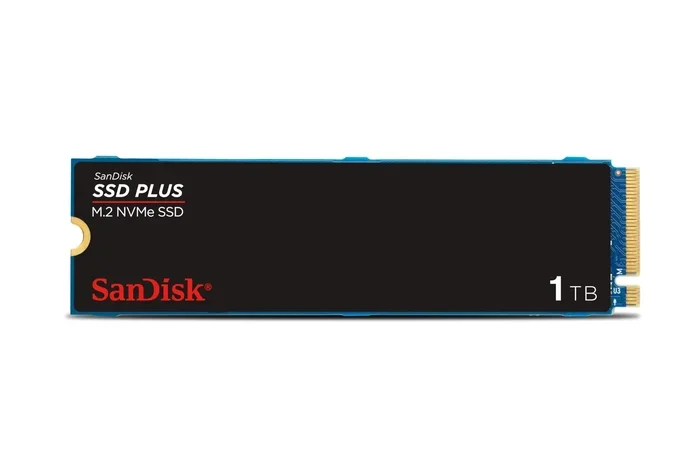
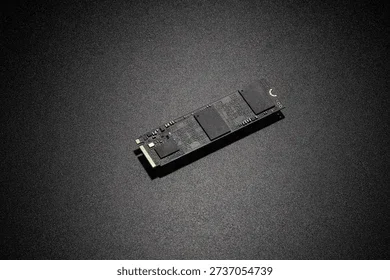
An M 2 NVMe SSD is a small form factor solid state drive that connects directly to your laptop’s motherboard. The “M 2” refers to the physical shape and connector type. It looks like a small stick of gum. The “NVMe” part stands for Non-Volatile Memory Express, which is the communication protocol that makes these drives so fast.
Unlike older SATA drives that use a cable connection, M 2 drives plug straight into a slot on the motherboard. This direct connection is a big reason why NVMe M 2 SSD speeds are so much higher. Traditional SATA III tops out around 550 MB/s. A modern PCIe Gen4 NVMe drive can hit 7000 MB/s or more. That is over twelve times faster.
These drives also use less power than traditional hard drives. Less power means better battery life for your laptop. They also produce no noise because there are no moving parts. The combination of speed, silence, and efficiency makes M 2 NVMe SSD for laptop upgrades one of the best investments you can make.
M 2 Form Factor Explained
The M 2 standard comes in different lengths. The most common size for laptops is the 2280 format, which measures 22mm wide and 80mm long. Some laptops support shorter sizes like 2260 or 2242. Always check your laptop manual before buying. A drive that is too long simply will not fit.
M 2 drives also have different key types. The B key and M key determine which PCIe lanes the drive uses. Most modern M 2 PCIe NVMe SSD drives use the M key for PCIe Gen3 or Gen4 speeds. Double-checking compatibility prevents a frustrating return process.
Why Upgrade to an M 2 NVMe SSD for Laptop?
The biggest reason to upgrade is speed. Boot times on a traditional hard drive can take two to three minutes. With an M 2 NVMe SSD for laptop, your system boots in under fifteen seconds. Applications launch almost instantly. Files copy at incredible rates. If you have been waiting for your laptop to keep up, this upgrade eliminates that frustration.
Another major benefit is improved multitasking. When you run several programs at once, an NVMe M 2 SSD handles the load much better. Your laptop stays responsive even when you have dozens of browser tabs open alongside heavy software. Students running resource-intensive programs like video editors or coding tools notice the biggest difference.
Battery life also improves. Hard drives draw more power because of their spinning platters. An M 2 NVMe SSD for laptop uses significantly less energy. You can squeeze more working hours out of a single charge. For remote workers or students, this extra battery life adds up quickly over a school or work week.
Speed Comparison Table
Here is a quick look at how different storage types compare:
- Traditional HDD: 80-160 MB/s read speeds
- SATA SSD: 500-550 MB/s read speeds
- NVMe Gen3 SSD: 3500 MB/s read speeds
- NVMe Gen4 SSD: 7000 MB/s read speeds
- NVMe Gen5 SSD: 14000 MB/s read speeds
As you can see, upgrading from an HDD to a M 2 NVMe SSD for laptop is like going from a bicycle to a sports car. Even upgrading from a SATA SSD to NVMe brings a noticeable improvement in daily tasks.
How to Choose the Right M 2 NVMe SSD
Not all NVMe drives are the same. Choosing the right one depends on a few key factors. Let us break them down so you can make a confident decision.
Storage Capacity
Storage capacity is the first thing to consider. How much data do you currently have? How much will you accumulate in the next two years? For most users, a 512GB NVMe M 2 SSD strikes the best balance between price and space. It handles the operating system, essential apps, and a good number of files comfortably.
For users who store large media libraries or work with video files, a 2TB SSD M 2 NVMe makes more sense. You can also pair a smaller NVMe drive for your system with a larger external drive for storage. The 1TB M 2 NVMe SSD remains the most popular choice because it offers plenty of room without breaking the bank.
Generation: Gen3 vs Gen4 vs Gen5
The PCIe generation affects the maximum speed of your drive. Gen3 NVMe SSDs are still excellent for everyday use. They offer speeds around 3500 MB/s, which is more than enough for most people. A Crucial T705 PCIe Gen5 NVMe M 2 SSD represents the newest standard with speeds that push beyond 10000 MB/s.
Gen4 drives offer a sweet spot of speed and affordability. Most users will not notice a difference between Gen4 and Gen5 for typical tasks like web browsing and document editing. However, content creators working with large files benefit greatly from Gen4 speeds.
Brand Reliability and Warranty
Stick with reputable brands when shopping for an M 2 NVMe SSD for laptop. Brands like Samsung, Kingston, Crucial, and WD have established track records. They offer warranties that typically range from three to five years. A good warranty reflects confidence in the drive’s durability and performance over time.
Also look for drives with DRAM cache. DRAM helps the drive manage data more efficiently, which improves sustained write speeds. Drives without DRAM can slow down during heavy workloads. Checking for TLC NAND technology is another smart move since it offers better endurance than QLC alternatives.
Top Picks for M 2 NVMe SSDs for Laptops
Finding the right drive can feel overwhelming with so many options. Here are some tried-and-tested picks that deliver excellent value.
Best Budget Option
For users watching their budget, the 512GB NVMe M 2 SSD category offers fantastic value. These drives deliver NVMe speeds at a price point close to SATA SSDs. They are perfect for students or anyone who needs a reliable boot drive without spending extra.
Best All-Round Performer
The Kingston 1TB M 2 NVMe SSD hits the sweet spot for most laptop users. It provides enough capacity for the operating system, applications, and a solid collection of files. Kingston drives are known for consistent performance and low power consumption, which helps preserve your laptop battery.
Best High-Capacity Drive
When you need serious storage space, a 2TB SSD M 2 NVMe is the way to go. These drives handle large media libraries, game collections, and professional workloads with ease. They do cost more, but the price gap has narrowed significantly over the past couple of years.
Best Cutting-Edge Option
For power users who want the fastest speeds available today, the Crucial T705 PCIe Gen5 NVMe M 2 SSD leads the pack. Gen5 technology offers speeds that were unthinkable just a few years ago. Just keep in mind that your laptop must support PCIe Gen5 to unlock these speeds fully.
How to Install an M 2 NVMe SSD in Your Laptop
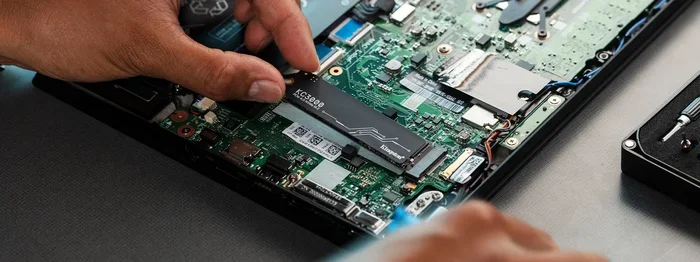
Installing an M 2 NVMe SSD for laptop is simpler than most people expect. You do not need advanced technical skills. Here is a step-by-step walkthrough.
Step 1: Check Compatibility
Before buying anything, open your laptop manual or visit the manufacturer website. Confirm that your laptop has an M 2 slot and supports NVMe drives. Some older laptops only support SATA M 2 drives. An NVMe drive will not work in a SATA-only slot.
Step 2: Gather Your Tools
You will need a small Phillips-head screwdriver, preferably a magnetic one. A clean, flat workspace helps too. Some laptops also require a spudger or plastic pry tool to open the bottom panel safely.
Step 3: Back Up Your Data
Always back up your important files before starting. If you are replacing an existing drive, clone it to your new NVMe M 2 SSD using cloning software. This way, your operating system and all your files transfer over without a fresh installation.
Step 4: Install the Drive
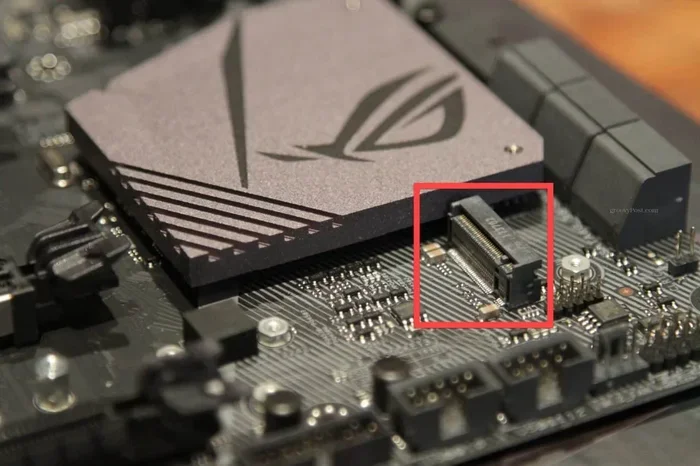
Open your laptop bottom panel. Locate the M 2 slot on the motherboard. Insert the drive at a 30-degree angle and press it down firmly. Secure it with the small screw that came with your laptop. Replace the bottom panel and power on.
After booting up, go into your BIOS or operating system. The new drive should appear automatically. If you cloned your old drive, everything should work exactly as before but much faster. If you installed a fresh drive, you will need to reinstall your operating system.
Quick Tips for Installation
- Never force the drive into the slot. If it does not fit, check the key type and orientation.
- Keep the screw from falling into your laptop. A small magnetic tray helps.
- After installation, update your NVMe M 2 SSD driver through your device manager for optimal performance.
- If you plan to use the drive externally later, consider an M 2 NVMe SSD enclosure for portable storage.
Common Mistakes to Avoid When Buying an M 2 NVMe SSD
Even with the best intentions, mistakes happen. Here are some common pitfalls to watch out for.
The first mistake is buying the wrong key type. M 2 drives come in B key and M key configurations. Putting an M key drive into a B key slot will not work. Always verify your laptop supports the NVMe PCIe protocol specifically.
Another mistake is ignoring thermal management. High-speed NVMe drives can get warm under heavy workloads. Some laptops have built-in heatsinks for M 2 slots. If yours does not, a small thermal pad or heatsink can prevent throttling and maintain consistent speeds. This is especially important for M 2 PCIe NVMe SSD drives that push high performance for extended periods.
Some users also forget to check their laptop’s maximum supported capacity. While most modern laptops accept up to 2TB, a few older models have limitations. Checking this detail before purchasing saves time and money.
Finally, do not skip firmware updates. Drive manufacturers release firmware that improves compatibility and performance. Updating your drive firmware after installation ensures you get the best experience from your M 2 NVMe SSD for laptop investment.
M 2 NVMe SSD vs SATA SSD: Which Should You Choose?
This is one of the most common questions people ask. The short answer is: if your laptop supports NVMe, always choose it. The performance difference is dramatic.
SATA SSDs are still perfectly fine for basic tasks. They are reliable and widely available. However, they max out at around 550 MB/s. A M 2 NVMe SSD for laptop can deliver speeds five to twelve times higher. For booting your system, opening applications, and transferring files, NVMe is simply the better choice.
The only situation where SATA might still make sense is cost. SATA drives are sometimes cheaper per gigabyte. But the price gap has closed significantly. For most users, the extra speed of an NVMe drive is well worth the small price difference.
Final Thoughts
Upgrading your laptop with an M 2 NVMe SSD for laptop is one of the most impactful improvements you can make. The speed difference is night and day. Your system boots faster, applications launch instantly, and multitasking feels effortless. Whether you choose a compact 512GB NVMe M 2 SSD or a spacious 2TB SSD M 2 NVMe, you will notice the difference from the very first boot.
The installation process is straightforward and does not require professional help. With the right drive and a few basic tools, you can upgrade your laptop in under fifteen minutes. Just remember to check compatibility, back up your data, and update your drivers after installation.
Do not let a slow laptop hold you back any longer. An M 2 NVMe SSD for laptop upgrade brings new life to even older machines. Your future self will thank you every time your system starts up in seconds flat.
Frequently Asked Questions
Can any laptop use an M 2 NVMe SSD?
Not all laptops support NVMe M 2 drives. Many modern laptops do, but some older or budget models only have SATA M 2 slots or lack an M 2 slot entirely. Check your laptop specifications or manual before purchasing to confirm NVMe PCIe support.
Do I need to reinstall Windows after swapping to an M 2 NVMe SSD?
No, not if you clone your existing drive. Using cloning software transfers your entire operating system, programs, and files to the new M 2 NVMe SSD for laptop. If you prefer a clean install, you will need to reinstall Windows and your applications.
What is the difference between Gen3, Gen4, and Gen5 NVMe SSDs?
The generation refers to the PCIe interface version. Gen3 reaches speeds around 3500 MB/s, Gen4 hits about 7000 MB/s, and Gen5 can exceed 14000 MB/s. For most everyday tasks, Gen3 and Gen4 are more than fast enough. Gen5 is best for professionals who work with extremely large files.
Does an M 2 NVMe SSD improve gaming performance on a laptop?
Yes, it does. Games load faster, levels stream in more quickly, and overall system responsiveness improves. While the GPU and CPU still handle the actual gameplay, faster storage reduces loading screens and stuttering caused by slow asset streaming.
How long do M 2 NVMe SSDs last?
Most quality NVMe M 2 SSD drives last five to seven years or longer under normal use. They come with warranties of three to five years from reputable brands. Endurance depends on the type of NAND flash used, with TLC NAND offering better longevity than QLC.
Can I use an M 2 NVMe SSD as external storage?
Yes, you can use an M 2 NVMe SSD enclosure to connect your drive externally via USB. This is great for portable storage or transferring large files between computers. Just keep in mind that USB speeds will limit the drive’s full NVMe performance.