M 2 Nvme Ssd 2280
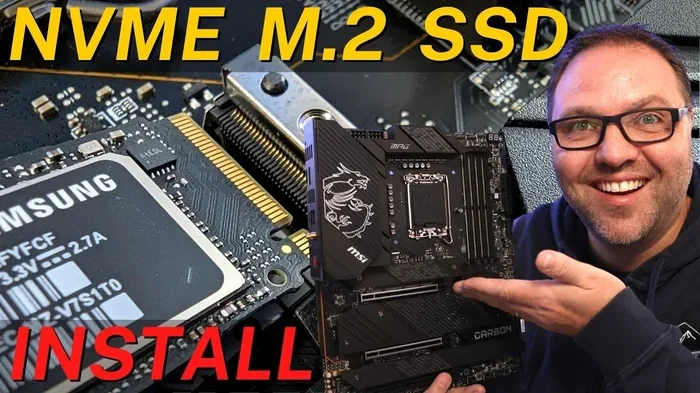
The M.2 NVMe SSD 2280 is the most popular solid state drive form factor in modern PCs and laptops. It delivers blazing fast speeds through the PCIe interface, making it ideal for boot drives, gaming, and heavy workloads. This guide covers everything you need to know, from form factor basics to top drive picks and installation tips.
The M.2 NVMe SSD 2280 has become the go-to storage choice for anyone building or upgrading a PC. Whether you are a gamer, a creative professional, or just someone tired of slow boot times, this tiny drive packs a serious punch. In this guide, we break down everything you need to know about the M.2 NVMe SSD 2280 form factor, how it works, and which drives are worth your money.
If you have been shopping for storage lately, you have probably seen the term M.2 2280 NVMe everywhere. But what does it actually mean? And why does it matter? Let us dive in and find out.
Key Takeaways
- 2280 is the standard size: It measures 22mm wide and 80mm long, fitting most M.2 slots on motherboards.
- NVMe is much faster than SATA: You get dramatically higher read and write speeds with the NVMe protocol over PCIe.
- Many great drives exist: Options like the Kingston, Samsung, and Crucial P310 offer excellent performance at various price points.
- Installation is simple: Just insert the drive into the M.2 slot, screw it in, and you are done.
- Watch for compatibility: Check your motherboard or laptop for M.2 slot support and PCIe generation before buying.
📑 Table of Contents
What Is an M.2 NVMe SSD 2280?
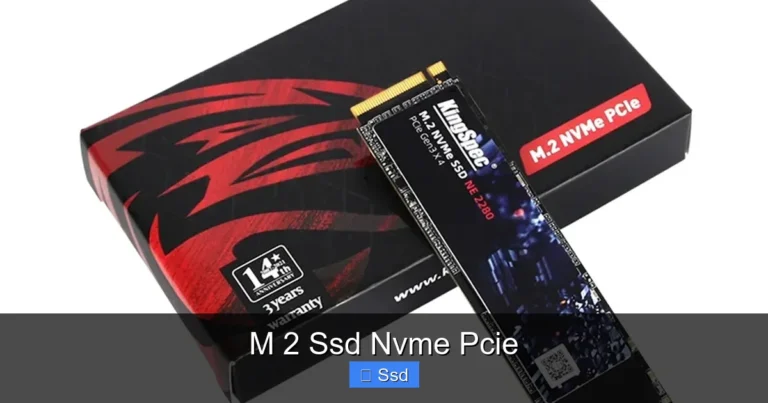
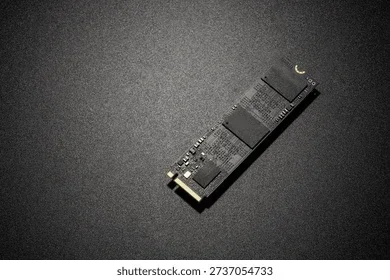
The name M.2 NVMe SSD 2280 tells you three important things at once. The “M.2” refers to the physical form factor, which is a small, rectangular shape that plugs directly into your motherboard. “NVMe” stands for Non-Volatile Memory Express, a fast protocol designed specifically for solid state drives. And “2280” is the size: 22 millimeters wide and 80 millimeters long.
This form factor is incredibly compact. It is roughly the size of a stick of gum. Yet it can deliver read speeds that make traditional hard drives look painfully slow. The M.2 NVMe SSD 2280 has become the default choice for laptops, desktops, and even mini PCs because it saves space while offering top-tier performance.
Most modern motherboards come with at least one M.2 slot built right onto the board. This means you do not need extra cables or drive bays. You simply slot the drive in and secure it with a single screw. It is one of the easiest upgrades you can make to any system.
Understanding the 2280 Naming Convention
The “2280” part of the name is not random. The first two digits (22) tell you the width in millimeters. The last two digits (80) tell you the length. So a 2280 drive is always 22mm by 80mm. There are other sizes too, like 2260 or 2242, but 2280 is by far the most common. Always double-check your slot supports the 2280 size before purchasing.
How Does the M.2 NVMe SSD 2280 Work?
The M.2 NVMe SSD 2280 connects to your motherboard through the PCIe bus. This is the same high-speed pathway used by graphics cards. Unlike older SATA drives, which max out around 550 MB/s, a PCIe NVMe drive can reach speeds of several thousand megabytes per second.
Inside the drive, you will find NAND flash memory. Most modern drives use TLC (Triple-Level Cell) NAND, which stores three bits per cell. This gives you a great balance of speed, endurance, and cost. Many drives also include a DRAM cache, which helps manage data more efficiently and keeps speeds consistent even during heavy workloads.
The NVMe protocol itself is designed to reduce overhead. Traditional storage protocols were built for spinning disks. NVMe was built from the ground up for flash memory. This means less latency, more parallel tasks, and much faster response times. The result is a drive that feels instantly responsive whether you are booting Windows, loading a game, or editing video.
PCIe Generations and Speed Differences
Not all PCIe connections are the same. PCIe Gen 3, Gen 4, and Gen 5 each offer different maximum speeds. A PCIe Gen 3 M.2 NVMe SSD 2280 typically tops out around 3,500 MB/s read speed. Gen 4 drives can reach 7,000 MB/s or more. And Gen 5 drives push beyond 10,000 MB/s. When shopping, check which PCIe generation your motherboard supports to get the most out of your drive.
NVMe vs SATA: Why the M.2 NVMe SSD 2280 Wins
If you are comparing storage options, you will likely come across both SATA and NVMe drives. Both can use the M.2 form factor, but they are very different in performance. A SATA M.2 SSD is limited by the SATA III interface, which caps speeds at about 550 MB/s. An NVMe M.2 SSD uses the PCIe lane, which is significantly faster.
Here is a quick comparison:
- SATA M.2 SSD: Read speeds up to 550 MB/s, write speeds up to 520 MB/s. Great for basic upgrades.
- NVMe M.2 SSD 2280: Read speeds from 3,500 MB/s to over 10,000 MB/s depending on the PCIe generation. Perfect for demanding tasks.
For most users, the NVMe M.2 SSD 2280 is the clear winner. The speed difference is noticeable every single day. Boot times drop to seconds, game loads become almost instant, and large file transfers finish in a flash. If your system supports NVMe, there is really no reason to choose a SATA M.2 drive.
One thing to keep in mind is that NVMe drives can run warmer than SATA drives. Many M.2 NVMe SSD 2280 models come with a small heatsink or thermal pad to manage heat. If your motherboard does not have one built in, you may want to buy an aftermarket M.2 NVMe SSD heatsink for the best performance.
Top M.2 NVMe SSD 2280 Drives Worth Buying
The market is full of great options when it comes to the M.2 NVMe SSD 2280. Here are some of the most popular and well-reviewed drives you should consider.
Kingston NV2 1TB M.2 NVMe SSD
The Kingston NV2 is a budget-friendly option that still delivers solid performance. It uses PCIe Gen 4 and offers read speeds up to 3,500 MB/s. It is a great entry-level drive for anyone who wants the speed of NVMe without spending a fortune. The Kingston 1TB M.2 NVMe SSD is a reliable choice for everyday computing and light gaming.
Samsung 970 EVO Plus NVMe M.2 SSD
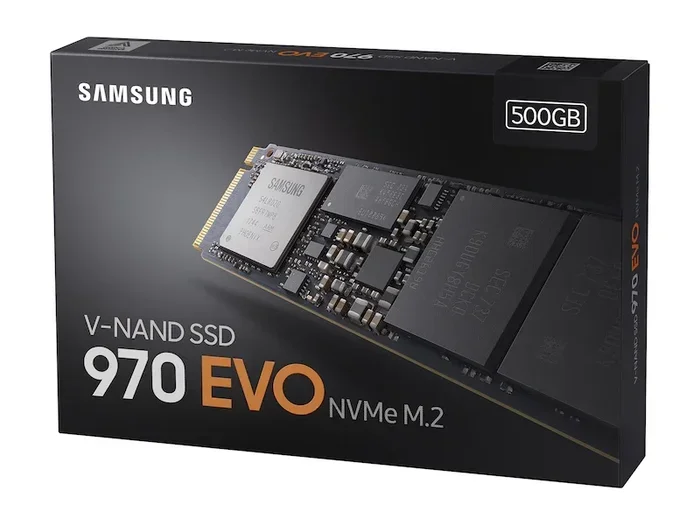
The Samsung 970 EVO Plus NVMe M.2 SSD has been a favorite for years. It uses PCIe Gen 3 and delivers excellent read and write speeds with a DRAM cache. It is known for its consistency and durability, making it a top pick for professionals who need dependable storage.
Crucial P310 1TB PCIe Gen4 NVMe M.2 SSD
The Crucial P310 1TB PCIe Gen4 NVMe 2280 M.2 SSD is another strong contender. It offers Gen 4 speeds at a competitive price point. It is a no-frills drive that focuses on delivering fast, reliable performance for everyday use. It is an excellent pick for a boot drive or a secondary storage upgrade.
| Drive | PCIe Gen | Read Speed | Write Speed | Capacity Options |
|---|---|---|---|---|
| Kingston NV2 | Gen 4 | 3,500 MB/s | 2,800 MB/s | 500GB, 1TB, 2TB |
| Samsung 970 EVO Plus | Gen 3 | 3,500 MB/s | 3,200 MB/s | 250GB, 500GB, 1TB, 2TB |
| Crucial P310 | Gen 4 | 3,500 MB/s | 3,000 MB/s | 500GB, 1TB, 2TB, 4TB |
When choosing a drive, think about what you will use it for. A casual user browsing the web and watching videos does not need the fastest drive on the market. But a gamer or video editor will benefit greatly from the higher speeds of a PCIe Gen 4 NVMe M.2 SSD.
Using an M.2 NVMe SSD Enclosure for External Storage
Did you know you can turn your M.2 NVMe SSD 2280 into an external drive? An NVMe M.2 SSD enclosure is a small adapter that lets you connect the drive to your computer via USB. This is great for portable storage, backups, or transferring large files between machines. Look for an enclosure that supports USB 3.2 Gen 2 or Thunderbolt for the best speeds.
How to Install an M.2 NVMe SSD 2280
Installing an M.2 NVMe SSD 2280 is one of the easiest PC upgrades you can do. You do not need any special tools or technical expertise. Here is a simple step-by-step guide.
- Find the M.2 slot: Locate the M.2 slot on your motherboard. It is usually labeled and positioned near the CPU socket.
- Remove the heatsink (if present): Some motherboards have a heatsink covering the M.2 slot. Unscrew it gently and set it aside.
- Insert the drive: Hold the M.2 NVMe SSD 2280 at a 30-degree angle and gently push it into the slot. The gold connectors should face down.
- Secure the drive: Press the drive flat and screw it into place using the small M.2 screw that came with your motherboard.
- Replace the heatsink: If you removed one, put it back on and screw it in securely.
- Boot and format: Power on your PC, enter BIOS to confirm the drive is detected, then format it through Windows Disk Management.
Quick Tips for a Smooth Installation
- Always ground yourself before touching components to avoid static damage.
- Do not force the drive into the slot. It should slide in smoothly with gentle pressure.
- Make sure your motherboard BIOS is up to date for the best NVMe M.2 SSD compatibility.
- If the drive does not show up in Windows, check that the M.2 slot is enabled in BIOS settings.
Once installed, your new M.2 NVMe SSD 2280 will feel like a completely different computer. Everything will be faster, from opening apps to booting up your system.
Common Mistakes and How to Avoid Them
Even with a simple upgrade, mistakes can happen. Here are a few common pitfalls to watch out for.
- Buying the wrong size: Not all M.2 slots support the 2280 length. Check your motherboard manual before buying.
- Ignoring PCIe compatibility: A PCIe Gen 4 drive will still work in a Gen 3 slot, but it will run at Gen 3 speeds. Know your board’s capabilities.
- Skipping the heatsink: High-performance NVMe drives can get hot. Without proper cooling, they may slow down due to thermal throttling.
- Forgetting to update drivers: The NVMe M.2 SSD WD Blue driver and similar drivers can improve compatibility and performance. Always keep your storage drivers current.
- Not enabling the NVMe mode in BIOS: Some motherboards default to a legacy SATA mode for M.2 slots. Make sure NVMe mode is enabled to get the full speed.
Avoiding these simple mistakes will ensure you get the best performance and longest lifespan from your M.2 NVMe SSD 2280.
Who Should Upgrade to an M.2 NVMe SSD 2280?
Almost anyone with a modern PC or laptop can benefit from an M.2 NVMe SSD 2280 upgrade. Here are a few scenarios where it makes the most sense.
- Gamers: Faster load times mean less waiting and more playing. Games installed on an NVMe drive load noticeably quicker than on a SATA SSD or hard drive.
- Content creators: Video editing, 3D rendering, and large file transfers all benefit from the high sequential read and write speeds of NVMe.
- Students and professionals: A fast boot drive makes multitasking smoother and keeps your system responsive throughout the day.
- Laptop users: Upgrading a laptop with an M.2 NVMe SSD 2280 can breathe new life into an older machine without needing a full replacement.
If you are still running a traditional hard drive or an older SATA SSD, the jump to an NVMe drive is one of the most noticeable upgrades you can make. The difference in speed is immediately apparent in everyday use.
Final Thoughts
The M.2 NVMe SSD 2280 is the gold standard for modern storage. It is fast, compact, and easy to install. Whether you are building a new PC or upgrading an existing one, this form factor delivers the performance you need for gaming, work, and everyday tasks. With so many great options available at various price points, there has never been a better time to make the switch.
Take a moment to check your system’s compatibility, pick a drive that fits your needs and budget, and enjoy the speed boost that only an NVMe SSD can provide. Your system will thank you every single day.
Frequently Asked Questions
What does 2280 mean in M.2 NVMe SSD 2280?
The 2280 refers to the physical dimensions of the drive. It is 22 millimeters wide and 80 millimeters long. This is the most common M.2 size and fits the majority of M.2 slots on motherboards and laptops.
Is an M.2 NVMe SSD 2280 faster than a SATA SSD?
Yes, significantly faster. While a SATA SSD tops out around 550 MB/s, an NVMe SSD 2280 can reach speeds of 3,500 MB/s or more depending on the PCIe generation. The difference is very noticeable in everyday use.
Can I use a 2280 NVMe SSD in any M.2 slot?
Most M.2 slots support the 2280 size, but you should always check your motherboard or laptop manual. Some devices also support shorter sizes like 2260 or 2242, so compatibility can vary.
Do I need a heatsink for my M.2 NVMe SSD 2280?
It depends on the drive and your workload. High-performance Gen 4 and Gen 5 drives can generate noticeable heat. A heatsink helps maintain top speeds and prevents thermal throttling. Many motherboards include a heatsink built into the M.2 slot.
What is the difference between NVMe and PCIe?
NVMe is the communication protocol used by the drive, while PCIe is the physical interface it uses to connect to the motherboard. Together, they allow the M.2 NVMe SSD 2280 to achieve much higher speeds than older SATA-based drives.
Can I use an M.2 NVMe SSD 2280 as my boot drive?
Absolutely. In fact, using an NVMe SSD as your boot drive is one of the best ways to speed up your system. Windows and your favorite apps will load much faster compared to a traditional hard drive or SATA SSD.